Change Your Currency and Timezone in Indexync
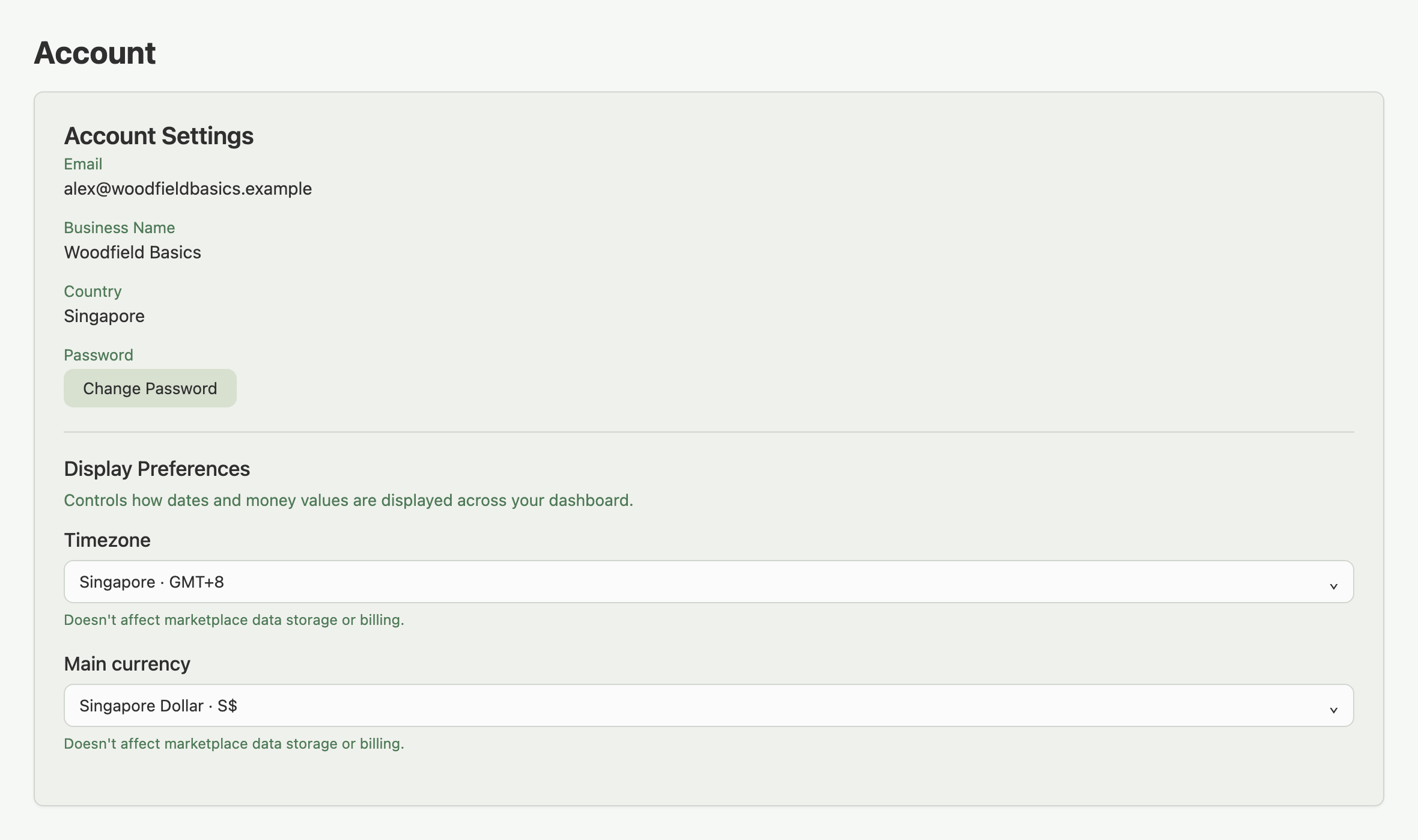
Change your timezone and main currency under Account (open your profile menu at the top right and choose Account), in the Display Preferences section below your profile fields. Once set, "today" on your Dashboard matches your business day. Every revenue figure shows in one currency, not a mix of SGD, IDR, and MYR.
Applies to: All plans
Where to find Display Preferences
Open your profile menu at the top right and choose Account. Scroll past your profile fields to the Display Preferences section, which holds two dropdowns: Timezone and Main currency.
Setting your timezone
Click the Timezone dropdown. It opens with a search box and two groups: DEFAULT FOR plus your country code (for example DEFAULT FOR TH) (Indexync's recommendation based on the country on your account) and ALL TIMEZONES (every supported timezone; type to filter by city). Each option shows the city name on its top line, with the technical zone id and GMT offset beneath it, for example Asia/Singapore (GMT+8).
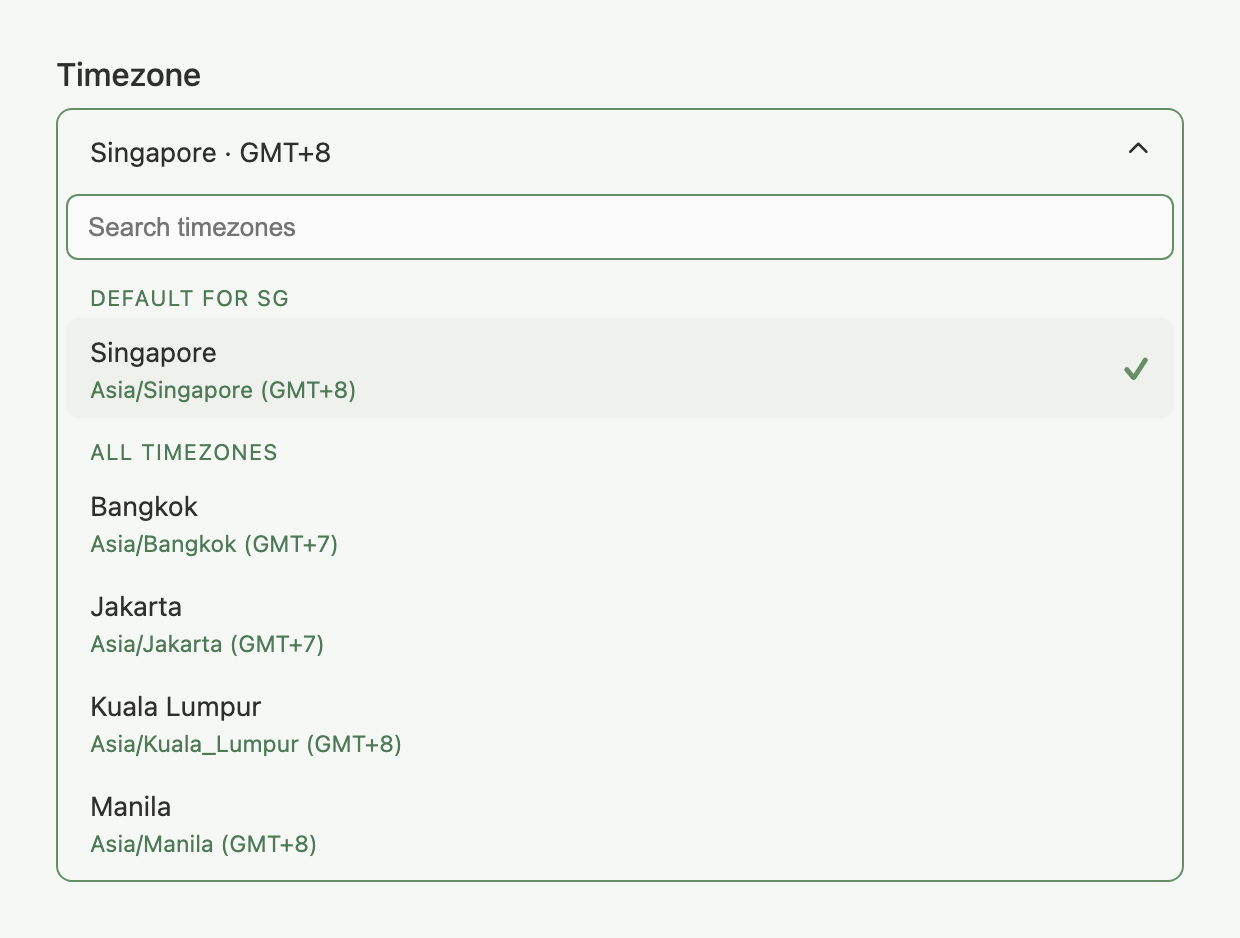
Selecting an option saves it immediately; a brief "✓ Saved" confirmation appears. There's no separate Save button.
Setting your main currency
Click the Main currency dropdown. Same two-group pattern: DEFAULT FOR plus your country code (for example DEFAULT FOR TH) and ALL CURRENCIES. Each option shows the currency name, its ISO code, symbol, and a sample formatted amount, for example SGD · S$ · S$1,234.56, so you can confirm the number format before you pick it.
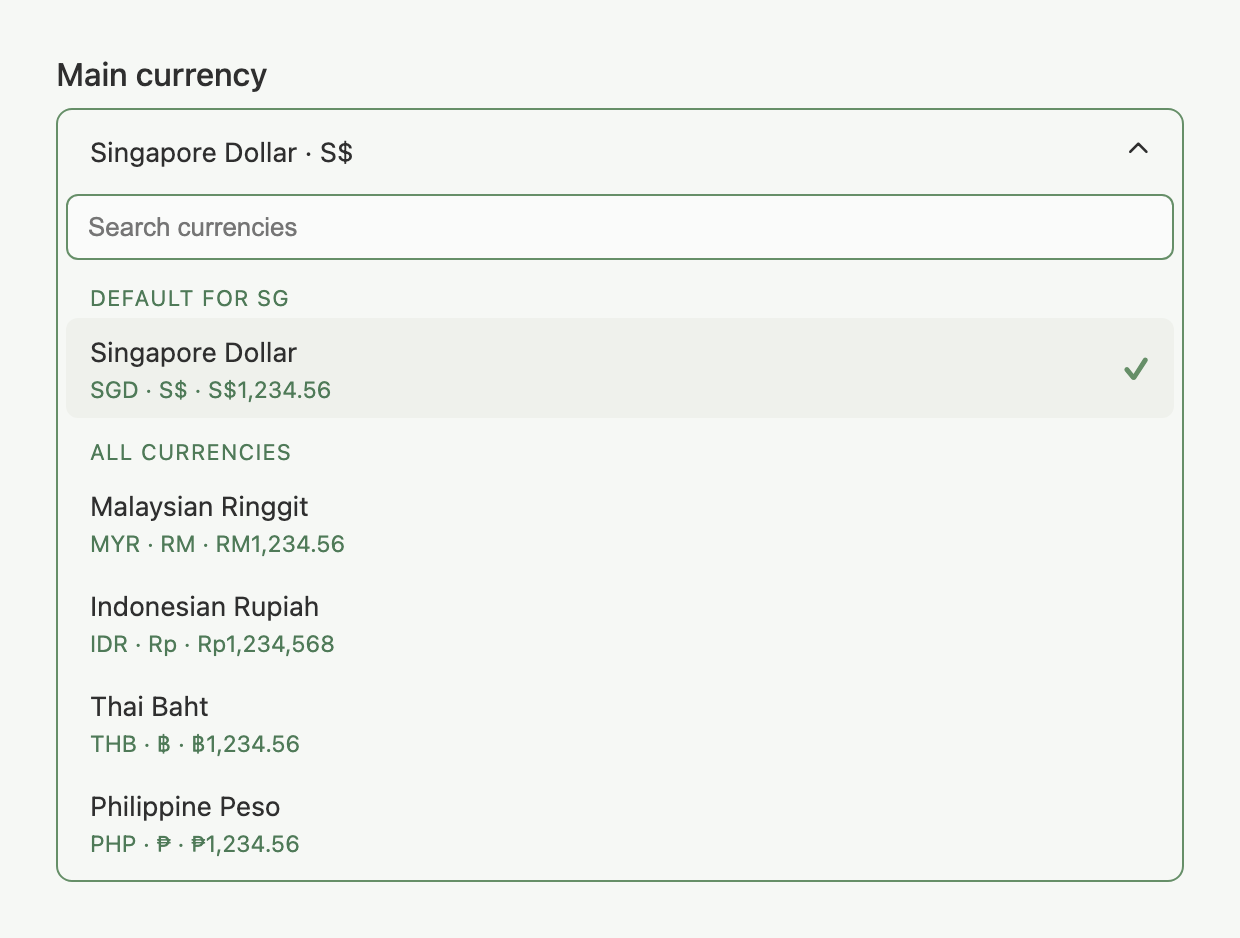
This also saves immediately, with the same "✓ Saved" confirmation.
Example: you're a Singapore-based seller with stores on Shopee Singapore (SGD) and Lazada Indonesia (IDR). You set your main currency to SGD and your timezone to Asia/Singapore. Your dashboard shows today's revenue in SGD, even when an order arrives from Lazada Indonesia priced in IDR. The order detail page still shows the original IDR amount.
Important: orders keep their original transaction currency. An order placed on Lazada Indonesia always shows IDR on its own detail page. Main currency changes how totals are displayed on the Dashboard and in Analytics; it doesn't re-price anything.
What each preference affects
These are display preferences only. Your marketplace data and invoices keep their original currencies and timestamps, and what you were charged does not change.
FAQ
Why did my dashboard numbers change when I switched main currency?
Indexync converts every foreign-currency figure at the current exchange rate for display. Switching currencies re-converts every number on the dashboard, so totals look different even though nothing underlying changed.
Will old order amounts change if I switch main currency?
No. Each order keeps its original transaction amount; an IDR order always shows IDR on its own detail page. Only the aggregate figures on the Dashboard and Analytics use your main currency.
Do I need to click Save after picking a timezone or currency?
No. Both fields save the moment you select an option; you'll see a brief "✓ Saved" confirmation.
Why does my Today's Pulse look different right after I change my timezone?
The "today vs. yesterday" boundary moves with your timezone. Changing timezones shifts what counts as "today," so the comparison can look different immediately after the change and settle by the next day.
Related Articles
Need More Help?
Visit our Feedback page, WhatsApp us, or email hello@indexync.com with your account details and a description of what you are trying to do.