Understanding Your Dashboard
The Dashboard is your daily check-in. It opens with anything that needs attention. Then it shows today's sales against yesterday's. Last, it shows which stores and products drive your revenue. It works once you have one store connected, with nothing to set up.
Applies to: All plans.
Getting started checklist
New accounts see a "Get set up" checklist across the top: sign up, connect a store, import products, connect a 2nd store, and sync a product to 2+ stores. Each step links to where you complete it, and the checklist hides itself once you've finished all five.
Alerts banner: what it covers
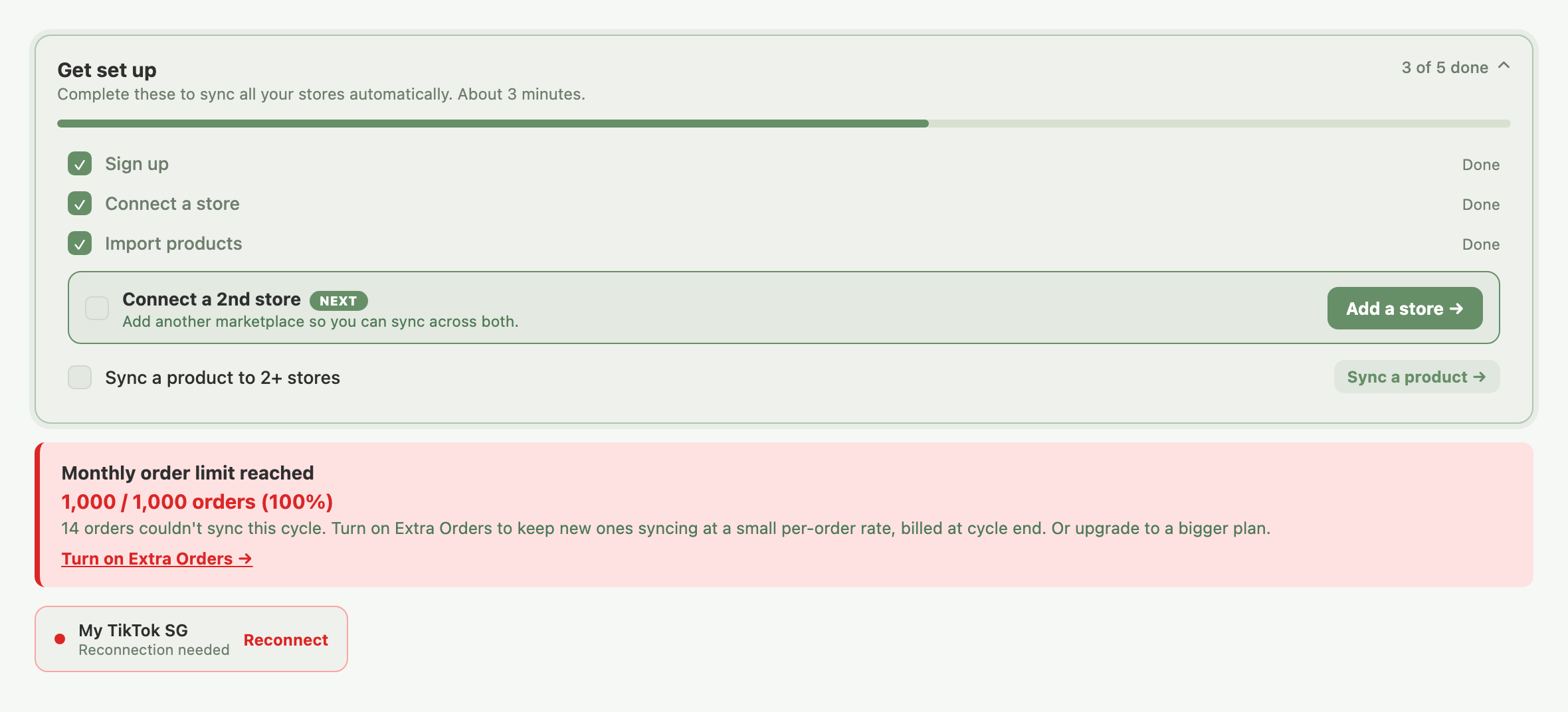
A banner near the top of the page covers problems that need action:
- Plan limits. You're close to or at your plan's SKU or order limit. When orders have actually failed to sync at your monthly limit, the banner adds how many, for example "14 orders couldn't sync this cycle". Upgrading your plan, or turning on Extra Orders where offered, starts them syncing again.
- Paused connection. The marketplace has paused a store's connection.
- Needs a location or warehouse. The alert reads "Shopify needs a location", "TikTok Shop needs a warehouse", "Shopee needs a warehouse" or "Lazada needs a warehouse", followed by the store's name in parentheses. The store has more than one Shopify location or Shopee, Lazada or TikTok Shop warehouse. Stock can't sync until you choose which one Indexync uses. Click Choose location → or Choose warehouse → to open the picker for that store. Team members who can't manage stores see no link and need to ask the workspace owner.
- Needs a re-import. The alert reads "Shopify needs a re-import", "TikTok Shop needs a re-import", "Shopee needs a re-import" or "Lazada needs a re-import", followed by the store's name in parentheses. It appears when you chose a location or warehouse other than the default (Shopify's primary location, or TikTok Shop's default warehouse) after the store's products were imported, so the stock in Indexync didn't come from the one you chose. For Shopee and Lazada, any choice made after products were imported on a store with more than one warehouse shows this alert. Click Re-import → to go to the Import page and reload stock from your choice. See Connecting Your Marketplaces for how the choice works.
The last two stay in the banner because the store is connected fine; it just can't sync stock yet. An expired or expiring connection is not in the banner. It gets its own card, described next.
Store connection health
A store that needs reconnecting gets its own small card, with a Reconnect button, below the alerts banner. A healthy store shows no card. Reconnect takes you to Connections to re-authorize it; see Connecting Your Marketplaces.
Example: your Shopee connection expires and one of your stores gets close to its monthly order limit at the same time. The order-limit warning shows in the alerts banner. The expired Shopee connection shows as a separate card lower on the page with its own Reconnect button.
Action Items: your daily to-do list
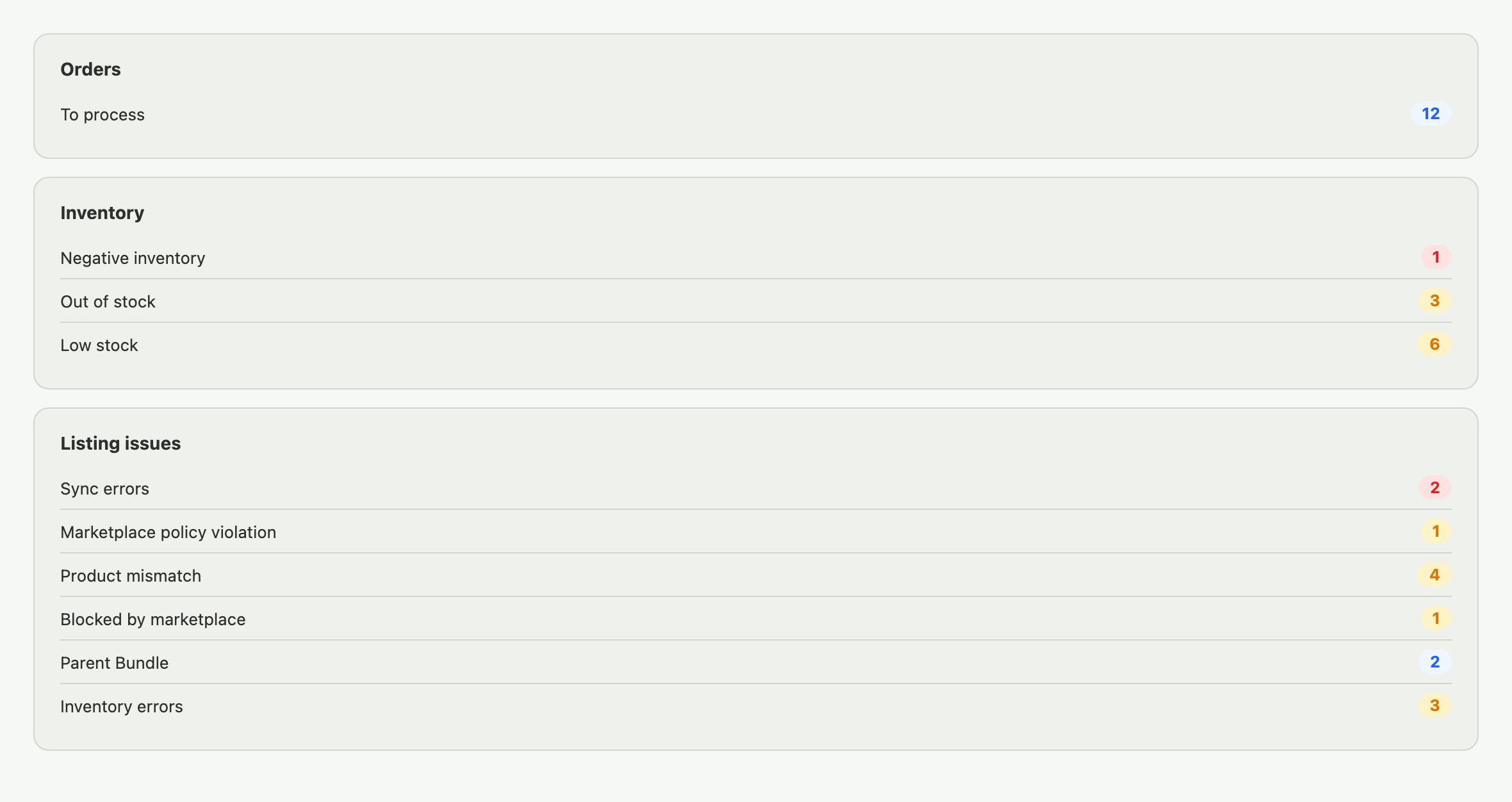
Action Items has three rows, and any row with a count of zero is hidden:
- Orders: how many orders are waiting to be processed.
- Inventory: SKUs with negative stock, out-of-stock SKUs, and low-stock SKUs (based on the per-store threshold you set in Settings → Inventory).
- Listing issues: listings with sync errors, marketplace policy violations, attribute mismatches, marketplace-blocked listings, pending bundle-parent listings, and inventory-update blocks.
Click any count to go straight to that list. The counts are exact totals, not capped approximations.
Example: you open the app and the Orders row shows "To process: 12." The Inventory row shows one SKU has gone negative overnight because a marketplace sale outpaced your stock. The Listing issues row shows 2 sync errors. Click any count to work through it.
Today's Pulse: today's numbers at a glance

Today's Pulse shows four numbers, refreshed as you use the app:
- Sales Today: merchandise sold today, net of discounts and excluding shipping, tax inclusive. It includes orders from stores you have since disconnected, so disconnecting a store doesn't remove today's sales from the total.
- Orders today: total orders received today.
- Units sold: total units sold today.
- Yesterday's payout: what actually landed in your seller wallets across marketplaces, based on each marketplace's own settlement date.
The first three compare against yesterday. The percentage compares today's running total with all of yesterday, not with where yesterday stood at this hour, so it moves closer to yesterday's pace as the day goes on.
Example: Sales Today shows S$1,240 with a green +18%. That +18% compares your running total for today against all of yesterday's sales.
A refresh button next to the heading updates all four on demand. After each use it pauses briefly and shows when it's ready again.
Revenue by Store, Top Products, and Announcements
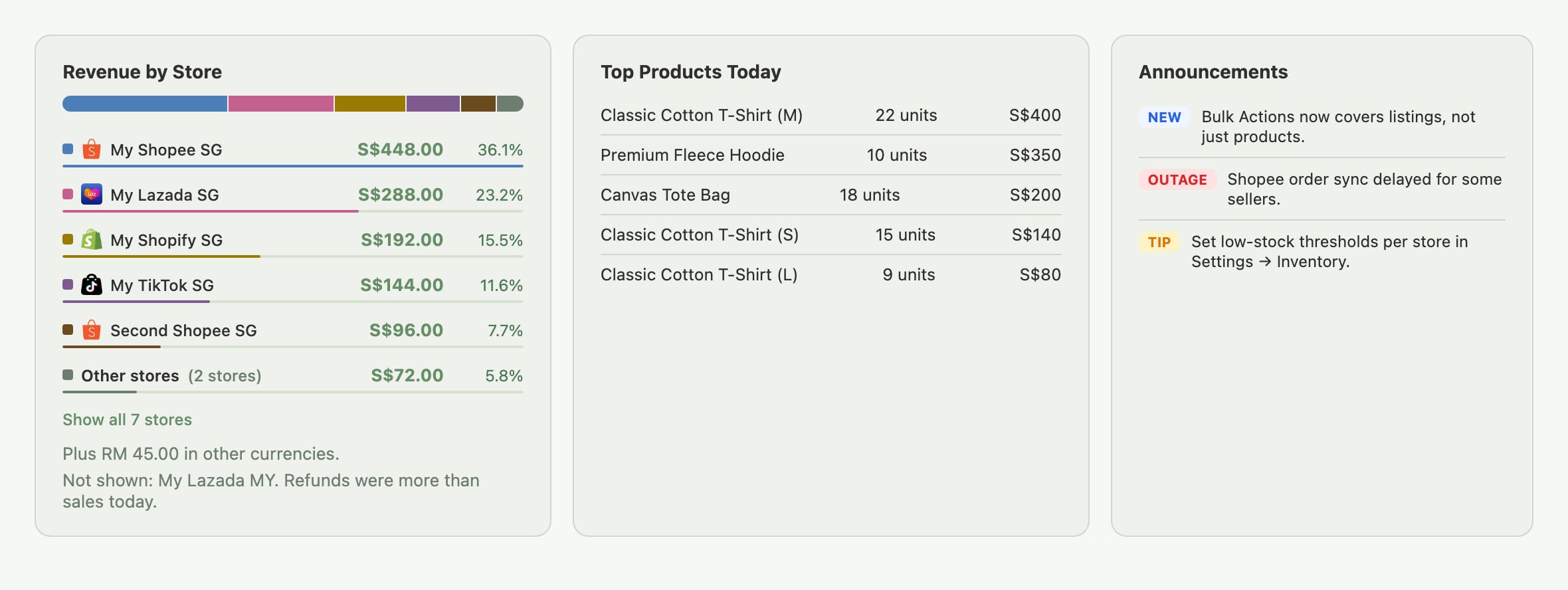
Revenue by Store breaks today's revenue down by store, highest first, so you can see which store is driving today's numbers or has suddenly gone quiet.
- A bar across the top shows each store's share, in each store's own colour.
- With more than six stores, you see the top five, one Other stores row adding up the rest, and Show all.
- Other currencies: sales in a currency Indexync can't convert yet are listed under the list in that currency, and left out of the bar.
- Refunds bigger than sales: a store whose refunds today exceed its sales can't be charted, so a line under the list names it.
Top Products Today lists your top 5 products by units sold today, with revenue alongside each.
Announcements shows your most recent product and operations updates, tagged Outage, New, or Tip. Dismiss one with its × and it won't come back; anything you haven't dismissed stays visible across sessions.
Currency and timezone
The Dashboard shows revenue and payouts in your main currency, and counts "today" and "yesterday" using your timezone. Both come from your account's display preferences; if either looks wrong, update them from Account (open your profile menu at the top right and choose Account). Your timezone matters most early in the morning or late at night, since it decides exactly when "today" resets.
FAQ
Why don't I see a reconnect warning in the alerts banner?
Reconnection issues show on a separate store-health card below the banner, each with its own Reconnect button, not inside the alerts banner itself.
Why do "needs a location", "needs a warehouse" and "needs a re-import" show in the alerts banner instead of the connection card?
Those are about a store that's connected fine but can't sync stock yet, which is a different problem from a broken connection. A broken connection needs reconnecting; these need a location or warehouse chosen, or a re-import, so they stay in the alerts banner with the other action-needed items. The same choice also opens as a window that can't be closed on most pages of the app. For Shopify the choice is a store location, while for TikTok Shop, Shopee and Lazada it is a warehouse.
What does "vs yesterday" actually compare?
Your running total for today against yesterday's complete total for the same metric, not against where yesterday stood at the current hour.
Why did an Action Items row disappear?
A row is hidden entirely once its count reaches zero. It reappears automatically once there's something in it again.
What does the parked-orders line in the plan-limit alert mean?
It tells you how many orders have actually failed to sync because you're at your monthly order limit. Upgrading your plan, or turning on Extra Orders where available, starts them syncing again.
Why do my dashboard numbers look different from a marketplace's own seller center?
Indexync's figures use a consistent basis across every marketplace (net of discounts, shipping excluded from Sales Today), which can differ from how an individual marketplace's own dashboard totals things.
Related Articles
- Welcome to Indexync
- Connecting Your Marketplaces
- Importing Products from Marketplaces
- Managing Your Account
- What Happens to Orders Over Your Plan's Monthly Limit?
Need More Help?
Visit our Feedback page, WhatsApp us, or email hello@indexync.com with your account details and any questions about your dashboard.