Connecting Your Marketplaces
To connect a marketplace, go to Connections in the left sidebar. Click Connect Shopee Store (or the equivalent for Lazada, TikTok Shop, or Shopify) if it's your first store there, or Add Store on that marketplace's group if you already have one connected. Each one takes you to that marketplace's own sign-in page to authorize Indexync. Once you're back, that store's orders, listings, and stock join every other connected store in one dashboard.
Applies to: All plans, with a store-count limit per plan.
How Many Stores You Can Connect
Each plan sets how many stores you can connect.
Before you start: you'll need an active seller account on the marketplace and permission to authorize third-party apps on it.
Where to connect a store

Connections has its own page now, reachable from the sidebar. Stores are grouped by marketplace: Lazada, Shopee, TikTok Shop, and Shopify. A marketplace with at least one connected store shows an Add Store button, with one row underneath for every store you've already connected there. A marketplace you haven't connected yet shows its own Connect Store button instead, with no rows underneath.
Each connected store's row shows:
- The store's name, with a pencil icon beside it to rename it.
- Its region and marketplace ID underneath, such as its Lazada Seller ID.
The Add Store button carries a + icon when you can connect another store, or a lock icon with an explanation when your plan's store limit is reached. A locked button only blocks a new connection; it never blocks reconnecting a store you already have.
Clicking Add Store, or a marketplace's own Connect Store button for your first store there, takes you straight to that marketplace's own authorization page, no Indexync screen in between (Shopify is the one exception, covered below):
- Click Add Store on the marketplace's group, or its Connect Store button if this is your first store there.
- You land on that marketplace's own sign-in and authorization page.
- Sign in and approve access.
- You're returned to Connections, where a banner confirms the connection.
Example: you already have one Shopee store connected. You click Add Store on the Shopee group again to connect a second shop. Both stores now show as their own rows under the same Shopee group, each with its own name, region, and Shopee Shop ID.
The Warehouse Line on Each Store
Under the region and marketplace ID, stores that use a warehouse or location show one more line. Once chosen it reads Warehouse: followed by the warehouse's name (Location: followed by the location's name for Shopify). While Indexync is still asking you to choose, it shows a warning icon, Warehouse: and a Choose warehouse button (Choose location for Shopify) that opens the same window as the Dashboard alert. A team member without the Manage store connections permission sees To be added by workspace owner in place of the button. A Shopee store with a single warehouse shows no line.
Connecting Lazada
Click Connect Lazada Store (or Add Store on the Lazada group, if you already have a Lazada store connected). You're taken to Lazada's own pages to approve access; Lazada's first-time flow has more steps than the other marketplaces, so here's the whole journey. (Lazada may vary these screens; the sequence below is the common path.)
- Authorize Indexync in Lazada Service Marketplace. On the Indexync service page, the price shows $0.00. Select the For Authorization service version and the Half a year period, then click Authorized use.

- Confirm the order. Check that Actual payment shows $0.00, tick the terms, and click Confirm. Authorization is free; the "order" is just Lazada's way of recording it.

- Complete the software authorization. After "Successfully Ordered!", click Authorized use of services.

- Find Indexync under All Services and click Use service.

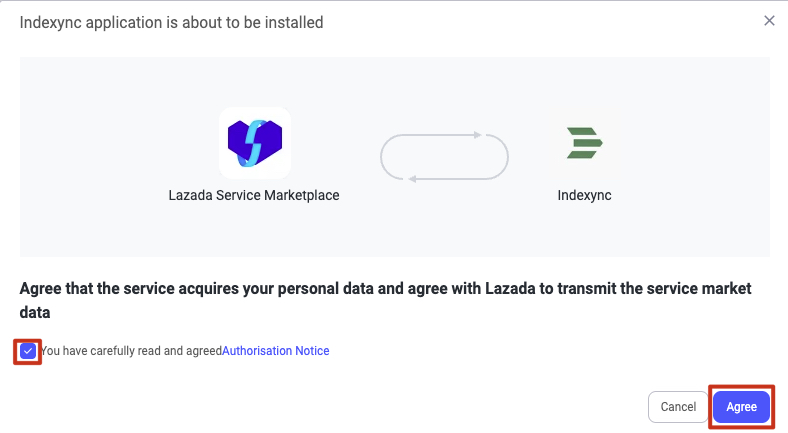
- Agree to install. A window confirms Indexync is about to be installed; tick the Authorisation Notice box and click Agree.
- Sign in and authorize. Lazada shows the permissions Indexync needs. Pick your Site (country) and sign in with your seller account; if you're already logged in, Lazada offers to authorize immediately with Authorize.


When you're done, you're returned to Connections and the store shows up as a new row under the Lazada group.
If your Lazada store has more than one warehouse, a Choose a Lazada Warehouse window then asks which one Indexync should use for stock. A store with one warehouse skips it, and Indexync uses that warehouse. Pick a warehouse and click Save Warehouse. If Lazada marks one of your warehouses as your default address, it's listed first with a Default badge. The badge is only a suggestion: Indexync never picks it for you. The window can't be closed, so you choose before you carry on.
Connecting Shopee
Click Connect Shopee Store (or Add Store on the Shopee group, if you already have a Shopee store connected). You're taken to Shopee's sign-in page. If your Shopee account owns more than one shop, you'll pick which one to connect; a single-shop account skips that step. You're then returned to Connections.
If your Shopee shop has more than one pickup warehouse, a Choose a Shopee Warehouse window asks which one Indexync should use for stock and new listings. A shop with one warehouse skips it, and Indexync uses that warehouse. Pick a warehouse and click Save Warehouse. Shopee has no default warehouse, so nothing is marked Default and you always choose yourself. The window can't be closed, so you choose before you carry on.
Connecting TikTok Shop
Click Connect Tiktok Shop (or Add Store on the TikTok Shop group, if you already have a TikTok Shop store connected). You're taken to TikTok's sign-in page to authorize access. If your TikTok Shop has more than one sales warehouse, a Choose a TikTok Shop Warehouse window asks which one Indexync should use for stock and new listings. A shop with one sales warehouse skips it, and Indexync uses that warehouse.
Pick a warehouse from the list and click Save Warehouse. The default warehouse is listed first, with a Default badge. The window has no Cancel or close button, so you choose before you carry on. It appears whichever way you connect TikTok Shop.

Connecting Shopify
Shopify is the one marketplace with an Indexync screen before the redirect. Click Connect Shopify Store (or Add Store on the Shopify group, if you already have a Shopify store connected), and a window opens asking for your Shopify store URL (your store's handle or full .myshopify.com address both work). Confirming takes you to Shopify's own authorization page; approving there returns you to Connections.
Reconnecting an existing Shopify store opens that same window with your store's address already filled in, so continuing takes one click. Connecting for the first time still asks you to type it in.

If your Shopify store has more than one location, a Choose a Shopify Location window asks which one Indexync should use for stock. A store with one location skips it. Pick a location and click Save Location. Your store's primary location is listed first, with a Primary badge. The window stays open until you pick: there's no Cancel, no close button, and no way to skip it.

Why Indexync asks you to choose a location or warehouse
Shopify tracks stock separately for each location, and TikTok Shop, Shopee and Lazada do the same for each warehouse. Without a choice, Indexync doesn't know which one to read stock from or write stock updates to. Stock syncs only to the one you chose.
Until a store has a choice:
- Stock can't sync to that store.
- Indexync won't import that store's products.
- For TikTok Shop, Shopee and Lazada, creating or editing a listing for that store is refused. The listing editor says the store has no warehouse chosen.
Once you've saved, you can't change the warehouse yourself. The Choose warehouse button on a store's row only appears while Indexync is asking for a choice, so pick the one you actually fulfil from. This applies to every marketplace that asks you to choose. If you picked the wrong one, contact us using the links at the bottom of this article.
Example: you sell on TikTok Shop with two sales warehouses, one in Singapore and one in Johor. You choose the Singapore warehouse, because that's where you pack orders. Indexync then reads and writes TikTok stock for Singapore only.
What if I leave without choosing?
Indexync asks again. A Finish connecting your Shopify store, Finish connecting your TikTok Shop store, Finish connecting your Shopee store or Finish connecting your Lazada store window opens on every page of the app except Connections and the connect screens, and it can't be closed. You can't use the rest of the app until you choose.
Team members who can't manage stores don't see the window. They see a notice that the store needs a warehouse (a location, for Shopify) and to ask the workspace owner to choose one.
The Dashboard also shows an alert, "Shopify needs a location", "TikTok Shop needs a warehouse", "Shopee needs a warehouse" or "Lazada needs a warehouse", with the store's name in parentheses, for example the Lazada alert followed by your Lazada store's name. Its Choose location → or Choose warehouse → link opens the picker for that store. See Understanding Your Dashboard.
If the list can't load, the window shows an error with Try again and Go to Connections.
Once you choose, Indexync keeps using that location or warehouse. It does not re-check a store's warehouses on a schedule, so adding another warehouse to a store later changes nothing. If you need a different one, use the support links at the bottom of this article.
What happens to stock I already imported?
Indexync reads stock only from the location or warehouse you chose, never a total across all of them. What happens next depends on whether products were already imported:
- Nothing was imported yet: nothing more to do.
- Products were imported, and you chose the default (Shopify's primary location, or TikTok Shop's default warehouse), or the store has only one option (a Shopee or Lazada store with one warehouse is chosen automatically): Indexync sends your stock to the marketplace again, so any listings that were waiting start syncing. If some items can't go out at once, the save message says how many are queued and that the rest sync on their next stock change.
- Products were imported, and you chose a different location or warehouse: the stock in Indexync didn't come from the one you picked, so stock on the marketplace may be wrong until you re-import. The save message says so, and the Dashboard shows a "needs a re-import" alert, for example the Lazada alert followed by your Lazada store's name, with a Re-import → link to the Import page. Re-importing loads the stock from the one you chose.
Shopee has no default warehouse, and Lazada's Default badge is only a suggestion. So on a Shopee or Lazada store with more than one warehouse, choosing a warehouse after products were imported asks you to re-import.
Example: you imported your Shopify products, then chose your second location instead of the primary one. Indexync asks you to re-import the store. After the re-import, your Indexync stock matches the second location.
Renaming a store
Click the pencil icon beside a store's name, type the new name, and save. A store you've never renamed has nothing to reset to; once you've renamed it, an option appears to switch back to the marketplace's own name for that store.
Example: your Lazada store connected using its marketplace shop name, "wf-basics-official." You click the pencil beside it and rename it to "Woodfield Basics - Lazada" so it's easier to tell apart from your Shopify store in every list that shows store names.
What happens after you connect

Right after you connect, a green banner appears on the Connections page. It confirms the marketplace is connected and that products are importing in the background. It also carries a Check the Import page link.
This starts automatically; you don't have to trigger it. Your products aren't in your Indexync catalog yet at this point: the background fetch is still running, and the Import page is where you review and approve what it found before it becomes part of your catalog. See Importing Products from Marketplaces for that review step.
Example: you connect your Lazada store. The banner says the fetch is running in the background. Your Lazada catalog isn't in Indexync yet; you'll see it on the Import page once the fetch finishes, ready for you to review.
Reading a store's connection status

Each connected store's row shows one of four statuses:
- Connected: syncing normally.
- Expiring soon: your authorization will run out soon. Syncing still works and there's nothing to do yet, but plan to reconnect before it lapses.
- Authorization expired: your authorization has already run out, and syncing has stopped.
- Reconnection Required: Indexync lost access before any expiry date was reached, for example because access was revoked on the marketplace's side. Syncing has stopped.
A row showing Authorization Expired or Reconnection Required also shows a Reconnect button. Clicking it re-authorizes the store the same way it connected the first time. On Shopify, the connect window opens with your store's address already filled in, so continuing takes one click. Reconnecting never counts as an extra store against your plan's limit.
Shopify's own sign-in renews itself, so a Shopify store rarely reaches Authorization Expired or Reconnection Required. It only happens if Shopify itself refuses Indexync access, for example if the app was removed or access was revoked on Shopify's side.
Example: your Shopee authorization is about to expire. Its row switches to "Expiring soon." Reconnecting on that same row re-authorizes it on Shopee's own page; nothing about your store's data or history changes.
If you're already at your plan's store limit, connecting a new store is blocked before you're sent to the marketplace, with a message that you've reached your plan's store limit. Reconnecting an existing store is never blocked this way.
Disconnecting a store

Each connected store row has a Disconnect button. Disconnecting asks you to type the store's name to confirm, and it lists exactly what you're giving up:
- Future orders from this store will stop syncing to Indexync for processing.
- Existing orders and inventory will stop syncing.
- Listings on this store cannot be synced until you reconnect.
While it's processing, the row shows "Disconnecting" with a spinner.
Example: you disconnect a Lazada store you no longer sell through. Its orders and inventory stop syncing immediately, and its Indexync listings can't be updated again until you reconnect. Your Shopee and TikTok stores are unaffected.
Troubleshooting
A marketplace store won't connect. Confirm you're signing in with an account that has admin or owner permissions on that marketplace, since a limited staff account often can't approve third-party access. If the marketplace itself shows an error during sign-in, that error is coming from the marketplace, not Indexync.
The store is already connected to another Indexync account. Each marketplace store can only be linked to one Indexync account at a time. If that's a mistake, disconnect it from the other account first, or contact support if you no longer have access to that account.
The Add Store or Connect Store button is locked. You're at your plan's store-count limit. Disconnect a store you no longer use, or upgrade your plan, then try again.
A row still shows "Reconnection Required" after I reconnected. Use the reconnect action on that same row again; the status updates once the new authorization completes and the page refreshes.
FAQ
Do I need to connect all four marketplaces?
No. Connect only the marketplaces you actually sell on. You can add more later from the same Connections page at any time.
Why can't I close the location or warehouse window?
The window stays open until you choose, because the store needs that choice to work. If you can't choose, for example because the list won't load, use Go to Connections in the window to reconnect or disconnect the store.
Why does my store say "Reconnection Required"?
Indexync lost access to that store before any authorization deadline was reached, usually because access was revoked or changed on the marketplace's side. Use the Reconnect button on that row to re-authorize it; your existing data and history aren't affected.
What happens to my orders and listings if I disconnect a store?
Its orders and inventory stop syncing right away, and its Indexync listings can't be updated until you reconnect it. Other connected stores keep working normally.
Can I connect two stores on the same marketplace, for example two Shopee shops?
Yes, as long as you're within your plan's total store limit. Click Add Store on that marketplace's group again; each store shows as its own row once connected.
Related Articles
- Creating Your Account
- Importing Products from Marketplaces
- Understanding Your Dashboard
- Managing Your Account
Need More Help?
Visit our Feedback page, WhatsApp us, or email hello@indexync.com if a marketplace connection isn't working the way this article describes.