Manage Your Indexync Account Settings
Settings in the sidebar covers Orders, Inventory, and Notifications. Workspace owners also get a Team tab there. Your profile lives on its own Account page. Your plan and payment details live on their own Billing page. Open either one from your profile menu at the top of the screen, or from the sidebar menu on your phone. Connections has its own sidebar page too.
Applies to: All plans.
Before you start
You'll need to be signed in. What you see depends on whether you're the workspace owner or a member; that's covered below.
Where to find your account settings


What each destination covers, and where to read more:
- Settings → Orders. Import past orders or export them to a spreadsheet. See Importing Order History and Exporting Orders to CSV.
- Settings → Inventory. Low-stock thresholds for each connected store. See Auto-Sync Your Stock and Get Low-Stock Alerts.
- Settings → Notifications. Choose which emails Indexync sends you. Covered in full below.
- Settings → Team (owner only). Invite and manage your team. See Inviting and Managing Team Members.
- Account page. Your profile, password, and Display Preferences. Covered in full below.
- Billing page. Your plan, payment method, and usage against your plan's limits. See How to Upgrade Your Plan and How to Downgrade Your Plan.
- Connections page. Connect, reconnect, or disconnect your marketplace stores. See Connecting Your Marketplaces.
An old bookmark to one of the former Settings tabs for Connections, Account, or Billing takes you straight to the new page.
Example: you had a bookmark to Settings with the Billing tab open from before the update. Opening it today takes you straight to the new standalone Billing page instead, with everything that was on the old tab still there.
If you're a workspace member, you won't see the Team tab in Settings. Billing may still show in your profile menu, but opening it sends you back to Settings instead, since billing is owner-only; on your phone, the Billing row doesn't appear at all. Inviting or managing other team members is covered in Inviting and Managing Team Members.
Example: you invite a teammate to help process orders. They sign in and see Settings with only Notifications and their own Account tab; there's no Team tab anywhere, and clicking Billing in their profile menu sends them back to Settings instead, since only the owner manages billing and team members.
Your Account page
Open the Account page from your profile menu (or the sidebar on your phone); what you see depends on your role.
If you're the owner, your Account page shows four fields:
- Email, Business Name, and Country are shown here but aren't editable in the app. To change any of them, contact support.
- Password shows a Change Password button instead of a field. Clicking it signs you out and takes you to the password reset flow; you'll log back in with your new password.
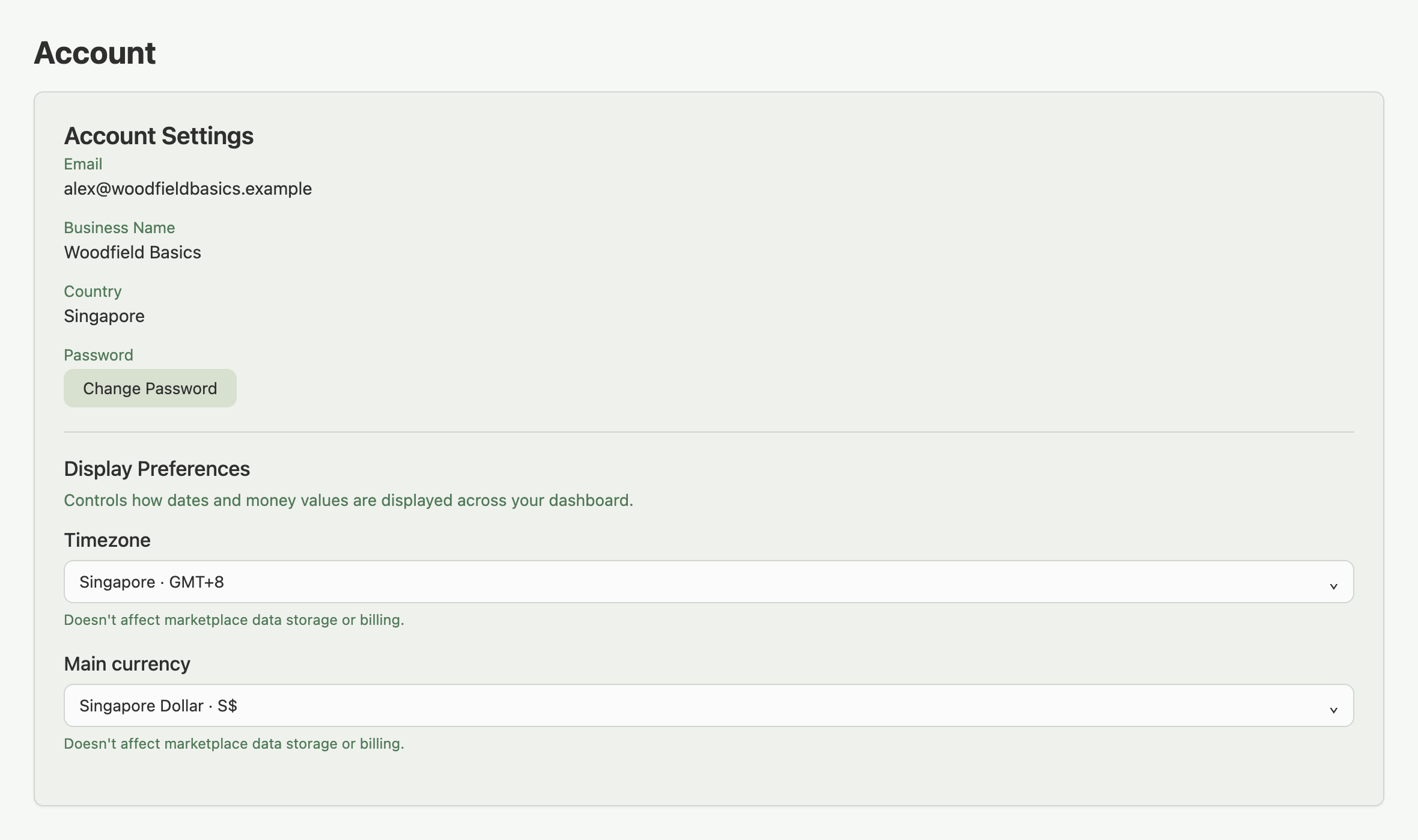
Example: you signed up as "Alex Tan Pte Ltd" but your business has since renamed to "Woodfield Basics." You can't edit Business Name yourself here; email hello@indexync.com and support updates it for you.
Your timezone and main currency live in the Display Preferences section below Password. See Setting Your Display Preferences for how those two fields work.
If you're a member, your Account page is simpler:
- Email is read-only.
- First name and Last name are editable, with a Save name button.
- Password shows the same Change Password button as the owner's page.
There's no Business Name, Country, or Display Preferences section; those are owner-only.
Notifications: choosing which emails you get
Click the Notifications tab in Settings to control what Indexync emails you. Four independent toggles:
- New Orders. An email each time a new order arrives from any connected channel. Off by default; only worth turning on for low-volume stores.
- Out of Stock Alerts. Notifies you when a product's stock reaches zero, so you can restock or pause listings before you miss orders. On by default.
- Negative Stock Alerts. Notifies you immediately when stock goes below zero, usually caused by overselling across channels. On by default.
- Action Items Digest. A summary of everything needing your attention: low-stock products, SKU and order limit usage, unprocessed orders, and any connections that need reconnecting. On by default.

Turning on Action Items Digest reveals two more choices:
- Frequency. Daily or weekly. The dropdown itself tells you exactly when each option sends.
- Digest Thresholds. Two numbers you can adjust: warn me when I reach a set percentage of my SKU limit (85% by default, adjustable between 50% and 99%), and warn me at a set percentage of my monthly order limit (90% by default, same 50-99% range).
If your plan doesn't include order and stock alerts, the tab shows a notice that these emails won't send yet, but your toggle choices are saved and take effect the moment you upgrade.
Example: you're on the Free plan and turn on Out of Stock Alerts. Indexync saves your choice, but the email won't actually send until you upgrade to a plan that includes alerts. The notice at the top of the tab tells you this before you turn anything on.
If you step away: the idle-timeout warning
If you leave Indexync open without doing anything for a while, a "Session Timeout Warning" window appears with a live countdown and a Stay Logged In button.

Example: you leave Indexync open on a shared warehouse computer and step away. The countdown appears; if nobody clicks Stay Logged In before it reaches zero, Indexync signs out automatically, so anyone who walks up after you can't see your connected stores.
Troubleshooting
I can't find where Connections, Account, or Billing went. Connections is now its own sidebar page; Account and Billing open from your profile menu (or the sidebar on your phone).
I can't find a way to edit my business name or country. There isn't one. Email, Business Name, and Country are read-only on the Account page; contact hello@indexync.com to change them.
I turned on a Notifications toggle but I'm not getting emails. Check the notice at the top of the Notifications tab: if your plan doesn't include order and stock alerts, your choice is saved but nothing sends until you upgrade.
I got signed out unexpectedly. You were likely idle long enough to trigger the timeout, and nobody clicked Stay Logged In before it counted down. Just log back in; nothing else was affected.
FAQ
Where did the Connections, Account, and Billing tabs in Settings go?
They're their own pages now. Connections is in the sidebar. Account and Billing open from your profile menu at the top of the screen, or from the sidebar menu on your phone. Old bookmarks to those tabs redirect automatically.
Can I change my email address in Indexync?
Not directly in the app. Email is read-only on the Account page. Contact hello@indexync.com to have it changed.
Why can't I edit my business name or country?
Those fields are display-only on the current Account page. If either needs to change, email hello@indexync.com with the update.
What happens if I don't respond to the Session Timeout Warning?
You're signed out automatically once the countdown reaches zero. Nothing else changes: log back in and pick up where you left off.
Why don't I see a Billing page or a Team tab?
Only the workspace owner manages billing and team members. If you're a workspace member, you won't see the Team tab in Settings, and on your phone the Billing row doesn't show in the sidebar. On desktop you may still see Billing in your profile menu, but opening it sends you back to your own Settings default instead of the Billing page.
Related Articles
- Welcome to Indexync
- Connecting Your Marketplaces
- Setting Your Display Preferences
- How to Upgrade Your Plan
- Inviting and Managing Team Members
Need More Help?
Visit our Feedback page, WhatsApp us, or email hello@indexync.com with your account details and a description of what you are trying to do.