Invite and Manage Team Members
Indexync lets a workspace owner bring staff onto the account without sharing their own login or exposing sensitive details. You send the invite by email, and it works only for that address and that role. The invited person sets up their own login, then sees only what their role allows. You can change their role, pause their access, or remove them at any time.
Applies to: Owner accounts on a paid plan with member seats. See Seat Limits by Plan for how many seats your plan includes.
Before You Start
- Only the workspace owner can invite people. The Team tab does not appear for team members at all. They see only their own Notifications and Account settings; see Manage Your Indexync Account Settings.
- You need a free seat. If you are at your plan's seat limit, the invite screen shows an upgrade prompt instead of the invite form. See Seat Limits by Plan.
- You need a role to assign. Roles decide what a team member can see and do. Set these up first in Roles and Permissions if you have not already.
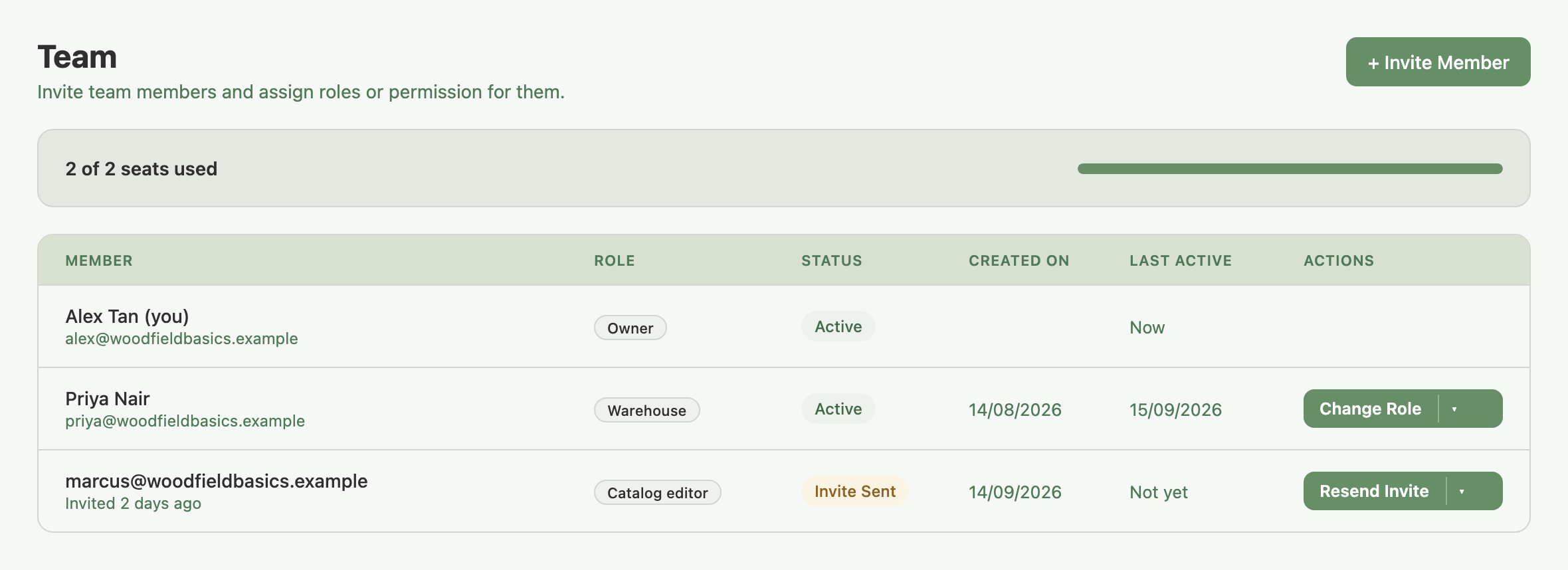
How to Invite a Team Member
- Click Settings in the sidebar, then the Team tab.
- Click + Invite Member.
- Enter their Email and pick a Role from the dropdown.
- Click Send Invite.
You will see a confirmation, "Invite sent." A new row appears in the members table with an "Invite Sent" status.
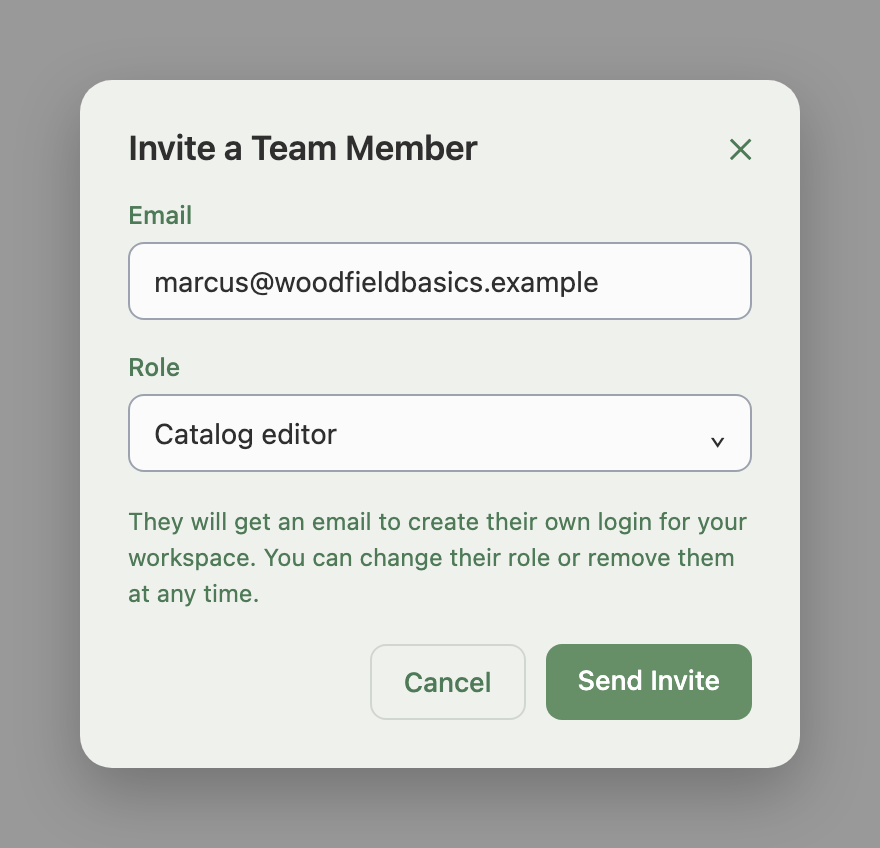
If the send button will not go through:
- A valid email address is required. Check the address is typed correctly.
- Pick a role. You must choose one before sending.
- This email already has an Indexync account. That person has a login elsewhere; they cannot be invited again with the same address.
- This email has already been invited. Someone already sent this address an invite that has not been cancelled. Resend it instead, or cancel it first to change the role.
Example: a seller on the Pro plan invites their warehouse packer with a role limited to orders and stock. The packer accepts the invite, sets a password, and from then on sees only the Orders and Inventory sections.
What the Invited Person Sees
They get an email titled "You have been invited to create an account on Indexync," naming their role and how long the link stays valid. The link opens a page headed "You are invited to join a workspace on Indexync," showing that role and the invited email.
To finish, they fill in:
- First name
- Last name
- Choose a password
This creates their own login, separate from yours, with no view of your billing or payment details.
Opening too many invite links quickly from the same connection triggers: "Too many attempts from this connection. Wait a while, then open the invite link again." A short wait clears it.
Managing Your Team
The members table lists everyone you have invited, with a status for each:
- Active: has a login and can sign in.
- Invite Sent (or Expired, once the link runs out): has not accepted yet.
- No Seat: lost their seat because your plan no longer has enough for everyone; see Seat Limits by Plan.
- Inactive: deactivated by you.
What you can do from each row depends on their status:
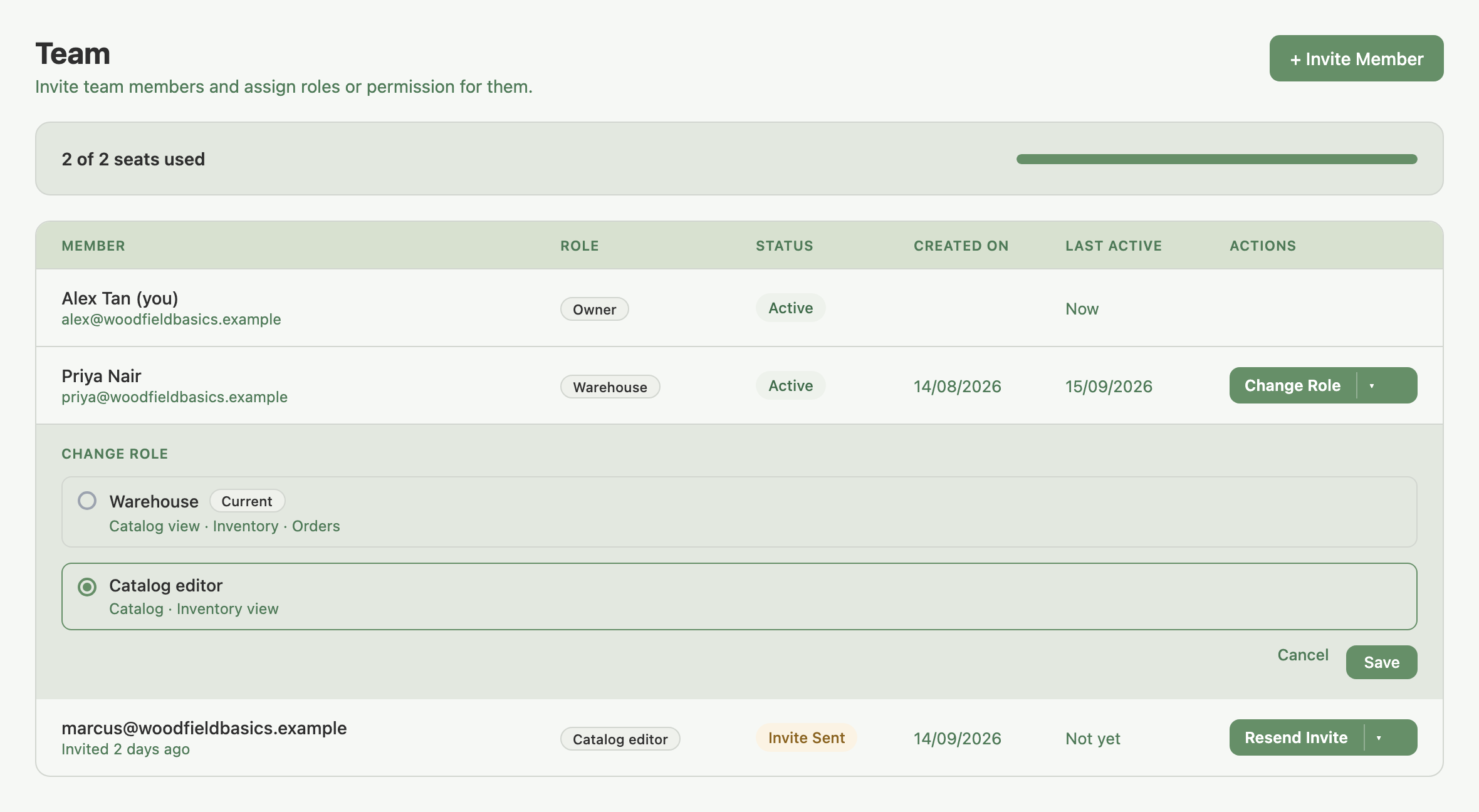
- Active member: Change Role, or Deactivate.
- Invite Sent: Resend Invite, Change Role, or Cancel Invite.
- No Seat: Reactivate (returns them to their previous role) or Change Role.
- Inactive: Reactivate only.
To change someone's role: click Change Role on their row, pick a different role in the panel, then save.
To deactivate someone: click Deactivate, then confirm. They lose access immediately; you can reactivate them later if a seat is free.
To cancel a pending invite: click Cancel Invite on an Invite Sent row, then confirm. The link stops working and the seat frees up right away, so you can invite the same person again later.
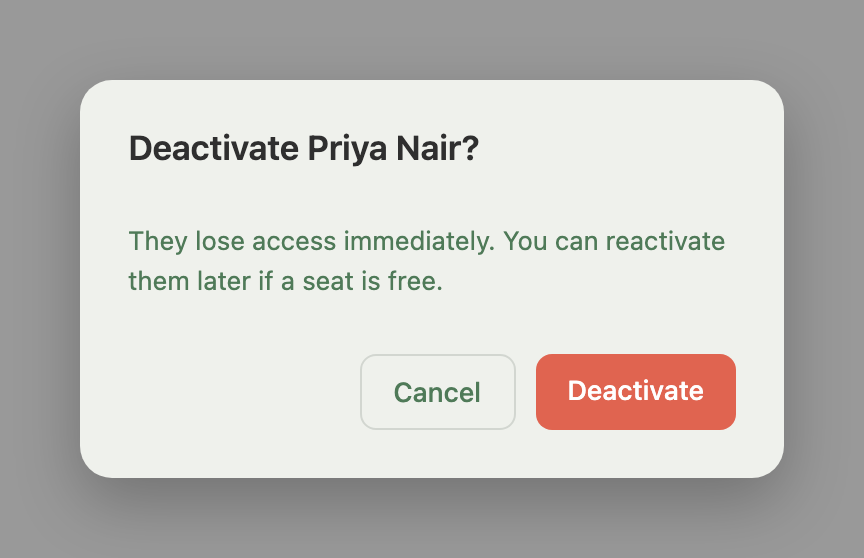
Example: a seasonal packer's contract ends. The owner clicks Deactivate, and the login stops working right away, though their past order history stays intact. When the packer returns and a seat is free, the owner clicks Reactivate instead of sending a new invite.
Tracking Your Team's Actions
Below the members table, Team shows a short activity list: invites sent, roles changed, people deactivated or reactivated. Actions a team member takes elsewhere, like processing an order or adjusting stock, are tied to their own account too, so you can always tell who did what.
Troubleshooting
I cannot find the Team tab. Only the workspace owner sees it. If you are a team member, ask your workspace owner to make the change for you.
The invite screen will not let me send an invite. You are at your plan's seat limit. The screen shows your seat usage and an upgrade option, or you can free a seat by deactivating someone first.
The invited person says the link does not work. The invite may have expired or been cancelled. Resend it from their row in the members table; this issues a fresh link instead of a brand-new invite.
A deactivated person's old orders or stock changes look wrong. They are not. Deactivating someone only blocks their login, not anything they already did.
FAQ
What happens if my invited team member ignores the invite email?
Nothing happens automatically. The invite sits as "Invite Sent" until they accept it or it expires. You can resend it any time from their row.
Can I change someone's role after I've invited them?
Yes. Use Change Role on their row, whether or not they have accepted the invite yet.
What happens to a removed team member's work?
Deactivating someone only removes their access. Their orders, stock changes and other actions stay in your records, still tied to their account.
Why can't I send an invite right now?
You are likely out of free seats on your current plan. The invite screen shows your seat usage and an upgrade option when this happens.
Does the invited person need to already have an Indexync account?
No. The invite email lets them create their own login and password. If that email already has an account, the invite fails instead of creating a duplicate.
Related Articles
Need More Help?
Still stuck? Reach us through the Feedback form, on WhatsApp, or by email at hello@indexync.com.