Auto-Sync Your Stock and Get Low-Stock Alerts
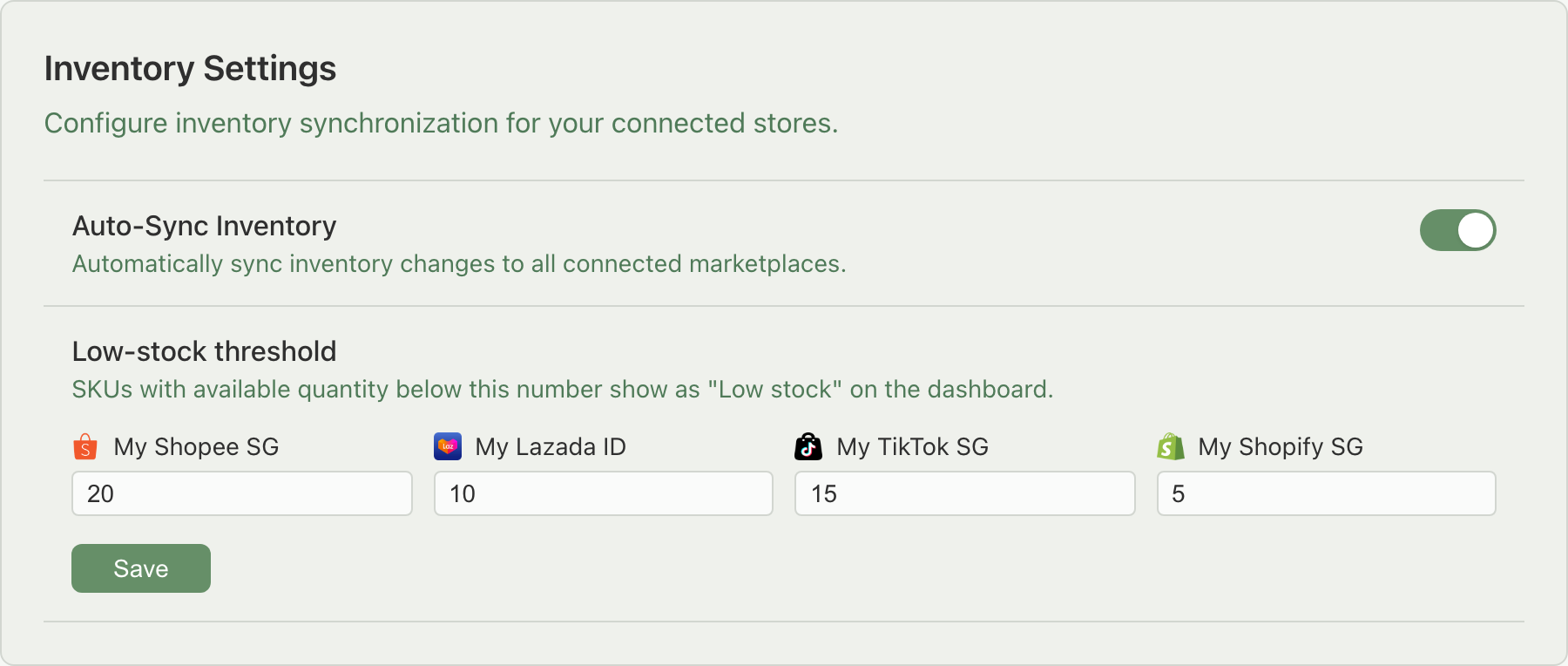
Settings → Inventory has two controls. Auto-Sync keeps your stock correct on every connected marketplace automatically. Low-stock thresholds warn you to restock before you sell out. Once you set a threshold, you'll be notified on your Dashboard and by email when stock runs low.
Applies to: All plans.
Opening Settings → Inventory
Click Settings at the bottom of the sidebar, then click the Inventory tab.
What does Auto-Sync do?
Auto-Sync keeps every marketplace showing the same, correct stock count as Indexync, without you having to push anything out by hand. The Auto-Sync Inventory toggle controls whether stock changes push out to your connected marketplaces.
- ON (default): every stock change, whether it comes from a new order, a manual edit, or an import, pushes out to all your connected marketplaces automatically.
- OFF: your Indexync numbers still update correctly behind the scenes, but nothing pushes out to your marketplaces. Each marketplace keeps showing its last-synced number until you push a fresh one.
Turning Auto-Sync off is risky because Indexync stops syncing your stock to your connected marketplaces, which causes stock mismatches and can lead to overselling. If you turn it off, turn it back on as soon as you can and click Sync to Channels to push your numbers back out.
To push your numbers out again:
- Go to the Inventory page.
- Select the SKUs you want to push (or all of them).
- Click Sync to Channels in the action bar.
Turning Auto-Sync back on does not push anything by itself. It only makes future changes sync automatically again. Anything that changed while it was off stays unsynced until you run Sync to Channels.
Example: you turn Auto-Sync off to review 30 SKUs before a big promotion. While it's off, five of those SKUs also sell on Shopee. Their Indexync numbers drop correctly, but Lazada, TikTok, and Shopify still show the old, higher counts, so a buyer could order more than you actually have. When you're done reviewing, select all 30 SKUs and click Sync to Channels to push the real numbers everywhere at once.
What do low-stock thresholds do?
Low-stock thresholds help you restock before you sell out. You set the stock level at which a SKU counts as running low, and Indexync flags those SKUs for you proactively, so you don't have to check every SKU by hand.
How the number works:
- A SKU counts as Low stock for a store when its available quantity is at or below that store's threshold and still above zero.
- A SKU at exactly zero counts as Out of stock instead.
- Each connected store has its own threshold. The default is 5 units for any store where you haven't set one.
To change a threshold:
- On Settings → Inventory, find the store in the per-store list.
- Enter a whole number of 1 or more.
- Click Save.
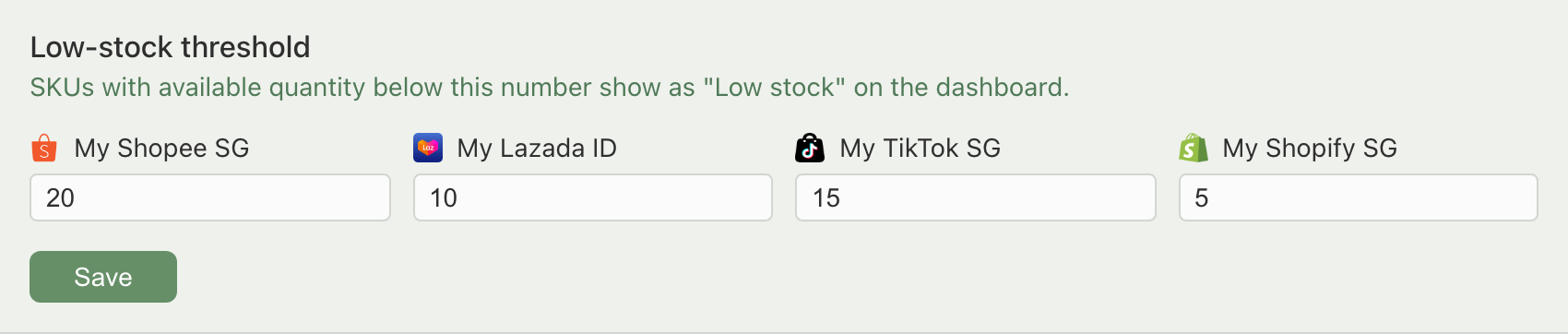
Thresholds are per store, so the same SKU can be low on one channel and healthy on another.
Example: you sell on Shopee SG (high volume) and Shopify (low volume). You set Shopee SG's threshold to 20 and Shopify's to 5. When a SKU drops to 15 units, it counts as Low stock for Shopee SG (15 is at or below 20) but not for Shopify (15 is above 5).
Where low-stock warnings reach you
Once a threshold is set, Indexync surfaces flagged SKUs on its own, in two places:
- Dashboard Action Items: the Low stock row links straight to the affected SKUs. This count uses the strictest (lowest) threshold across your connected stores. To see everything low for one specific store, filter the Inventory page to that store.
- Action Items Digest email: the same low-stock count lands in your inbox, so you hear about SKUs running low without opening the app. Turn it on under Settings → Notifications.
Troubleshooting
My changes aren't reaching my marketplaces
Check whether Auto-Sync Inventory is off. If it is, your Indexync numbers are correct but nothing has pushed out. Turn Auto-Sync back on for future changes, then select the affected SKUs on the Inventory page and click Sync to Channels to push what already changed.
A SKU should be low stock but isn't showing on my Dashboard
The Dashboard's Low stock count uses the lowest threshold across all your stores. If the SKU is only low relative to one store's higher threshold, it won't appear in the Dashboard total. Filter the Inventory page to that specific store to see it.
I can't save a threshold
The Save button rejects blank fields and anything that isn't a whole number of 1 or more. Fix the flagged field(s) and click Save again.
FAQ
What happens if I turn Auto-Sync off?
Your stock numbers inside Indexync keep updating correctly, but they stop pushing out to your connected marketplaces. Each marketplace keeps showing its last-synced number until you turn Auto-Sync back on (for future changes) or click Sync to Channels on the Inventory page (to push what already changed).
Does a cancelled order still update my stock if Auto-Sync is off?
Your Indexync count updates correctly either way. But with Auto-Sync off, that corrected number does not push out to your marketplaces automatically, same as any other change. Select the SKU on the Inventory page and click Sync to Channels to send it out.
How do I get notified when stock runs low?
Low-stock SKUs show up automatically under Action Items on your Dashboard. To also get an email, turn on the Action Items Digest under Settings → Notifications; it includes the same low-stock count.
Do thresholds apply per store or to everything?
Low-stock thresholds are per store, so the same SKU can be low on one marketplace and fine on another. Auto-Sync applies to your whole account, all connected stores at once, not per store.
What happens when I turn Auto-Sync back on?
It only makes new changes sync automatically going forward. Anything that changed while it was off stays unsynced until you select those SKUs on the Inventory page and click Sync to Channels.
Related Articles
- How Inventory Sync Works Across Marketplaces
- See and manage stock for every marketplace in one place
- Update Stock Quantities - individually or in bulk
- Why Doesn't My Stock Match Between Indexync and My Marketplace?
- Dashboard overview
Need More Help?
Visit our Feedback page or contact us at hello@indexync.com.