How Inventory Sync Works Across Marketplaces
When you sell the same products on more than one marketplace, your stock count needs to stay correct everywhere at once. Indexync does this by keeping one stock count per product as the source of truth, and syncing it to every marketplace you connect. When an order comes in on any channel, Indexync lowers that count and pushes the new number to every other connected channel. That way, the same unit can't be sold twice.
Applies to: All plans.
Before you start: you need at least one connected marketplace store (Shopee, Lazada, TikTok Shop, or Shopify). Inventory sync starts working as soon as a store is connected.
What do the inventory statuses mean?
Every unit of stock sits in exactly one status at any point in time. The table below covers all seven.
Two totals are worth knowing:
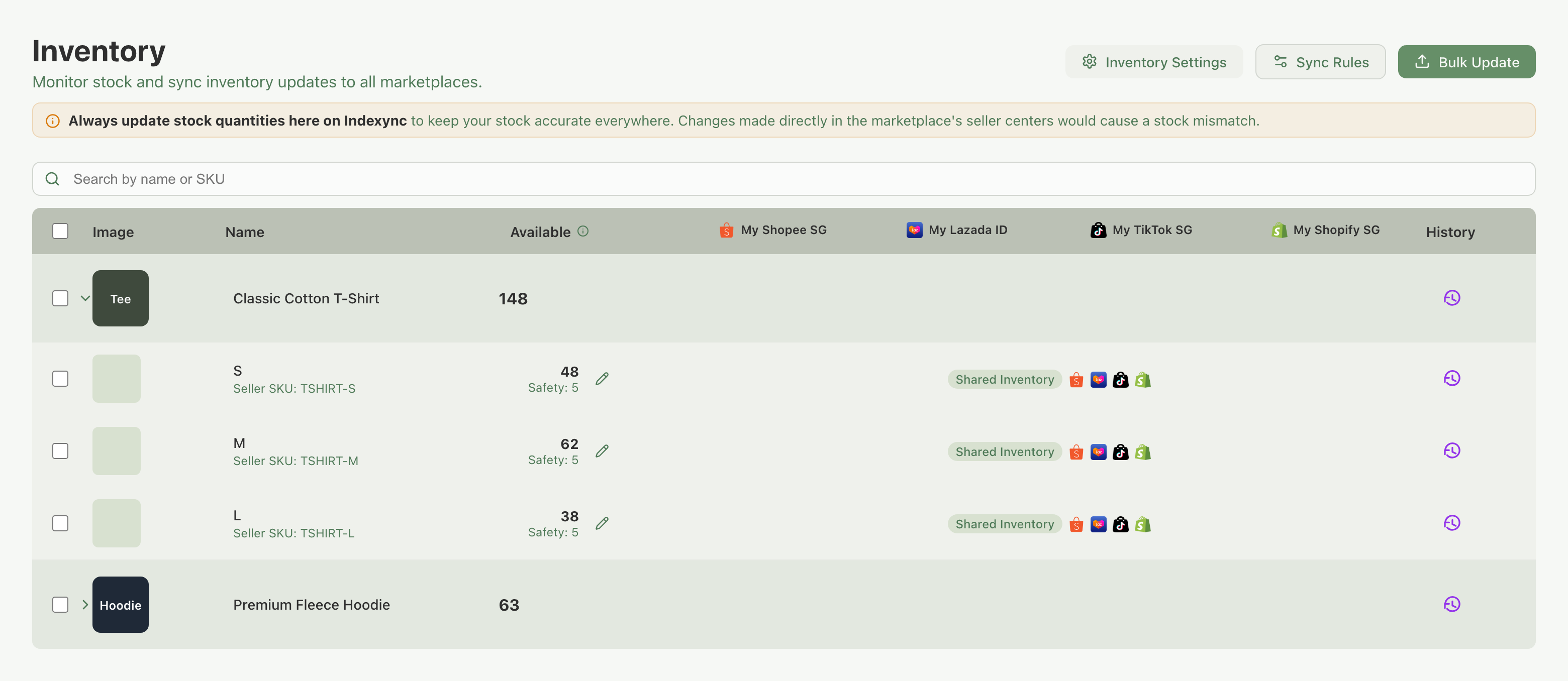
- Total = Available + Safety Stock. This is what the Inventory page shows as Total Stock on Hand, and what you edit in the Stock Allocation window. In the screenshot below, Total 67 = Available 62 + Safety Stock 5.
- Units sitting in Unpaid, To Ship, or Shipped are committed to open orders. They left Available (and Total) when the order came in. They come back only if the order is cancelled (in full, or for part of it) or you restock a return. A refund where the buyer keeps the item moves no stock.
How does an order move stock through statuses?
A typical order travels: Available → Unpaid → To Ship → Shipped → Completed. Pre-paid orders skip Unpaid and start at To Ship.
Cancellations. If an order is cancelled, its units return to Available, whether the cancellation happens before or after the order ships. If only part of an order is cancelled (for example 1 of 3 units), only those units come back, and the rest carry on through the statuses. On TikTok Shop, a refund approved before the courier collects the parcel puts the stock back to Available too.
Returns. When a marketplace approves a return and the goods are on their way back to you, those units move to Return. They move on approval, not when the parcel arrives. A refund where the buyer keeps the item (refund only) moves no stock.
Restocking. Returned items do not go back on sale by themselves, even after the parcel reaches you. You put them back in one of two ways on the Requests page, both of which add the units to Available:
- Press Restock on the resolved return's card. The button names the count, for example Restock 3 Items.
- Tick Add 3 items back into stock (the number is the units on the case) when you issue a refund or reject a return. The button then reads, for example, "Issue Refund and Restock 1".
Until then the units stay in Return. If you reject a return, the units also stay there, and you can restock them later. See What Happens to Your Stock on a Return or Cancellation for the Requests page.
Failed deliveries. On Lazada, a failed delivery whose parcel comes back is booked into Return automatically, and shows in the SKU's history as Failed Delivery Returned. Restock it the same way once the parcel is with you. Other deliveries that fail and cannot be reclaimed land in Failed and stay there.
Example: a buyer on Shopee returns 1 of the 2 mugs on an order. When Shopee approves the return, Return shows 1. Once the mug is back and you are happy to resell it, press Restock 1 Item and Available goes up by 1.
Should every store see the same stock? (Shared vs Allocated mode)
Each SKU runs in one of two modes that determine how Available stock is distributed across your connected stores.
Shared mode (default). Your Available count is a single number visible to every connected marketplace. A sale on Shopee reduces the same shared pool that Lazada, TikTok, and Shopify all read. Use Shared when you want all channels to draw from the same stock without restriction.
Allocated mode. You split your Available across stores. Each store sees only the quantity you allocated to it. A sale on Shopee reduces only Shopee's allocation. Lazada keeps its full allocated portion. Use Allocated when you want to reserve specific stock for specific channels.
Example: you have 100 units of a SKU and sell on Shopee, Lazada, and TikTok. In Shared mode, all three marketplaces see 100. When Shopee sells 5, Lazada and TikTok immediately see 95. In Allocated mode you set Shopee to 50, Lazada to 30, TikTok to 20. When Shopee sells 5, Shopee now shows 45. Lazada and TikTok still show their full 30 and 20.
You switch between modes in the Stock Allocation window for each SKU. The window opens by clicking the edit icon next to any SKU's Available count on the Inventory page.
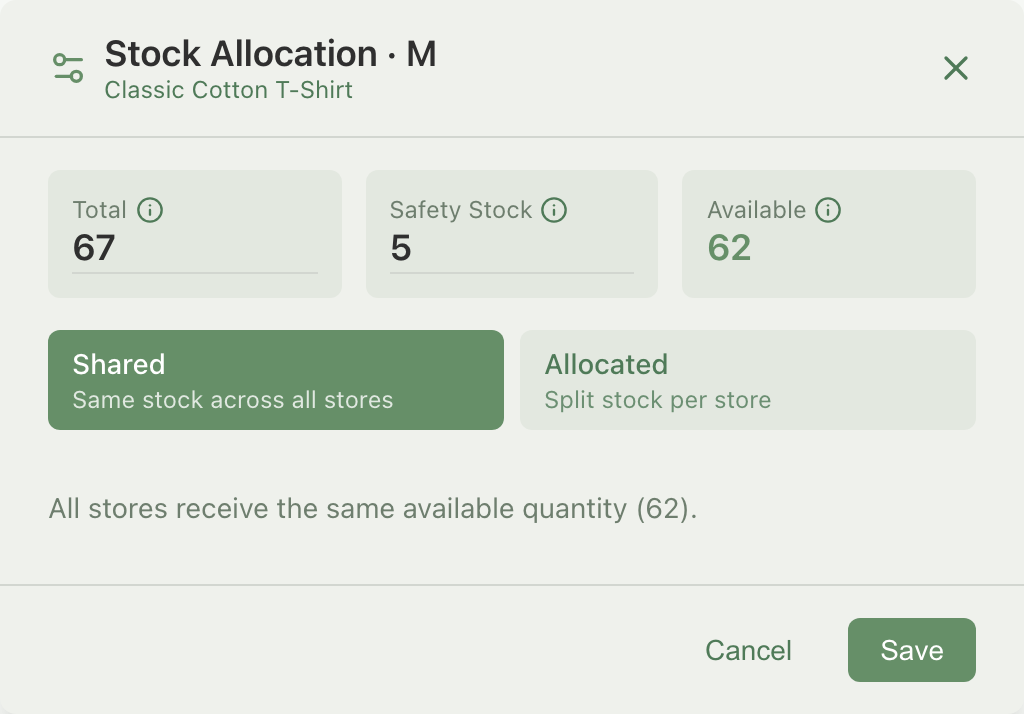
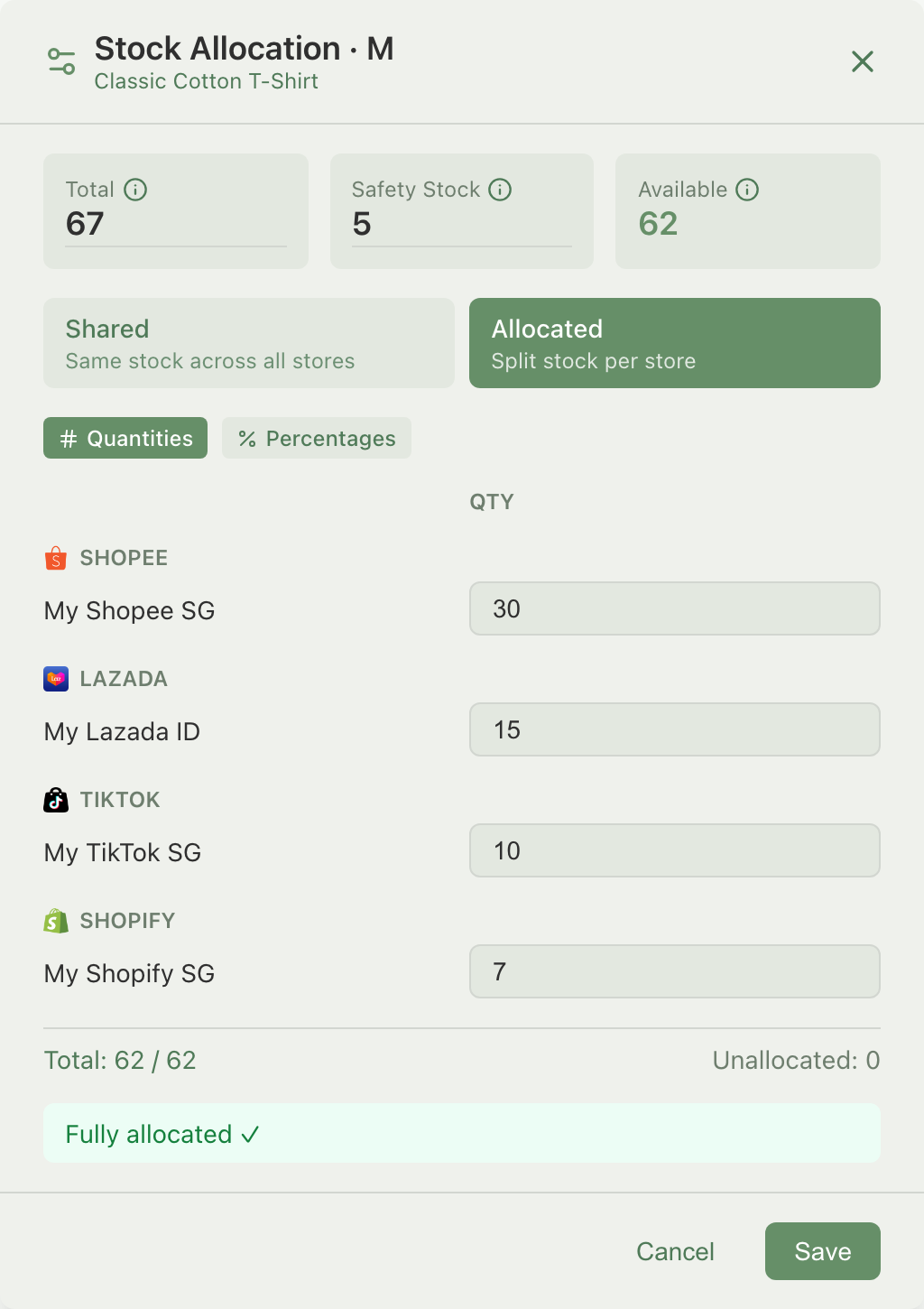
See Update Stock Quantities - individually or in bulk for the full walkthrough of the window.
Can separate products or pack sizes share one stock pool?
Shared and Allocated mode both operate within a single product. Link Stock, a type of sync rule, goes one step further: it lets SKUs in separate products or listings draw from one shared pool. Use it when the same physical stock is sold under more than one SKU. That could be the same item listed twice, or one item sold in several pack sizes or weights.
How a link works:
- One SKU in the group is the base SKU and holds the shared pool. The others are members.
- You edit stock only on the base SKU. Each member's Available follows it automatically.
- A member's number = the shared pool divided by its units per pack, rounded down. At the default of one unit per pack, every linked SKU shows the same number.
- Linked SKUs always run in Shared mode.
Example: you sell a coffee as 25g, 50g, and 100g packs. Make the 25g the base SKU with a pool of 100, set 50g to 2 units per pack and 100g to 4. The three listings show 100, 50, and 25. Sell one 100g and the pool drops by 4, so all three refresh together.
Bundle SKUs are the other kind of sync rule. A bundle is a set (a combo, gift set, or kit):
- Its stock is calculated from the items it is made of, so you never count bundle stock separately.
- A sale of the bundle lowers each component's stock.
- A sale of any component on its own lowers the bundle's number too, because it is recalculated.
Example: a gift set contains one t-shirt and one mug. With 40 shirts and 25 mugs in stock, the gift set shows 25, because that is how many complete sets you can put together.
You create and manage both kinds of rule from the Sync Rules button on the Inventory page. See Sync Rules for the full walkthrough.
How do I keep a buffer so I don't oversell? (Safety Stock)
Safety Stock is a per-SKU buffer subtracted from what gets synced to your marketplaces.
- If a SKU has Total 100 and Safety Stock 10, marketplaces see 90.
- Use it for fast-selling SKUs where several orders can land at nearly the same time. The buffer absorbs those bursts instead of your last unit.
- A buffer of 5 to 10% of your typical daily sales is a reasonable starting point.
- Set it in the Stock Allocation window alongside Total.
What happens to stock when I first import a product?
When you import a product:
- Indexync reads the current stock level from the product's source store. That is the store you import it from. When the same product is matched across several stores, it is the source you pick during import.
- That number becomes your starting Available.
- Your other connected channels are updated to match it.
- Orders placed before the import do not deduct from Available. The marketplace already counted those sales in the stock figure it reported, so deducting them again would double-count.
Example: you import a product from Lazada on April 1 with 30 units in stock. On April 2 you notice an order from March 28 in your Orders list. Available stays at 30, not 29. Lazada already deducted that March 28 order before you imported, so Indexync does not deduct it again.
Why is my stock negative, and how do I fix it?
Available can go negative in a few situations:
- Direct edits on a marketplace higher than Indexync's count. If you increase stock directly on Shopee, Lazada, TikTok, or Shopify without updating Indexync, the marketplace shows more units than Indexync knows about. In this scenario, if more orders come in than the quantity shown in Indexync, stock goes negative. To prevent this, edit stock only on Indexync.
The Dashboard lists negative SKUs under Action Items as a Negative inventory row, which takes you straight to the affected SKUs. To fix a negative SKU, open it on the Inventory page and set a non-negative Total in the Stock Allocation window. See Why Doesn't My Stock Match Between Indexync and My Marketplace?.
Where do I view and edit inventory?
Inventory lives at the Inventory entry in the sidebar. The page lists every SKU with its current Available count and Safety Stock. Click the edit icon next to any SKU to open the Stock Allocation window. There, you can edit Total and Safety Stock, and switch between Shared and Allocated mode.
Settings that apply to all SKUs, such as auto-sync behaviour and low-stock thresholds, live under Settings → Inventory. See Inventory settings for details.
For manual edits to individual SKUs, or to update many SKUs at once, see Update Stock Quantities - individually or in bulk.
FAQ
Does Indexync update my stock on other marketplaces automatically?
Yes. As soon as an order comes in on any connected channel, Indexync lowers your stock count and pushes the new number to every other connected channel. You don't need to refresh or trigger anything manually.
What happens if the same item sells on two marketplaces at almost the same time?
Both orders deduct from the same stock count, so your Available number stays accurate across channels. Safety Stock exists for exactly this situation: it holds back a buffer so a burst of near-simultaneous orders is less likely to sell past zero.
Can I hide some stock from marketplaces?
Yes, with Safety Stock. Set a Safety Stock quantity on a SKU and Indexync subtracts it from the Available figure that marketplaces see, so that portion stays out of view and out of reach of buyers.
Does a cancelled order give me my stock back?
Yes. When an order is cancelled, before or after it ships, its quantity returns to Available and syncs back out to your connected marketplaces. If only some units are cancelled, only those come back.
Does a returned item go back on sale automatically?
No. Approved returns sit in the Return status until you press Restock on the return's card on the Requests page, or tick the restock option when you answer the case.
Can two different listings sell from the same stock?
Yes, using Link Stock. Set one SKU as the base holding a shared pool, and add other SKUs as members that draw from it. See Sync Rules for how to set this up.
Related Articles
- See and manage stock for every marketplace in one place
- Update Stock Quantities - individually or in bulk
- Sync Rules
- Why Doesn't My Stock Match Between Indexync and My Marketplace?
- What Happens to Your Stock on a Return or Cancellation
Need More Help?
Visit our Feedback page or contact us at hello@indexync.com.