Can I Share One Stock Pool Across Pack Sizes or Bundle SKUs?
Yes. Indexync's Sync Rules feature lets several SKUs draw from one shared stock count instead of tracking stock separately. Use Link Stock when the same physical stock is sold under different SKUs, such as different pack sizes or the same item in more than one listing. Use a Bundle SKU when you sell a set built from items you also sell on their own; its stock is calculated automatically from what's left of its components.
Applies to: Pro and Scale.
- Creating and editing sync rules needs Pro or Scale.
- On Free and Lite you can still view, remove, and unlink the rules you already have.
How does linking pack sizes or listings to one stock pool work?
Use Link Stock when the same physical stock is sold under more than one SKU. Two common cases:
- Different pack sizes of the same item. You sell the same coffee as 25g, 50g and 100g bags, all packed from one supply of beans.
- The same item in different listings. A red t-shirt sold inside a multi-colour listing and also as its own single-colour listing: two SKUs, one box of shirts.
You don't need it for one product's own listings across channels. Connected channels already share that product's Available stock automatically; see How inventory sync works across marketplaces for that baseline.
How a link works:
- One base SKU holds the shared pool. One or more member SKUs sell from it.
- Each member has a units per pack ratio: how many of the base's units it packages. The base is always 1.
- A member's Available = pool ÷ its units per pack, rounded down.
- A sale on any linked SKU, on any marketplace, lowers the pool. Every other SKU updates to match.
- Only the base SKU's stock is editable. Members follow the pool.
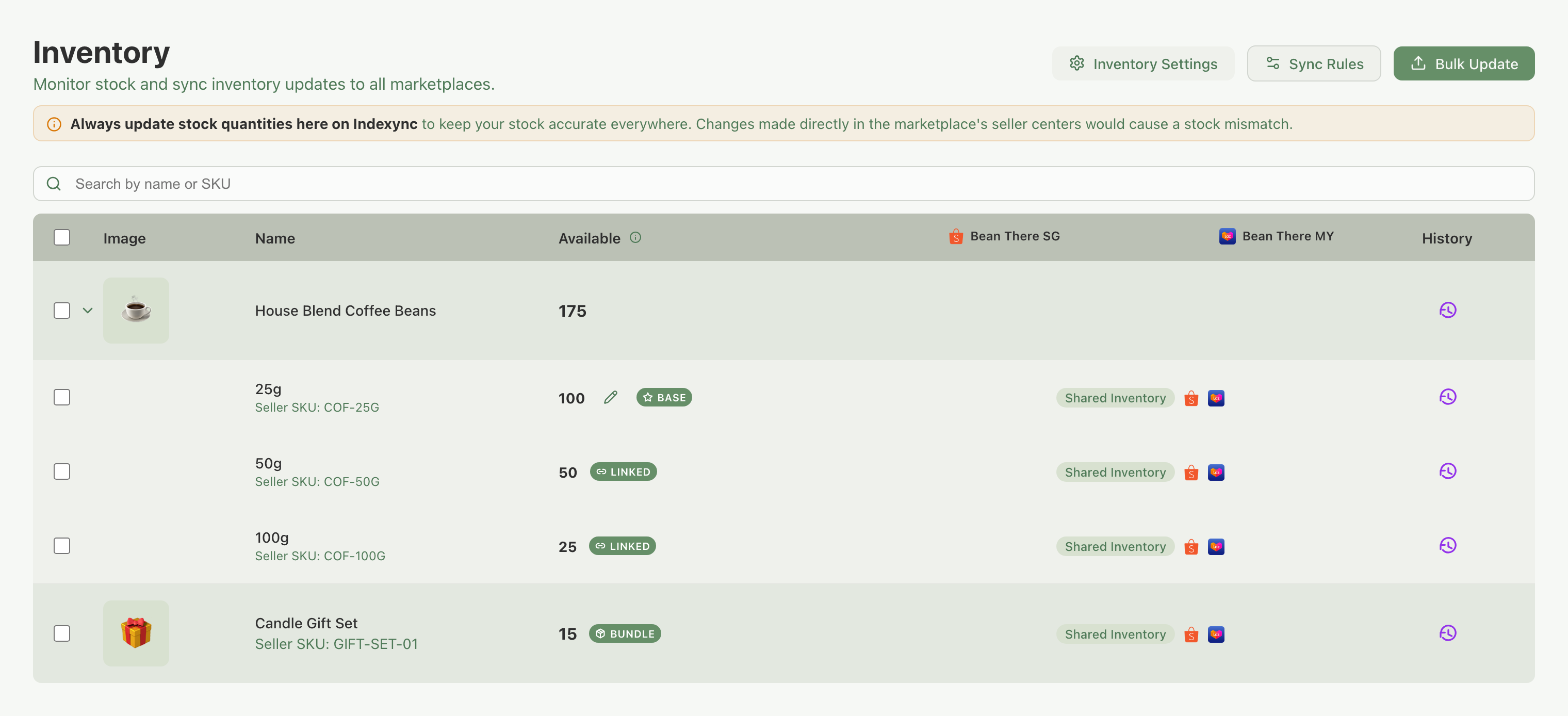
Example: the same coffee packed as 25g, 50g and 100g, with a pool of 100 on the 25g base:
Someone buys one 100g bag: the pool drops by 4 to 96, and the listings refresh to 96, 48 and 24.
Because the shown number rounds down, a small pool can show 0 on a big pack size. A pool of 3 with a 4-units-per-pack member shows 0 on that member until the pool reaches 4.
How do bundle SKUs calculate their stock?
Use a bundle SKU for sets built from items you also sell on their own.
- A bundle rule has one bundle SKU and one or more component SKUs, each with a quantity per set.
- The bundle's Available is calculated from its components: whichever component runs out first sets the limit.
- Selling one set deducts each component's quantity from its own SKU.
- You can't type a number into a bundle SKU's stock. Restock a component instead, and the bundle's Available goes up with it.
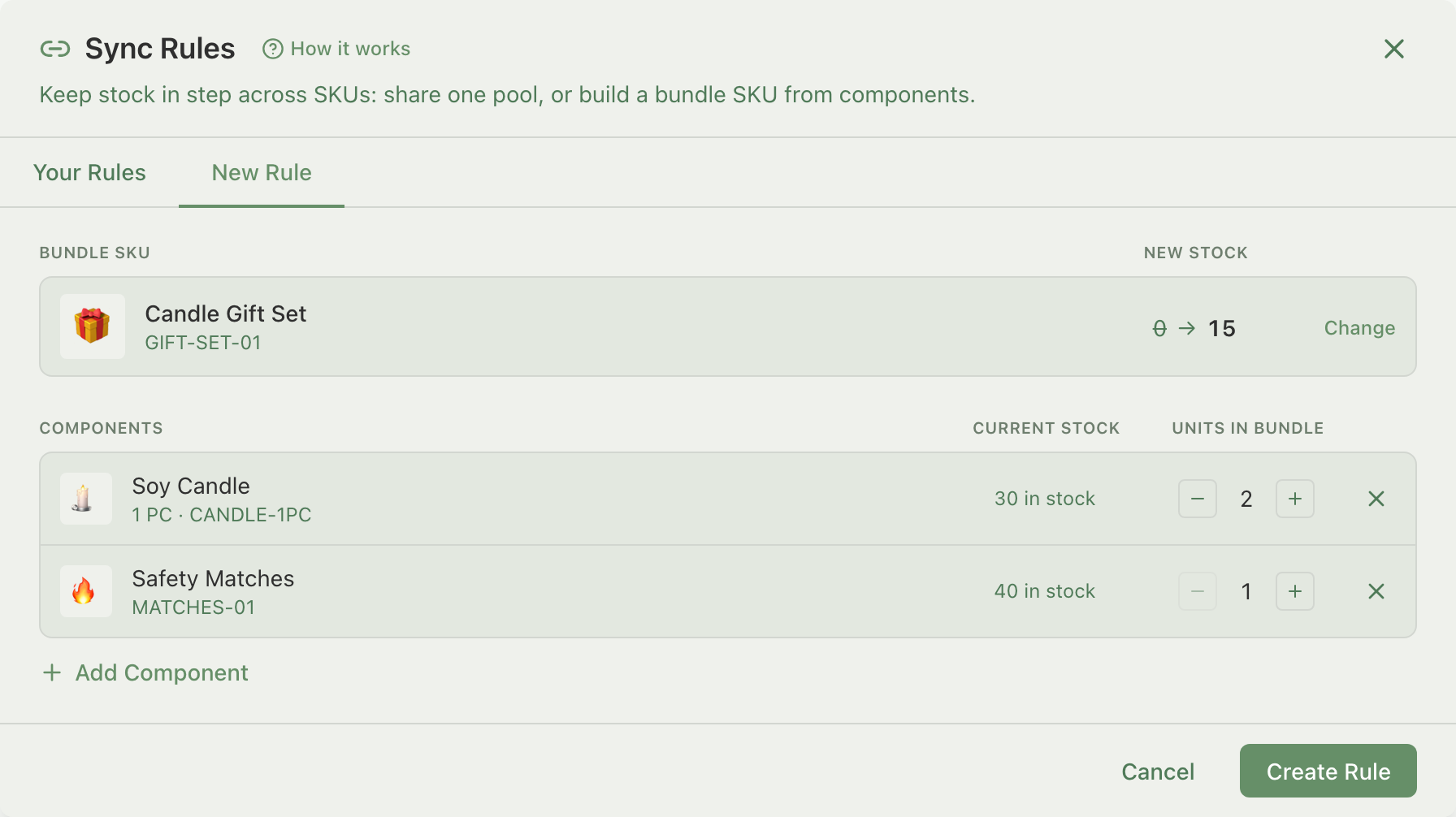
Example: a gift set = 2 candles + 1 box of matches. With 30 candles and 40 boxes in stock, the candles allow 15 sets (30 ÷ 2) and the matches allow 40. The gift set shows 15.
How do I create a sync rule?
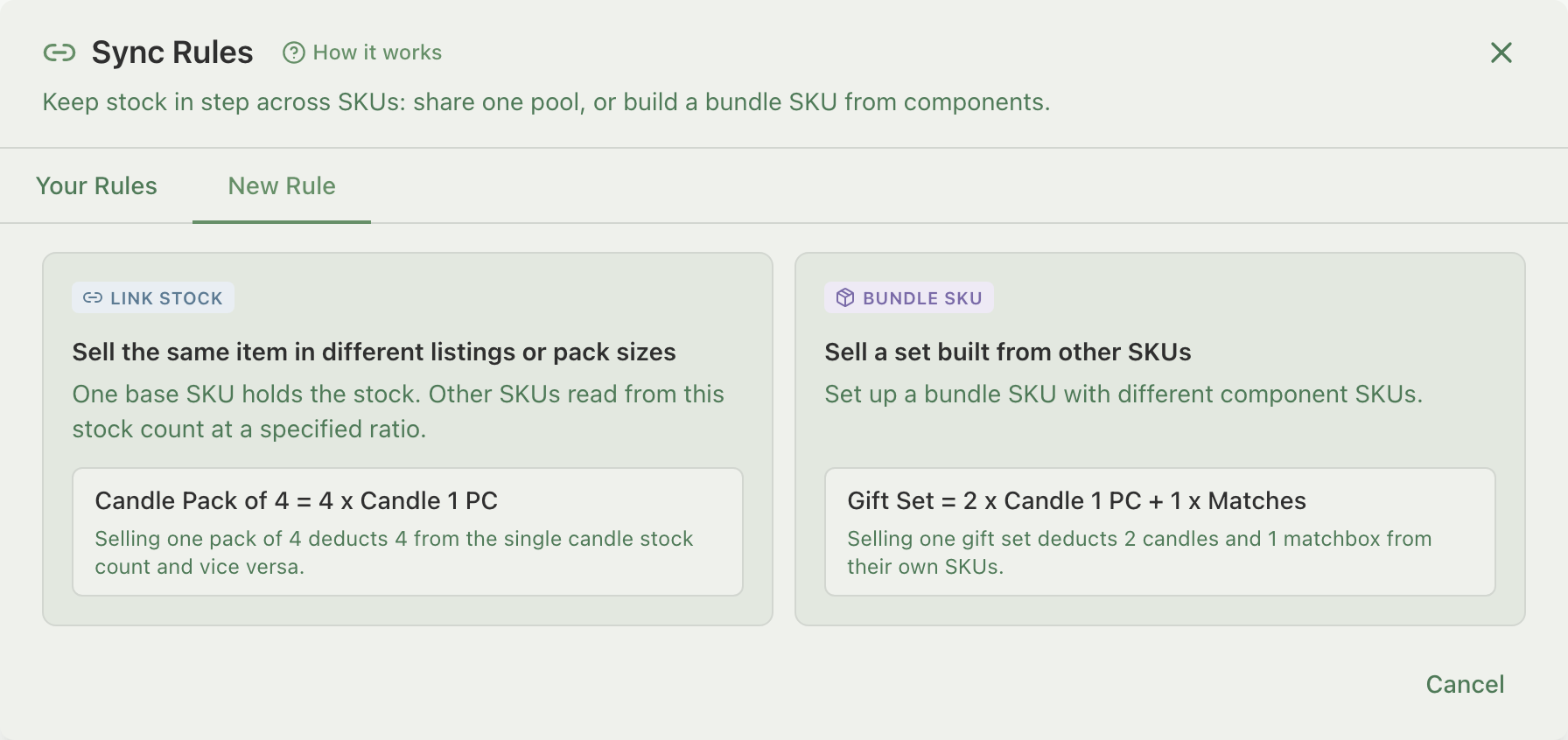
Click Sync Rules in the action bar on the Inventory page. Open the New Rule tab, and pick the rule type:
- Link Stock: the same item in different listings or pack sizes.
- Bundle SKU: different items sold together as one set.
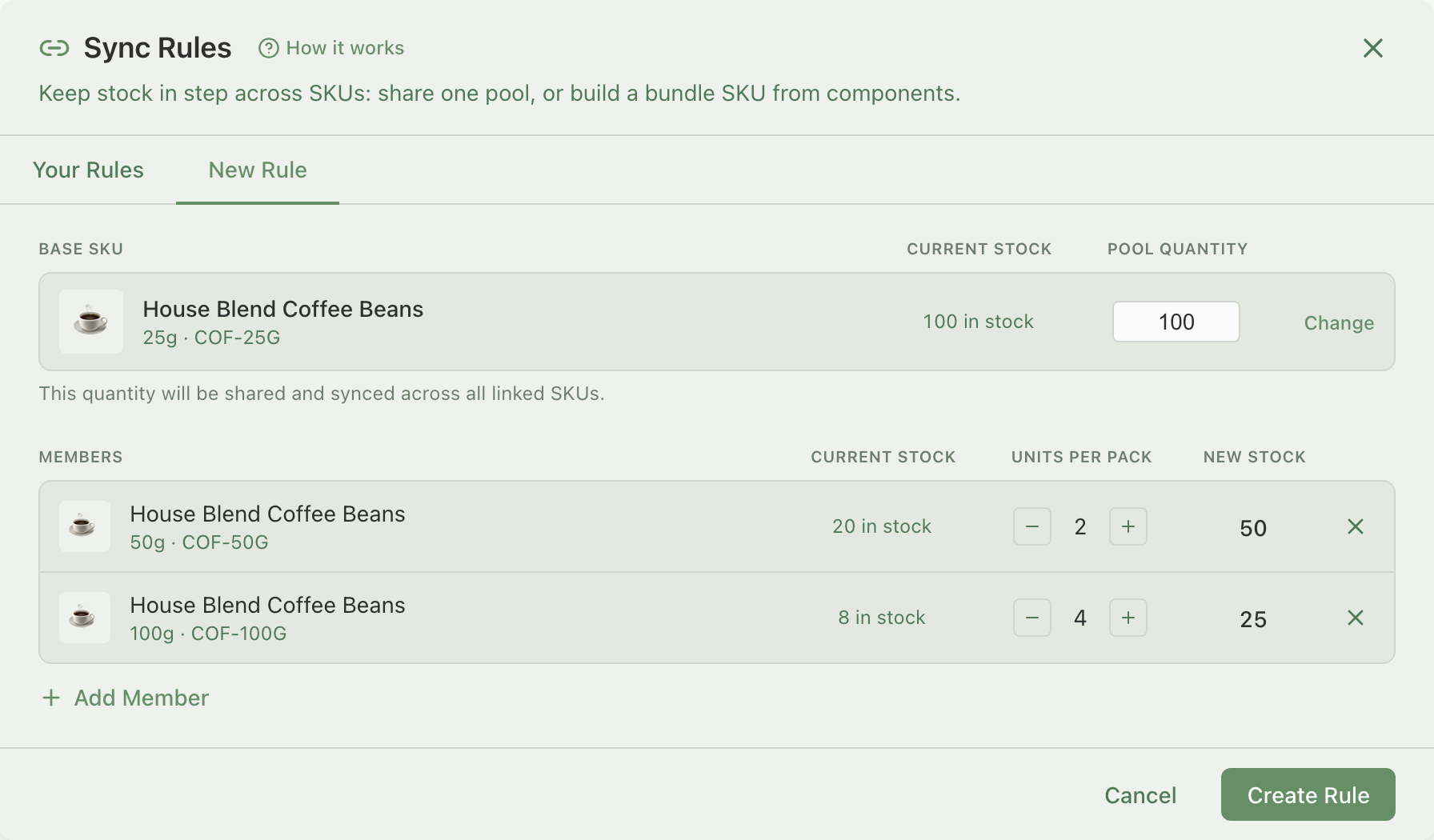
Link Stock rule
- Base SKU: search and select the SKU that will hold the shared pool.
- Pool quantity: the stock to share. Pre-filled with the base SKU's current stock; adjust if needed.
- Members: click Add Member for each SKU that draws from the pool, and set its Units per pack (default 1).
- Click Create Rule.
Bundle SKU rule
- Bundle SKU: search and select the SKU that should get its stock from components.
- Components: click Add Component for each item in the set, and set its Units in bundle.
- Click Create Rule.
Where do I see and manage my rules?
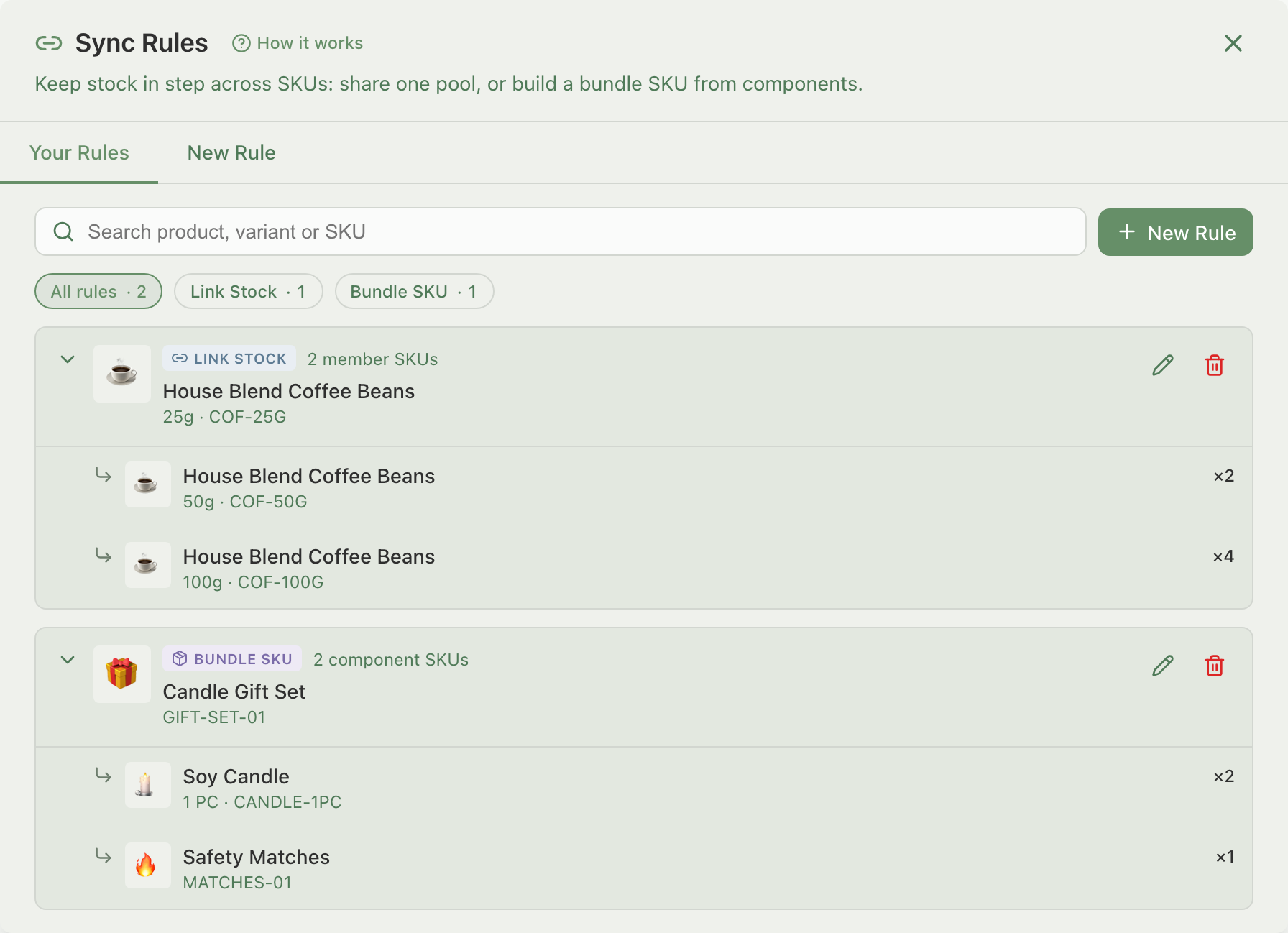
Open the Your Rules tab (or click a rule's label on the Inventory page) to see every rule. From here you can:
- Filter by All rules, Link Stock or Bundle SKU, or search by product, variant or SKU.
- Expand a rule to see each member or component and its ratio.
- Edit (pencil icon): add or remove members or components, or adjust ratios.
- Delete (trash icon): remove the rule. See below for what happens to stock.
What do the BASE, LINKED and BUNDLE labels mean?
On the Inventory page, a SKU in a sync rule carries a label next to its name. Hover (or tap) it for detail:
- BASE: holds a shared pool or feeds a bundle. Shows the SKUs sharing its stock, or the bundles it feeds.
- LINKED: a member of a Link Stock pool. Shows its base SKU and units per pack.
- BUNDLE: a bundle SKU. Shows its components, quantities and stock, with the current bottleneck in bold.
Which SKUs can't join a rule?
- One rule per SKU. A SKU already in a rule can't join another.
- Allocated mode. A SKU split per store can't join a rule. Switch it back to Shared mode first.
- Draft products can't be the target of a bundle rule.
- Shopify-managed bundles can't take a Sync Rules bundle rule.
- Variation structure is locked while a product has a bundle rule. Delete the rule first to restructure.
- A SKU in a Link Stock rule isn't locked. Unlike a bundle rule, a Link Stock rule doesn't stop you from editing that product's variation structure. But the edit can end or shrink the rule: see the note in the next section, on deleting or unlinking a rule.
How do I delete or unlink a rule?
Open Sync Rules on the Inventory page and go to the Your Rules tab. Find the rule and click its delete (trash) icon. What happens next depends on the rule type:
- Bundle SKU rule: set a New Available Stock. The bundle SKU stops calculating from components and tracks its own stock from that number.
- Link Stock rule: set the quantity each SKU keeps. By default the base keeps the full pool and members start at 0. Adjust, then click Confirm Unlink.
A Link Stock rule can also end, or shrink, without you touching Sync Rules at all. Adding a new variation tier, deleting a tier, or deleting a single option value retires the internal codes a Link Stock rule tracks (adding another option value to a tier you already have does not). If the product holds the shared pool, the rule ends: every other SKU sharing that pool is set to zero and pushed out of stock on its own marketplace, unless exactly one survives elsewhere, in which case it inherits the pool instead and keeps selling on its own. If the product only holds a member SKU, the base keeps its own stock and the rule just shrinks. When you add a tier, delete a tier, or delete an option value, Indexync warns you before you make the change, and again in the Confirm changes window before you save. Turning off the Add Variations toggle only shows the warning at save, not at the moment you switch it off. Unlike the Delete flow above, you don't choose a keep quantity here: each affected SKU goes to zero, or inherits the pool if it's the lone survivor, automatically.
Tip: to correct stock on a linked member, edit the base SKU's stock in the rule. Every member recalculates from it.
Troubleshooting
Why can't I create or edit a rule? Creating and editing sync rules needs Pro or Scale. On Free and Lite, the New Rule tab shows an upgrade prompt instead. You can still view, unlink, and delete rules you already have.
Why does a linked member show 0 stock? A member's Available is the pool divided by its units per pack, rounded down. If the pool is smaller than one member's ratio, that member shows 0 until the pool grows enough to cover a full pack.
Why won't a SKU let me add it to a rule? It's likely already in another rule, in Allocated mode, a draft product, or a Shopify-managed bundle. See "Which SKUs can't join a rule?" above.
Why can't I type a stock number on my bundle SKU? Bundle SKU stock is always calculated from its components; it isn't editable directly. Restock the component that's running lowest and the bundle's Available goes up with it.
FAQ
Can two listings sell the same physical stock?
Yes. Use a Link Stock rule: pick one SKU as the base to hold the shared pool, then add the other listing's SKU as a member. A sale on either listing lowers the same pool.
Can a 3-pack and a single share stock?
Yes. Set the single unit as the base SKU and give the 3-pack a units-per-pack ratio of 3. The 3-pack's Available is then the pool divided by 3, rounded down.
How is a bundle's stock calculated?
From its components. Indexync checks how many complete sets each component can supply and shows the lowest number as the bundle's Available. Selling a bundle deducts the set quantity from every component.
What happens when I remove a rule?
For a Bundle SKU rule, you set a new stock number and the bundle starts tracking its own stock again. For a Link Stock rule, you choose how much stock each SKU keeps when it stops sharing the pool.
Which plans include Sync Rules?
Pro and Scale can create and edit sync rules. Free and Lite can still view, unlink, and delete existing rules.
Related Articles
- How inventory sync works across marketplaces
- Update Stock Quantities - individually or in bulk
- See and manage stock for every marketplace in one place
- Why Doesn't My Stock Match Between Indexync and My Marketplace?
Need More Help?
Visit our Feedback page or contact us at hello@indexync.com.