Why Doesn't My Stock Match Between Indexync and My Marketplace?
Stock can go out of sync for a few reasons, but the most common cause is stock being edited directly on a marketplace instead of in Indexync. Indexync holds the correct count, so the fix is to update the number in Indexync and sync it back out. To see exactly what happened to any SKU, open its Inventory History panel. It shows a full trail of every stock movement, including when it happened and whether it reached each store.
Applies to: All plans.
Why do quantities differ between Indexync and a marketplace?
Four common causes:
- A recent order hasn't synced yet. Wait a minute and refresh. If the mismatch persists, open the SKU's Inventory History panel. The order should appear there as an entry named for its stage, such as New Order or Order Paid.
- Someone edited stock directly on the marketplace. Editing stock directly on Shopee, Lazada, TikTok, or Shopify is the single most common cause of a mismatch. Always make the change in Indexync instead. To correct it, open the Inventory page and edit the quantity for that SKU. Then click Sync to Channels to push the right number out to every connected store.
- Auto-sync is off and your last change hasn't gone out yet. Check the auto-sync toggle in Inventory settings, or select the SKU's row and click Sync to Channels on the Inventory page.
- The marketplace is showing a different warehouse's number. Indexync sends stock only to the warehouse or location you chose for that store. Check the store's row in Connections for the Warehouse: line, or look for a "needs a warehouse" alert on the Dashboard. See Connecting Your Marketplaces.
Why is a marketplace showing a sync failure icon?
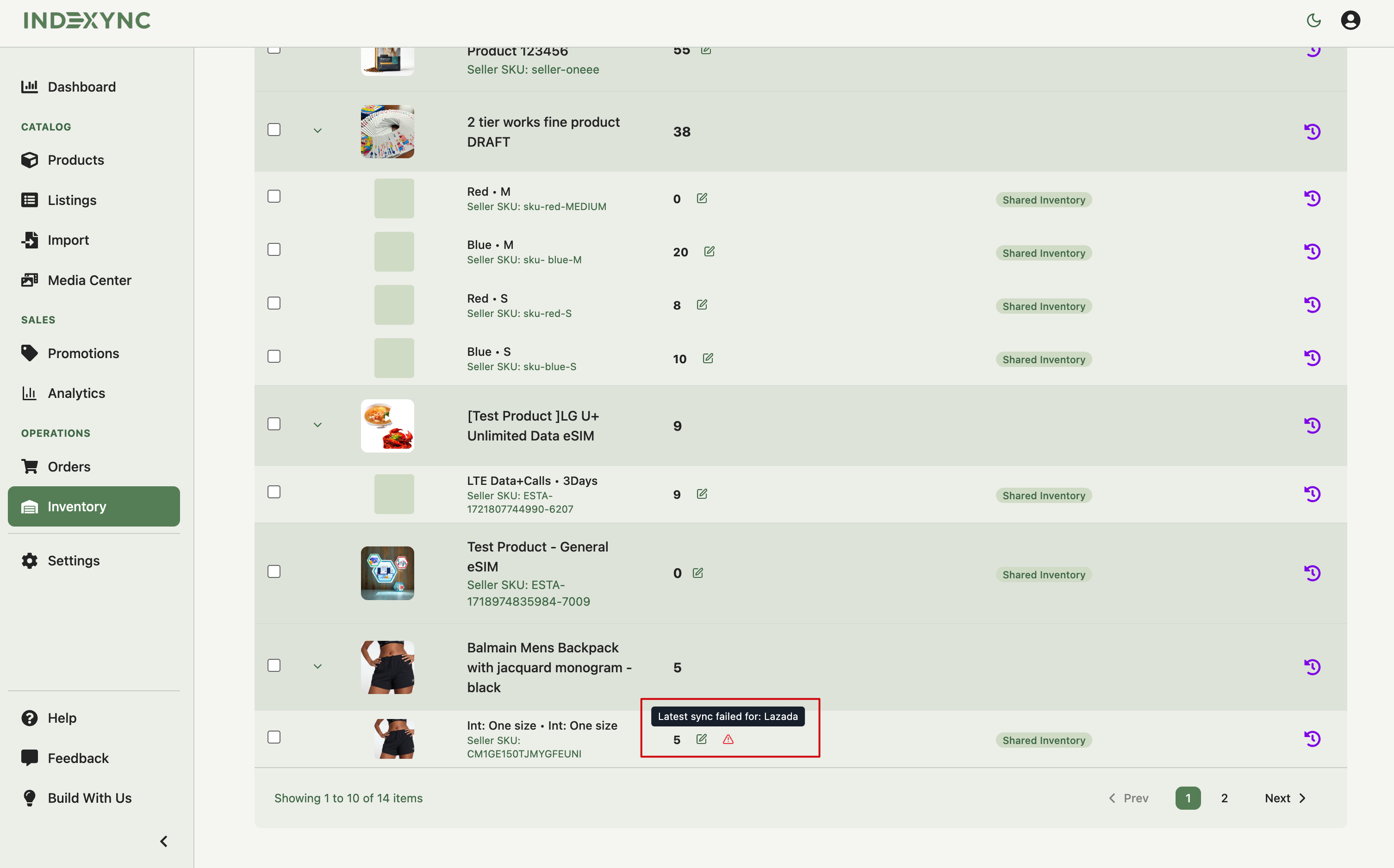
The inventory row shows a warning icon when a sync failed on one or more channels. Hover it to see which: the tooltip reads Latest sync failed for: [channel names].
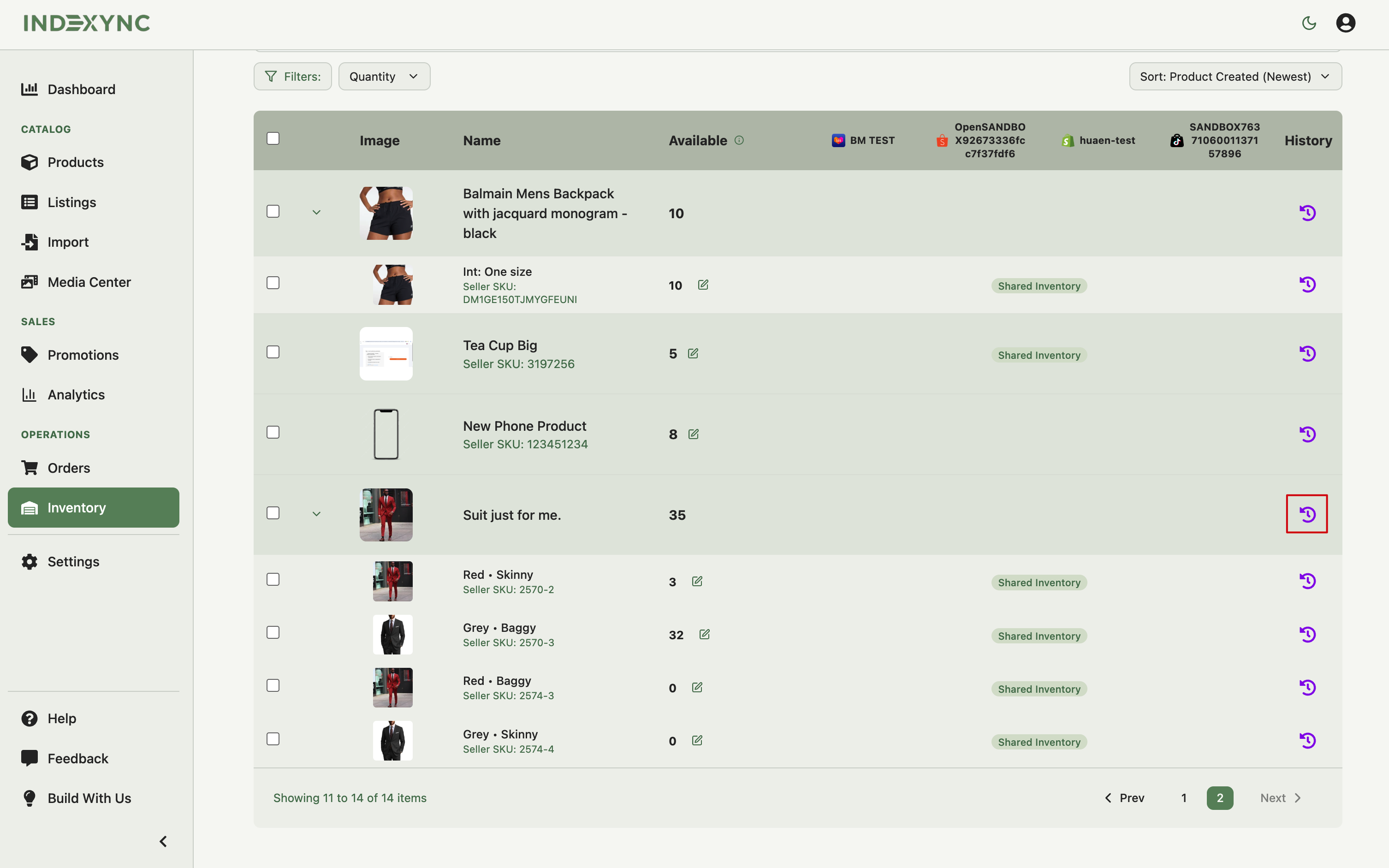
Open the SKU's Inventory History panel to confirm.
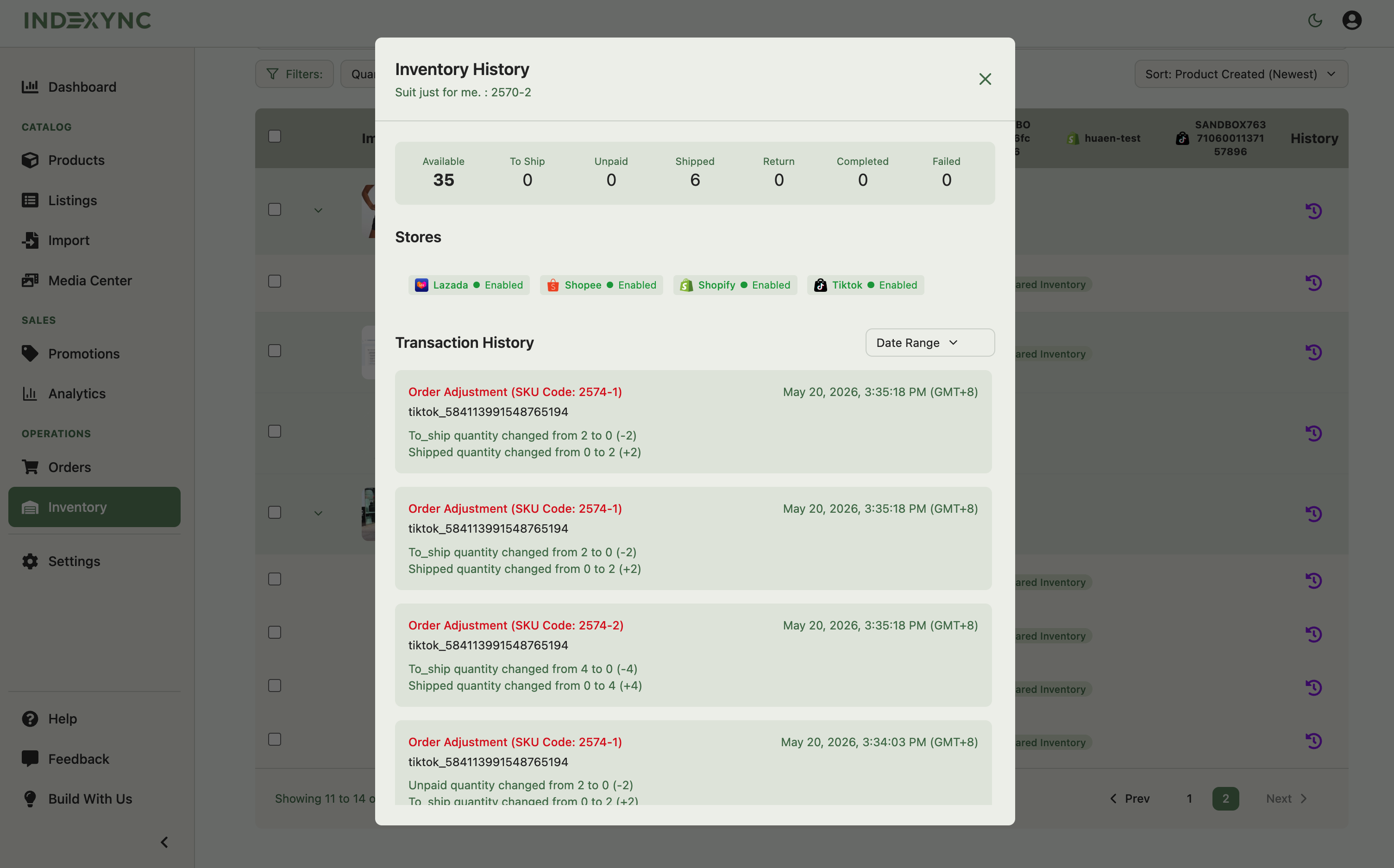
The most recent entry shows per-store sync results with channel icons: green for success, red for failure.
A red icon usually means one of these:
- The listing isn't active on that marketplace. Drafts and inactive listings don't sync. Log into the marketplace and confirm the listing is published.
- The marketplace connection has expired. Check Connections (in the sidebar) and reconnect if prompted. See Connecting marketplaces.
- The marketplace hit a rate limit or had an outage. This is usually temporary, so wait before acting.
When a marketplace can't take a stock update, Indexync retries on its own. Every retry sends the stock as it is at that moment, so a late retry never pushes an old number. In Inventory History each update shows one of three states: in sync, pending (Syncing to marketplaces...), or failed (a red Failed next to the store name). If you edit stock while an update is pending, the new number goes out straight away.
To retry immediately, select that SKU's row and click Sync to Channels. If the icon is still there the next day, and the listing is active and the connection is healthy, send the SKU and store name to hello@indexync.com.
Example: Indexync shows 50 units. So do Shopee and Lazada. But TikTok still shows 45 after a recent restock. The most recent Inventory History entry has a red icon on TikTok. Select the SKU's row, click Sync to Channels. TikTok now shows green and 50.
Why is nothing syncing at all?
Work through this checklist:
- Is the marketplace connected and active? Check Connections. Reconnect anything showing as expired or disconnected.
- Is the listing active on the marketplace? Drafts don't sync. Sign in to the marketplace and confirm it's published.
- Is the listing flagged with an issue in Indexync? Check your Dashboard's Action Items under Listing issues: rows like Sync errors and Inventory errors take you straight to the affected listings. A listing with an open issue can't receive stock updates until you fix what the issue describes. If Shopee refused a stock update because of the store's warehouse, the listing shows an Inventory errors issue that names the warehouse settings. Fix the warehouse on Shopee, then check the store's Warehouse: line in Connections if the store has more than one warehouse.
- Is auto-sync turned on? Check Settings → Inventory (see Inventory settings).
Why didn't stock change for an old order?
When you first import a product, Indexync reads the current stock level from the marketplace and uses it as your starting Available. Orders placed before that import don't deduct from Available: the marketplace already counted those sales in the number it reported, so deducting them again would double-count.
If you see an old order in your Orders list that doesn't appear to have reduced your stock, this is why. Every order from the import onward deducts normally.
Example: you import a product from Lazada on May 1 with 30 units. On May 2 you notice a March 28 order in your Orders list. Available stays at 30. Lazada had already deducted that order before you imported, so Indexync doesn't deduct it again.
Why does one marketplace show a different number than another for the same SKU?
That SKU is in Allocated mode: someone split your Total across stores, so each marketplace sees only its own portion. Different stores showing different numbers is expected in this mode, not a bug.
Open the SKU's Stock Allocation window. The mode toggle at the top shows Allocated, and the per-store inputs show the current split. If you didn't intend to allocate, switch the toggle to Shared so every marketplace sees the same Available. See How Inventory Sync Works Across Marketplaces for the difference between the two modes.
Why is my stock negative?
Available goes negative when orders deducted more than your starting Available, or when a return or cancellation pushed the count below zero.
To fix it:
- Open the SKU's Inventory History panel to see which adjustment pushed it negative.
- Open the Stock Allocation window and set Total to a non-negative value that matches your actual physical stock.
- On high-velocity SKUs, set a Safety Stock buffer to reserve units against sync delays and stop it recurring.
Don't correct stock directly on the marketplace: that only fixes one channel and creates a fresh mismatch. Always edit in Indexync and let it push the corrected number out.
The Dashboard also lists negative SKUs under Action Items as a Negative inventory row, which takes you straight to the affected SKUs.
Why did my bulk update fail?
Common causes:
- Duplicate Seller SKU in the file. Each SKU must appear once.
- Seller SKU not in your Indexync catalog. Check for typos or missing products.
- Per-store columns don't sum to Total Quantity. This applies to Allocated SKUs only.
- Non-numeric values in Total Quantity or Safety Stock.
See Update Stock Quantities - individually or in bulk for the full error list and the corrected template.
How do I force a sync?
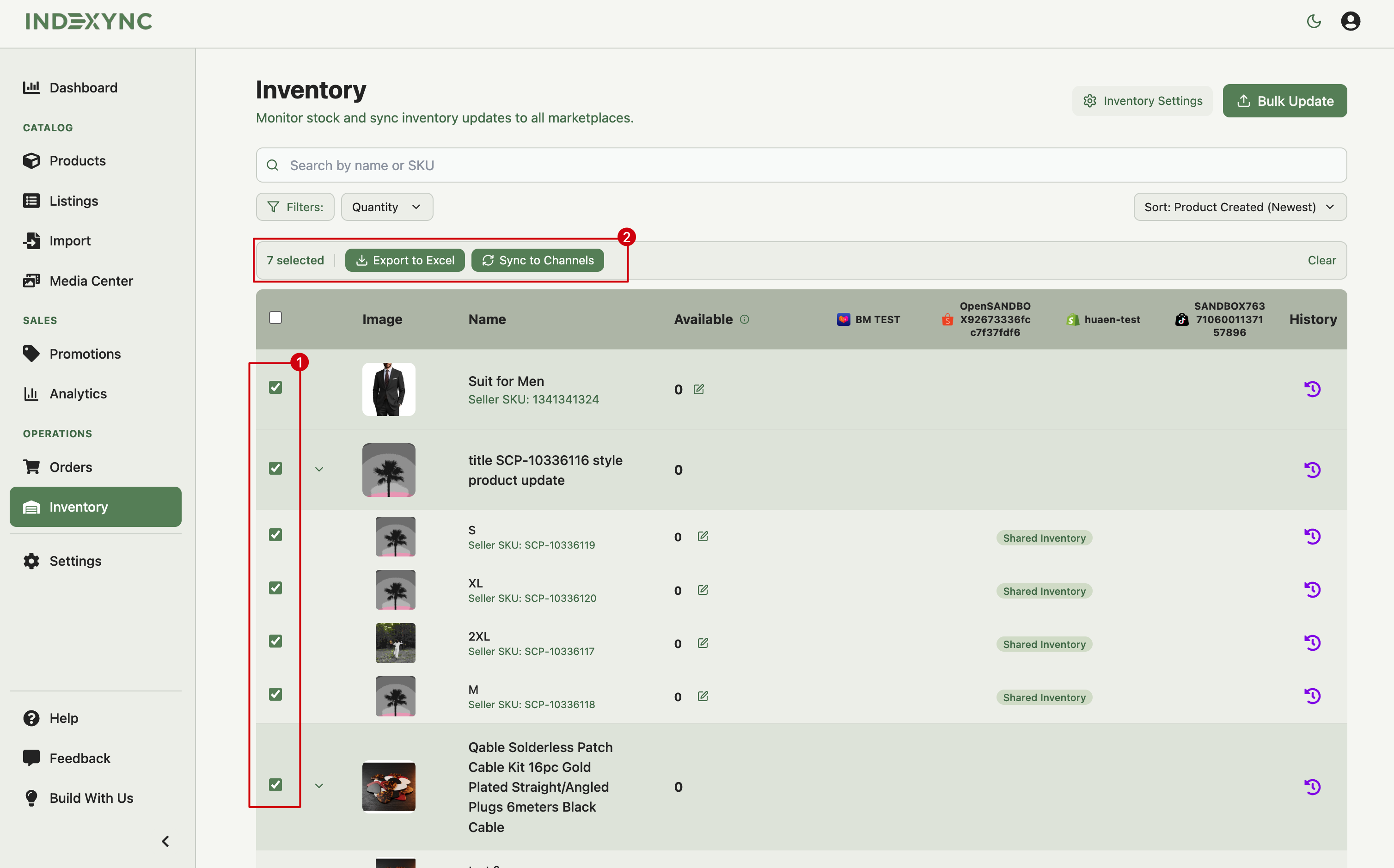
If something looks stuck, trigger a manual sync from the Inventory page:
- Tick the checkboxes on the affected SKUs.
- Click Sync to Channels in the action bar. Its tooltip says it sends the available quantity for the selected SKUs to your connected marketplaces.
- Each selected SKU's Available value is sent out. Give it a few minutes, then check the marketplace again.
Use this when auto-sync is off, when you want to confirm a fresh push, or after correcting a mismatch.
FAQ
Why is my marketplace showing different stock than Indexync?
Usually one of four things:
- A recent order hasn't synced yet.
- Someone edited stock directly on the marketplace.
- A sync failed on that channel.
- The SKU is in Allocated mode, with a different number set per store.
Open the SKU's Inventory History panel to see which.
What do I do when a sync fails?
Open the SKU's Inventory History panel to see which channel failed, then select that SKU's row on the Inventory page and click Sync to Channels to retry. Indexync also retries on its own. If the failure is still showing the next day, contact support.
Why did my stock go negative?
Usually because orders deducted more than your starting Available, or because a return or cancellation pushed the count below zero. Open the SKU's Inventory History panel to see which adjustment did it, then set a corrected Total in the Stock Allocation window.
Does fixing stock on the marketplace fix it in Indexync?
No. Edit stock in Indexync, not on the marketplace. A direct edit on the marketplace only updates that one channel and creates a new mismatch; Indexync is the source of truth that pushes the correct number out to every connected store.
How do I re-send my stock to a marketplace?
Select the SKU's row (or rows) on the Inventory page and click Sync to Channels. The numbers are sent out, and the marketplace usually shows them within a few minutes.
Related Articles
- How Inventory Sync Works Across Marketplaces
- See and manage stock for every marketplace in one place
- Update Stock Quantities - individually or in bulk
- Sync Rules
- Inventory settings
- Connecting marketplaces
Need More Help?
Visit our Feedback page or contact us at hello@indexync.com.