Upload Images to Media Center
To upload images, go to Media Center in the sidebar, make sure the Images tab is selected, and click Upload Image. Pick one or more JPG or PNG files from your computer. Once an image is in Media Center, you can attach it to a product listing on any marketplace you've connected. You only upload each photo once.
Applies to
All plans. No prerequisites.
Uploading images
- Click Media Center in the sidebar.
- Make sure the Images tab is selected (it's the default view).
- Click Upload Image in the toolbar.
- In the file picker, select one image, or hold Cmd (Mac) / Ctrl (Windows) to select several. Click Open.
- For PNG and JPEG files, the crop editor opens before anything uploads. Crop the image if you want to, then click Add image. The image uploads only after you click it.
- If you picked several files, the editor steps through them one at a time and its title tells you which image you are on. Click Skip this image to leave one out, or Cancel all to stop and upload nothing further.
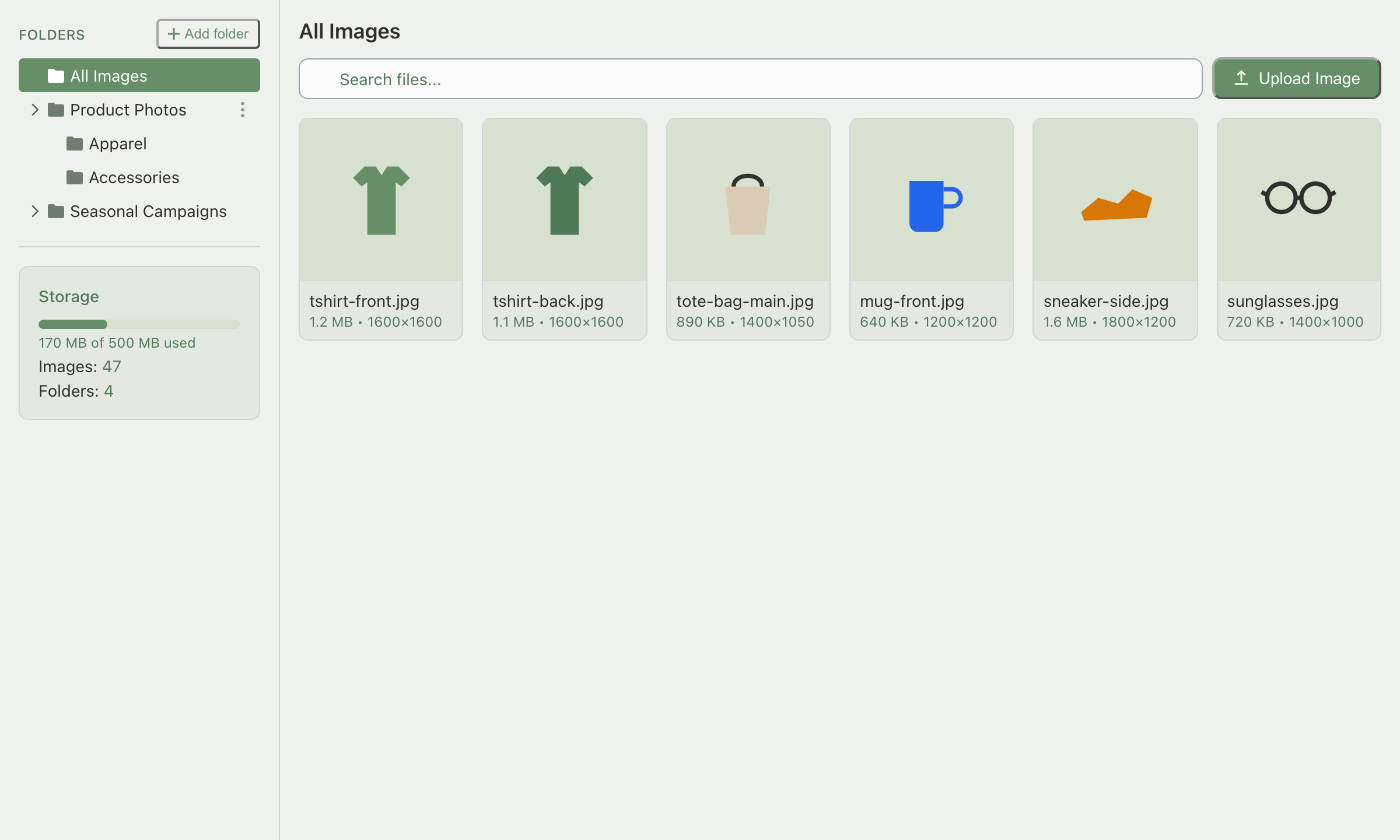
Each image appears in the grid with a placeholder thumbnail once you click Add image, while it processes; the real thumbnail replaces it a moment later, alongside the file size and dimensions. You can move on to the next image in the queue without waiting. New uploads land at the top of the grid under the default sort order (newest first). There's no limit on how many images you can select in one upload.
What files can I upload?
The Upload Image button accepts JPG and PNG only. The file picker filters your computer's file browser to these two formats automatically.
- HEIC photos (the default format on iPhone) aren't accepted at upload. Convert to JPG first.
- WEBP and GIF aren't accepted at upload either, even though Shopify and TikTok Shop can display them once a listing is live. Convert to JPG or PNG before uploading to Media Center.
Per-marketplace image requirements
Media Center itself accepts any JPG or PNG so you can store photos for later use. Once you attach a photo to a listing, though, each marketplace enforces its own rules. If an upload succeeds in Media Center but the photo doesn't show up in a listing's picker, it's usually one of these:
Shopee sets no minimum size, so a smaller photo is still accepted. Square (1:1) images under 2 MB look best, because Shopee compresses a larger file, which lowers the image quality.
Example: a 1200×900 landscape lifestyle photo uploads to Media Center without any trouble, and works fine on a Shopify listing since Shopify's aspect ratio is very flexible. Attach the same photo to a Lazada listing and it's rejected, since Lazada only accepts square (1:1) images; Shopee rejects it too, since it only accepts 1:1 or 3:4. TikTok Shop accepts it: TikTok pads it to a square using the longer side.
Do imported product photos get resized automatically?
If you imported a product from a marketplace and its main photo wasn't square, you may notice it already shows up in Media Center padded to a square with white borders. Indexync does this automatically as part of bringing the product in, so the photo is ready for marketplaces that require 1:1 images without you having to edit it yourself.
This only applies to photos that arrive through an import. A photo you upload yourself is not padded. To change its shape, crop it in the editor that opens when you upload it, or later with Crop in the image's three-dot menu (see Manage your images).
Example: you import an existing Shopee listing whose main photo is a non-square 1600×1200 shot. Indexync pads it to a white-bordered square as part of the import, so it's ready for Lazada or TikTok Shop too. A photo you upload yourself and attach directly to a listing keeps its original proportions.
How much storage do I have?
The Storage panel at the bottom of the folder tree shows a usage bar plus how much space you've used against your plan's limit, along with your image and folder counts.
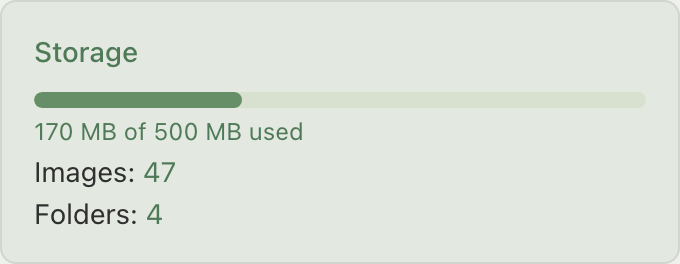
Going over your plan's storage limit does not stop you from uploading. Indexync shows a banner that says you've used more storage than your plan includes, with an Upgrade Your Plan button, but your uploads keep working. See Manage your images if you want to clear out space anyway.
Troubleshooting
Thumbnail stays as a placeholder
Refresh the page. Completed uploads persist, and the thumbnail appears after the reload. If it's still stuck, check your internet connection and try a smaller file to rule out a slow upload.
Upload button won't accept my file
The file picker only shows JPG and PNG files.
- HEIC (iPhone default) or WEBP: convert to JPG or PNG first (Preview on Mac, Paint on Windows, or any online converter).
- GIF: not supported in Media Center at all; convert to a static JPG or PNG.
A photo is too small when I add it to a product
This happens when you add a photo to a product or variation, not when you upload in Media Center. If the photo is too small to enlarge to a marketplace's minimum size without blurring, a message tells you the image is too small to enlarge cleanly and gives the minimum width and height. Upload a larger version of the photo, then crop it again. Shopee has no minimum size, so a small photo is never blocked for Shopee. A photo is still checked against Lazada (330 × 330 px) and TikTok Shop (300 × 300 px) if those stores are connected, and your main photos follow the strictest connected marketplace. A photo that is already live on the store you are syncing is never dropped for its size.
Upload fails with a size or dimension error
Read the error message; it tells you which limit was hit. Check the file size caps in the table above: 10 MB for Shopee and TikTok Shop, 3 MB for Lazada, and 20 MB for Shopify. If the error mentions a marketplace-specific dimension, check that marketplace's row in the same table.
FAQ
Can I upload the same image to multiple marketplaces at once?
Yes. Upload it to Media Center once, then attach it to listings on Shopify, Lazada, Shopee, and TikTok Shop from the same file. You don't need separate copies per marketplace.
Why did my image get rejected?
Media Center itself only requires JPG or PNG. If a photo is rejected when you try to attach it to a specific marketplace's listing, check that marketplace's size, dimension, and aspect-ratio requirements in the table above. If a photo is too small when you add it to a product, see the troubleshooting section above.
Does Indexync resize my images automatically?
Only for photos that arrive through a marketplace import: a non-square imported photo may be padded to a white-bordered square automatically. For photos you upload yourself, the crop editor is the way to crop them in Indexync. An unusually large original may come back resized smaller when you click Add image.
What happens if I go over my storage limit?
Nothing stops working. You'll see an upgrade banner in the Storage panel, but uploads and everything else keep functioning normally.
Can I upload GIFs or WEBP files?
No. Media Center's upload accepts JPG and PNG only, regardless of what a marketplace can display once a listing is live.
Related articles
Need more help?
Fill out our feedback form, message us on WhatsApp, or email hello@indexync.com with the file name, size, and format, plus a description of what happened.