Create and Organize Folders in Media Center
In Media Center, click Add folder in the folder tree, name it, and it appears immediately. Folders can be nested up to three levels deep, and you can move files into them one at a time or in bulk. Deleting a folder never deletes the files inside it; they simply move back to the root level.
Applies to
All plans. You'll want at least a few images or videos uploaded first; see Upload Images.
Creating a folder
- Click Media Center in the sidebar.
- In the folder tree on the left, click Add folder.
- Type a name and click Create.
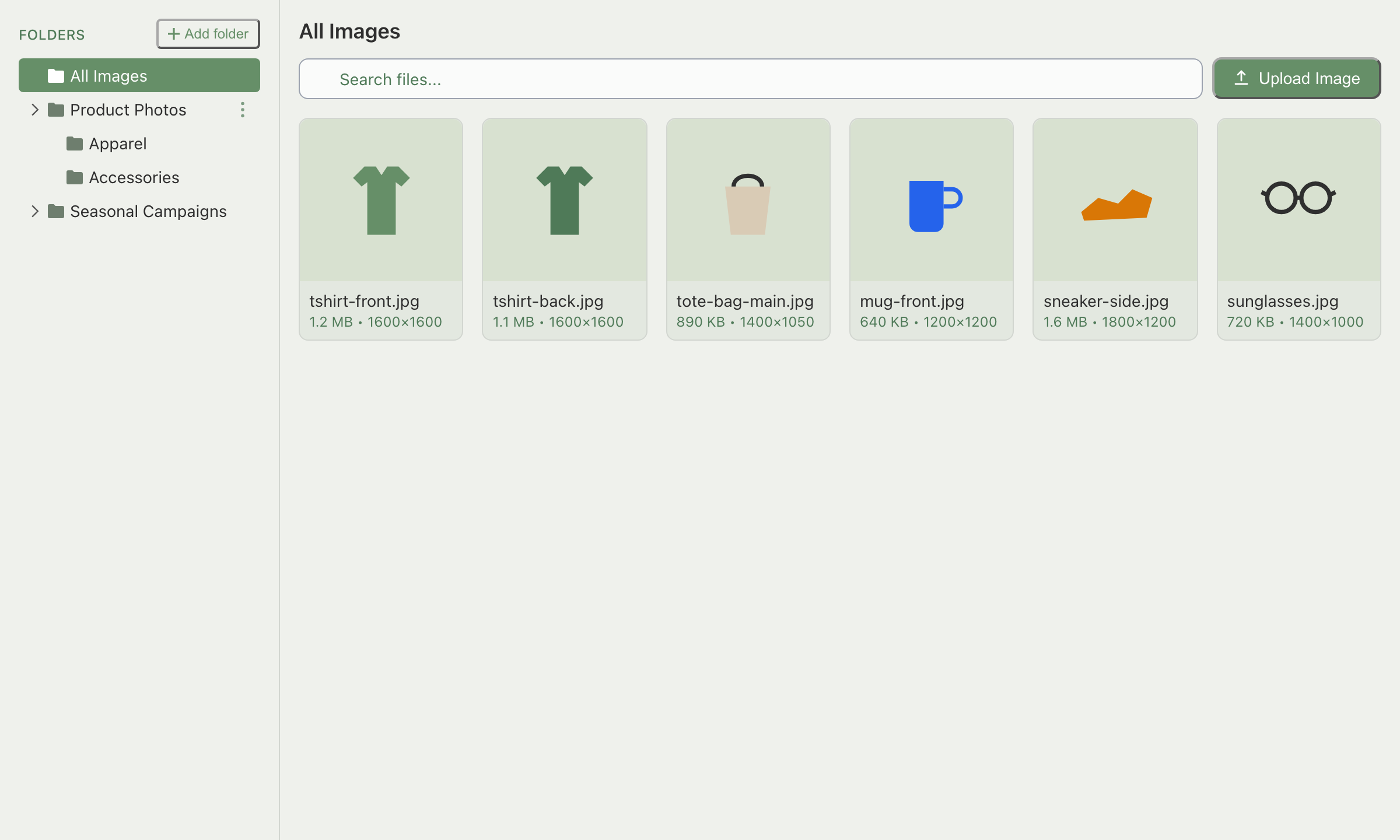
The folder appears immediately in the tree. Use descriptive names like "Product Photos" or "Spring Campaign" so you can tell folders apart at a glance.
Folder naming rules
A folder name must be 50 characters or fewer, and it can't contain any of these characters: < > : " / \ | ? *. Indexync tells you exactly which rule you hit if a name is rejected: "Folder name must be 50 characters or less" or "Folder name contains invalid characters."
Example: naming a folder "Summer/2026 Sale" is rejected because of the slash. "Summer 2026 Sale" works.
Renaming or deleting a folder
Hover over the folder and click the three-dot menu that appears on the right of its row, then choose Rename or Delete.

Renaming updates the name in place. Deleting asks you to confirm first: "Are you sure you want to delete this folder? Files inside will not be deleted, they will be moved to the root level." Nothing you've uploaded is ever removed by deleting a folder, only the grouping.
Nesting folders
You can nest folders up to three levels deep. To create a sub-folder, open the parent folder first, then click Add folder: the new folder is created inside the one you're in.
Example: you sell across four product lines. You create a top-level folder "Product Photos", then four sub-folders inside it (one per line), then for one line you nest one more level for a seasonal shoot, the maximum three levels deep.
Moving files into a folder
Moving one file: hover its tile, click the three-dot menu, choose Move to, pick the destination folder, and click Move.
Moving several files at once:
- Click each file's tile to select it. A checkmark appears on selected tiles and a bar appears at the bottom of the screen.
- Use the selection shortcuts if you don't want to click every tile:
- Select all in page (N) selects every file on the current page.
- Select everything (N) selects every matching file across every page, not just the one you're looking at.
- Click Move to in the bar, pick the destination folder, and click Move.

Example: you have 80 images spread across several pages. Click Select everything (80) to grab every one of them in a single action, no matter how many pages they span, then click Move to and choose your "New Arrivals" folder. All 80 move at once.
Troubleshooting
I deleted a folder by mistake. Where are my files?
Nothing is lost. Everything that was inside the folder moves to the main All Images or All Videos view. Go there to find your files, then move them into a new folder if you'd like.
My folder isn't showing after I created it
Check the folder count in the Storage panel. If it went up, the folder was created; scroll the folder tree to find it. If it didn't change, the create likely failed: check your folder name against the naming rules above and try again.
Moving images doesn't work
Make sure you clicked the image tile itself, not the filename or the space around it; a checkmark on the tile confirms it's selected. If the action bar at the bottom doesn't appear after selecting a file, refresh the page and try again.
FAQ
What happens to my files if I delete a folder?
They're not deleted. Every file inside moves to the root level (All Images or All Videos), where you can find them and move them into a different folder.
How many folders deep can I nest?
Three levels. Once you're at the third level, Add folder won't offer a further nested folder from inside it.
Can I move files between folders in bulk?
Yes. Select multiple files (or use Select all in page / Select everything), then click Move to and pick a destination.
Why won't Indexync let me name my folder that?
Folder names must be 50 characters or fewer and can't contain < > : " / \ | ? *. Remove the character causing the rejection and try again.
Related articles
Need more help?
Fill out our feedback form, message us on WhatsApp, or email hello@indexync.com with the folder name and a description of what happened.