Upload a Product Video to Media Center
Go to Media Center in the sidebar, click the Videos tab, and click Upload Video. Pick a video file, then choose a cover frame in the window that opens next. Indexync then processes the video separately for each marketplace you're connected to, and a status badge on the video tile tells you how each one is doing.
Applies to
All plans. No prerequisites.
Uploading a video
- Click Media Center in the sidebar.
- Click the Videos tab to switch the grid from images to videos.
- Click Upload Video in the toolbar.
- In the file picker, select a video file and click Open.
The Set Up Video Cover window opens automatically once you've picked a file.

Picking a cover frame
The Set Up Video Cover window plays your video with a scrub slider beneath it.
- Drag the slider to the frame you want as the thumbnail.
- Click Capture This Frame. A caption confirms: "Cover frame selected at {time}."
- Not happy with it? Drag the slider again and capture a new frame; it replaces the old one.
- Click Save & Upload Video.
The captured frame becomes the video's thumbnail in Media Center. Lazada is the one marketplace that won't accept a video without a cover image; if you close this window before capturing a frame, re-upload the video to set one.
Example: you upload a video and close the cover window before capturing a frame. Every other marketplace accepts the video fine, but Lazada's badge reads "Failed," because Lazada is the one marketplace that requires a cover image before it will process a video at all. Re-upload and capture a frame this time to clear it.
The warning banner tells you about problems before you save
If your video doesn't meet a connected marketplace's requirements, the Set Up Video Cover window shows a warning banner above the video player, before you finish the upload. It names the specific problem, like "Shopee requires video between 10–60 seconds," and a Details link that expands to show your file's own size, duration, and resolution next to what each affected marketplace needs.
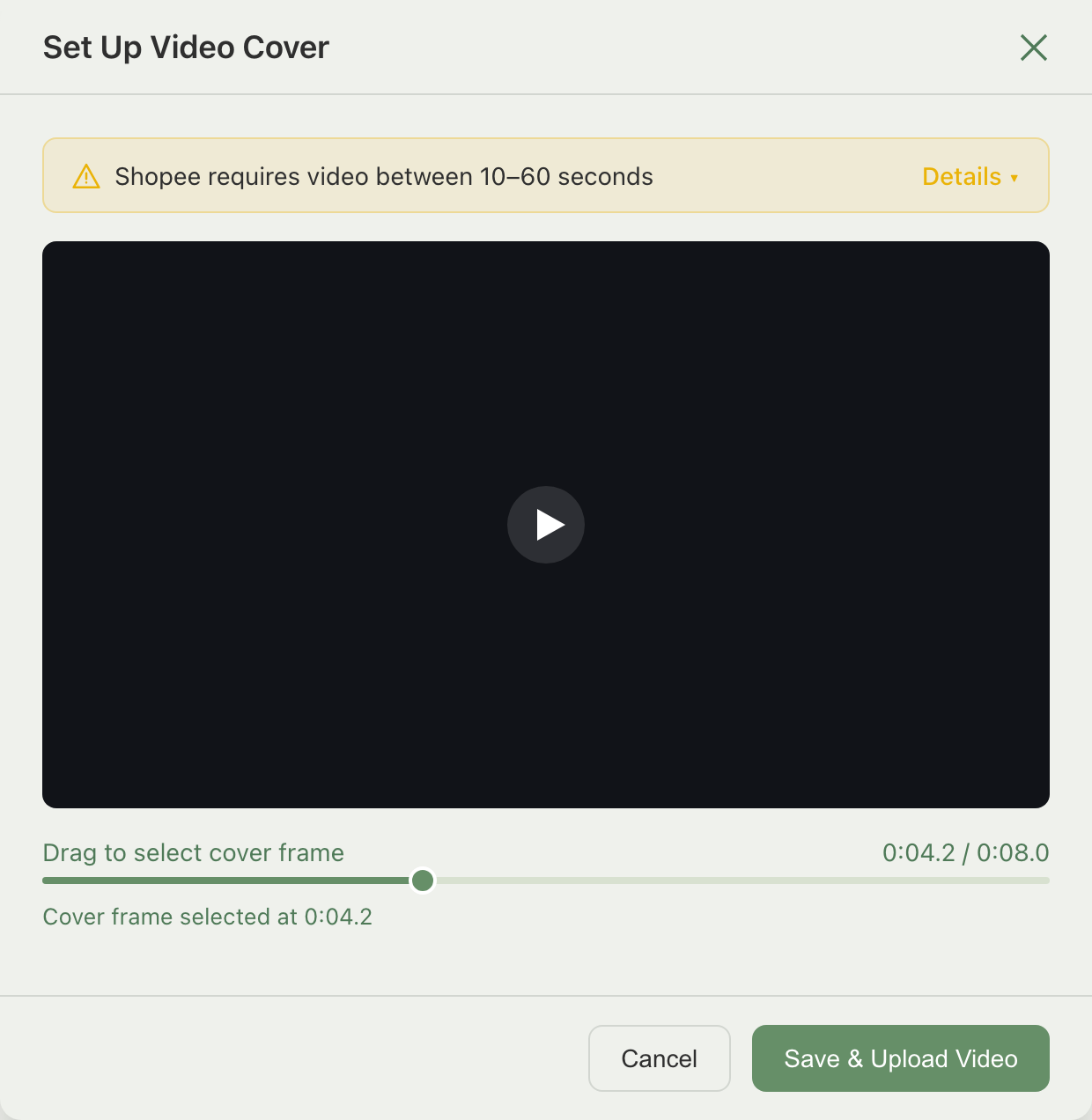
You can still save and upload with the banner showing. The affected marketplace just won't process the video until you fix the problem and try again (see Retrying a failed marketplace).
Example: you upload a 4-second product clip. Shopify and TikTok Shop accept anything that short without complaint. The cover window's warning banner reads "Shopee requires video between 10–60 seconds" before you even click Save, so you know in advance that Shopee's badge will need attention. Trim the clip to at least 10 seconds and re-upload to fix it for Shopee too.
What do the marketplace status badges mean?
After you upload, each connected marketplace processes your video on its own. A badge on the video tile shows where each one stands. There are five possible states:
| State | What it means |
|---|---|
 | The video is live on that marketplace. |
 | That marketplace is working on it right now; no action needed. |
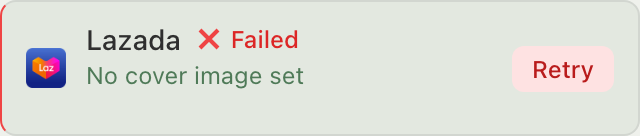 | That marketplace tried and couldn't process the file. Click Retry to try again after fixing the problem. |
 | Nothing has been attempted for that marketplace yet. Click Process to start it. |
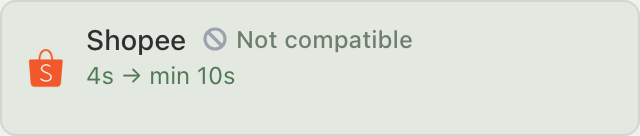 | Your file doesn't meet that marketplace's requirements (the same check behind the warning banner above), so it was never attempted. Fix the file and re-upload. |
A Pending badge with a Process button is not stuck: it just hasn't been started yet, and it's not the same as a Failed badge with a Retry button, which means an attempt already happened and didn't succeed.
Example: right after you upload, your video's Shopify and TikTok Shop badges turn Ready within seconds. Shopee and Lazada haven't been attempted yet, so both read "Pending" with a Process button next to them; nothing is wrong, they just haven't started. Click Process on each, or leave the page and check back later.
For everything else about reading and retrying these badges, see Manage your videos.
Per-marketplace video specs
Each marketplace enforces its own limits once a video is attached to a listing there.
The Media Center upload step itself accepts MP4 and MOV files only; the extra formats in the table (WEBM, MKV, AVI) apply when a marketplace hosts the video on its own side, not to what you can upload here. If a file doesn't appear in the picker, that's why.
If a video doesn't meet one channel's specs, only the channels it does meet will receive it; the others stay on whichever badge state matches the problem (see the table above).
Processing speed varies by marketplace. Shopify and TikTok Shop finish almost immediately after upload. Shopee usually finishes within a minute. Lazada is typically the slowest of the four to process a video.
How much storage do I have?
The Storage panel in the left sidebar shows a usage bar, "used of your plan's limit," and counts of your videos and folders.
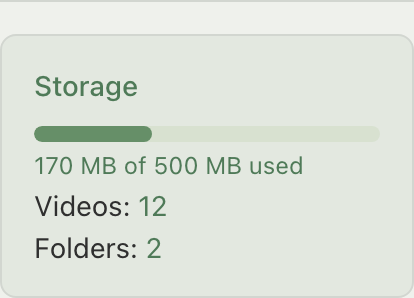
Going over your plan's storage limit doesn't stop you from uploading. Indexync shows an upgrade banner, but uploads keep working. See Manage your videos if you want to clear out space anyway.
Troubleshooting
A marketplace badge won't clear
Read the badge state first:
- "Pending" with a Process button just hasn't started yet; not a problem.
- "Failed" with a Retry button means an attempt didn't succeed. Expand it to see why, fix the video if needed, then click Retry.
- "Not compatible" means the file never met that marketplace's requirements. Check the specs table above and re-upload a file that fits.
Lazada's badge stays Failed after upload
Set a cover frame. If you closed the Set Up Video Cover window before capturing one, re-upload the video and capture a frame this time. Lazada won't accept a video without a cover image.
Video won't sync to Shopee
Shopee requires a duration between 10 and 60 seconds. Trim the video to that range and re-upload.
FAQ
Why is a marketplace badge stuck on "Pending"?
It hasn't been attempted yet, not stuck. Click Process on that channel's badge to start it, or wait; Indexync gets to it automatically.
Why does Lazada need a cover image and the others don't?
Only Lazada requires a cover image before it will process a video. Every other connected marketplace accepts a video without one.
Can I upload the same video to every marketplace?
Yes. Upload it to Media Center once; each connected marketplace then processes it independently, and you can attach it to listings on any of them from that one file.
What does "Not compatible" mean on a badge?
Your video doesn't meet that marketplace's size, duration, resolution, or aspect-ratio requirements, so Indexync never attempted to process it there. Check the per-marketplace specs table, fix the file, and re-upload. If Shopee flagged a video for its resolution before Indexync dropped that limit, re-upload the same file to clear the badge.
What happens if I go over my storage limit?
Nothing stops working. You'll see an upgrade banner in the Storage panel, but uploads and everything else keep functioning normally.
Related articles
Need more help?
Fill out our feedback form, message us on WhatsApp, or email hello@indexync.com with the video file name, size, format, and a description of the issue.