Manage Your Images in Media Center
You can't delete an image in Media Center while a product or marketplace listing still uses it. Indexync shows you which ones, so you can remove the image from them first. To find any image fast, use the search box, sort menu, and filters at the top of the page.
Applies to
All plans. You'll want at least one image already uploaded; see Upload Images if you haven't yet.
Searching for an image by filename
The toolbar has a search box (Search files...). Type any part of an image's filename and the grid filters in real time. This works on the original filename you uploaded, even if you've since renamed it inside Media Center.
Example: you uploaded a hero shot last month called summer-tee-blue-front.jpg. Type summer-tee in the search box and the grid narrows to just the few images matching that prefix.
Sorting your library
Click the sort button in the toolbar to choose how images are ordered:
- Date (Newest): the default. Most recently uploaded images first.
- Date (Oldest): oldest uploads first. Useful for finding old assets you may be able to delete.
- Name A-Z: alphabetical by the filename you uploaded.
- Name Z-A: reverse alphabetical by the filename you uploaded.

Filtering by upload date
Click the Date button to open the date filter. Set a From date, a To date, or both, and the grid shows only images uploaded in that window. While a filter is active, the button label changes to Filtered so you can see at a glance that some images are hidden. Click it again to reopen the picker, or clear both fields to remove the filter.
Filtering by usage
The usage filter finds images by where they're used. All always shows. Beyond that, the list only offers options that would actually return something for the folder you're looking at:
- Product appears only if the folder has at least one image attached to a master product.
- Listing appears only if the folder has at least one image attached to a marketplace listing.
- Unused appears only if the folder has at least one image nothing references.

Once you pick Product or Listing, a second dropdown appears so you can narrow to one specific product or listing by name.
Example: your storage meter is creeping toward your plan's limit. Set the usage filter to Unused and the sort to Date (Oldest). The grid shows images uploaded months ago that nothing references. Tick the ones you don't need and bulk-delete them.
Renaming, cropping, viewing details, and deleting a single image
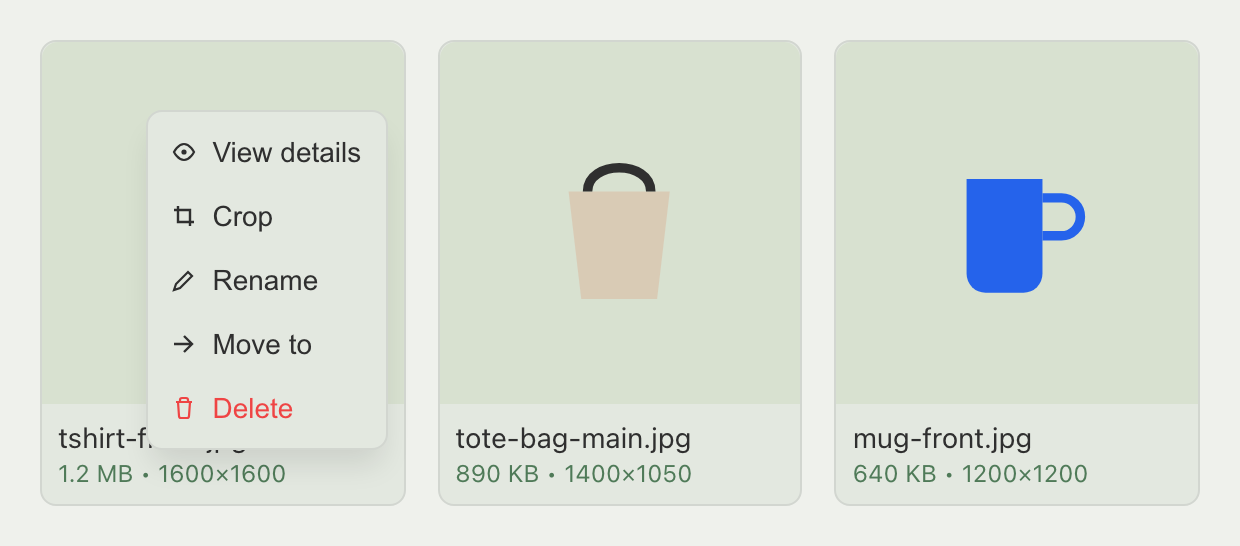
Hover an image tile and click its three-dot menu:
- View details: opens a panel with dimensions, file size, and upload date. It also lists every product and listing that uses the image. Check this before deleting.
- Crop: opens the Crop image editor for a PNG or JPEG. Click Save copy to save the cropped version as a new image next to the original. The original stays as it was. Crop doesn't appear for other file types. If you click Save copy without changing anything, nothing is saved.
- Rename: change the filename. The extension is locked; you can rename
hero.jpgtofront.jpg, not tofront.png. - Move to: move the image into a folder. See Create and Organize Folders.
- Delete: see below.
If you have view-only access, the menu shows only View details, and you won't see Upload or the bulk action bar.
Why can't I delete this image?
Click Delete. If the image isn't used anywhere, you get a confirmation that warns the delete can't be undone, with Cancel and Delete buttons, and it's removed.
If the image is attached to a product or a marketplace listing, Indexync won't let you delete it. The window changes to Cannot Delete and lists every product and listing using it, with each marketplace listing nested under its product. Remove the image from those first, then come back and delete it.

Example: you try to delete hero-shot.jpg and Indexync blocks it, listing "Woodfield Classic Tee" with a Shopify listing and a Lazada listing underneath. Open the product, replace the image on both, then delete it from Media Center; it goes through.
Bulk-moving and bulk-deleting images
Tick the checkbox on each tile to select it, or click each tile you want. Once at least one image is selected, an action bar appears at the bottom:
- Select all in page (N): selects every image currently visible on this page.
- Select everything (N): selects every matching image across every page, not just this one.
- Move to: move all selected images into a folder.
- Delete: delete all selected images, subject to the same block as a single delete. If any of them is still in use, the whole action is blocked and Indexync lists what's using each one.

How much storage do I have?
The Storage panel in the left sidebar shows a usage bar, "used of your plan's limit," and counts of your images (or videos, on the Videos tab) and folders. Going over your plan's storage limit doesn't stop you from working: Indexync shows an upgrade banner, but uploads, deletes, and everything else keep functioning.
Troubleshooting
The three-dot menu doesn't appear when I hover
Hover directly over the image tile itself, not the filename below it. The menu reveals on tile hover.
I renamed an image but it still shows the old name
Refresh the page. Browser caching can briefly show the old name; if it persists after a refresh, try renaming again.
Bulk selecting images doesn't work
Make sure you clicked the tile itself, not the filename or the surrounding space; a checkmark on the tile confirms it's selected. If the action bar doesn't appear after selecting a file, refresh the page and try again.
FAQ
Why can't I delete this image?
It's still attached to at least one product or marketplace listing. Indexync blocks the delete and lists exactly what's using it under Cannot Delete; remove those references first, then delete it.
What happens to a listing if I delete its image?
Nothing, because you can't. Indexync blocks any delete while a product or listing still references the file, so a listing never loses its picture out from under it.
Where did the "Listing" option in the usage filter go?
It only appears when the current folder has at least one image attached to a marketplace listing. If nothing in the folder is at listing level, the option isn't offered, since it wouldn't return anything.
Can I delete several images at once?
Yes. Select multiple tiles and click Delete in the bottom action bar. The same in-use block applies: if any selected image is still attached anywhere, the whole action is blocked until you clear the references.
What happens if I go over my storage limit?
Nothing stops working. You'll see an upgrade banner in the Storage panel, but uploads, deletes, and every other Media Center action keep functioning normally.
Related articles
Need more help?
Fill out our feedback form, message us on WhatsApp, or email hello@indexync.com with the filename and a description of what happened.