How Do I Export My Products to a Spreadsheet?
On the Products page, open Bulk Actions (top right) and choose Export Products (CSV). This downloads your products as a spreadsheet file that opens in Excel or Google Sheets. You pick which products go in, tick the columns you want, check a preview, and click Download CSV. The file has one row for each SKU (each size or variation of a product), plus a price column for every store you sell on.
Applies to: Lite, Pro and Scale plans. Team members need permission to manage products. Before you start, let the Products page finish loading, because Export Products stays greyed out until it has. On other plans the page shows an upgrade prompt in place of the steps.
Where Do I Find Export Products?
- In the sidebar, click Products.
- At the top right, click Bulk Actions, then Export Products (CSV).
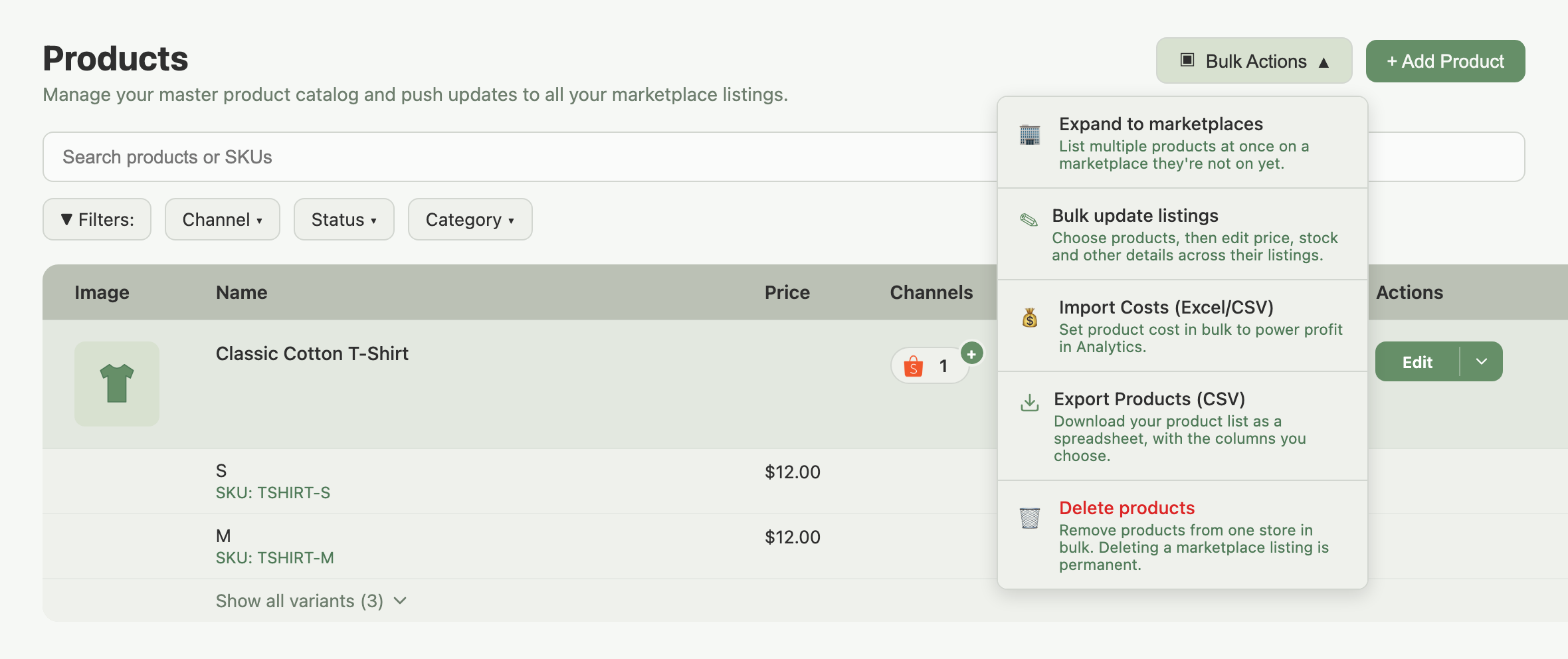
The Export Products page has two steps, Select products and Choose columns. The file is only built on your device and downloaded, so nothing changes in Indexync or on your marketplaces.
How Do I Choose Which Products Go in the File?
Every product is ticked when the page opens, so you can click Continue straight away to export all your products.
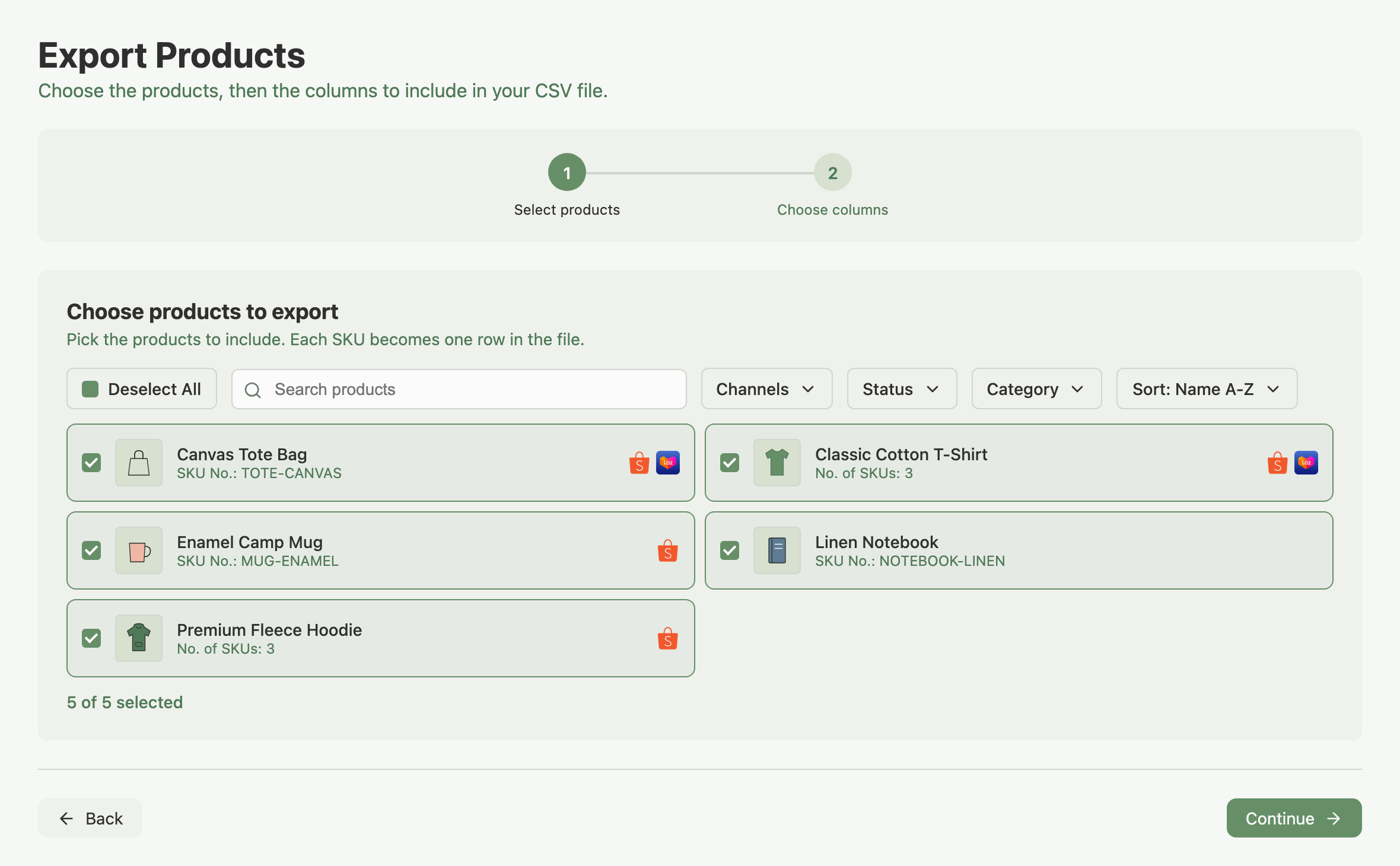
To export fewer products, narrow the list and then tick what you want:
- Search products finds products by name, SKU or variation.
- Channels shows products listed on a marketplace, or not listed on one, or not listed anywhere.
- Status limits the list to Active, Inactive or Draft products.
- Category limits it to one marketplace's categories. Click Clear to remove your filters.
- Sort sets the order. The file follows this order, not the order you ticked products in.
Select All and Deselect All apply only to the products currently showing after your search and filters. The count under the list shows how many are ticked, and Continue needs at least one.
Example: you only want drafts. Open Status, tick Draft only, click Select All, then Continue. The file contains just those products, in the order of your current sort.
Which Columns Can I Include?
Tick the columns you need on the Choose columns step. Select all columns ticks everything, Reset to default returns to the starting ticks, and each group has its own Select all and Clear.
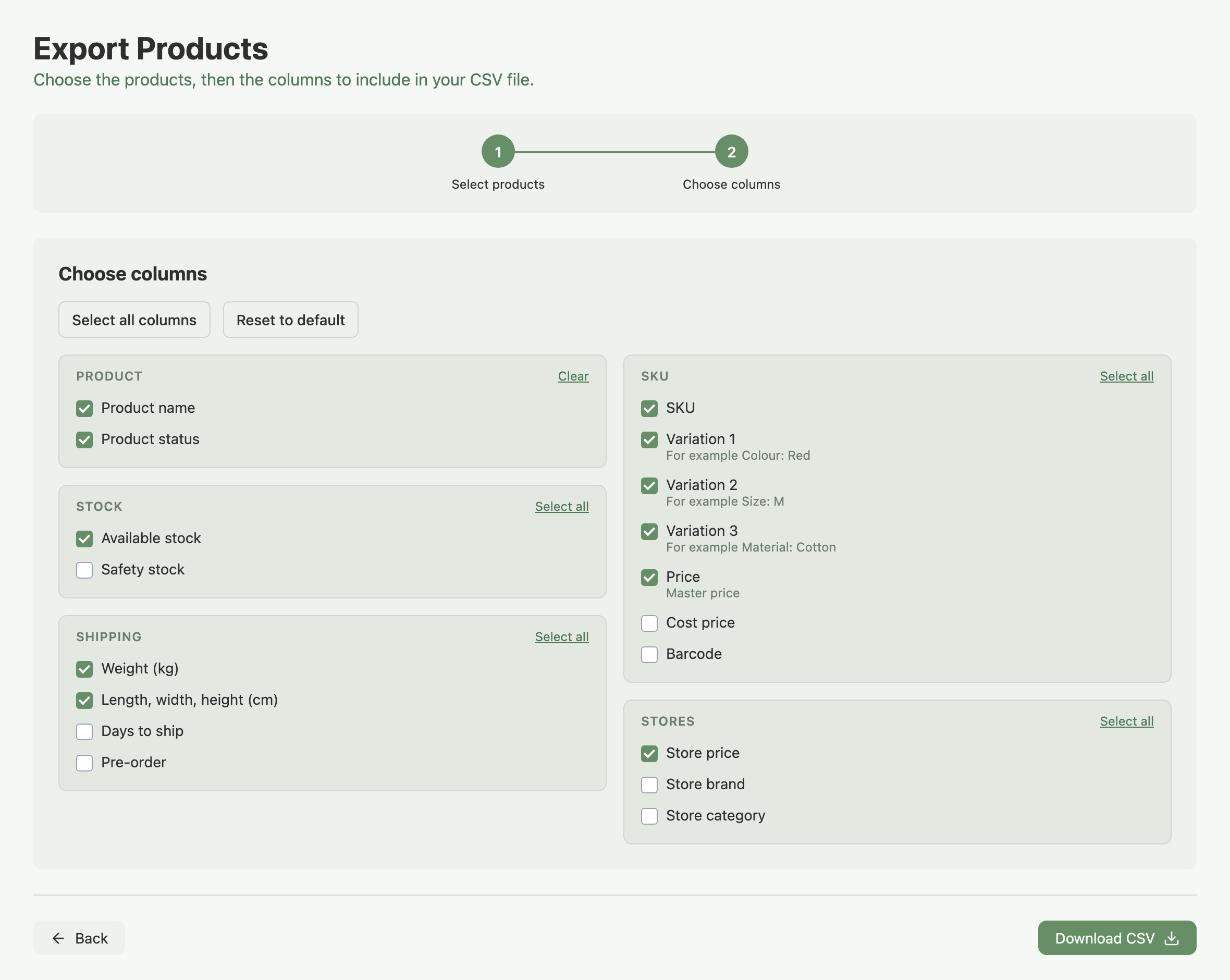
Columns always appear in the same order in the file, with store columns last, whatever order you tick them in. Cost prices come from the costs you have entered. See Set Your Cost Prices.
Example: you export a T-shirt with Small, Medium and Large. The file has three rows, one per size. The product name and weight repeat on each row, while SKU, variation and stock differ.
What Does the Preview Show, and How Do I Download?
Under the column groups, the preview shows how many products, rows and columns the file will have, then its first five rows and a count of the rows that follow. Check that the columns look right, then click Download CSV.
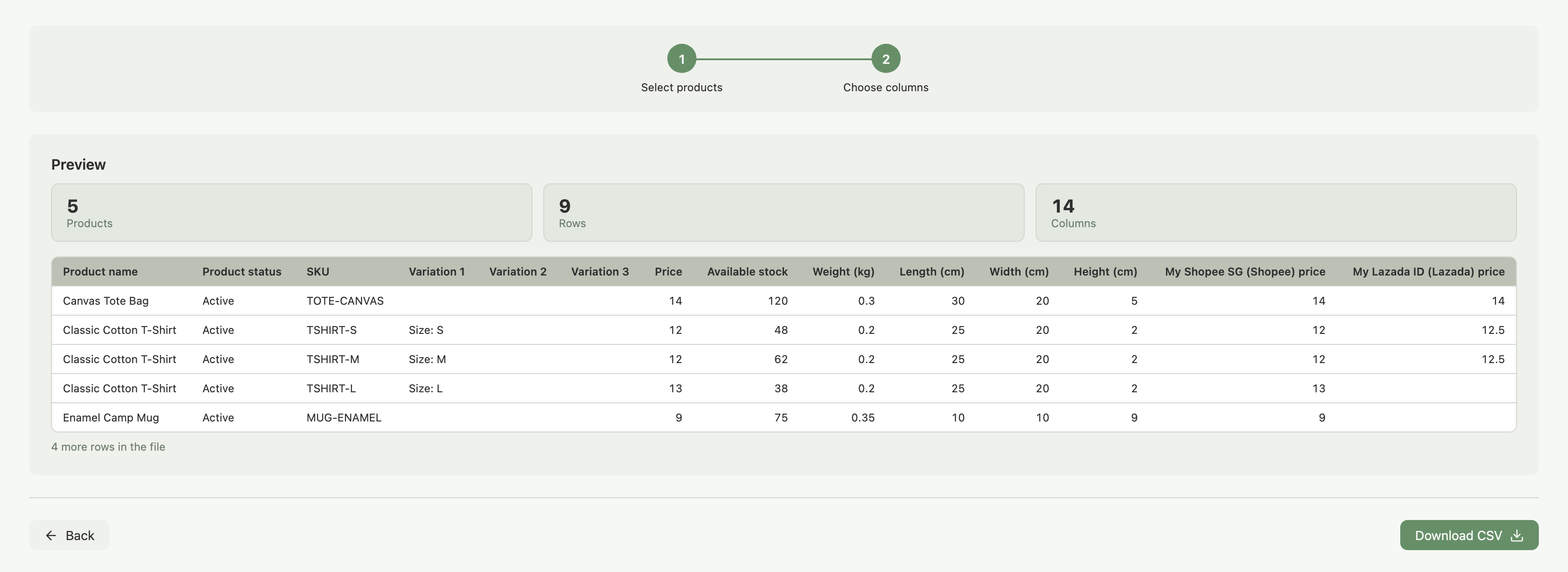
The file is named products-YYYY-MM-DD.csv, using today's date, and saves like any other browser download.
How Do Store Columns Work?
Each store that has a live listing of any product you selected gets its own column, named like "My Shopee SG (Shopee) price". Stores are ordered by marketplace (Shopee, Lazada, TikTok Shop, Shopify) and then by name. A store price you have not set separately for that store shows your master price, the same as when Indexync syncs. See Sync Your Prices Across Shopee, Lazada, TikTok Shop and Shopify.
A cell is blank when the SKU is not on that store, or is switched off for it. If you tick a store column but none of your selected products is listed on a store, the preview tells you the file has no store columns.
Example: your Large is sold on your Shopee store but not on Lazada. Its "My Shopee SG (Shopee) price" cell shows the Shopee price and its "My Lazada ID (Lazada) price" cell is blank. A blank cell means "not on that store", not zero.
Troubleshooting
Export Products is greyed out in the menu. The Products page is still loading your products and listings. Wait a moment and open the menu again.
The page shows a no-access message. Your role does not include managing products. Ask the workspace owner for access.
Download CSV is greyed out. Check these:
- No columns ticked: tick at least one.
- Stock figures still loading: wait a moment.
- Stock figures failed to load: click Try again next to the message.
A SKU shows an apostrophe in front. When a value starts with =, +, - or @, the file adds an apostrophe so your spreadsheet shows it as text instead of treating it as a formula. A SKU that starts with a dash is one example.
FAQ
Which plans can export products to CSV?
Lite, Pro and Scale.
Why is one row one SKU and not one product?
Each SKU has its own price, stock and barcode, so each gets its own row. Details that belong to the whole product, such as name, status and weight, repeat on every row of that product.
Why is a store price, brand or category cell blank?
The SKU is not on that store's listing, or is switched off for it. Blank means "not on that store", not zero.
Can I export cost prices?
Yes. Tick Cost price in the SKU group. It adds a Cost price column and a Cost currency column.
Why is Export Products greyed out or showing an upgrade prompt?
It stays greyed out until the Products page has finished loading. An upgrade prompt means your plan does not include data exports.
Related Articles
- How Do I Export My Orders to a Spreadsheet?
- Set Your Cost Prices
- What's the Difference Between a Product and a Listing?
- Sync Your Prices Across Shopee, Lazada, TikTok Shop and Shopify
Need More Help?
Visit our Feedback form, WhatsApp us, or email hello@indexync.com.