Why Does Indexync Say My Promotion Conflicts?
Every marketplace allows only one active discount per SKU, per store, at a time. When you publish a promotion, Indexync checks every selected store for SKUs already covered by another promotion running there during the same dates, and stops before anything is sent to any marketplace. This article covers what the conflict window means, what happens when a store has nothing to discount, Shopee's minimum run time, and what to do when one store fails while others succeed.
Applies to: Pro and Scale. See What Is a Promotion in Indexync? for plan details.
Why conflicts happen
The one-discount-per-SKU rule is checked per store, not per marketplace. If you sell the same SKU on two different Shopee shops, each shop is judged on its own, so the SKU can sit in a promotion on one shop while it's free on the other. A conflict happens when the SKU is already inside a Scheduled or Ongoing promotion on that same store and the two promotions' dates overlap. Indexync checks for this before it submits anything, so you get to fix it instead of finding out from a rejected sync.
What the Promotion Conflicts Detected window shows
When Indexync finds a conflict, the Promotion Conflicts Detected window opens with a red icon and, underneath, the dates of the promotion you're trying to publish. A summary line tells you how many SKUs are blocked and on which marketplaces.
- Grouped by store, not by marketplace. One SKUs Overlap Error (Blocked) section lists every conflict. If you sell on two Shopee shops, each shop with a clash gets its own group, headed by that store's name and, when it has one, its region.
- The marketplace's own reason, next to the store name. For example: "Lazada allows only one discount price per SKU at a time." TikTok's reason reads differently: "TikTok rejects overlapping activities on the same SKU."
- Side-by-side comparison per SKU. Each conflicting SKU shows the product name and its variant (such as Color: Red, Size: S), then two boxes: Incoming Promotion (this promotion's name, dates, price) and Existing Promotion (the same details for the one it clashes with).
The only button is Edit Promotion, which takes you back to the editor. Clicking outside the window also closes it.
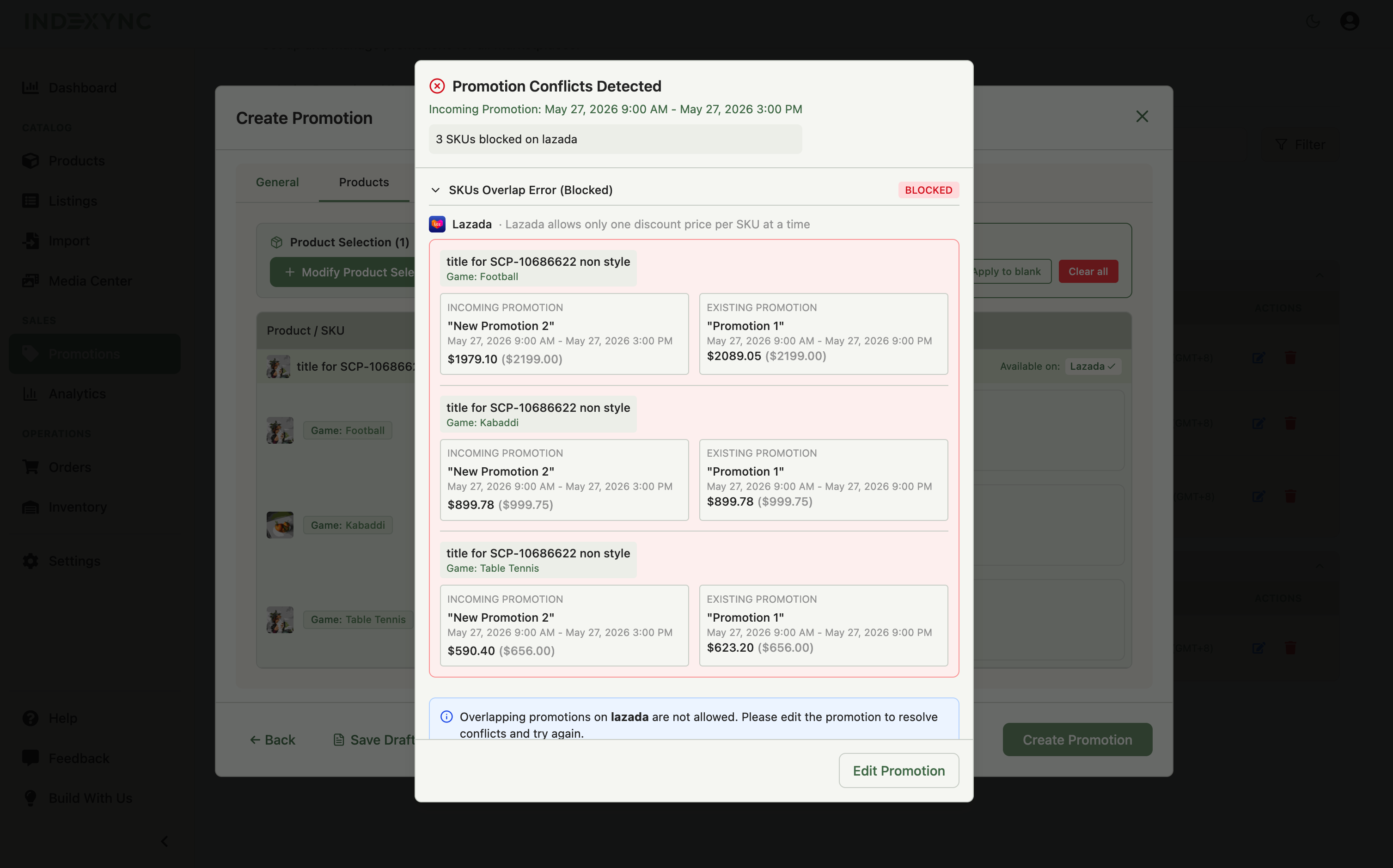
Example: you sell on two Shopee shops. You publish a "Year-End 25% Off" promotion and the Promotion Conflicts Detected window opens with one group, headed "Bangkok Outlet TH," listing 4 SKUs already inside an ongoing "Black Friday" promotion. Your second Shopee shop isn't listed, so it has no clash. Click Edit Promotion, clear those 4 SKUs for Bangkok Outlet, and save again. The rest of the promotion goes out to both shops.
How do I resolve an overlapping-promotion conflict?
Pick the option that matches what you're trying to do.
Why was a store skipped instead of blocked?
A store with none of your chosen products listed on it doesn't stop the save. Indexync drops that store from the promotion automatically and tells you before you save, under Store Selection in the General tab: "{N} stores skipped: no eligible products." followed by the names of the stores it skipped. Just above that line, you'll also see how many products are available, since only Active or Live products can go into a promotion.
One case still stops the save: every selected store is empty. If that happens, Indexync shows: "None of the selected stores has an included SKU. Add a product listed on one of these stores, or pick a different store." A store that's already live on a marketplace is never skipped this way.
Example: you pick three products and four stores. Under Store Selection you see "1 store skipped: no eligible products." followed by the store's name, because none of those three products is listed on that shop. You save anyway. The promotion goes live on the other three stores, and the skipped one is simply left out.
Why can't I end this promotion early yet?
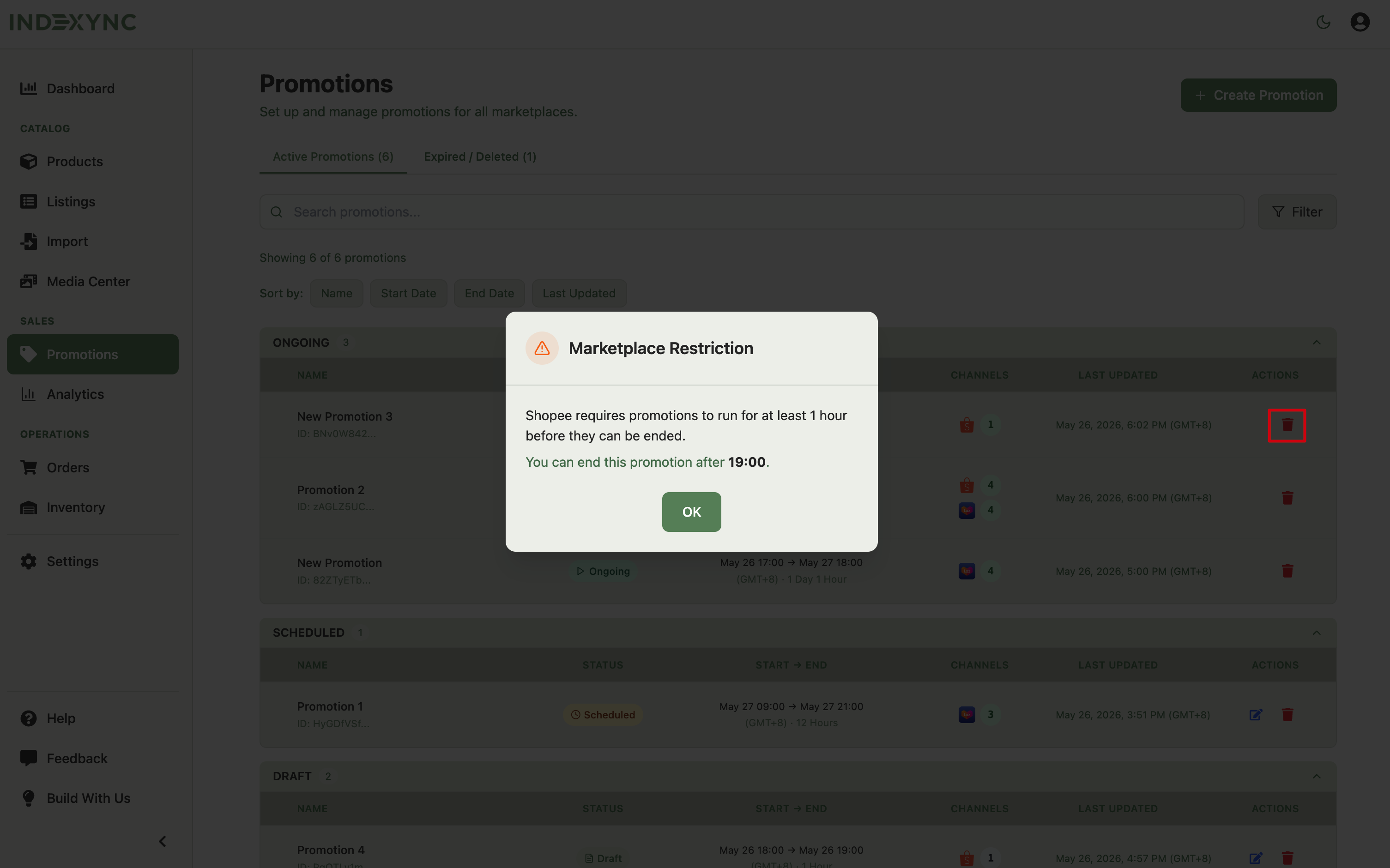
Shopee requires a promotion to run for at least 1 hour before you can end it early. Indexync checks every Shopee shop the promotion reached, so if any one of them has been live for less than an hour, ending early is held back for the whole promotion, not just that shop. A Marketplace Restriction message tells you the exact time you can end it. See How Do I Edit, End, or Delete a Promotion? for the full end-early flow.
Example: a promotion goes live on two Shopee shops and one Lazada shop, and shortly after you spot a wrong discount. The trash icon shows Marketplace Restriction, naming Shopee's 1-hour rule and the exact time you can end it. Until then, the whole promotion keeps running, Lazada included.
When one store fails and the others succeed
Indexync sends your promotion to each selected store on its own. If one store fails, that doesn't stop the rest, and the promotion stays where you can retry just the store that failed.
- A store that goes through shows "{n}/{m} SKUs synced."
- A store with a problem shows its name followed by "Error," with the marketplace's own message underneath. TikTok adds its own explanation alongside the error, for example telling you to remove products from a conflicting TikTok promotion, or to rename your promotion because TikTok needs a unique name across your shop.
- If any store failed, a banner tells you the sync completed with errors and points you to Retry Failed, which sends only the failed stores again.
A delete or an early end only goes through once every selected store confirms it. If one store fails, the promotion stays visible and retryable instead of disappearing while a discount is still live somewhere else.
Example: you publish to two stores. One reports "48/50 SKUs synced" and the other shows "Chiang Mai Outlet Error" with "Discount price too low." The banner says the sync completed with errors. Fix the price, then click Retry Failed. Only the failed store is sent again.
Still stuck?
Try the steps above first. Contact support if:
- The Promotion Conflicts Detected window shows a conflict even after the conflicting promotion has ended.
- A store keeps failing after you've corrected the error it reported and retried.
- The Marketplace Restriction message still appears well over an hour after the promotion started.
When you write in, include the promotion name, the affected SKUs, the store name, and the exact error message.
FAQ
What does "SKUs Overlap Error (Blocked)" mean?
It means the SKU is already inside another Scheduled or Ongoing promotion on that same store, and the marketplace only allows one active discount per SKU at a time. Edit either promotion so the SKUs or the dates no longer overlap.
Why is only one of my two Shopee shops listed as conflicting?
Conflicts are checked per store, not per marketplace. The same SKU can be free to discount on one Shopee shop while it's already in a promotion on another. Only the shop with an actual clash appears in the conflict window.
Why was a store skipped instead of blocked?
A store gets skipped, not blocked, when none of your chosen products are listed on it. Indexync drops it from the promotion automatically and tells you before you save; the rest of the promotion still goes live. Blocking only happens when every selected store ends up empty.
Why can't I end this promotion early right after starting it?
Shopee needs a promotion to run for at least 1 hour before it can be ended, and Indexync checks this across every Shopee shop on the promotion. If any one of them hasn't hit an hour yet, End Early is held back for all of them.
What if a conflict still shows after the other promotion has ended?
This shouldn't happen once the other promotion has genuinely expired. Contact support with the promotion name and the SKU it's flagging, since this points to something that needs a closer look.
Related Articles
- What Is a Promotion in Indexync?
- How Do I Create a Promotion in Indexync?
- How Do I Edit, End, or Delete a Promotion?
- Connecting Marketplaces
Need More Help?
Visit our Feedback page, WhatsApp us, or email hello@indexync.com.