How Do I Create a Promotion in Indexync?
Open Promotions in the sidebar, click Create Promotion, fill in the General tab (name, dates, stores, discount type), then switch to the Products tab to pick products and set discount values. Save a draft to finish later, or publish to take the promotion live on your selected stores.
Applies to: Pro and Scale plans. Free and Lite sellers can't create a promotion. See What Is a Promotion in Indexync? for plan details.
Before you start
- At least one store must be connected. See Connecting Marketplaces if you haven't yet.
- At least one product must have synced listings on the stores you intend to include.
- Decide your discount type: Percentage Off (a percentage cut from the original price) or Fixed Amount Off (per the on-screen card, "Enter the final discounted price directly", useful when you know the target sale price). You can't mix both in one promotion, and switching types after entering values clears them.
Opening the Create Promotion window
Go to Promotions in the sidebar, then click Create Promotion in the top right. The window opens with the General tab active.
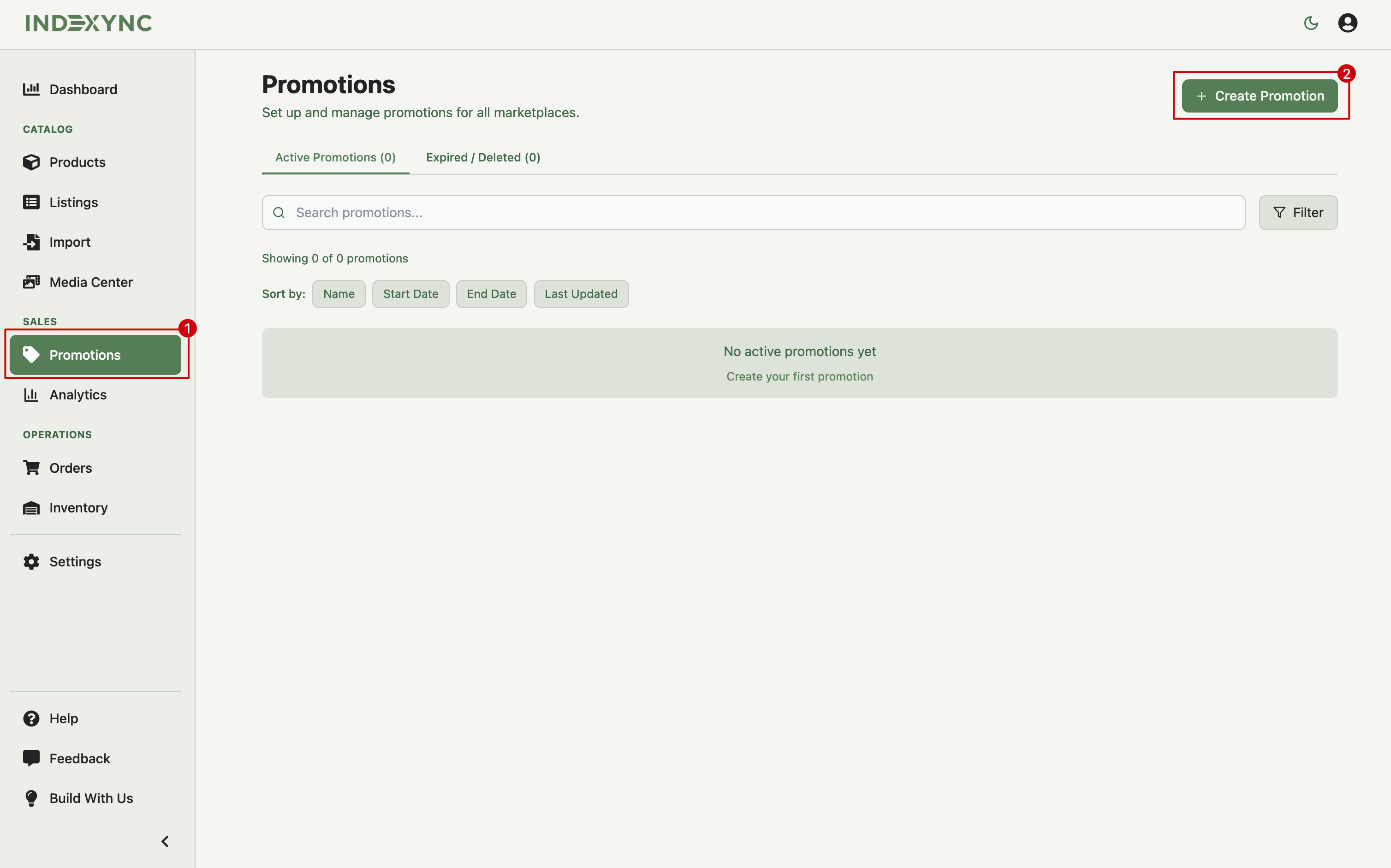
General tab
The window has two tabs: General (name, dates, stores, discount type) and Products (which products and SKUs get the discount, and how much). Fill the General tab first: Indexync uses your store and discount-type choices to decide what's selectable on the Products tab.
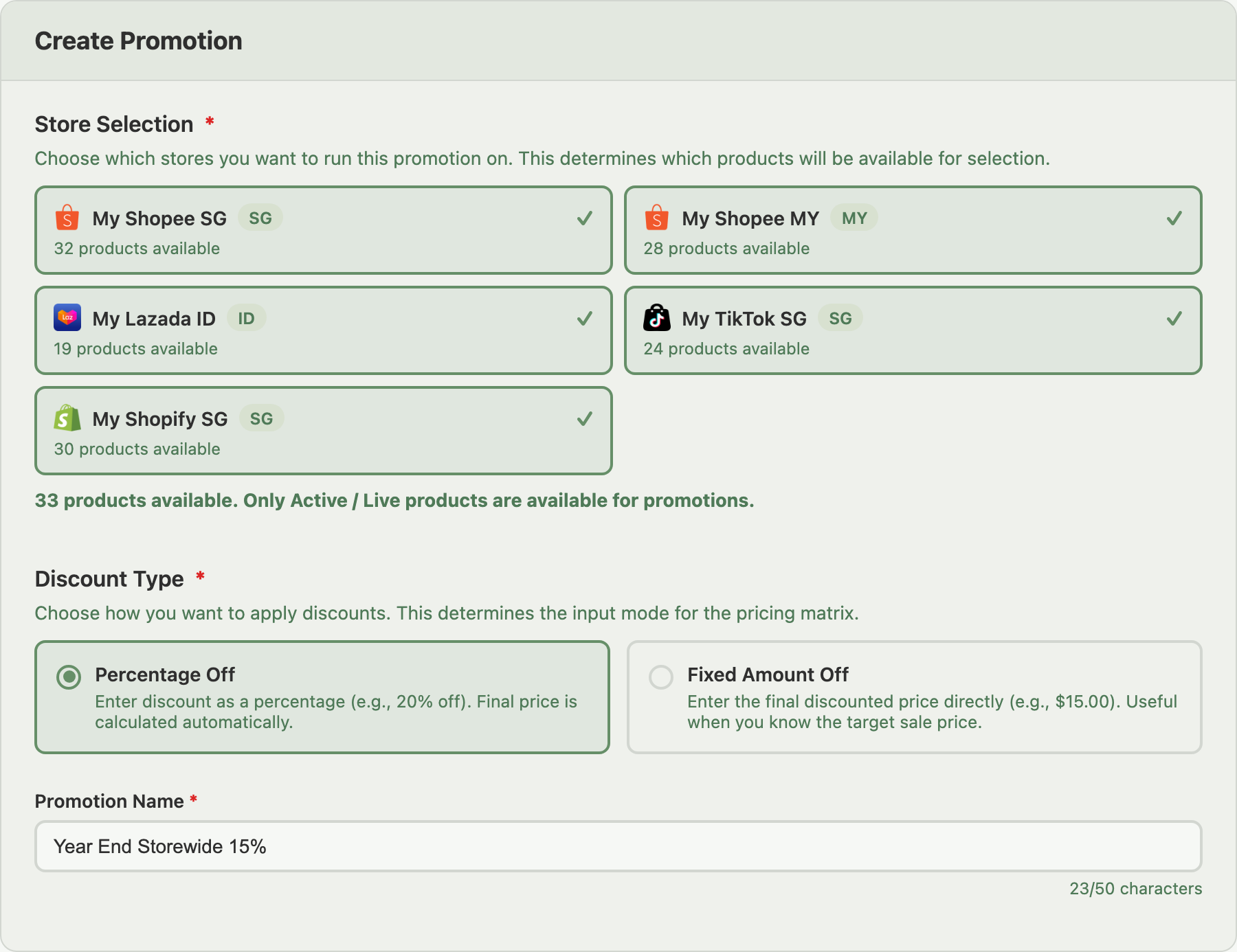
Promotion Name (required). Up to 50 characters. This is shown in your Promotions list; it isn't necessarily the name customers see on the marketplace.
Description (optional). Up to 300 characters, for your own internal notes. This field is never published to marketplaces.
Start Date and End Date (both required). Start at least 1 hour from now, and end within 30 days from today. Indexync auto-progresses it from Scheduled to Ongoing at the start date and from Ongoing to Expired at the end date, with no action from you.
Store Selection (required). Pick the individual stores this promotion runs on. Every connected store gets its own card, named by its nickname with its region shown as a pill beside the name. Two Shopee shops appear as two separate cards, so you can discount on one and leave the other alone.
A card you can't click means one of two things: greyed out, "No products available" (nothing in your catalogue is listed there yet), or a padlock (the store is already published and can't be removed from a live promotion).
If a store you selected has none of the products you later pick, Indexync skips it rather than blocking the save, and shows "N stores skipped: no eligible products." with the names.
Discount Type (required). Choose Percentage Off or Fixed Amount Off for the whole promotion; each SKU carries its own discount value but uses this type. Changing the type after you've entered values on the Products tab triggers a "Change Discount Type?" confirmation, warning that your amounts will be cleared.
Example: you fill the Products tab with $5 discounts on five SKUs using Fixed Amount Off, then switch to Percentage Off. Indexync shows "Change Discount Type?" because all five values will be cleared. Click Change Type to switch, or Cancel to keep Fixed Amount Off and your existing values.
When the General tab is complete, click Next: Products.
Products tab: picking products
A new promotion's Products tab starts empty with an Add Products button. Click it to open the full-screen product picker: search by name, SKU, or category, narrow the list with Filter, and work down the product cards.
Each card shows a small price table with one column per store you selected, headed by that store's icon, name, region, and currency. A dash means the product isn't listed on that store, a real answer rather than an error. Columns are ordered busiest first.
Click the green + at the top right of a card to add the whole product; it turns into a red x once every SKU is in the promotion. To add individual variations instead, expand the card and select the SKU rows you want. Click Confirm Selection when done.
Products tab: entering discounts
Closing the picker returns you to the pricing matrix, where you set the actual discount.
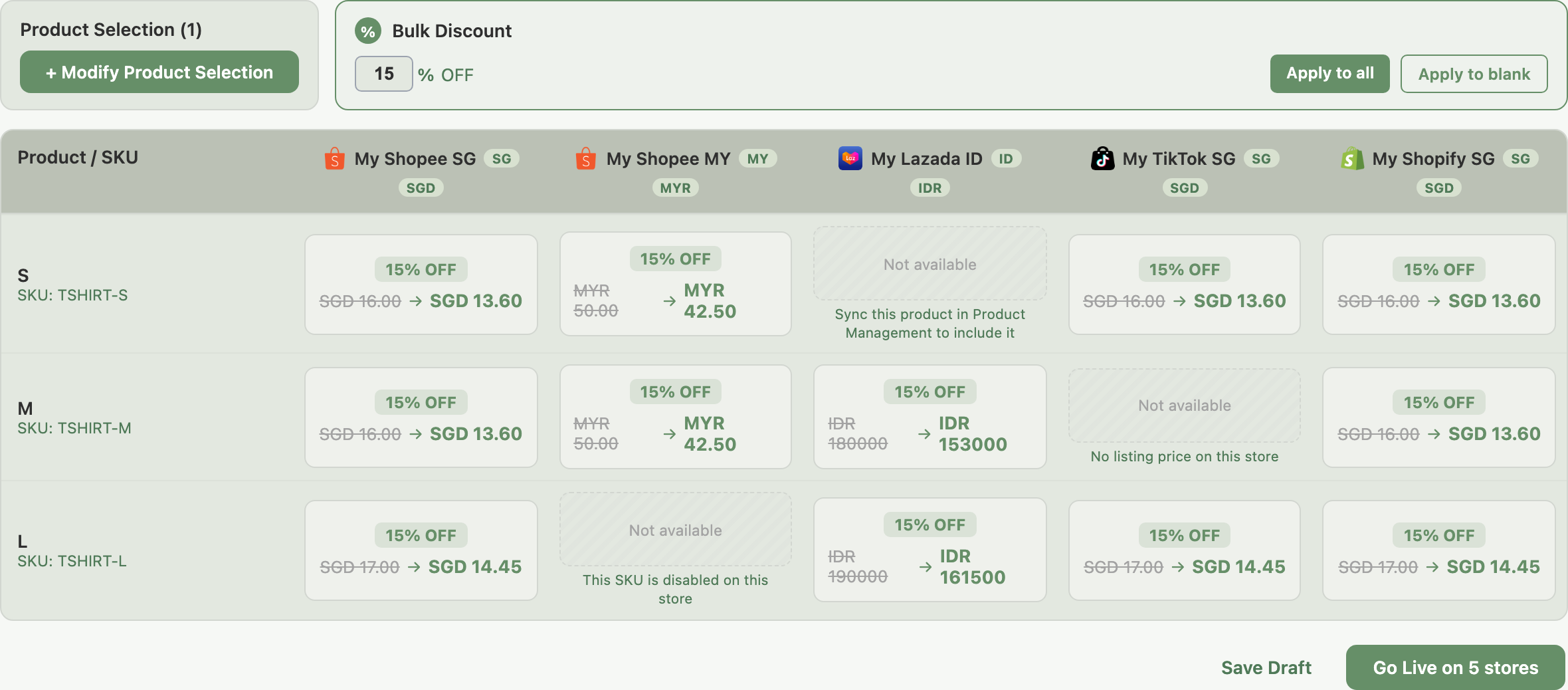
The matrix has one row per SKU and one column per store, each header carrying that store's icon, name, region, and currency. Columns are ordered busiest first, and a store with nothing to price is left out entirely.
Type the discount into each cell. Some cells aren't editable and read Not available instead. Hover one to see why:
Sync this product in Product Management to include it: no listing on that store yet.This SKU is disabled on this store: the SKU exists but is switched off there.No listing price on this store: there's no price to discount.
Any other cell can be excluded by hand too, and put back with Include, so you can run a promotion on most of a product's SKUs without removing the rest. Discount values must be greater than 0 and less than the SKU's original price on that store; Indexync checks this on save or publish.
On a store that takes whole-number prices only (VND and IDR stores, and Shopee stores in Thailand, the Philippines, Vietnam and Indonesia), the matrix shows prices without decimals. A percentage off is rounded to a whole number, half up, so 84,999.78 VND becomes 85,000. An amount off or final price with decimals is refused: the cell says "Use a whole number for VND." (or "Use a whole number for PHP on Shopee."), and Go Live stops with "Some promotion prices have decimals." followed by the same hint. Save Draft doesn't run these checks.
To apply the same value across many rows, use the bulk-apply card above the matrix (titled Bulk Discount for Percentage Off promotions, Bulk Amount Off for Fixed Amount Off): Apply to all overwrites every cell, Apply to blank fills only the empty ones. Modify Product Selection reopens the picker.
Example: you select your Shopee SG shop, your Shopee MY shop, and TikTok Shop, then add three products. In the matrix, the MY column shows Not available for one product that's never been listed there. You leave those cells alone, enter 15% in the rest, and save. The promotion goes live on all three stores, and that one product is simply absent from the MY discount.
Saving as a draft vs going live
Use the buttons at the bottom of the window.
The publish button names its own reach, so "Go Live on 3 stores" tells you exactly how many stores are about to receive the discount. Editing a promotion that's already published, the same button reads Update Promotion instead. Missing required fields keep the window open and are named directly, for example "Please complete the required fields. Missing: Promotion Name, Store Selection".
Example: it's Friday afternoon and you're prepping a Monday morning sale. You fill the General tab and pick 30 products but want input from a colleague on the discount values. Click Save Draft. The promotion sits in your Promotions list with status Draft over the weekend. Open it again on Monday, finalise the discounts, and click Go Live.
After you publish
Once you click Go Live and the form is valid, Indexync submits the promotion to every selected store, shows the result store by store, and moves its status to Scheduled. A store that clashes with a promotion it already has is reported as skipped, and the rest still go through: see Why Does Indexync Say My Promotion Conflicts?.
If you can't change a product's price on the Products page afterward, check whether that SKU is still in this promotion. See Editing & Updating Products & Listings for how the price lock works.
To monitor, edit limited fields, or end the promotion early, see How Do I Edit, End, or Delete a Promotion?.
FAQ
What's the difference between Save Draft and Go Live?
Save Draft keeps the promotion in Indexync only, unpublished, so you can keep editing. Go Live submits it to every selected store immediately and moves its status to Scheduled.
Why is a cell in the pricing matrix greyed out?
It's marked Not available for one of three reasons: the product isn't synced to that store yet, the SKU is disabled there, or the listing has no price to discount. Hover the cell to see which.
Can I switch discount type after I've entered values?
Yes, but Indexync clears every discount value you've entered on the Products tab and asks you to confirm first.
What happens if a selected store has none of my chosen products?
Indexync skips that store and tells you: "N stores skipped: no eligible products." The promotion still goes live on the rest.
When does the discount appear after I go live?
At the start date and time you set, not the moment you publish. If that time has already passed, it goes live right away.
Related Articles
- What Is a Promotion in Indexync?
- How Do I Edit, End, or Delete a Promotion?
- Why Does Indexync Say My Promotion Conflicts?
- Connecting Marketplaces
Need More Help?
Visit our Feedback page, WhatsApp us, or email hello@indexync.com.