Ship Many Orders at Once with Bulk Operations & Pick Lists
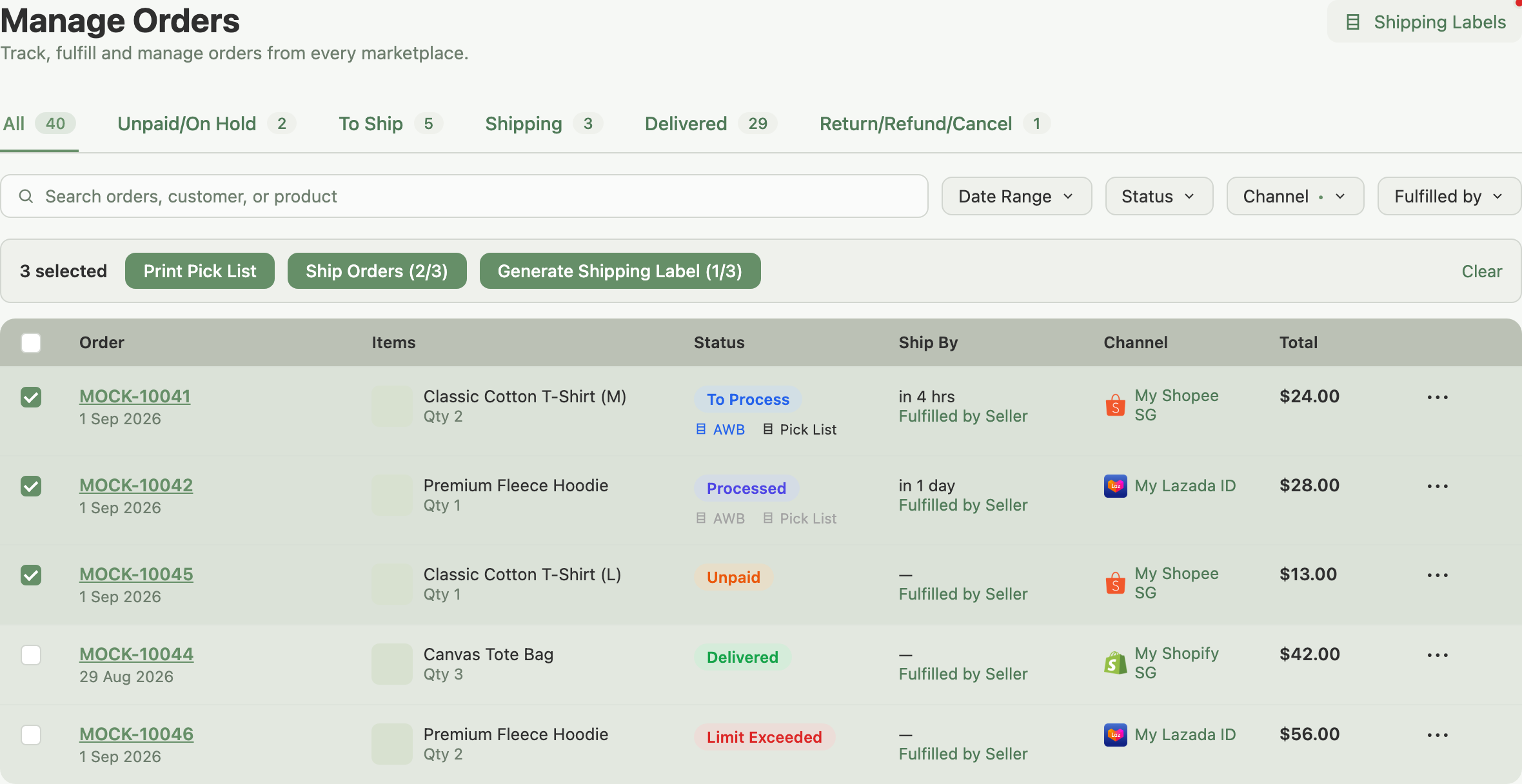
Select the orders you want to act on with the checkboxes on the Manage Orders page, then use the bulk action bar that appears: Print Pick List, Ship Orders, or Generate Shipping Label. Indexync handles each marketplace in the selection separately in the same batch, so you can process a mixed Shopee/Lazada/TikTok/Shopify selection in one pass.
Applies to / Before you start
- Available on: Lite plan and higher. Not available on Free.
- Works from the Orders page in the left sidebar (Manage Orders).
How do I select orders for a bulk operation?
- Open Orders in the left sidebar.
- Tick individual row checkboxes, or use the checkbox at the top of the table to select every visible row.
- Once at least one row is selected, the bulk action bar appears below the filters, showing {n} selected and the available operations.
If an operation only applies to some of your selection, its button shows a count, for example Ship Orders (2/3): 2 of your 3 selected orders can be shipped. A button greys out completely when none of your selection is eligible.
How do I print a combined pick list?
A pick list is the document you take to the warehouse: it lists every SKU and quantity across the selected orders so you gather stock in one pass before packing.
- Select the orders, then click Print Pick List.
- Indexync generates one combined PDF grouping items by SKU with warehouse location.
- Once you close the PDF, the selection clears and each order is marked as pick-list generated.
Print Pick List works on any order regardless of marketplace or status.
Bulk shipping many orders
Select the orders that need to ship and click Ship Orders. Bulk shipping works across every marketplace: Shopee, Lazada, TikTok Shop and Shopify are all supported. Select a mix of channels and the Bulk Ship Orders window groups your orders by marketplace and handles each one's own requirements inside the same batch. Filter to one channel first if you only want that channel's options to show.
Shopee
The Bulk Ship Orders window groups your Shopee selection by shipping method:
- Pickup: Shopee's integrated carrier collects from your registered address.
- Drop-off: you drop the parcels at a Shopee collection point.
- Manual: you use your own carrier and enter tracking numbers yourself.
Confirm or adjust the method for each group, then submit. Shopee processes every group in parallel.
Example: late in the day you have 25 Shopee orders ready to ship: 20 for pickup, 5 for drop-off. Filter to Shopee, tick all 25, click Ship Orders. Bulk Ship Orders groups them into a Pickup batch of 20 and a Drop-off batch of 5. Leave the methods as detected and submit; Shopee arranges all 25 shipments in parallel, and the Ship Results screen shows each order's outcome.
Lazada
Indexync packs each pending order in your selection. If your store's Auto arrange shipment and Auto-generate label settings (under Settings → Orders) are turned on, packing also arranges the shipment and generates the label in the same action, so a batch of pending orders becomes ready to ship in one click. If those settings are off, arranging shipment and generating the label are still separate steps: use bulk Generate Shipping Label below once your orders are packed.
Orders fulfilled by Lazada (FBL) and orders made up entirely of digital items aren't included; ship or deliver those individually instead.
TikTok Shop
Orders you ship yourself (Seller Ship mode) need a carrier and tracking number before TikTok marks them shipped: the window adds a TikTok Seller Shipping section where you enter both for each package (an order can have more than one). Submit and Indexync sends the tracking details to TikTok in one batch; TikTok marks each package shipped and notifies the buyer.
Orders that TikTok's own logistics fulfils don't need tracking input; they process automatically in the same batch.
Shopify
No extra input is needed: Indexync marks each selected order fulfilled and syncs the status back to Shopify.
If you need to attach specific tracking per order, open that order individually and fulfil it from there instead. Bulk fulfil is best when you don't need to record tracking, or the orders already carry it.
Bulk printing shipping labels
Once your orders have a shipping label ready, select them and click Generate Shipping Label. This works for Shopee, Lazada and TikTok Shop orders; Shopify doesn't use Indexync-generated shipping labels, so bulk label printing isn't available for Shopify orders (fulfil those with Ship Orders above, and manage their labels in Shopify directly).
Indexync produces one merged PDF containing every label in your selection; print it and match each label to its parcel. Only orders eligible for a label are included: if some of your selection isn't ready, the button shows the eligible count, for example Generate Shipping Label (12/15), and the results screen after printing shows which orders were skipped and why. A label generated individually for one order swaps that order's row action to View Shipping Label; labels generated as part of a bulk batch stay under Generate Shipping Label and are viewed together from the Shipping Labels list (see Understanding Orders).
Shopee
Available once you've arranged shipment for the order. Not available for orders using Manual shipping: Shopee doesn't generate a label for those, since you're using your own carrier.
Lazada
Available once the order is packed, and stays available while it's ready to ship.
TikTok Shop
Available once the order is awaiting collection or has started shipping.
What happens with large batches or partial failures?
After a bulk operation finishes, Indexync shows a results screen with a per-order breakdown: how many succeeded, how many failed, and the reason for each failure.
- Some orders failed: re-select just the failed orders from the list and run the operation again.
- A very large batch doesn't all finish in one run: the orders that completed are already processed and unaffected. Re-run the same operation; it picks up the rest. Splitting into smaller batches also reduces how often this happens.
- If bulk label generation runs long, you may see a message saying labels are still generating in the background and will appear under Shipping Labels shortly. This isn't a failure; it finishes on its own.
Example: a bulk Lazada label print on 40 orders comes back as "Shipped 38 of 40 orders." The two failures show a stale package state. Re-run Pack on those two orders to refresh them, then re-select just those two and print again.
Troubleshooting bulk operations
Some orders failed. The results screen lists which orders failed and why. Re-select just those orders and run the operation again.
A batch doesn't fully finish. The orders that completed are unaffected. Re-run the operation on the remainder, or use smaller batches going forward.
The Ship Orders button is greyed out. None of your selected orders are in a shippable state. Shopee and TikTok orders need to be To Ship; Lazada orders need to be pending; Shopify orders need to be unfulfilled.
Generate Shipping Label is greyed out. No selected order has a label ready yet, or your selection is all Shopify (not supported). For Lazada, run the Pack step first; for Shopee, check the order isn't using Manual shipping; then return to bulk-print.
Mixed-marketplace selection doesn't show the option I expected. Bulk shipping handles each marketplace separately inside the same window. If a marketplace's option is missing, check that your selection includes orders from that marketplace in an eligible state.
FAQ
Can I bulk-ship orders from more than one marketplace at once?
Yes. Select a mixed selection and click Ship Orders; the window groups your orders by marketplace and handles each one's requirements inside the same batch.
Why is the Ship Orders button showing a count like (2/3)?
It means only 2 of your 3 selected orders are eligible for that operation right now. The other order stays where it is; you can act on it separately once it's eligible.
What happens if a bulk operation doesn't finish?
Orders that already completed are unaffected. Re-run the same operation and it picks up the orders that are still pending.
Is bulk shipping available on the Free plan?
No. Bulk operations need Lite plan or higher.
Can I print pick lists for orders I'm not shipping yet?
Yes. Print Pick List works on any order regardless of marketplace or status.
Which marketplaces can I bulk-print shipping labels for?
Shopee, Lazada and TikTok Shop. Shopify doesn't use Indexync-generated shipping labels, so bulk label printing isn't available for Shopify orders; fulfil those with Ship Orders instead.
Related Articles
- Understanding Orders & Order Details
- Processing Shopify Orders
- Processing Shopee Orders
- Processing Lazada Orders
- Processing TikTok Shop Orders
- Troubleshooting Order Issues
Need more help?
Use the Feedback form, message us on WhatsApp, or email hello@indexync.com.