Where Do All My Marketplace Orders Show Up?
Click Orders in the left sidebar to open Manage Orders. Every Shopee, Lazada, TikTok Shop and Shopify order shows up there, sorted into tabs such as To Ship and Delivered. Each tab means the same on every marketplace, so you check one page, not four seller centers.
Applies to: All plans
Opening the Orders page
Click Orders in the left sidebar. The page heading reads Manage Orders, with a short tagline under it.
Orders for products not yet imported into Indexync are called unlinked orders. For newly connected stores they appear here by default; a per-store "Include unlinked orders" toggle in Settings → Orders controls this. Unlinked orders never affect your stock counts, but they do count toward your plan's monthly order limit. Once you import the product, later orders link to it automatically.
What each status tab means
Seven tabs run along the top of the page, each with a count of orders currently in that state:
- All: every order Indexync has imported, from the last 30 days. Widen the Date Range above the table to see older orders.
- Unpaid/On Hold: the buyer hasn't paid yet, or the marketplace is still reviewing payment.
- To Ship: paid and ready for you to fulfil.
- Shipping: handed to the courier, in transit.
- Delivered: delivered, from the last 30 days. Widen the Date Range above the table to see older orders.
- Cancelled: the order was called off before it shipped.
- Return/Refund: the goods went out and something came back, or the buyer asked for their money.
Click a tab to filter the table. The active tab is highlighted.
All and Delivered are the only tabs bounded to the last 30 days by default. The other tabs (Unpaid/On Hold, To Ship, Shipping, Cancelled, Return/Refund) show every order in that state regardless of age, since those are the orders you still have work to do on.
Example: an order sits in the To Ship tab, but its own status badge reads "Processed," not "To Ship." The tab groups two order statuses (To Process and Processed) into one queue; the row itself always shows the more specific one.
Tab counts don't update the instant a new order arrives. Tab counts update when you reload the page, or after you ship, cancel, refund or run a bulk action. Example: you're on the Orders page when three new Shopee orders arrive. The All tab still shows the old count until you take an action or refresh; the badges track what you've done, not orders arriving in the background.
What's on an order row
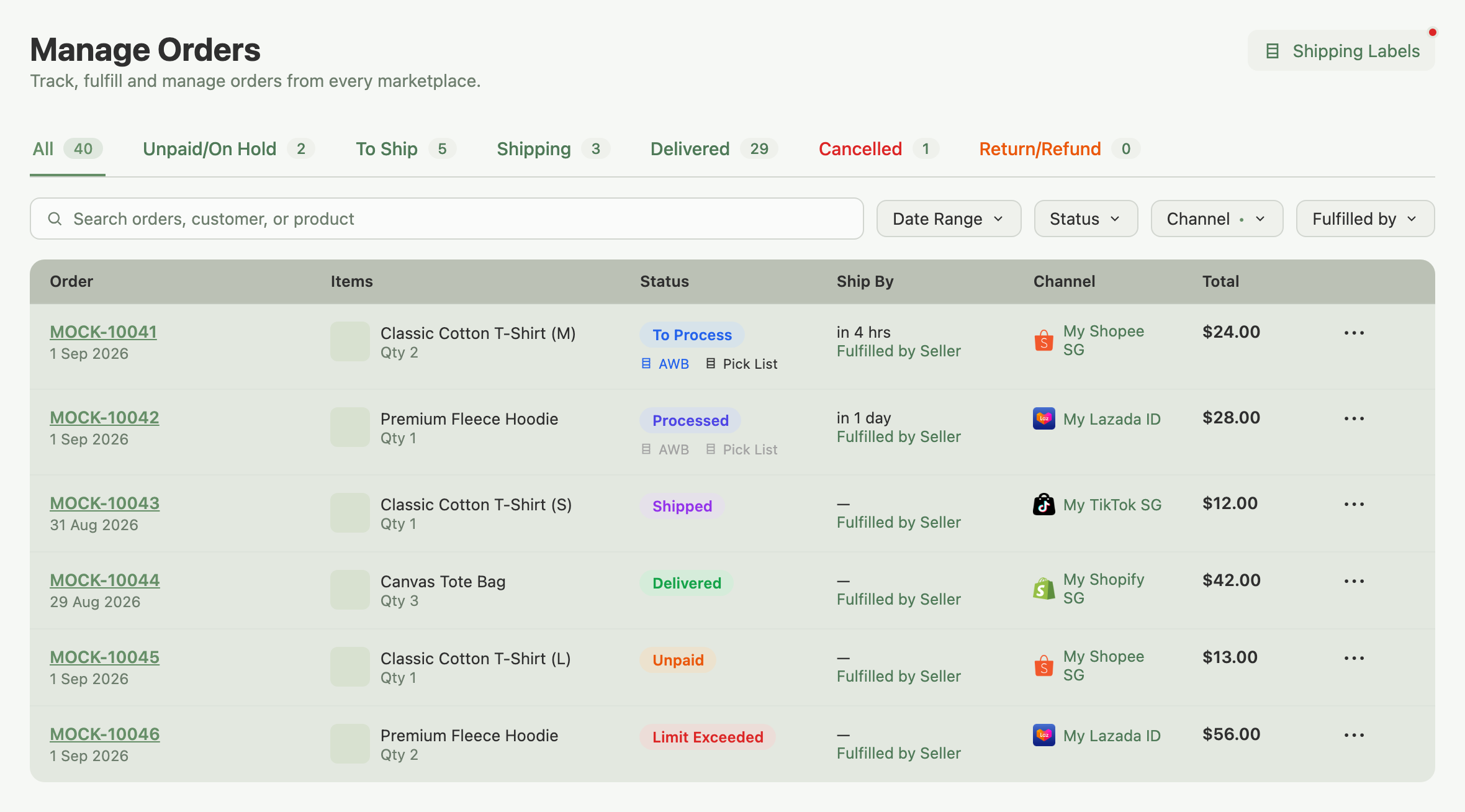
Each row shows:
- Order ID and date: click the Order ID to open the full details.
- Items, with thumbnails and quantities. When an order has more items than fit in the strip, the last tile shows a "+N": that N is a count of units, not products, so it includes every unit still hidden behind it, pictured or not.
- Total items, a single number under the item thumbnails counting every unit in the order (for example, two of the same shirt in different sizes counts as 2, not 1).
- Status, the order's own status (see the list above), plus an AWB icon and a Pick List icon.
- Ship By, a deadline or remaining-time indicator, and the fulfilment method (for example, Fulfilled by Seller).
- Shopify orders: Ship By shows a date only for Store Pickup or Local Delivery orders that come from a delivery-date app. Any other Shopify order shows no Ship By. When the app supplies a delivery date for those other orders, the row shows it under the delivery method as "Delivery date".
- Channel, with the marketplace icon and connected store name.
- Total, in the order's currency.
- Actions ("...") with status-dependent options, such as printing a shipping label or cancelling.
Filtering, searching and sorting
The toolbar above the table has:
- Search: matches order ID, customer name, or product.
- Date Range: narrows to a specific window.
- Status: filters within the current tab's statuses.
- Channel: filters by marketplace; select more than one at once.
- Store: appears only once a channel has more than one connected store.
- Fulfilled by: Seller or Marketplace.
Combine any of these with a status tab for a precise view. For example: the To Ship tab plus a Channel filter of Lazada shows only Lazada orders that need packing today.
Sort switches between: Time created (Newest, the default, or Oldest), Ship by date (Oldest or Newest), and Price (Highest or Lowest). Switch to Ship by date (Oldest) when you're close to a deadline and want to see the most overdue orders first.
Managing shipping labels
The printer icon under an order's Shipping column ("AWB") shows whether a shipping label has been generated for that order. Click it, or the Shipping Labels button at the top of the page, to open the same window: a list of every label batch, grouped by marketplace, where you can view the PDF or mark labels as printed without opening each order one by one.
| Icon state | What it means |
|---|---|
 | No label has been requested yet. |
 | A label is being created (hover shows "Generating…"); check back shortly. |
 | The label is ready to view or print. |
 | The label has been marked as printed. |
 | The label couldn't be generated (hover shows "Failed to Generate" with the reason); open Shipping Labels to retry. |
The Pick List icon next to it works the same way, but tracks whether a pick list has been generated for that order instead of a shipping label.
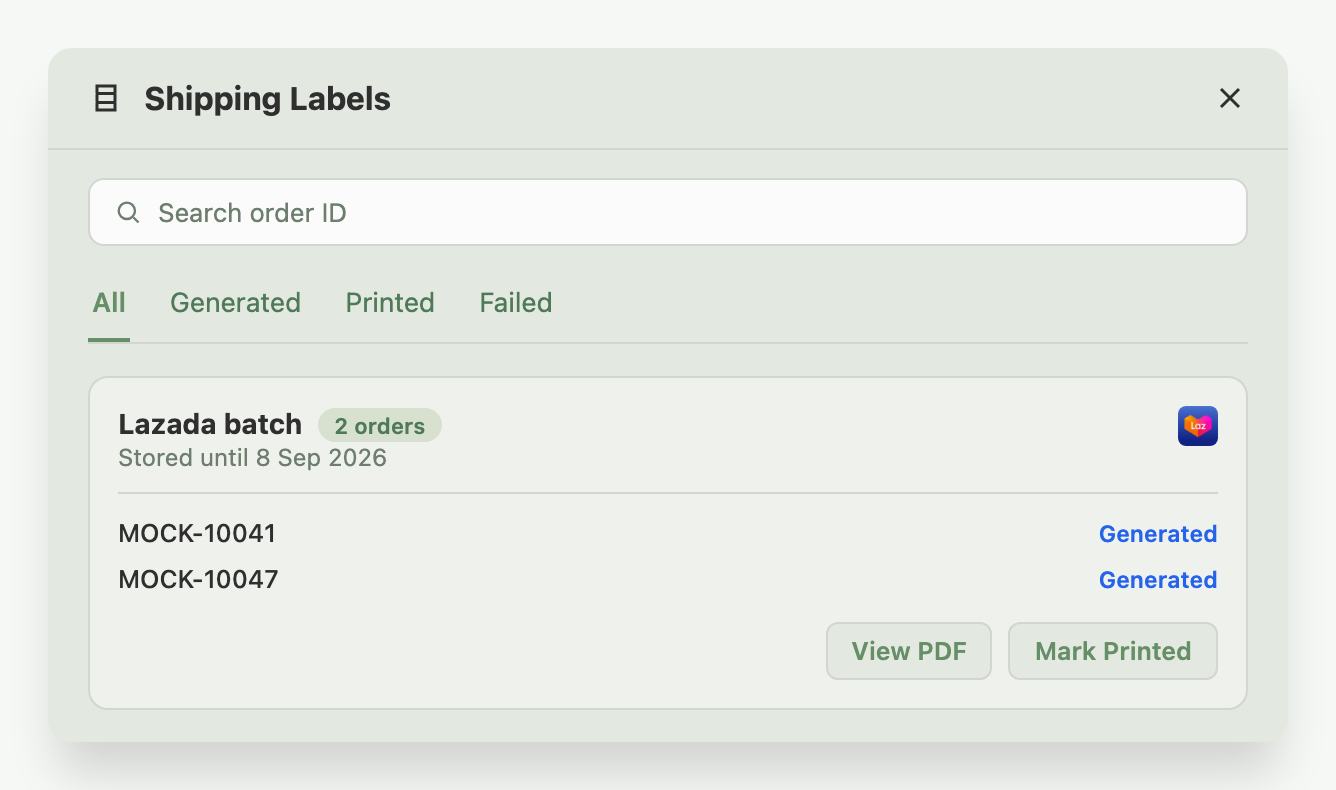
Example: an order's row shows a blue AWB icon reading Generated. Clicking it, or opening the Shipping Labels button, takes you to the same window, where you can view or print the PDF for that order's batch.
Each per-marketplace fulfilment guide (Shopify, Shopee, Lazada, TikTok Shop) covers how a label first gets requested for that channel; this page is where you manage the results across all of them.
Opening an order's details
Click the Order ID to open the full detail page.
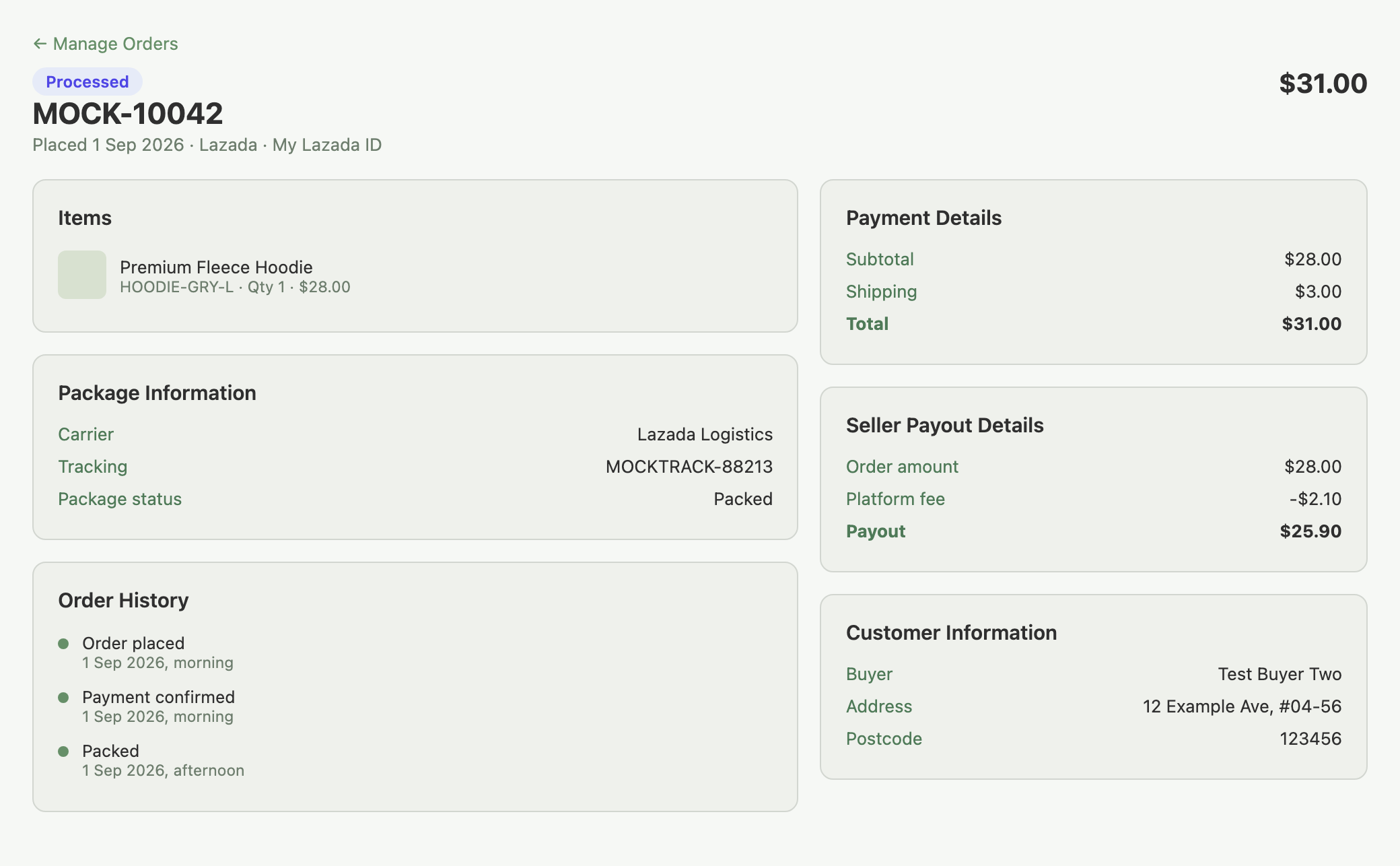
You'll find:
- The order header: status, Order ID, date, and total.
- The full item list with prices, quantities, and SKUs.
- Delivery details (Shopify orders from a delivery-date app only): Delivery date, the delivery time, and Location, which reads Pickup location for Store Pickup orders. Each line appears only when the app supplied it.
- Additional details (Shopify orders only): any other notes or custom fields attached to the order by a delivery-date app or your store's checkout, shown under the name they were saved with. Each appears only when the order has it.
- Package Information: carrier, tracking, and package status where available.
- Order History, a timeline of every status change (below Package Information).
- Payment Details, and for eligible orders, Seller Payout Details (available on Shopee, Lazada and TikTok Shop orders once settlement data is in; Shopify orders don't show this section).
- Customer Information, with the buyer's name and address.
Click ← Manage Orders at the top, or use your browser's back button, to return to the list.
Troubleshooting
An order I expect isn't on this page. Check that "Include unlinked orders" is on for that store in Settings → Orders, or import the product into Indexync. If the order is older than the orders Indexync brought in when you connected the store, a paid plan can pull it in with Historical Order Import.
A row shows "Limit Exceeded" instead of its usual status. That's a plan-limit state, not a sync problem. See Plan Limits & Order Processing and your Dashboard for what it means and how to clear it.
A status looks out of date. Sync issues, and what to check, are covered in Order Sync & Updates.
FAQ
Why doesn't the row show "To Ship" like the tab name?
The tab groups more than one order status into one queue. The row itself always shows the more specific status, such as "To Process" or "Processed."
What does the printer icon next to Shipping mean?
It's the AWB (shipping label) status for that order. Its colour and label tell you whether a label has been generated, is still generating, has been printed, or failed: the table above shows each state.
Why does an order say "Limit Exceeded"?
Your plan has a monthly order limit, and this order is over it. See Plan Limits & Order Processing for what happens next and how to clear it.
Why doesn't my Shopify order show a Ship By date?
Ship By only has a date for Shopify orders placed as Store Pickup or Local Delivery through a delivery-date app. Standard shipped Shopify orders have no Ship By date, so the order's details leave the Ship By line out and the row shows no Ship By date.
Can I see orders for products I haven't imported yet?
Yes. "Include unlinked orders" in Settings → Orders is on by default for newly connected stores and can be switched per store. They won't affect your stock counts, but they count toward your monthly order limit.
What's the difference between the AWB icon and the Shipping Labels button?
They open the same window. The row icon is a shortcut for that one order; the header button opens the same view for every order across every marketplace.
Related Articles
- Processing Shopify Orders
- Processing Shopee Orders
- Processing Lazada Orders
- Processing TikTok Shop Orders
- Bulk Operations & Pick Lists
- Order Sync & Updates
- Handling Returns & Cancellations
- Troubleshooting Order Issues
- Plan Limits & Order Processing
- Dashboard Overview
- Importing Your Order History
Need More Help?
Fill out our Feedback form, message us on WhatsApp, or email us at hello@indexync.com.