How Do I Ship and Fulfil Lazada Orders?
Which action you click depends on which of Lazada's three fulfilment paths an order is on: Pack for a standard order, nothing for an FBL order, or Mark as Delivered for a DBS order. Indexync shows only the actions that apply to each order, so you never have to work out the path yourself.
Applies to: All plans with a connected Lazada store.
Finding your Lazada orders
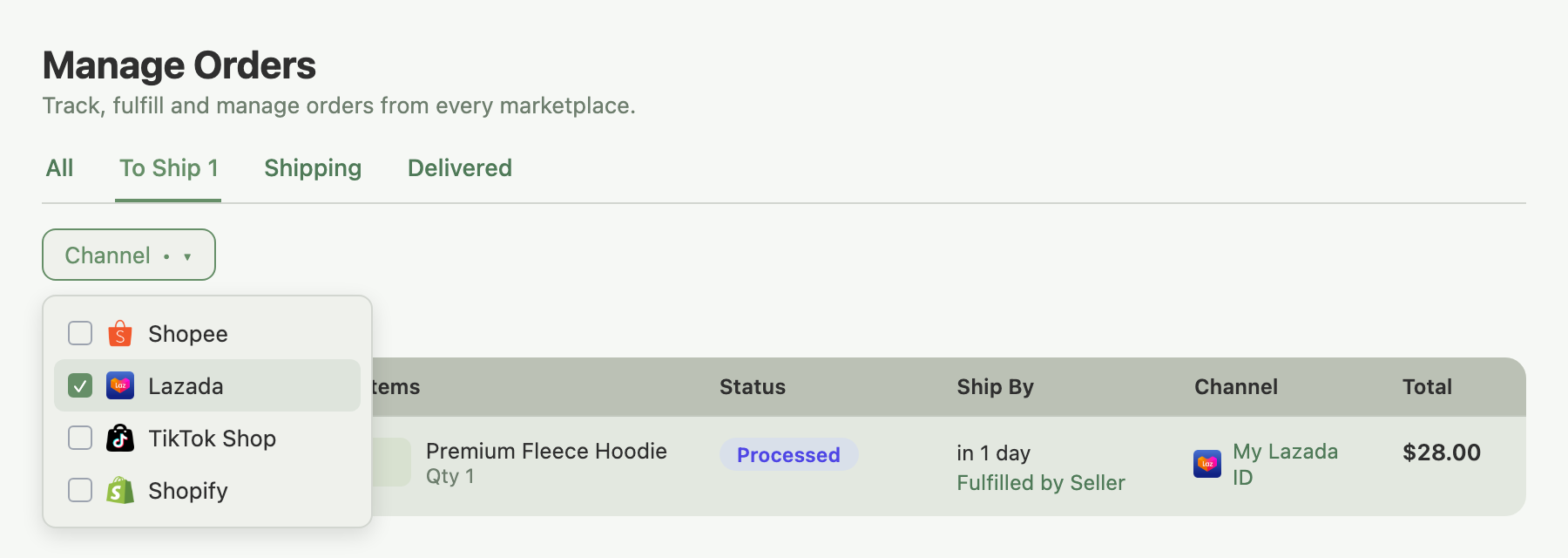
Open Orders in the left sidebar to reach the Manage Orders page.
- Click the Channel filter in the toolbar.
- Select Lazada.
The list narrows to Lazada orders only. Switch to the To Ship tab to see orders ready for fulfilment.
The three Lazada fulfilment paths
A single order can mix DBS and standard items. Indexync shows both sets of actions, scoped to the relevant items.
Standard fulfilment: Pack, Arrange Shipment, Generate Shipping Label
Lazada's standard fulfilment has three phases: pack, arrange shipment, and generate the shipping label. Out of the box, Pack does only the first phase. Arrange Shipment and Generate Shipping Label are separate, later clicks unless you turn on the automation below.
- Pack: click it on a pending order to pack it. The button reads Pack, not "Pack & Ship", until you turn on the one-click automation.
- Arrange Shipment: once an order is packed, this action appears on its own. Click it to schedule the logistics handover with Lazada.
- Generate Shipping Label: available as soon as the order is packed; you don't have to run Arrange Shipment first if your workflow doesn't need to. Click it to download the airway bill PDF and attach it to the parcel.
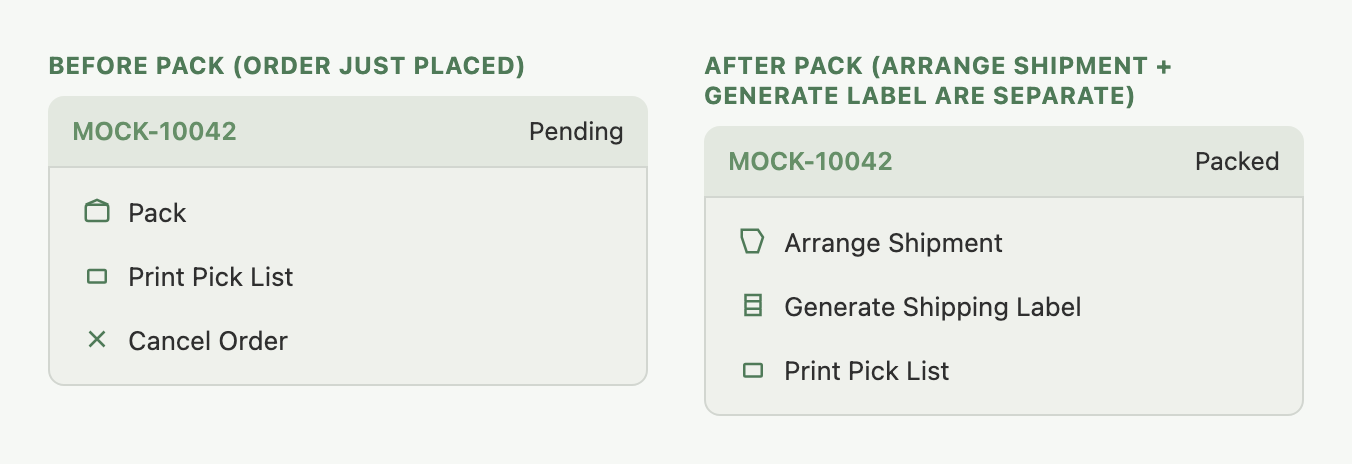
Example: a new Lazada order needs packing. Click Pack. The order moves to Packed, and its action menu now shows Arrange Shipment and Generate Shipping Label as separate steps. Click each in turn: Arrange Shipment schedules the logistics handover, then Generate Shipping Label downloads the airway bill PDF.
To reprint a label on an already-packed order, click Generate Shipping Label again; once a label exists, the button switches to View Shipping Label, and reopening it doesn't change the order's status.
Bulk printing: select multiple orders on the Manage Orders list and use the bulk action to generate labels for all of them at once.
Turning on one-click Pack
Lazada fulfilment can collapse to a single click: with both automation toggles on, one press of Pack & Ship packs the order, arranges shipment, and downloads the label. Turn the toggles on for that store under Settings → Orders: Auto arrange shipment (packing also arranges shipment; this is also what changes the button's label to Pack & Ship) and Auto-generate label (the label downloads as part of the same click).
Example: you turn on both toggles for your Lazada store. The next pending order shows Pack & Ship instead of Pack; one click packs it, arranges shipment, and downloads the label in one go.
FBL (Fulfilled by Lazada) orders
FBL orders are fulfilled by Lazada from its own warehouse. No action is needed; status updates flow back automatically as Lazada picks, packs, and ships the item. If one stays under To Ship, wait for the next sync, or confirm in Lazada Seller Center that FBL is active and stocked for that product.
DBS (Delivered by Seller) orders
DBS orders are ones you deliver yourself. Instead of Pack and Generate Shipping Label, you mark the delivery outcome directly:
- Mark as Delivered: use once the customer has received the order.
- Mark as Failed Delivery: use when delivery didn't complete, for example the customer was unreachable or refused the order.
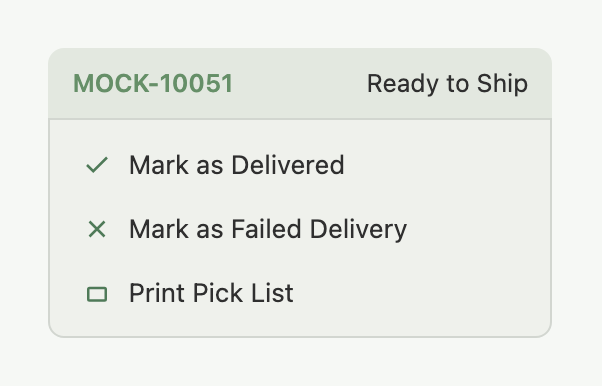
Example: a same-day DBS delivery 5 km away. You bag the items, hand them to your driver, and the customer receives the package. Back in Indexync, open the order and click Mark as Delivered. The order moves to Delivered and Lazada is notified.
Digital items
If a Lazada order contains digital products such as codes or activation links, its Actions menu shows Deliver Digital while the order is pending. Click it once you've delivered the digital good.
Mixed orders (DBS and standard items)
If one order has both DBS and standard items, Indexync shows both sets of actions. Pack and Generate Shipping Label act only on the standard items; Mark as Delivered and Mark as Failed Delivery act only on the DBS items.
Example: an order has 2 items, one shipped via Lazada's standard logistics and one DBS. The order shows Pack and Generate Shipping Label for the standard item, plus Mark as Delivered for the DBS item. You process the standard item first, then mark the DBS item delivered once your driver completes that leg.
Cancelling an order
The Cancel Order action appears on Lazada orders that haven't shipped yet (pending, packed, or ready-to-ship). It opens a window where you pick a cancellation reason and confirm; Indexync sends the cancellation to Lazada and updates the order.
The Cancel Order window shows a warning from Lazada worth reading before you confirm: cancelling for reasons like "out of stock" or "incorrect pricing" can set that SKU's stock to 0 on Lazada, to stop new orders coming in while you fix the underlying issue, and cancelling orders often can affect your ability to sell on Lazada. See Handling Returns & Cancellations for how stock behaves after a cancellation.
Once an order has shipped, cancel it from Lazada Seller Center instead.
Shipping document settings
Under Settings → Orders, the Lazada column has:
- Include Item List?: whether the item list appears on the airway bill by default.
- Auto-generate label and Auto arrange shipment: the two toggles that turn Pack into one-click fulfilment (see above). Both are off by default.
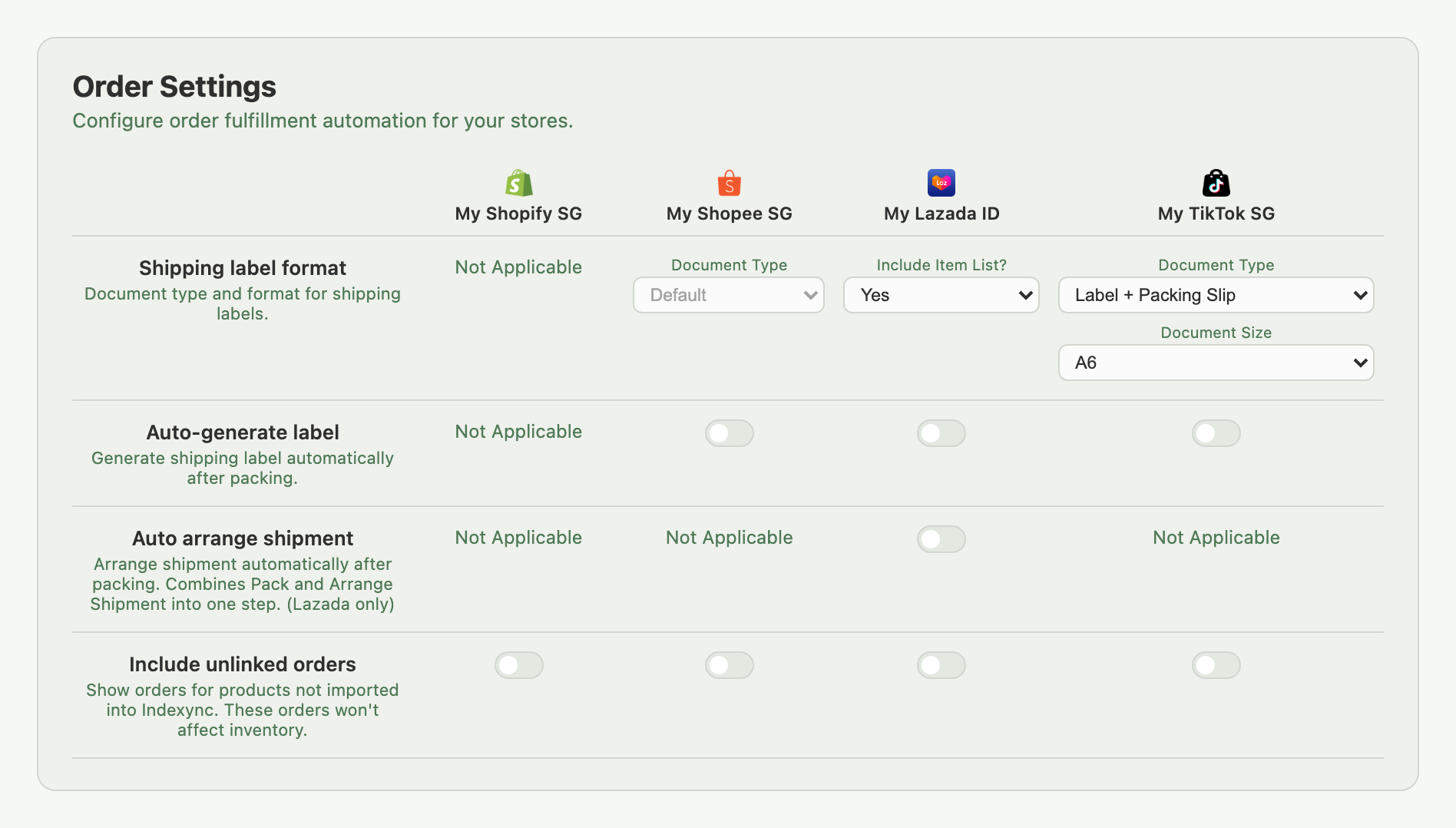
If your Lazada store isn't connected, this column doesn't appear. Connect it under Connections (in the sidebar) first.
Troubleshooting
Pack isn't showing. The order is likely already packed, ready-to-ship, or shipped. If your Lazada connection has lapsed, reconnect it under Connections.
Shipping label won't generate or download. Refresh the order details page and try again. If it persists, check Lazada Seller Center to confirm whether a label was already generated; you can also generate or download it there directly.
Mark as Delivered isn't showing on a DBS order. The order needs to be ready-to-ship or shipped first; pack it if it's still pending.
FBL order still shows under To Ship. Wait for the next sync. If it persists, check the product's FBL enrollment and warehouse stock in Lazada Seller Center.
Deliver Digital or Cancel Order isn't showing. Deliver Digital only appears while pending; Cancel Order only appears before the order has shipped. Check the order's status, or handle it in Lazada Seller Center once it's past that point.
FAQ
Why does Pack only pack the order instead of shipping it entirely?
That's the default: Pack runs only the first of three phases unless you turn on Auto-generate label and Auto arrange shipment for that store in Settings → Orders. With both off, Arrange Shipment and Generate Shipping Label are separate manual clicks.
How do I make Pack do everything in one click?
Turn on Auto arrange shipment (this changes the button to Pack & Ship) and Auto-generate label for your Lazada store under Settings → Orders. One click then packs, arranges shipment, and generates the label.
Why is my FBL order still showing under To Ship?
FBL orders update automatically as Lazada fulfils them; wait for the next sync. If it doesn't clear, check the product's FBL enrollment and warehouse stock in Lazada Seller Center.
What does the warning in the Cancel Order window mean?
Lazada may set the SKU's stock to 0 for certain cancellation reasons, to stop new orders while you fix stock or pricing, and cancelling often can affect your selling ability on Lazada. See Handling Returns & Cancellations for what happens to stock.
Can I cancel a Lazada order after it's shipped?
No. Cancel Order only appears for orders that haven't shipped. Manage cancellations on shipped orders from Lazada Seller Center.
Related Articles
- Where Do All My Marketplace Orders Show Up?
- Processing Shopify Orders
- Processing Shopee Orders
- Processing TikTok Shop Orders
- Bulk Operations & Pick Lists
- Handling Returns & Cancellations
- Troubleshooting Order Issues
Need More Help?
Fill out our Feedback form, message us on WhatsApp, or email us at hello@indexync.com.