How Do I Ship and Fulfil Shopify Orders?
To fulfil a Shopify order, open it in Indexync and click Fulfill Order in its Actions menu. Add tracking if you have it, then submit. Indexync marks the order fulfilled and Shopify records it, so you don't need Shopify Admin.
Applies to: All plans with a connected Shopify store.
Finding your Shopify orders
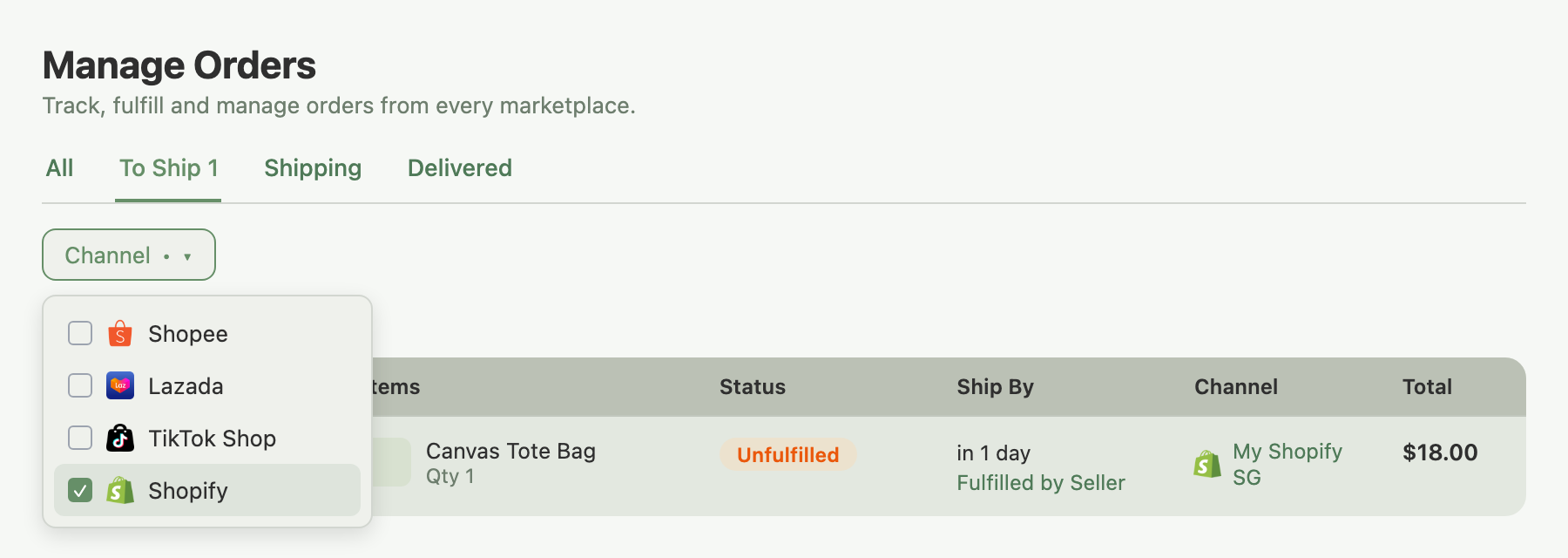
Open Orders in the left sidebar to reach the Manage Orders page.
- Click the Channel filter in the toolbar.
- Select Shopify.
The list narrows to Shopify orders only. Combine with the To Ship tab to see orders that are paid and ready for fulfilment.
If your store uses a delivery-date app, Store Pickup and Local Delivery orders also show their delivery date, delivery time and location on the order's details. Where Do All My Marketplace Orders Show Up? explains where each one appears.
Fulfilling an order
When an order's status is unfulfilled, its Actions menu shows Fulfill Order. Click it to open the Fulfill Items window.
- Items to Fulfill: every line item, with SKU, variation, and a quantity field pre-filled to the full amount. Reduce a quantity to ship only some units now, or set it to 0 to leave that item for later. The Fulfill Items button stays disabled until at least one item has a non-zero quantity.
- Tracking Information (Optional): Tracking Number and Shipping Carrier. Both are optional; you can submit without them and the order still gets marked fulfilled. Choosing Other as the carrier reveals a field for a custom tracking URL.
- Multiple tracking numbers: if one shipment needs more than one tracking number, click + Add Another Tracking Number to add a second field.
- Send notification to the customer: ticked by default. Untick to skip Shopify's fulfilment email.
Click Fulfill Items once quantities and tracking are set. Shopify records the fulfilment and Indexync updates the order's status.
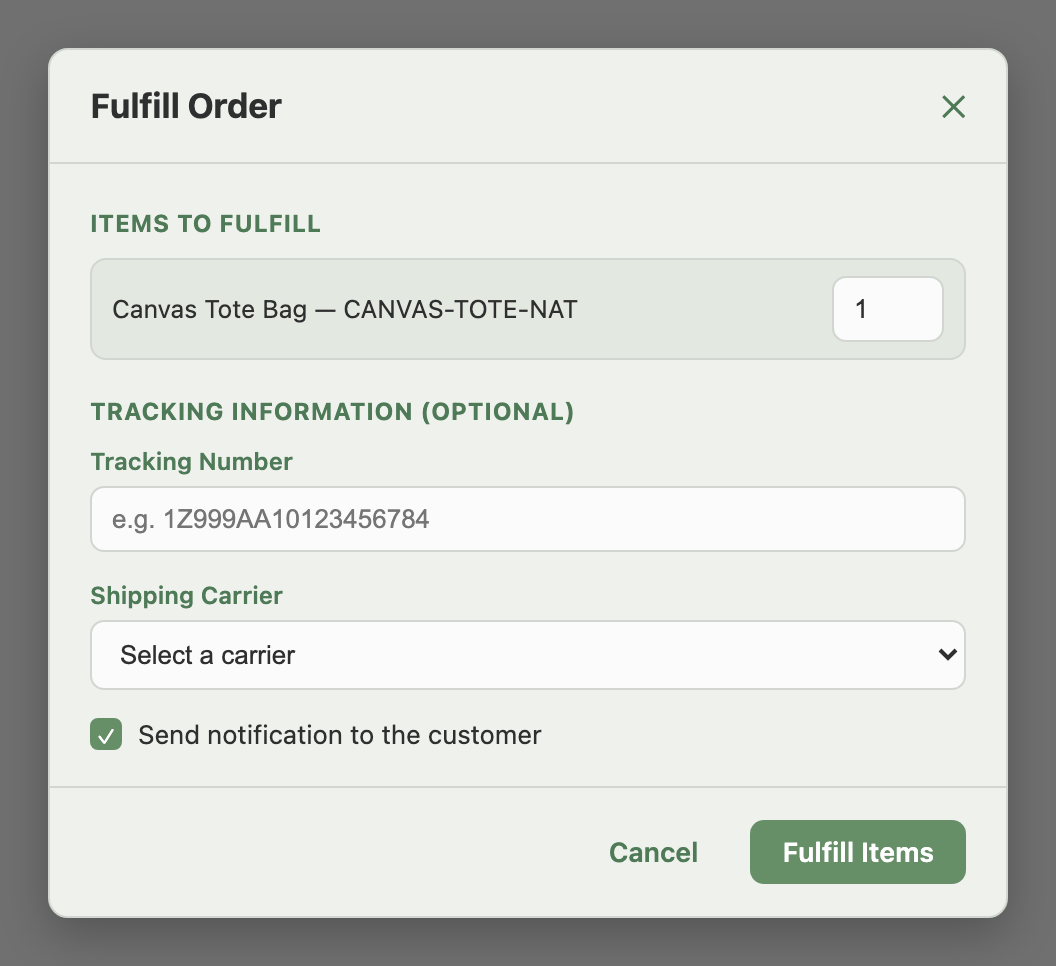
Example: a buyer orders two items and both are ready to ship. Open the order, click Fulfill Order, enter the courier's tracking number, select the carrier, leave "Send notification to the customer" ticked, then click Fulfill Items. Shopify marks the order fulfilled and emails the buyer their tracking number.
Shipping only part of an order
Reduce a line item's quantity below its full amount to ship a partial quantity now, or set it to 0 to leave that item out of this shipment entirely. Submit when you're ready. Shopify records a partial fulfilment; the remaining items stay unfulfilled until you run Fulfill Order again on the same order.
Example: an order has 3 items. A and B are in stock but C is on backorder. Open the order, click Fulfill Order, and set quantities to A: 1, B: 1, C: 0. Add tracking for today's parcel and submit. Shopify marks A and B fulfilled; C stays unfulfilled. When C arrives, open the order again and run Fulfill Order for the remaining item.
Updating tracking after fulfilment
Once an order is fulfilled, Fulfill Order no longer appears for it in Indexync. To correct a tracking number on an already-fulfilled order, open it in Shopify Admin and edit the fulfilment record there. Indexync picks up the change on its own shortly after.
Cancelling an order
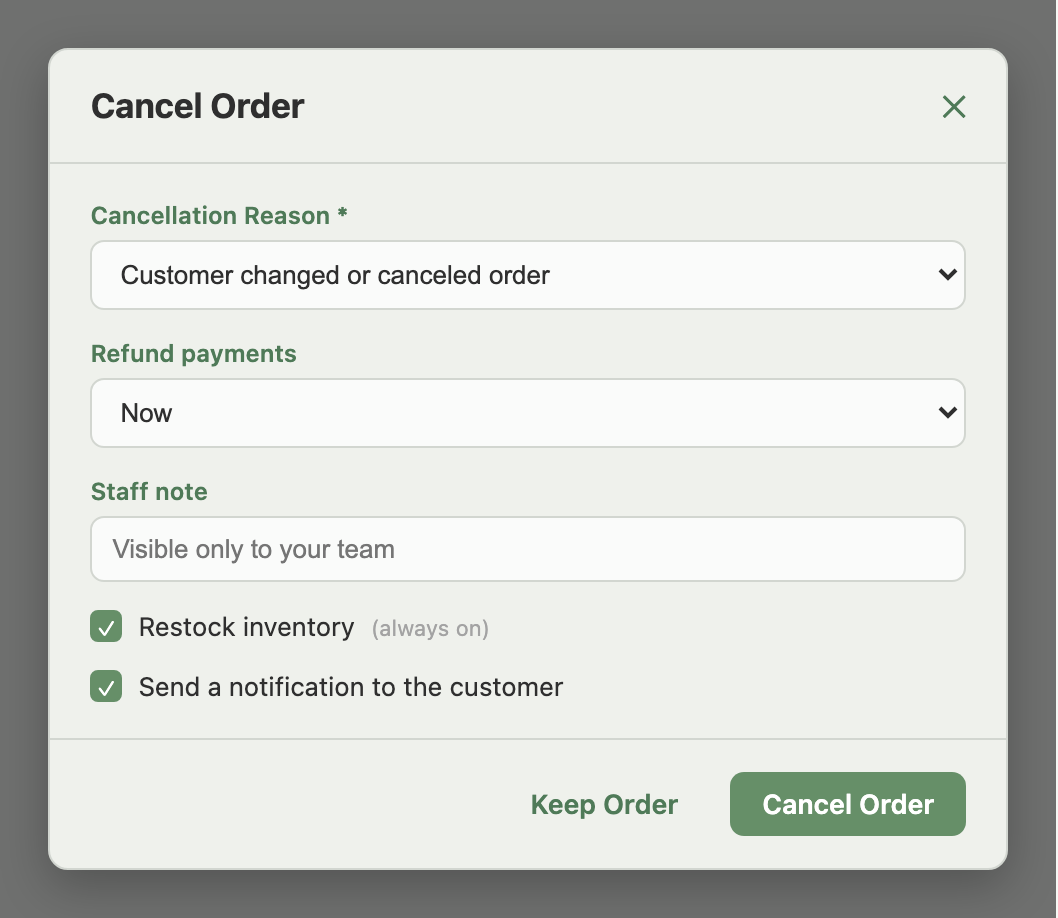
The Cancel Order action appears on orders that are unpaid or unfulfilled. It opens a window where you:
- Choose a Cancellation Reason: Customer changed or canceled order, Payment declined, Fraudulent order, Items unavailable, Staff error, or Other.
- Choose a Refund payments option: Now or Later.
- Optionally add a Staff note, visible only to your team.
- Restock inventory is always on and can't be changed.
- Send a notification to the customer is ticked by default; untick to suppress the email.
Click Cancel Order to submit. Indexync sends the cancellation to Shopify and updates the order.
Shipping document settings
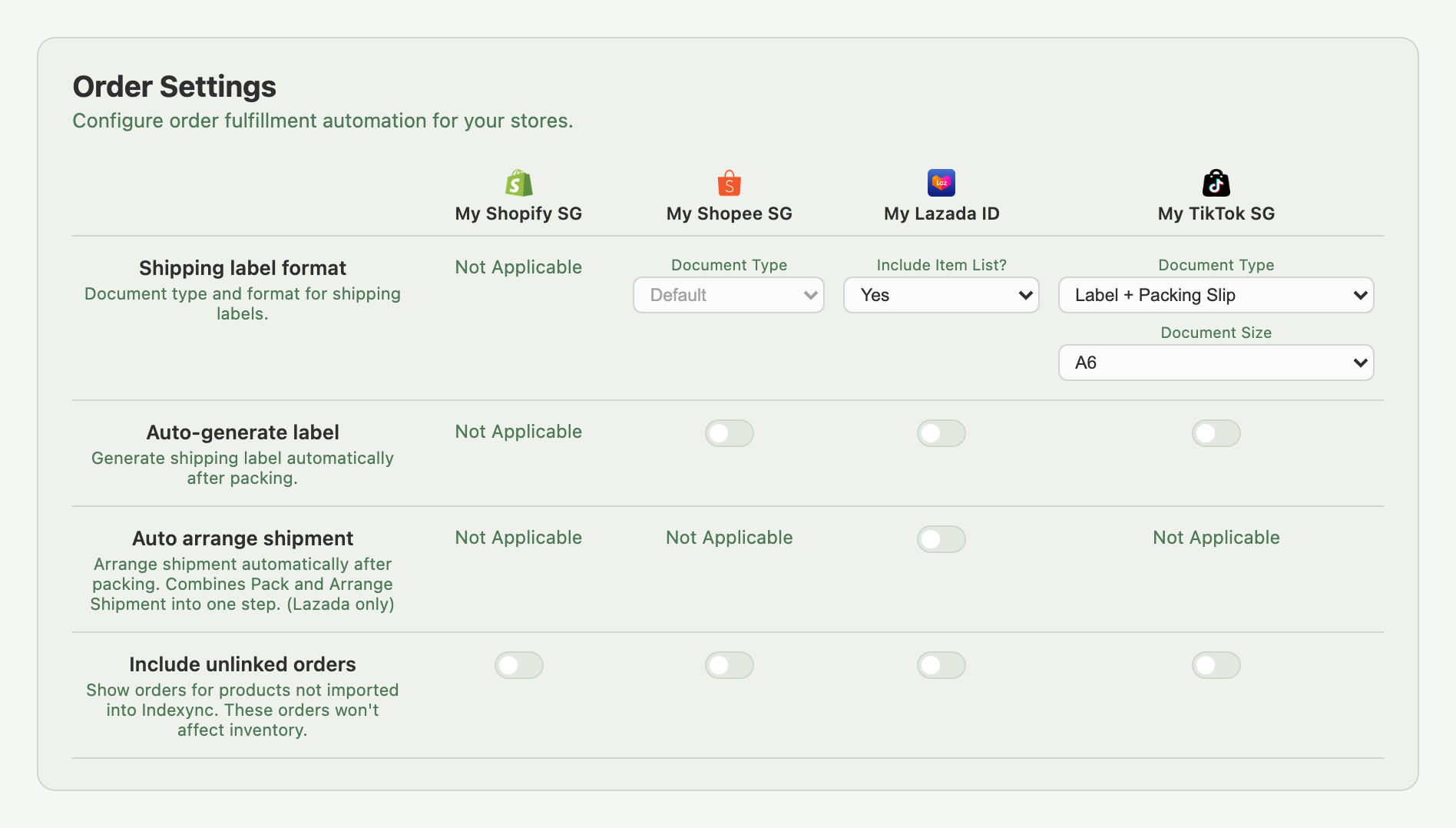
Under Settings → Orders, Shopify stores show Not Applicable for shipping label format and for the auto-generate and auto-arrange automation toggles. Shopify handles its own fulfilment documents, so there's nothing to configure in Indexync. Shopify orders also don't use Indexync's AWB icon or Shipping Labels window. Those cover the other three marketplaces, and Where Do All My Marketplace Orders Show Up? explains how they work.
Troubleshooting
Fulfill Order isn't showing. The order may already be fulfilled, or its status may be on hold or scheduled in Shopify. Check the order in Shopify Admin. If your Shopify connection has lapsed, reconnect it under Connections (in the sidebar).
Tracking isn't appearing in Shopify. Allow a few minutes after submitting Fulfill Items. If it's still missing, open the order in Shopify Admin and confirm a fulfilment record was created; contact support if the connection is active but tracking still doesn't show.
Cancel Order isn't showing. Cancellation is only available for unfulfilled or unpaid orders. Once an order is fulfilled or shipped, cancel it from Shopify Admin instead.
The order still shows To Ship after fulfilling. Refresh the Manage Orders page. If the status hasn't updated after a few minutes, check Shopify Admin to confirm the fulfilment was recorded, then contact support if the mismatch persists.
FAQ
Do I have to enter a tracking number to fulfil a Shopify order?
No. Tracking Number and Shipping Carrier are both optional in the Fulfill Items window. Submitting without them still marks the order fulfilled.
Can I ship part of an order today and the rest later?
Yes. Set the quantities you're not shipping yet to 0 in Items to Fulfill and submit. The unshipped items stay unfulfilled, ready for a second Fulfill Order run when they're available.
Why is Fulfill Order missing from an order?
The order is either already fulfilled or in a status Shopify doesn't allow fulfilment from yet, such as on hold or scheduled. Check the order's status in Shopify Admin.
Where do I fix a tracking number after I've already fulfilled the order?
In Shopify Admin, on the order's fulfilment record. Indexync doesn't offer post-fulfilment tracking edits, and it picks up the correction on its own shortly after.
Why can't I cancel a Shopify order?
Cancel Order only appears for orders that are still unpaid or unfulfilled. Once an order has been fulfilled or shipped, cancel it from Shopify Admin.
Related Articles
- Where Do All My Marketplace Orders Show Up?
- Processing Shopee Orders
- Processing Lazada Orders
- Processing TikTok Shop Orders
- Bulk Operations & Pick Lists
- Handling Returns & Cancellations
- Troubleshooting Order Issues
Need More Help?
Fill out our Feedback form, message us on WhatsApp, or email us at hello@indexync.com.