How Do I Check My Import's Progress and Retry Failed Products?
Open the bar on the Dashboard, Products or Import page to see how many products are done, and use Import History to retry the ones that failed. You can also leave once your products have been sent, because Indexync finishes the import on its own servers. View Progress on the bar reopens the progress window, and when the import ends the same bar tells you how it went. View Details lists every product with its result. If some products failed, Retry Failed Products in Import History sends only those again.
Applies to: All plans. Team members need permission to manage products to see the import notice and Import History. Before you start: you need an import that you started from Auto Import or Import Manually.
What Does the Progress Window Show?
The progress window shows which of five steps your import is on, an overall progress bar and a status for every product. It opens when you start an import and again whenever you select View Progress.

From Waiting for Server until the import is done, the window tells you the import keeps running in the background. A Go to Products button appears beside it (it is left out when you open the window from the Products page). On a phone, the window shows only the name of the current step.
Each product is marked Pending, Importing, Imported or Import Failed. Once something has failed, the All and Needs Attention buttons appear, and Needs Attention shows only the failed products. The list shows 50 products per page, with arrows to move between pages.
Example: you select Import for 300 products on Import Products to Indexync. The step moves from Uploading to Waiting for Server. Now a line saying the import keeps running appears with Go to Products, and you select Go to Products to carry on with your day.
Where Do I Find My Import After I Leave the Page?
A notice bar on the Dashboard, the Products page and the Import pages (Auto Import and Import Manually) follows your latest import. While it runs, the bar shows how many products are done and a progress bar, with a View Progress button that reopens the window. A running notice has no close button.
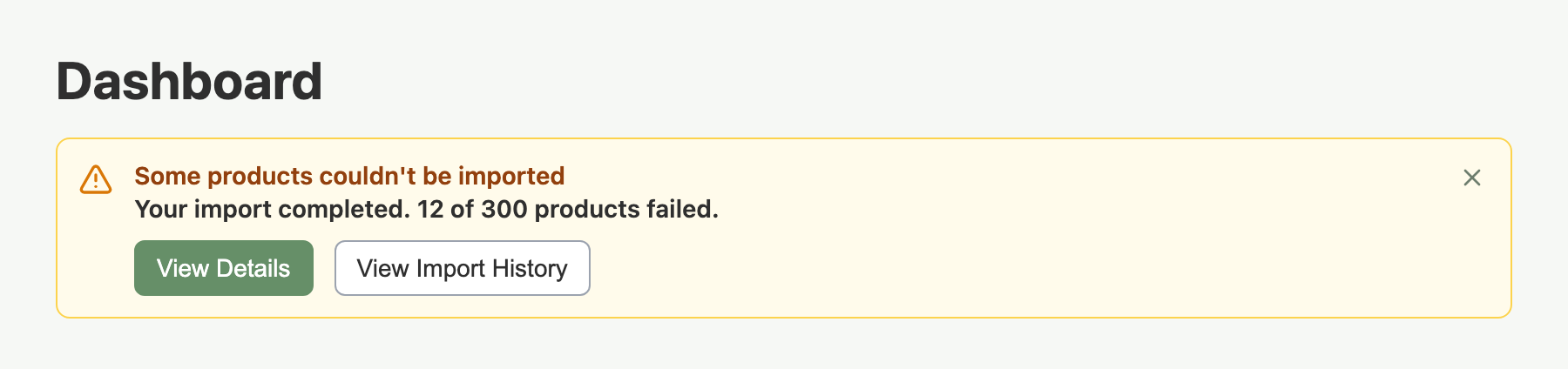
When the import ends, the bar says how it went. Select View Details to open Import History on that import, or View Import History to see the whole list. The X closes a finished notice.
- Everything imported: the notice appears once. It is marked as seen the first time you see it, and it stays only until you leave that page.
- Anything else: failed, stopped, partly failed or missing results. The notice stays until you close it, 24 hours pass or you start a newer import.
On the Import pages, the notice shows while you are not in the middle of an import.
Example: an hour later the Dashboard shows a warning that some products could not be imported, with 12 of 300 products failed. You select View Details.
How Do I See Which Products Failed?
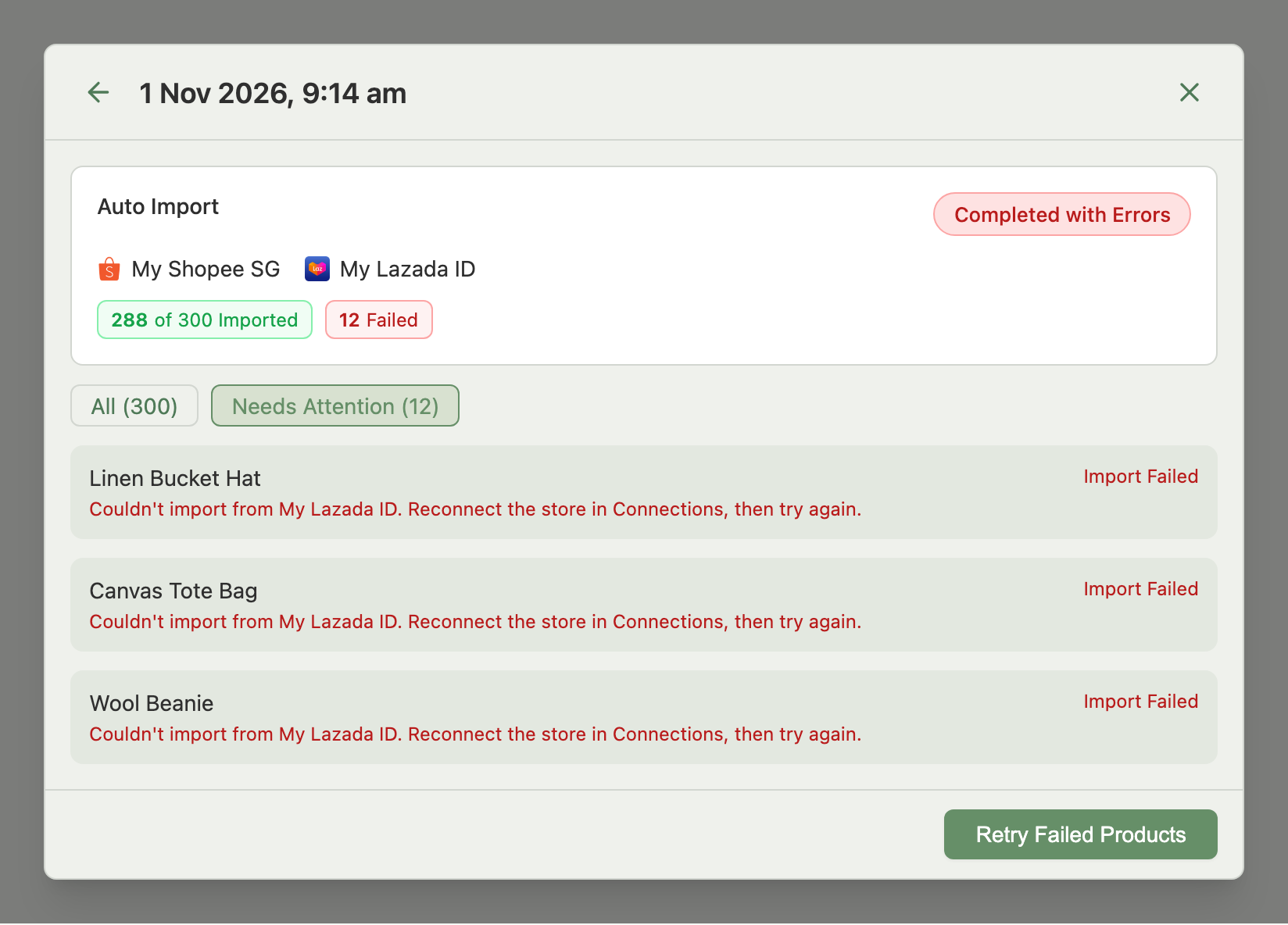
Select Import in the sidebar, then Import History (the button with a clock icon, beside Import Manually). On the Import Manually page, View Import History on the import notice opens the same window. The window lists your imports, newest first, and Load More brings in older ones. Each card shows the date and time, whether it was an Auto Import or a Manual Import, the stores involved, a label for how it ended, and counts such as how many products imported and how many failed.

Select View Details on a card to see the import's products. Select Needs Attention to show only the failed ones. Each failed product shows the reason next to its name. An imported product can carry a note about its images or about stock that could not be shared between linked SKUs. For image problems, see Import Your Existing Products from Shopee, Lazada, TikTok Shop and Shopify.
How Do I Retry Failed Products?
Retry Failed Products sends only the products that failed or were never reached. Products that already imported are never imported again.
- Select Import in the sidebar, then Import History.
- Select Retry Failed Products on the newest import's card, or open View Details and use the button at the bottom.
- The progress window opens and shows the retry.
The button appears only when all of these are true:
- It is the newest finished import. Older imports never offer it.
- Nothing else is running. Wait for any other import to finish.
- There is something Retry can send. That means failed products that sending again can fix, products the import never reached, or stock links that failed.
- The saved details are still available. Imports that ended before setup finished cannot be retried, so start a new import from the Import page.
If you open the progress window of the same import, it has its own Retry Failed (N) button, which does the same thing for the same import.
Some failures cannot be fixed by sending the same product again, such as a listing that already belongs to another product. Retry leaves those alone, so fix the product first.
Example: you select Needs Attention, see that 12 products failed, and select Retry Failed Products. The progress window opens and sends only those 12. The other 288 stay as they are.
Troubleshooting
A retry is refused. Indexync tells you why in a message at the top of the window:
- Another import is running: try again when it finishes.
- This import is still running: try again when it finishes.
- Its failed products cannot be retried, or its saved details are gone: start a new import from the Import page.
- The import cannot be found: close Import History, open it again and retry.
- A general error: try again.
The import ended with a warning that the final steps did not finish. The products are imported, but Indexync could not complete the last steps. Contact support using the options below.
The page says it could not load import progress. Refresh the page.
The window says the import stopped responding. Select Retry Failed Products to send the rest.
FAQ
Can I leave the page while an import runs?
Yes, once the step moves past Uploading. Indexync finishes the import on its own servers, and a notice on the Dashboard, Products and Import pages tracks it.
Where did the import notice go?
A notice closes when you select its X, and it also goes 24 hours after the import ended or when you start a newer import. A notice for an import with no problems also goes once you leave the page. You can still open any import from Import History on the Import page.
Why is there no Retry Failed Products button?
Retry Failed Products shows only on the newest finished import, when nothing else is running and something is left to send.
Will Retry import products twice?
No. Retry sends only products that failed or were never reached. Products that already imported stay as they are.
Related Articles
- Import Your Existing Products from Shopee, Lazada, TikTok Shop and Shopify
- How to Manually Choose Which Products and Stores to Import
- Manage Your Product Listings Across Shopee, Lazada, TikTok Shop and Shopify
- Connecting Your Marketplaces
- Understanding Your Dashboard
Need More Help?
Visit our Feedback form, WhatsApp us, or email hello@indexync.com.