Manage Your Product Listings Across Shopee, Lazada, TikTok Shop and Shopify
The Listings page shows every marketplace copy of each of your products, one row per listing, with its status and any sync issues. You can spot and fix problems on any store from a single screen, instead of checking four separate seller centers one at a time. When a listing has an issue, Indexync shows you the reason and how to fix it.
For day-to-day product editing (name, description, images, variations), work from the Products page instead. The Listings page is best when you're focused on one store's details rather than the master product.
Applies to: All plans.
Opening the Listings page
Click Listings in the sidebar. The page opens with all your listings grouped by their parent product.
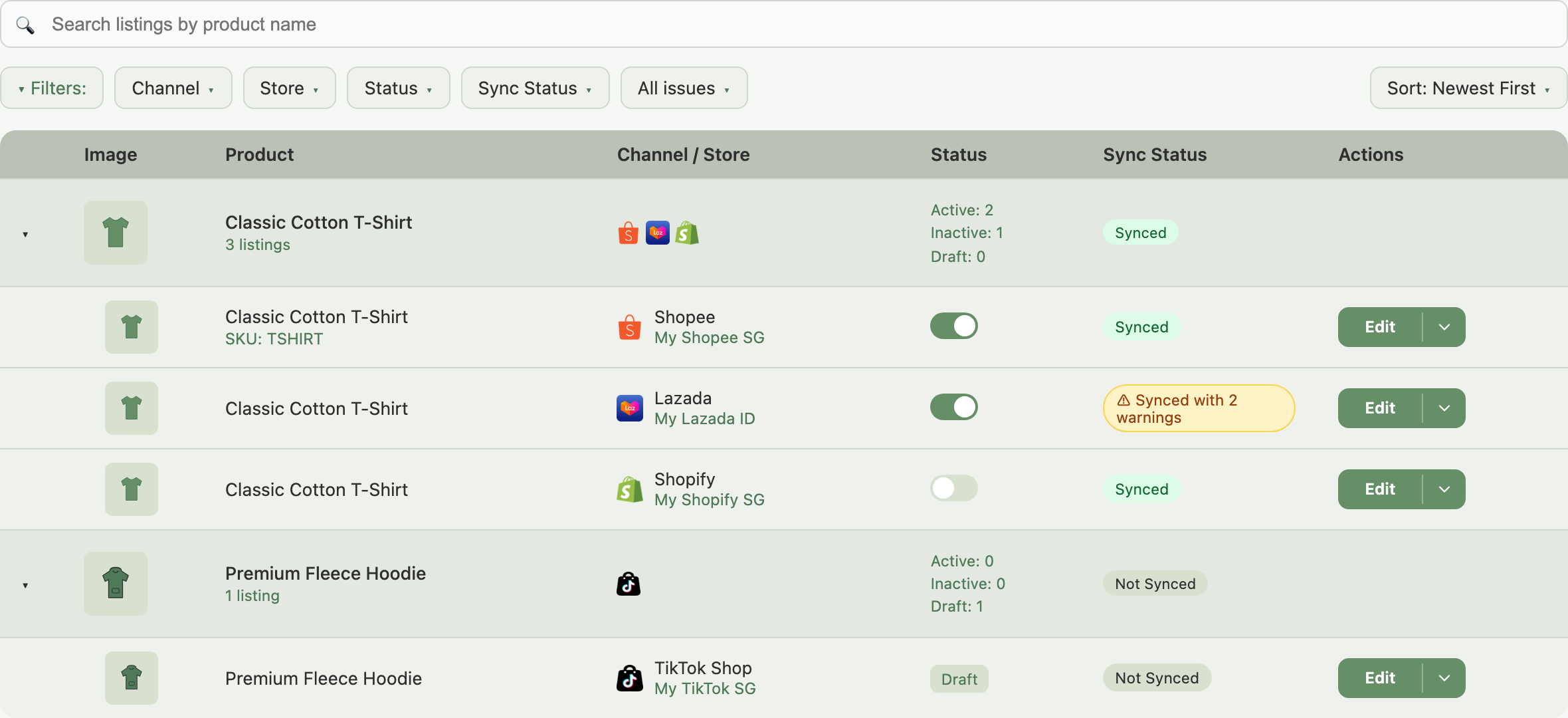
What you see on each row
Each listing row shows:
- Image and Product name (with the Shopee parent SKU underneath, for Shopee listings).
- Channel / Store: the marketplace icon and the specific store the listing belongs to.
- Status: a toggle you can flip directly on the row to make a listing Active or Inactive on the marketplace. A listing that hasn't been published yet shows a Draft label instead of a toggle.
- Sync Status: Synced, Imported, Error, or Not Synced, plus a Waiting for Lazada label when Lazada hasn't confirmed yet. See Sync status meanings below.
- Actions: an Edit button with an arrow beside it. The arrow opens a menu with Move, History and Delete.
Click a product row to expand it and see all its listings. A product can have one listing per connected store.
Filtering listings
Use the filters at the top of the page to narrow down the list.
- Search by product name.
- Channel filter: All, Shopee, Lazada, TikTok Shop, Shopify.
- Status filter: All, Active, Inactive, Draft.
- Sync Status filter: All, Synced, Imported, Error, Not Synced.
- Store filter: only appears once you have more than one store connected on the same marketplace, so you can narrow the list to a specific one.
- Issues filter: narrows the list to listings with a specific problem. Options are Sync errors, Marketplace policy violation, Product mismatch, Blocked by marketplace, Parent Bundle, and Inventory errors.
Click Clear Filters to reset everything back to showing all listings.
Example: you suspect some listings are out of sync after a marketplace API outage. Set the Sync Status filter to Error, leave the other filters at default. The page narrows to just the listings that need attention. Click into each one to see the specific error and fix it.
Editing a listing
Edit the marketplace-specific details of one store's listing without touching the master product.
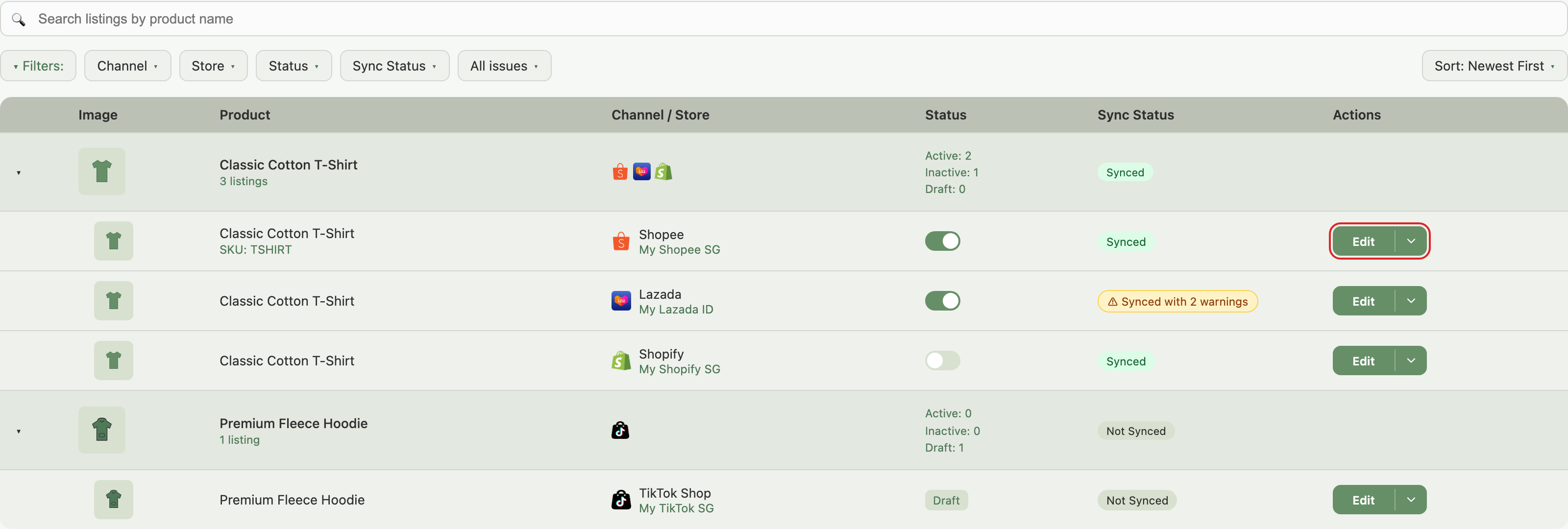
- Click Edit on the listing row.
- The Listing window opens with the current store-specific values.
- Update what you need: category and attributes, brand and size chart, store-specific pricing, store-specific images.
- Click Update & Sync.
To change the master product (name, description, variations) or to add a product to a new store, edit it from the Products page instead. See Editing & Updating Products & Listings and Expand Your Existing Products to a New Marketplace.
Moving a listing to another product
If a listing sits under the wrong product, you can move just that one store's listing without touching the others.
- On the listing's row, click the arrow beside Edit.
- Choose Move.
Move is greyed out when the listing's product is a bundle or a draft, when the listing was deleted on its marketplace, or briefly while the product's details load. Hover over it to see the reason. For members with view-only access, the whole row control is locked and its tooltip says a permission is required. For the full steps, what happens to stock, and the cases that block a move, see Merge Duplicate Products and SKUs So One Item Has One Stock Count.
Deleting a listing
Remove one listing from a specific store without deleting the product.
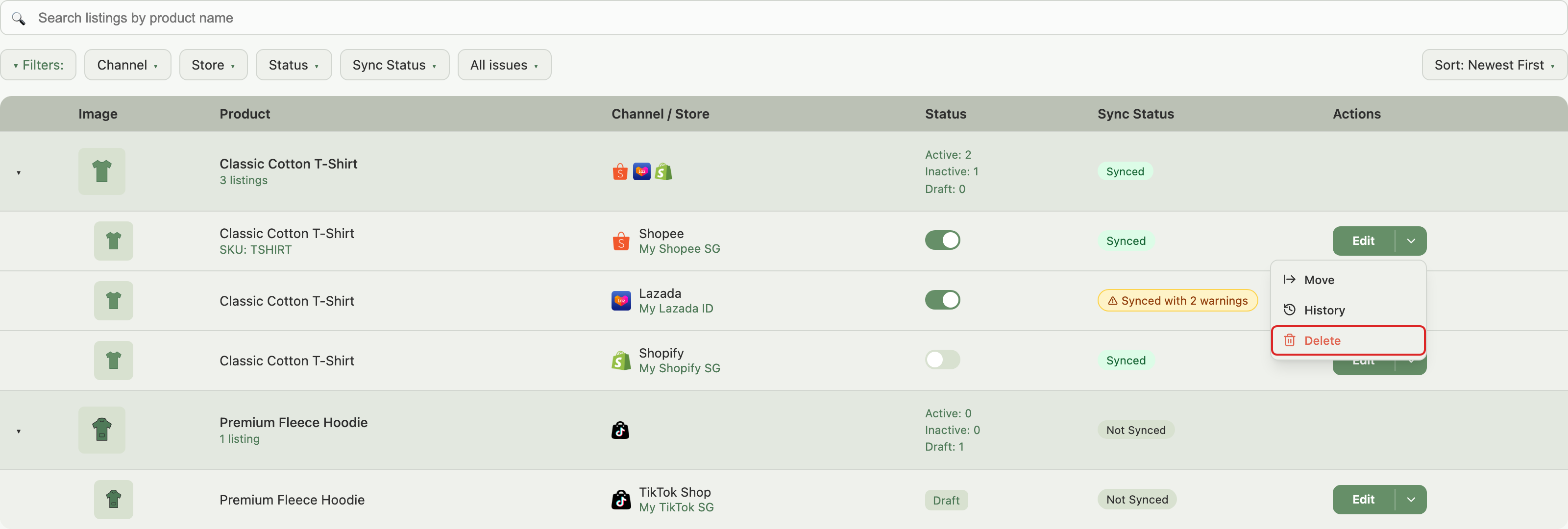
- Click the arrow beside Edit on the listing row, then choose Delete.
- A confirmation appears. If the listing was ever pushed to the marketplace, you'll also see a checkbox: Also delete on [Marketplace]. Leave it unchecked to remove the listing from Indexync only; tick it to also delete the live listing on the marketplace.
- Click Confirm Delete.
Deleting a listing does not delete the product. The product stays in your catalog and can still be listed on other stores. To delete the product itself, use the Products page. See Deleting Products.
Deleting several listings at once
There's no way to select multiple rows and delete them from the Listings page itself. To remove listings in bulk, use the Products page instead:
- Go to the Products page.
- Click Bulk Actions, then Delete Products. If this option is greyed out, your plan doesn't include it.
- Choose what you're removing:
- Delete Products: removes the whole product and all its listings from Indexync. Listings live on marketplaces are not affected; they'll come back as new products the next time you import.
- Delete Store Listings: removes listings for one store across many products at once. You can pick to delete from Indexync only (the store's listings are not affected), or from Indexync and the marketplace together. A marketplace delete is permanent, so it's limited to one store per run; the Indexync-only option can target several stores at once.
- Select the products you want to include, then confirm. You'll need to type DELETE to proceed, and you can retry any row that fails.
This is a product-level bulk tool: it deletes by product (and, for the store path, by store), not by picking individual listing rows the way the per-listing Delete menu item does. For the full walkthrough, see Deleting Products.
Sync status meanings
If you see Error, common causes are missing required fields, an invalid category, or an expired marketplace connection. Open the listing, fix the flagged field, and save to retry the sync.
Sync warnings
A listing that synced but had some details rejected shows a yellow Synced with N warning(s) label instead of the green Synced badge. Click the label to see exactly which images or SKUs the marketplace rejected and why, so you know what to fix without leaving the page.
Listing version history
Click the arrow beside Edit on any listing row, then choose History, to see the complete change log for that listing. The window lists each change with the date and time, which fields were affected, and the before and after values.
Example: a Shopee listing's last sync failed with a "category attribute invalid" error. Open History on that listing, find the most recent edit before the failure, and check whether the marketplace category was changed. If it was, switch back to the previous category or update the new category's required attributes.
Troubleshooting
A listing shows "Error" but the message is unclear
Open the listing with Edit. A red panel at the top of the form lists every problem with a count; click Jump to field on a row to land on the field that triggered it. Common causes: required field empty after a category change, brand no longer accepted by the marketplace, or an expired connection in Connections (in the sidebar).
A listing shows "Blocked" instead of "Error"
This means the sync needs a fix before it can succeed; syncing again on its own won't clear it. Open the listing to see what needs fixing (for example, an undersized variation image, a variant with no picture set for that store, or a stock count below the marketplace's minimum).
A listing shows Waiting for Lazada
Lazada is still processing a large product and hasn't confirmed it yet. The message reads "Waiting for Lazada" and asks you to sync again in a few minutes. Open the listing and click Update & Sync again, without editing. The label clears once Lazada confirms the product.
The Listing window won't sync a store over its limit
The store is over its marketplace limit, so the Listing window won't sync it. The message starts "Couldn't list this product on" and the store name, then says how many SKUs to exclude (on Shopee, which whole options, such as Color or Size). Open that store's tab in the window, use the exclusion box there, then click Update & Sync. See Editing & Updating Products & Listings for the limits.
"Not Synced" listings don't go live
Check that all required fields on the marketplace's tab are filled. Categories drive which fields are required, so a category change can introduce new required fields without warning. Save the listing again once they're filled.
I deleted a listing but the product is still listed on the marketplace
You probably left Also delete on [Marketplace] unchecked. Either delete the listing on the marketplace itself, or delete it again from Indexync and tick the box this time.
FAQ
Can I delete several listings at once?
Not from the Listings page directly. Go to the Products page, open Bulk Actions, and choose Delete Products: you can remove several whole products, or remove one store's listings across many products, in a single run.
Does deleting a listing delete the product?
No. Deleting a listing only removes that one store's copy. The product stays in your catalog and can still be listed on other stores.
Why does a listing show an issue?
Indexync flags listings with sync errors, marketplace policy violations, mismatched product data, marketplace blocks, pending parent bundles, or inventory errors. Use the Issues filter to see which listings are affected and why, then open each one to see the specific fix.
Can I edit a listing without changing the product?
Yes. Click Edit on any row to change that store's category, attributes, brand, pricing, or images without touching the master product or your other stores' listings.
What does the status column mean?
It shows whether the listing is Active (visible to buyers), Inactive (hidden from buyers), or still a Draft (saved locally, not yet published). For Active and Inactive listings, the toggle switches the listing's visibility directly from the row.
Related Articles
- What's the Difference Between a Product and a Listing?
- Create a Product and Publish It to Shopee, Lazada, TikTok Shop and Shopify
- Editing & Updating Products & Listings
- Deleting Products
- Expand Your Existing Products to a New Marketplace
- Merge Duplicate Products and SKUs So One Item Has One Stock Count
Need More Help?
If a listing isn't behaving as expected, visit our Feedback page, WhatsApp us, or email hello@indexync.com with:
- The product name and the affected store
- The sync status shown on the row
- A screenshot of any error message