Create a Product and Publish It to Shopee, Lazada, TikTok Shop and Shopify
Create a product once in Indexync, then publish it to Shopee, Lazada, TikTok Shop, and Shopify from the same window. You fill in one form instead of a separate form on each marketplace's website. Each marketplace also gets its own tab, where you can change the category, images, or price for that store before you publish.
Applies to: All plans.
Before you start
- At least one marketplace connected, in Connections (in the sidebar).
- Your product details ready: name, price, description, and at least 1 image.
- Room on your plan's SKU limit. Each variation counts as one SKU; a product without variations counts as one.
Which flow do I need?
A product and a listing aren't the same thing: see What's the Difference Between a Product and a Listing? for the model this article's Master and Custom fields build on.
Opening the Create Product window
Go to Products in the sidebar and click Add Product. The window opens on the Master Product tab.
Choosing where to publish
At the top of the window, tick each store you want this product on. A tab appears for every store you tick, alongside Master Product. You can leave stores unticked now and add them later; see the FAQ below.
Filling in the Master Product tab
The Master Product tab holds the values every marketplace tab inherits by default: name, description, images, price, and dimensions. Override any of them for one store from that store's own tab.
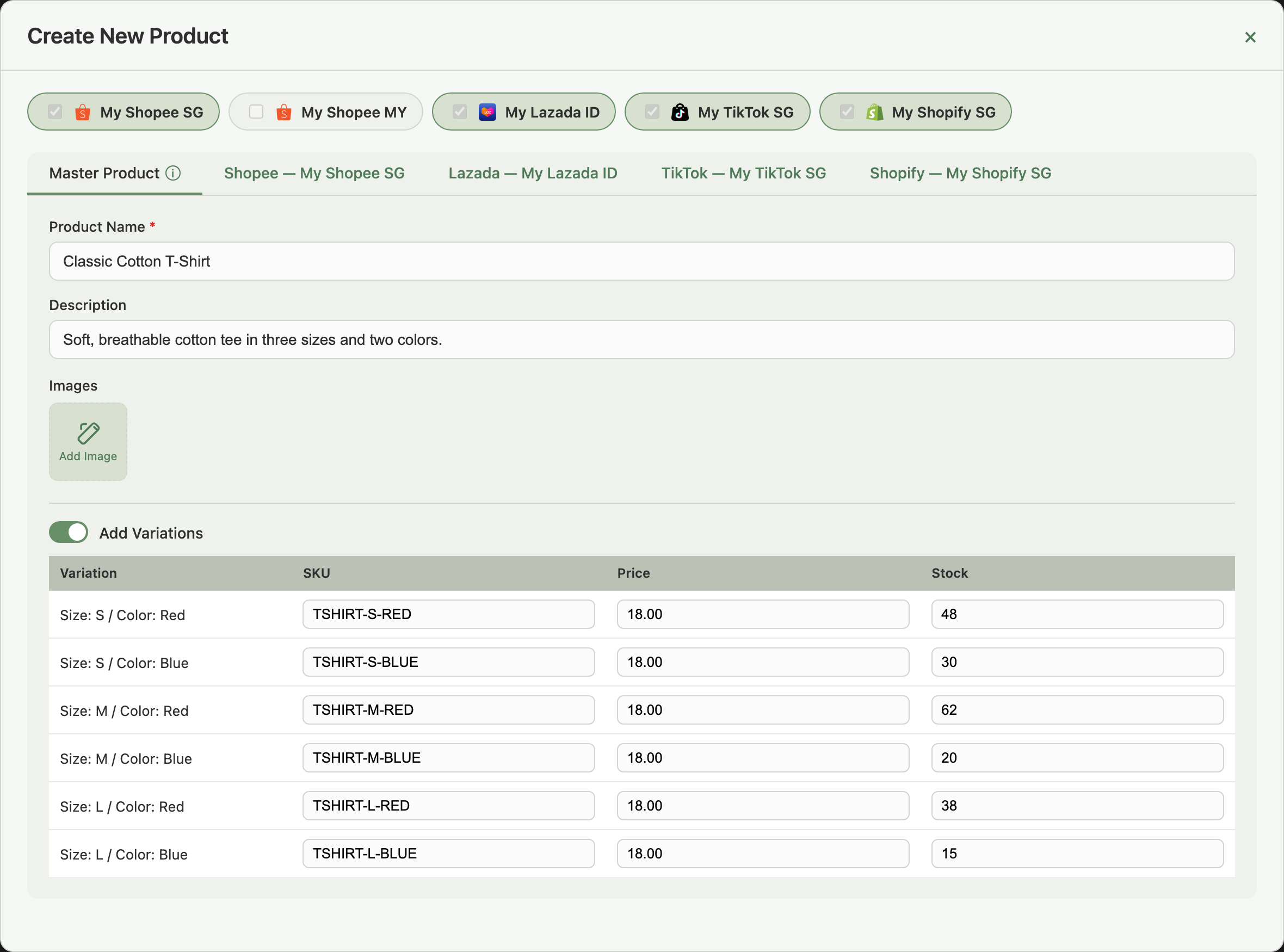
- Product Name and Description: Description supports pasted images; if one can't be re-hosted, Indexync flags it inline and skips it, so re-add it from the image button.
- Images: click the upload tile to add files, or drag thumbnails to reorder. When you add a PNG or JPEG file, the crop editor opens first. Crop it if you want to, then click Add image. The first image becomes your main listing image. At least 1 image is required; most marketplaces look better with 3 or more.
- Price, required, is your non-discounted price; the currency synced matches each store's country. The price must be a whole number for VND and IDR stores on Shopee, Lazada and TikTok Shop, and for Shopee stores in Thailand, the Philippines, Vietnam and Indonesia. Those stores show prices without decimals.
- Cost is optional: your cost to buy or make one unit, used to work out profit and how much money is tied up in unsold stock. It's a separate topic from this article; see Set Your Cost Prices for the bulk-import and bulk-edit options.
- Stock and Seller SKU are both required for a new product.
Image and video specs by marketplace
Example: a 1200×900 lifestyle shot works for Shopify, but Shopee rejects it because it only accepts 1:1 to 3:4. TikTok Shop accepts it and squares it to the longer side. A 400×300 photo falls below Lazada's 330×330 minimum.
Video is optional: upload it to Media Center first, then link it from the Video field. See Upload Videos to Media Center.
Setting up variations
Toggle Add Variations to sell the product in sizes, colors, or materials. You can use up to 3 variation options (for example Size, Color, and Material); Indexync never stops you from adding options. Each marketplace does cap how many SKUs a product can have in your store there; see Each store has its own SKU limit below.
- Click + Add Variation, name it, and add its values.
- Repeat for a second and third option if you need them.
- Indexync builds the variation matrix. Set the SKU, Price, Stock, and optionally an Image for each row.
Lazada and Shopee only take 2 variation options. If you use all 3 and publish to a Lazada or Shopee store, Indexync opens a Merge Two Variations window for that store: your first option (for example Color) stays as it is, and your second and third options combine into one, so Size and Material combine into "S-Cotton" and you name each combined option. Combined names have a length limit for that store and must all be different from each other; there's no way to skip naming them. Shopify and TikTok Shop list all 3 options as they are.
If a product already has saved SKUs, adding another variation opens an Add a variation window instead of the inline editor above. Name the new option and its values there; your existing SKUs keep their stock under the first value you list, and every other value starts as a new SKU with 0 stock.
Variation photos are all-or-nothing: add one to every row, or none. A mix blocks sync on Lazada, Shopee, and TikTok Shop until you fix it. On Lazada and TikTok Shop, each variation photo also has to meet the same minimum size as your main images, above. Indexync checks this when you click Add image and tells you if a photo is too small to enlarge cleanly. Upload a larger one and crop it again. Shopee has no minimum size, so it never refuses a variation photo for being small. Indexync also names any affected row before it lets you sync. A store's own tab can use these product pictures automatically instead of you uploading a separate picture per store; see Editing & Updating Products & Listings for how that works.
TikTok Shop doesn't accept Chinese characters in variation option names or values; Indexync flags them before syncing and asks for the English or local-language name instead. Your other marketplaces, and your product title and description, aren't affected.
Each store has its own SKU limit
Each store is checked against its own marketplace's limit, counted on what that store is sent. This is separate from your plan's SKU limit.
Shopee's count is the grid of options, not the rows. For example, 12 colors and 9 sizes make 108, which is over 100, and skipping single SKUs doesn't bring it down.
When a store is over its limit, its tab shows a red dot. The Master Product tab shows a red line under the variation options, naming the store and how many SKUs to exclude. Its button, for example Exclude on Lazada, jumps to that store's tab. A box there says "8 more SKUs to be excluded". Pick the options to exclude, then click the button at the bottom of the box (it reads like Exclude 3 Color options on Shopee). The excluded rows show Skipped on that store and aren't sent. They stay on your master product and on your other stores.
Then click Create Product (or Update Product on a saved product) to sync; the exclusion applies on that sync.
Example: your Shopee store would get 12 colors and 9 sizes, which is 108. Its tab asks you to exclude whole options. Excluding 1 color brings it to 99, and the store can sync.
Bundle products
Bundle Components is a separate section that appears on the Master Product tab, but only when you're editing an existing bundle product, not while creating a new one. A bundle's stock is derived from the products inside it, so its own Cost and Stock fields don't appear either.
Once a product is a bundle, its variation structure (adding or deleting a size or option tier) is locked for every channel. If the bundle came from a Sync Rule, the tab explains why and tells you to delete the rule in Sync Rules first; if it's mirrored from Shopify, the note says the composition is Shopify-managed instead. See Can I Share One Stock Pool Across Pack Sizes or Bundle SKUs? for how bundles are created and how their stock is calculated.
Configuring each marketplace tab
Open a store's tab to pick its category and fill in what that marketplace needs.
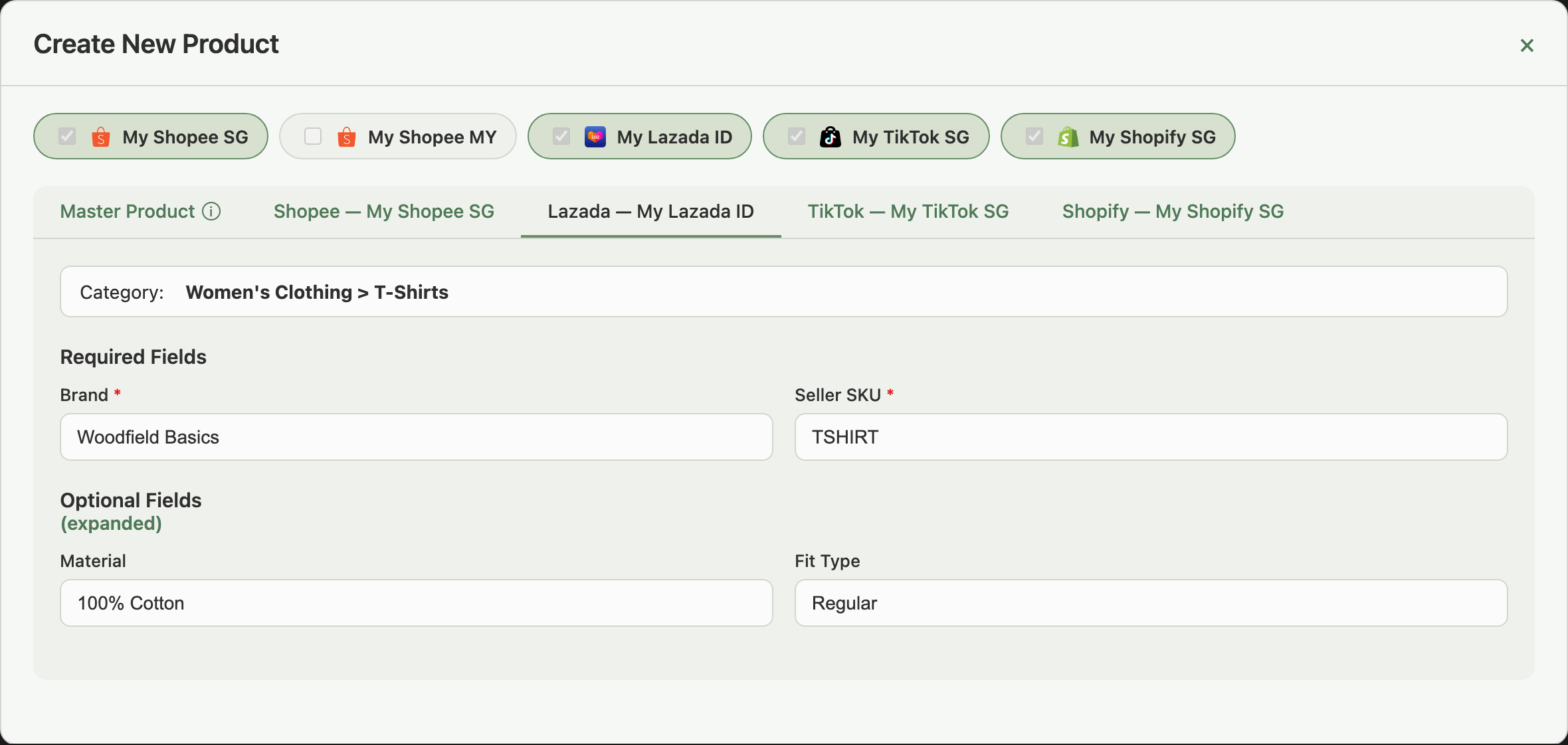
- Category comes first. Pick one from the dropdown at the top of the tab; the attribute fields (brand, size charts, certifications, and more) only appear once you have. Required fields carry a red asterisk.
- A new Lazada listing needs a brand. Brand shows under Required Fields. Choose one, or choose "No Brand" if the product has none. Lazada listings that are already live aren't blocked for this.
- Lazada variation names. Some Lazada categories require named variation options, such as Color Family or Size. Indexync matches each of your options to a Lazada name by meaning, so Colour becomes Color Family. If nothing matches, the name stays blank and its dropdown, which reads "Select option", gets a red border after you try to save. Create Product is blocked until you pick the Lazada name in the Required Variation Names section on the Lazada tab. Picking a name another option already uses moves it, and that option goes blank.
- Attributes follow the category, not the marketplace. Changing category clears attributes that don't belong to the new one, and Indexync tells you which fields it cleared.
- Master or Custom, per field. Any field on a marketplace tab can stay on Master (inheriting the product's value) or switch to Custom (a store-specific override); Custom mode shows a side-by-side comparison against the master value. See Editing & Updating Products & Listings for the full walkthrough.
- Shopee also needs a shipping channel. On the Shopee tab, the Shipping Options field is required (its own red asterisk, separate from the category attributes above). Tick at least one shipping channel there before you sync; Indexync blocks the sync and tells you to select at least one shipping option if none is ticked.
- Cover Shipping Fee is set for each shipping option on Shopee. Every shipping option you tick has its own Cover Shipping Fee setting, Yes or No, so you can cover the shipping fee on one courier and not on another. For couriers where Shopee doesn't let you cover it, the setting stays on No.
TikTok Shop's weight limit
TikTok Shop won't accept a package over 100 kg, and there's no way to override that from Indexync. If your own courier has a lower limit than that, TikTok Shop's tab shows the tighter number that actually applies to your listing.
If your product is over the limit that applies but your other marketplaces are fine with it, switch the TikTok tab's Weight field to Custom and set a lower value there rather than changing your master weight, since a master change applies everywhere. See Master or Custom, per field above.
Saving or publishing
Two buttons sit at the bottom of the window.
- Save Draft stores the product, and any listings you've started, without publishing. It closes the window with no sync step, and the product shows a Draft badge on your Products page so you can finish it later.
- Create Product opens the sync window. Tick the stores to publish to and click Create & Sync. Every required field must be complete on each ticked store first.
Example: your Lazada brand certificate hasn't arrived yet. Click Save Draft, finish the Lazada tab once it does, then click Create Product.
If adding this product would put you over your plan's SKU limit, a SKU Limit Exceeded window opens before Indexync saves. On Lite, Pro and Scale you can add SKU Packs there (each pack is 250 more SKUs, and the window shows the amount due today) and the save carries on. If you pay through Shopify, you approve the change in Billing first, then come back and click Continue. On Free, upgrading is the only fix. See How Do I Get More SKUs Without Upgrading My Plan?, and Viewing & Troubleshooting Your Plan Usage to check your usage. A store's own marketplace limit is separate; see Each store has its own SKU limit above.
Troubleshooting
A marketplace tab shows no attribute fields
Pick a category first, from the dropdown at the top of that tab. Attribute fields only appear once a category is set.
Fields disappeared after I changed the category
Expected: changing category clears attributes that belonged only to the old one. Indexync shows which fields it cleared; fill in whatever the new category requires.
Sync failed on one or more stores
Clicking Create Product with fields still missing scrolls you to a red panel at the top of the form. It lists every problem, grouped by tab with Master Product first.
- Click Jump to field on any row to switch to that tab and land on the field, or use the row's own Confirm button when it offers an inline editor.
- On Shopee, check Shipping Options too. It sits below the category attributes, in its own Logistic Information section.
- On Lazada, a new listing also needs a brand ("No Brand" counts), and every variation name left blank needs you to pick the Lazada name.
- Fixed rows drop off the panel as you clear them. Once it's empty, click Create Product again.
- If it keeps failing, check that store's connection at Connections.
If a create sync fails partway through, after the marketplace has already created the product, click Retry. Indexync finishes the sync against that product instead of creating a duplicate. This applies to all four marketplaces.
If a notice says Indexync couldn't check whether the product is already on a marketplace, sync again once you're signed in.
One store says Not synced
If one store is over its marketplace limit, only that store is held back. Its row reads "Not synced" and says how many SKUs to exclude on that store's tab (on Shopee, which whole options, such as Color or Size). The window title reads "Sync Completed with Warnings", and your other stores sync as normal. Open the held store's tab, exclude what the box asks for, then sync again.
A Lazada product says Waiting
A large Lazada product shows a "Large product" note while it syncs, saying Lazada can take up to 2 minutes. If Lazada is still processing when Indexync stops waiting, the row reads "Waiting for Lazada" and asks you to sync again in a few minutes. Sync again then, without editing. On the Listings page, the listing shows a "Waiting for Lazada" label until Lazada confirms it.
Create Product is greyed out
The Master Product tab is missing a required field. The red panel at the top of the form lists it under Master Product; confirm you've entered a product name and uploaded at least 1 image, then click Jump to field on its row to go straight there.
FAQ
Do I have to fill in every marketplace's details separately?
No. Name, description, images, price, and dimensions come from the Master Product tab automatically. You only need to fill in what's specific to a marketplace: its category, its attributes, and anything you choose to override.
Can I save a product without publishing it?
Yes. Click Save Draft instead of Create Product. It saves the product and any listings you've started, without syncing anything to a marketplace. Come back and click Create Product when it's ready.
Why does one marketplace ask for fields the others don't?
Attribute fields come from the category you pick on that marketplace's own tab, not from the marketplace itself. Two marketplaces asking for different fields usually means you picked different categories, or one marketplace's tree has a field the other's doesn't for that category.
Can I add the product to more marketplaces later?
Yes. Open the product and tick the new store's channel, or use its Quick Sync coverage label on the Products page. The related articles below explain how.
What's the most SKUs one product can have on a store?
Shopee allows 100, counted as the options in your first variation multiplied by the options in your second. Lazada allows 500 SKUs and 50 options in each variation, TikTok Shop allows 300 SKUs, and Shopify allows 2,048. Your plan has its own SKU cap as well.
Related Articles
- What's the Difference Between a Product and a Listing?
- Import Your Existing Products from Shopee, Lazada, TikTok Shop and Shopify
- Expand Your Existing Products to a New Marketplace
- Editing & Updating Products & Listings
- Manage Your Product Listings Across Shopee, Lazada, TikTok Shop and Shopify
- Set Your Cost Prices
- Can I Share One Stock Pool Across Pack Sizes or Bundle SKUs?
- Upload Videos to Media Center
- Viewing & Troubleshooting Your Plan Usage
- How Do I Get More SKUs Without Upgrading My Plan?
Need More Help?
Visit our Feedback page, WhatsApp us, or email hello@indexync.com with the marketplace you were publishing to, a screenshot of any error, and the product name or SKU.