Why Does My Usage Count Look Wrong?
Your SKU limit is your plan's limit plus 250 SKUs for each SKU pack you hold, so it can be higher than the number your plan advertises. A SKU is one product variation you sell, and a SKU pack is an add-on you buy for 250 more SKUs. Open Billing from your profile menu to see your usage. The Add-Ons section below it holds your packs and Extra Orders, which lets orders past your monthly limit keep syncing. Counts update on their own, and if one still looks wrong, see Troubleshooting Unexpected Counts below.
Applies to: All users.
Where to Find Your Plan Usage
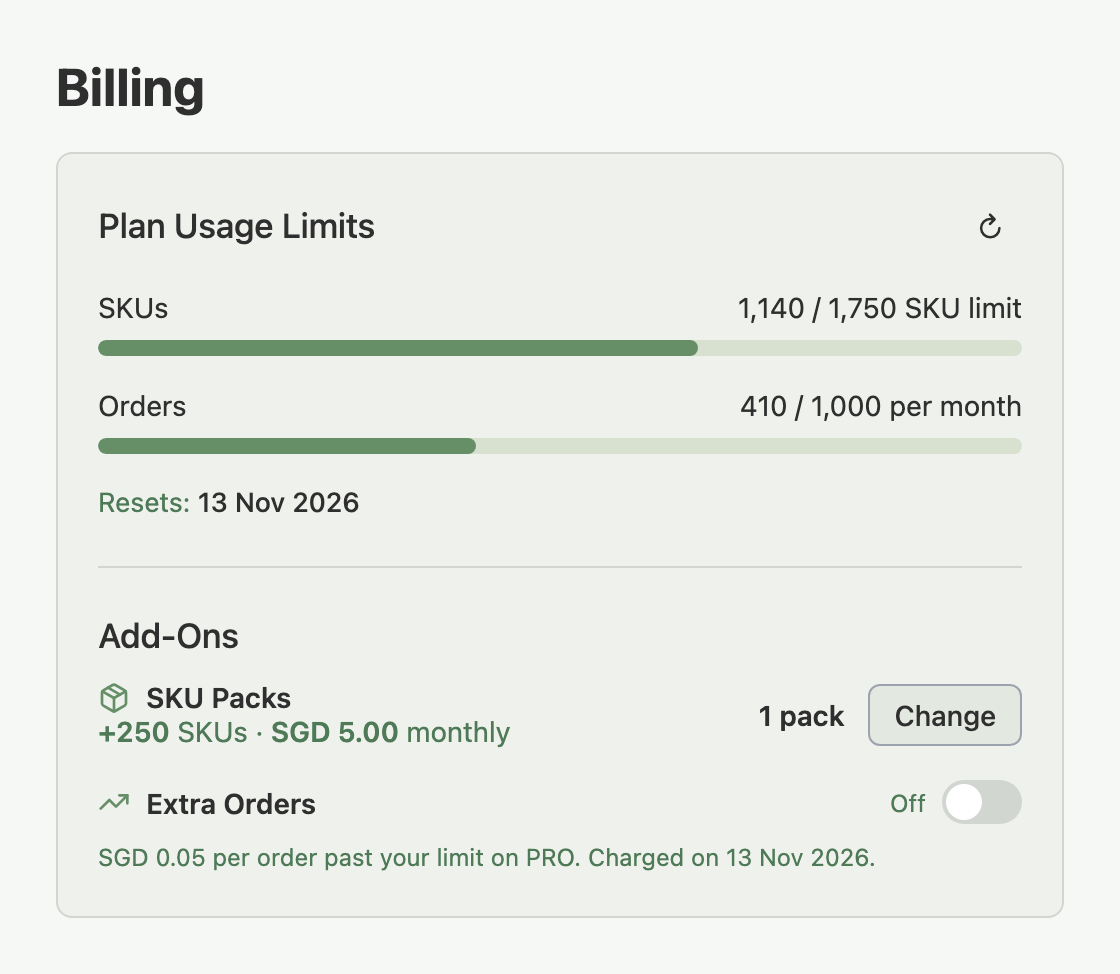
Open Billing from your profile menu, or from the sidebar menu on your phone. The Plan Usage Limits card shows one bar for SKUs, one for monthly orders, and the date your order count next resets, with the Add-Ons section at its foot.
What Counts Toward Each Limit
SKUs:
- Each unique product variation is one SKU. A T-shirt in 3 sizes and 4 colours is 12 SKUs.
- A simple product with no variations is 1 SKU.
- The same product synced to several marketplaces still counts once, not once per platform.
- Active and inactive products both count. Draft products do not.
Monthly orders:
- Each marketplace order counts as 1 order, regardless of how many items it contains.
- Paid, shipped, cancelled, and refunded orders all count.
- An order counts in the cycle it was first placed, not when it was fulfilled.
How Is My SKU Limit Worked Out?
Your SKU limit is the limit of your plan plus 250 SKUs for every SKU pack you hold. The order limit comes from your plan alone.
Packs count only on Lite, Pro, and Scale, and never during a free trial. Need more than Scale? Contact us. To add or remove packs, see how SKU packs work.
Example: a Pro seller with 2 packs has 1,500 + 500 = 2,000 SKUs, and the Plan Usage Limits card shows 2,000 as the limit.
What the Progress Bars Mean
Every usage bar, here and in the Manage Subscription window (which also shows connected stores), follows one rule.
Bars stay in standard colours below 75% of the limit. They turn amber from 75% up to just under the limit, and red when you reach it (100%). Red means reached, not passed. At 100% the next product can't be added, the next store can't be connected, and the next order is held unless Extra Orders is on.
Example: on Pro with 1 pack, a seller with 1,400 SKUs is at 80% of the 1,750 SKU limit, so that bar shows amber. The same seller's 410 orders this month is 41% of the 1,000 order limit, so that bar keeps its standard colours. Each bar reflects only its own number.
What Happens When You Hit a Limit
SKU limit reached: you can't add new products until your limit goes up. Existing products keep syncing and selling as normal. Your Dashboard warns you as you get close.
Monthly order limit reached: new orders still arrive, marked Limit Exceeded.
- You can see them, but you can't ship, cancel, or refund them.
- Unlocking is your choice. Upgrading your plan or enabling Extra Orders reprocesses orders already marked Limit Exceeded. A new billing month resets your count for new orders only; it does not unlock existing ones.
To raise your limits, see how to upgrade your plan. Plan limits and order processing covers Limit Exceeded orders in full.
What Does the SKU Limit Dialog Mean?
A SKU limit window opens when an import, a product save, or a bulk action would take you past your limit. The Dashboard SKU limit alert shows Add SKU Packs or Upgrade Plan, whichever fix costs less, and Add SKU Packs opens this window.
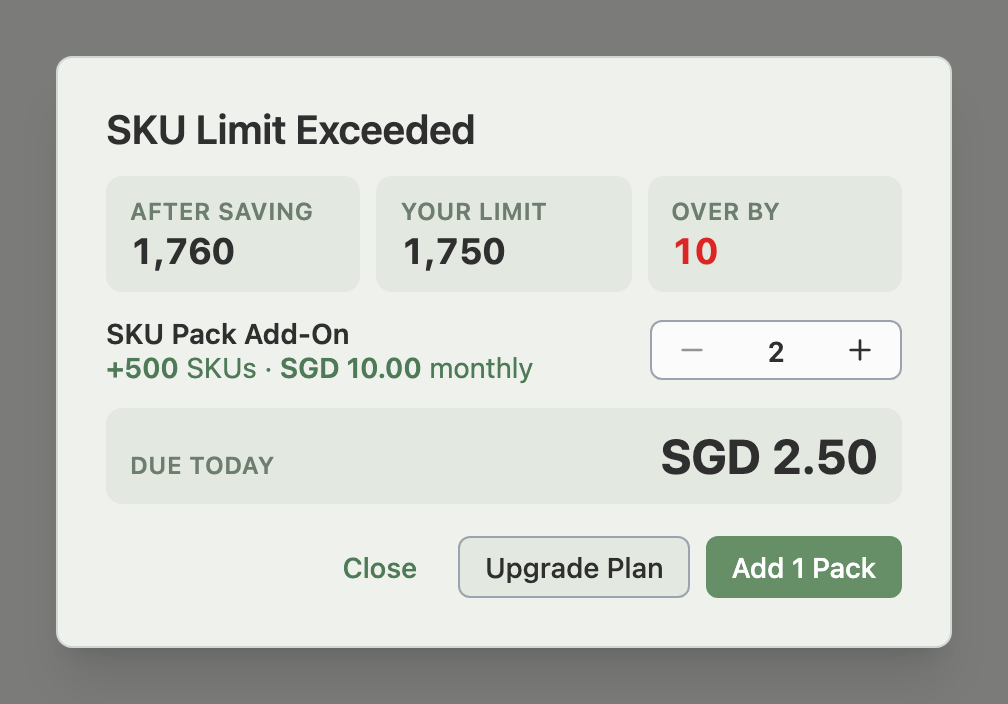
The title tells you why it opened. SKU Limit Exceeded means the action would pass your limit. SKU Limit Reached means you opened it from the alert, so nothing is blocked yet. SKU Limit Covered means your packs already cover the action, and you can continue.
The buttons depend on your plan and on which fix costs less:
- Add N Packs: charges your card the prorated amount shown as Due Today, less any store credit, and your save or import then goes ahead.
- Upgrade Plan: opens Manage Subscription. It doesn't appear on Scale, which has no higher plan.
- Add Packs in Billing: Shopify sellers see this instead of Add N Packs. It opens Billing in a new tab, where you approve the packs on Shopify.
Team members see a note asking them to ask the owner to add packs.
If a pack removal or a downgrade to a smaller paid plan is waiting for its date, adding SKUs is checked against the lower limit, and the window says when your limit drops. Keep N Packs cancels a scheduled pack removal, and Change Plan in Billing takes you to your scheduled downgrade.
Example: you hold 3 packs on Pro (2,250 SKUs) with one pack removal scheduled for 13 Nov, and you have 1,900 SKUs. Importing 200 more fits today, but your limit drops to 2,000 on 13 Nov, so the window blocks it. Keep 3 Packs cancels the removal and lets the import go ahead.
Add-Ons: SKU Packs and Extra Orders
The Add-Ons section has one row for SKU packs and one for Extra Orders. It is hidden on Free and during a free trial, so look there first if you can't find Extra Orders.
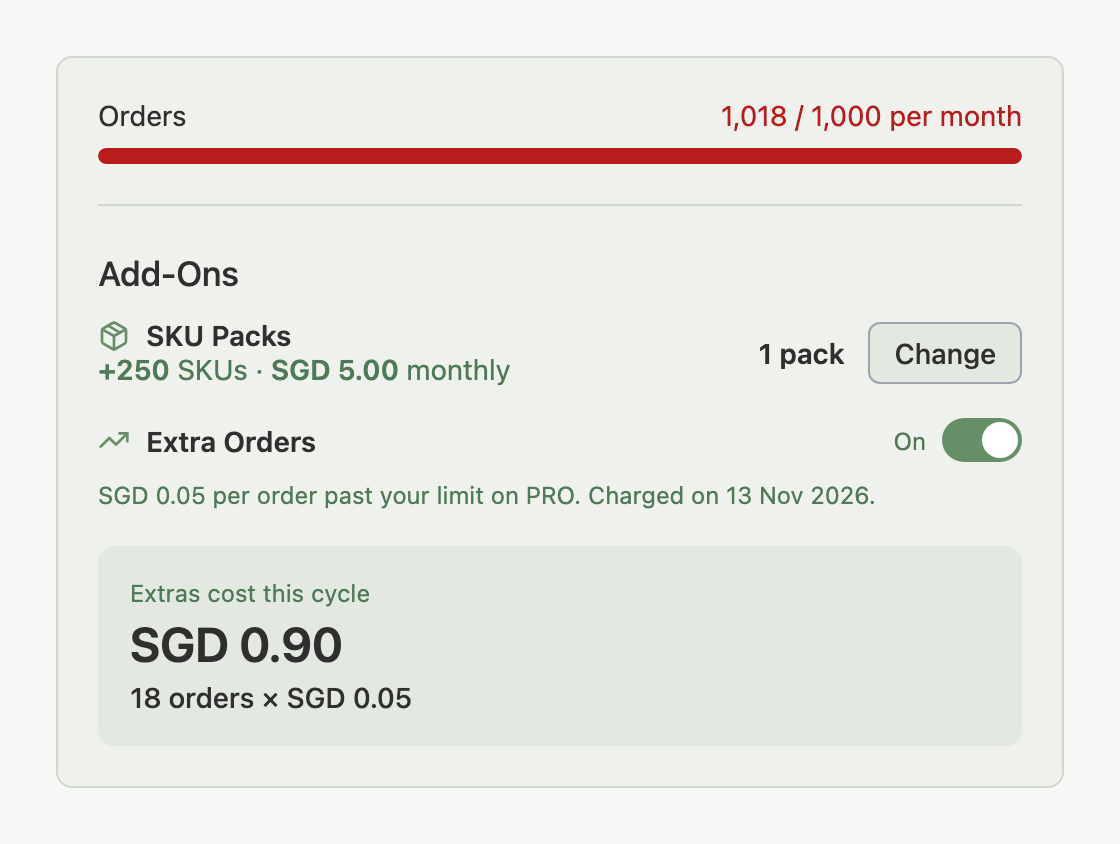
SKU Packs. The row shows the extra SKUs, the cost, and how many packs you hold, with a Change button. A scheduled removal appears as its own line with Cancel Change.
Extra Orders. Extra Orders keeps orders syncing past your monthly limit at a per-order rate, charged on your billing date. To enable it, use the toggle in the Extra Orders row. The first time, an Authorize Extra Orders window shows your rate, next charge date, and payment method before anything is authorized. While it is on, the row shows what you have accrued this cycle, and suggests a bigger plan when that would cost less.
- Turning it off: orders already synced through Extra Orders this cycle are still billed. New orders past your limit go back to Limit Exceeded.
- Annual Shopify billing: Extra Orders isn't available. Switch to monthly billing to use it.
When Limits Reset
SKU limits are ongoing and don't reset. Manage your SKU count by removing products you no longer need.
Monthly order counts reset automatically the moment your billing date passes, in your account time zone, as do the other dates on the Billing page. The card shows your next reset date.
Example: your billing date is the 15th. On the morning of the 15th your monthly order count is 998 / 1,000 on Pro. As your billing date passes in your time zone, the count resets to 0 / 1,000 automatically. You don't need to do anything.
Refreshing Usage Manually
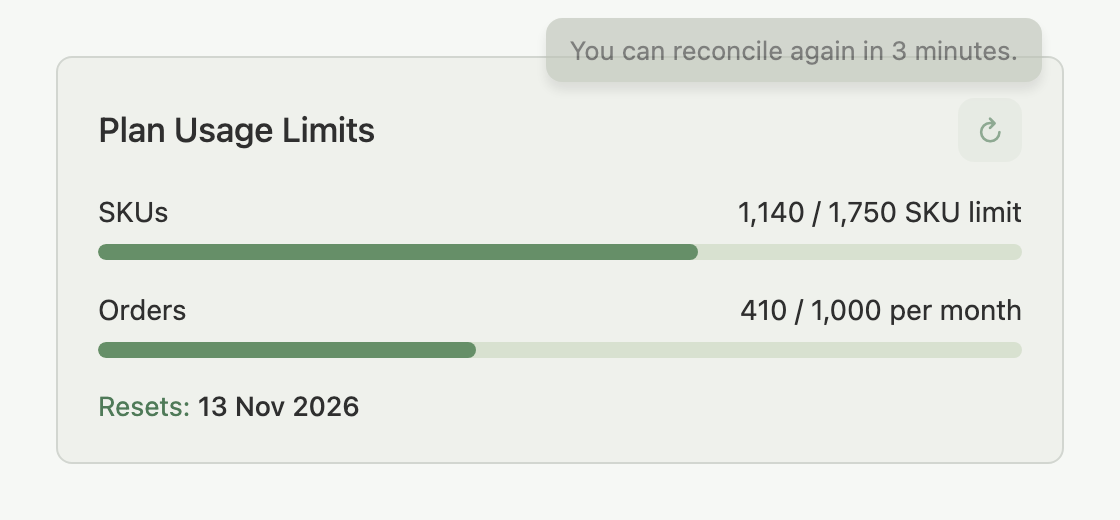
For an on-demand check, for example right after a bulk import, click the refresh icon at the top right of the Plan Usage Limits card. If counts still look wrong after that, contact support with the details below. The icon is unavailable for a short while after each use, and hovering over it shows when it is ready again.
Troubleshooting Unexpected Counts
My SKU limit is higher than my plan's. You hold SKU packs, and each adds 250 SKUs. The SKU Packs row shows how many.
I can't add SKUs although I'm under my limit. A scheduled pack removal or downgrade lowers the limit that adding SKUs is checked against, before its date arrives. Try the action again and the SKU limit window explains the drop. To add the SKUs now, click Keep N Packs or Cancel Change, or change the scheduled downgrade in Billing.
My SKU count is higher than expected.
- Check for inactive products. They count toward the limit even if they're not live on any marketplace.
- Verify that any products you deleted were fully removed and didn't leave orphaned variants behind.
My order count seems off.
- Cancelled and refunded orders still count.
- Check all connected marketplaces, not just one.
- Historical orders you imported count in the cycle they were originally placed.
FAQ
Does the same product count once or once per marketplace?
Once. A product synced to Shopee, Lazada, TikTok Shop and Shopify at the same time still counts as a single SKU, not four.
Do cancelled or refunded orders still count toward my monthly limit?
Yes. Every order that reaches Indexync counts once for the cycle it was placed in, regardless of its later status.
What is the difference between SKU Packs and Extra Orders?
SKU Packs raise your SKU limit by 250 for each pack. Extra Orders keeps orders past your monthly order limit syncing at a per-order rate.
Related Articles
- How SKU packs work
- How to upgrade your plan
- How to downgrade your plan
- Understanding your billing cycle
- Payment methods and troubleshooting
- Plan limits and order processing
- Store credit
Need More Help?
If your usage counts still look wrong after refreshing, visit our Feedback page, WhatsApp us, or email hello@indexync.com with:
- Screenshots of your Plan Usage Limits card and Add-Ons section
- The counts you expected vs. what the card shows
- Any recent changes to your account (new marketplaces, bulk operations, pack changes)