How Does Billing Work in Indexync?
Your plan and any SKU packs (extra room for more products) are charged on your billing date. Your monthly order counter, the count of orders your plan allows each month, resets on that same day. You find the date on your Billing page, which you open from your profile menu. Switching between Monthly and Annual keeps your billing day if you pay by card; if Shopify bills you instead, see the Shopify section below.
Applies to: All Indexync users on paid plans.
Finding Your Billing Cycle
Open Billing from your profile menu at the top of the screen, or from the sidebar menu on your phone. The Current Plan card shows your Billing Cycle (Monthly or Annual) and your Next Billing Date.

Monthly vs Annual
Both cycles give you the same plan features and limits. Monthly charges your card on the same day each month. Annual charges once a year, on your billing date, at a lower total price: you get 2 months free (16.7% off).
Switching Between Monthly and Annual
Open Billing, then click Manage Subscription. The top row shows your current plan, your usage and the Monthly / Annual toggle.
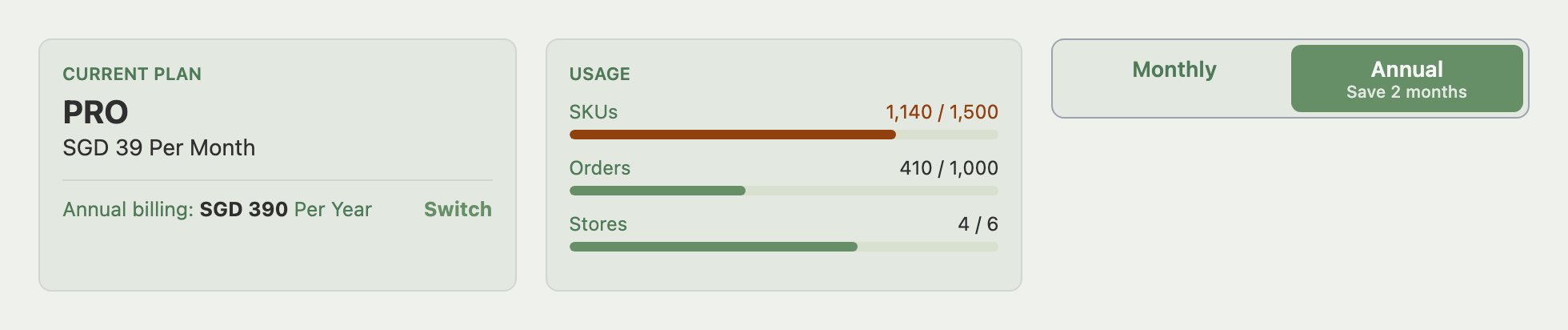
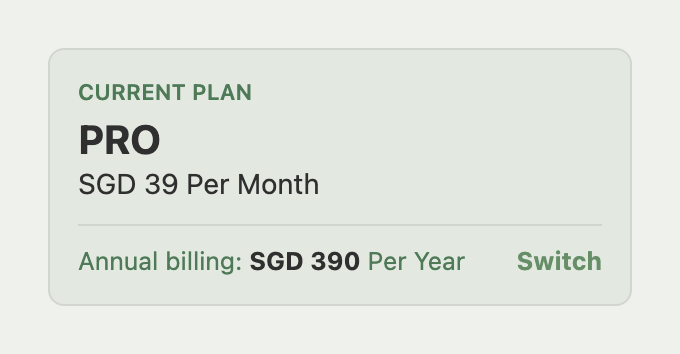
On Monthly, the Current Plan card shows what Annual would cost and a Switch link. Click it to go straight to a confirmation screen for your current plan on the new cycle. You can also set the toggle first and then pick a plan from the list.
What Happens to Your Billing Day When You Switch
If you pay by card and stay on the same plan, your billing day does not change in either direction.
Monthly to Annual
Your annual year starts on the first day of your current monthly cycle, not on the day you switch. Indexync credits everything you have already prepaid from that day: the paid month, any free months you were awarded (at the plan's normal monthly price), and the value of any SKU packs you remove in the same change. The confirmation screen lists the annual price in full, takes the credit off as Unused PRO time (named for your plan), and shows Due Today.
Example: you are on Pro (SGD 39 a month) and your cycle started on 15 August. You switch on 25 August. The credit is SGD 39.00, you pay SGD 351.00, and your annual year runs from 15 August 2026 to 15 August 2027. With one awarded free month on top, the credit is SGD 78.00 and you pay SGD 312.00.
If your credit is higher than the annual price, you are charged nothing and the extra goes to your store credit. For example, 11 prepaid months on Pro is SGD 429.00 against an annual price of SGD 390, so you pay SGD 0.00 and SGD 39.00 is added to your store credit. The screen shows your full credit as Remaining credit, then Unused PRO time for the part that pays the annual price (SGD 429.00 and SGD 390.00 here), and says that SGD 39.00 is added to your store credit. Remaining credit also appears when your credit includes awarded free months. See store credit for how it is used.
Upgrading to a Higher Plan
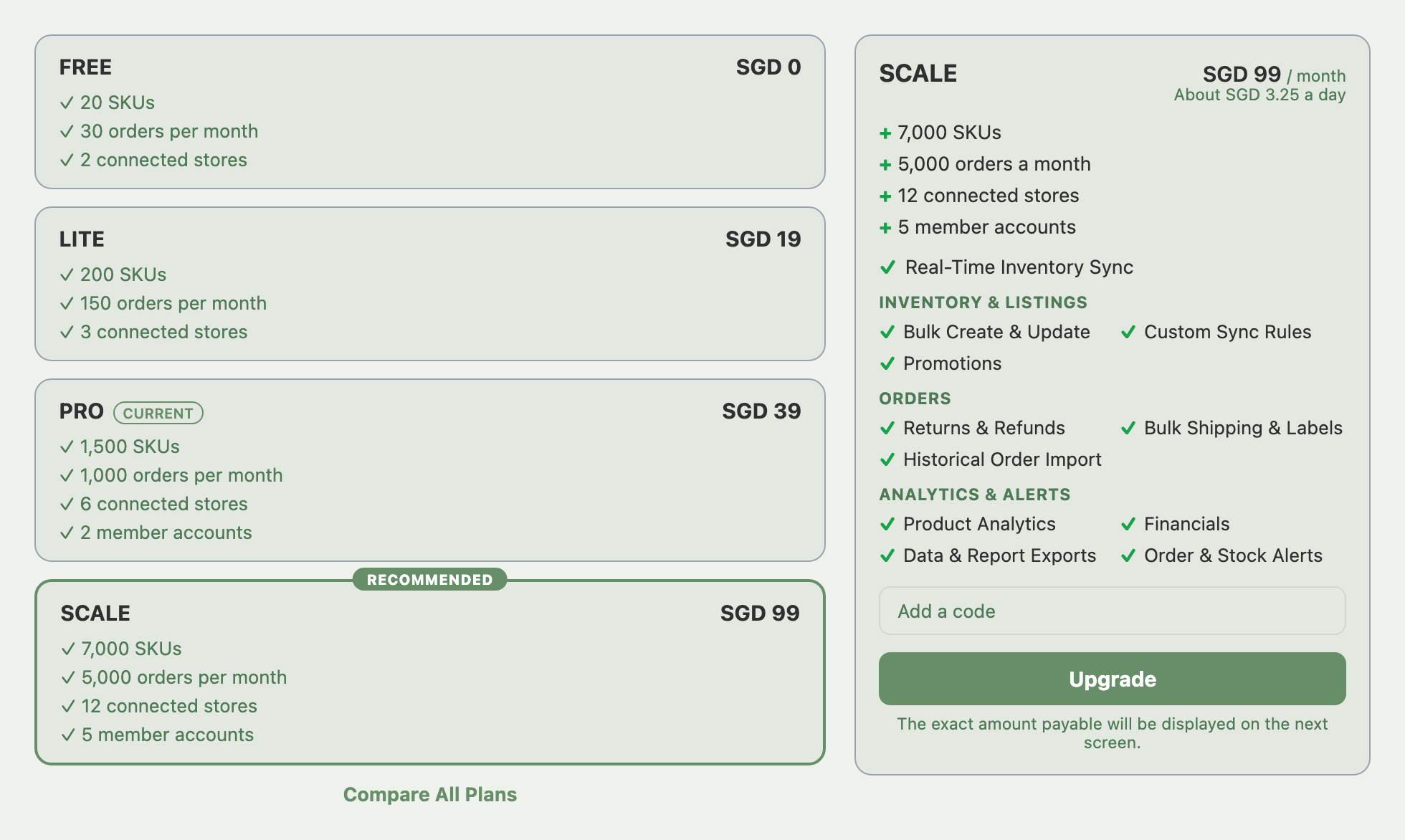
Upgrading works differently. An upgrade starts a new billing month on the day you upgrade, so that day becomes your billing day. The confirmation screen shows your next billing date before you confirm. See how to upgrade your plan.
Annual to Monthly
On the same plan, the switch applies right away. The confirmation screen shows a plan price row, for example PRO plan (Monthly), then Unused PRO time as an amount of money with what it pays for underneath: first the days up to your next billing day, then whole months. Any store credit you have comes off next, and Due Today is what remains, which completes the last month.
Your invoice covers the whole stretch as one period, from the day you are charged to the date your new plan ends, instead of showing only the last month. A switch paid entirely with store credit also keeps its full term, and its invoice shows the same period.
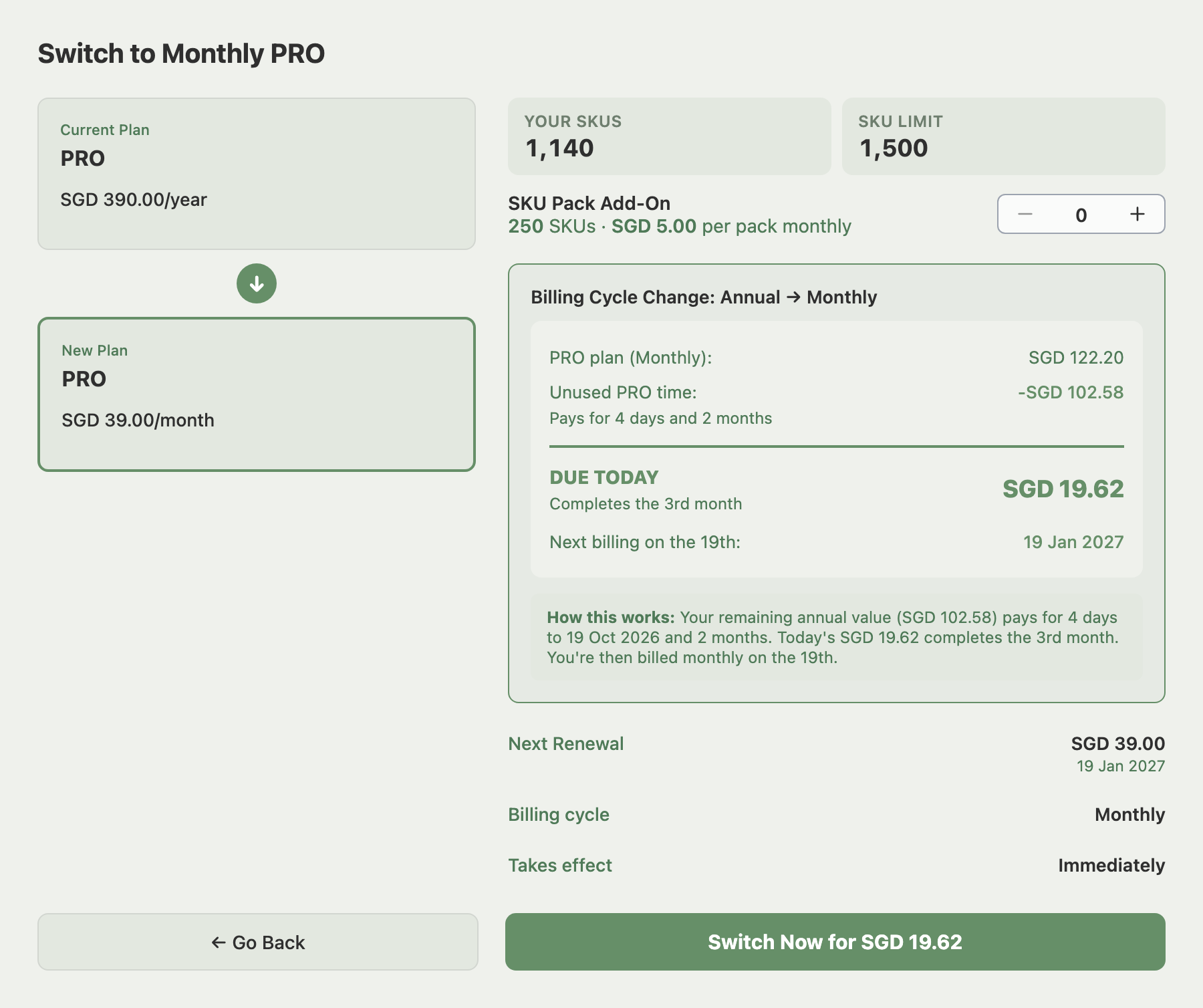
Example: the screen above lists PRO plan (Monthly) at SGD 122.20, which is 4 days up to 19 October plus 3 months. Unused PRO time takes off SGD 102.58, which pays for the 4 days and 2 months. The remaining SGD 19.62 is due today and completes the 3rd month, and you are then billed monthly on the 19th, starting 19 January 2027.
If your credit is too small to reach the next billing day, the screen shows your Remaining credit and says Due Today pays the rest of the days to that date instead.
Annual to Monthly on a higher plan applies now, and your unused annual value is converted into whole months of the new plan.
Annual to Monthly on a lower plan is a downgrade, so it waits until your annual year ends. See how to downgrade your plan.
If You Pay Through Shopify
Shopify bills your subscription on its own 30-day cycles, so your billing day follows Shopify rather than the rules above. A switch to Annual needs your approval on Shopify, and Shopify applies its own credit. The confirmation screen shows no credit months or kept billing day. Extra Orders turns off when you approve the switch to annual billing.
SKU Packs and Your Billing Day
SKU packs are charged monthly. On Monthly billing they are charged on your plan's billing day. On Annual billing with a card they are charged each month on your order counter reset day, and the pack month that contains your annual renewal is billed together with the plan. Shopify sellers on Annual pay for packs once a year instead. See SKU packs and extra SKUs for prices and how to add or remove packs.
When Your Charge Lands and the Counter Resets
Your charge lands on your billing date: the same day every month on Monthly, the same day every year on Annual. Your monthly order counter resets on that day every month, even on Annual billing.
Example: you are on annual Scale with a 15 March billing date. Your order counter resets on 15 April, 15 May and every 15th after that. The next card charge is 15 March next year.
Your SKU count never resets. Remove products to free up room. See viewing and troubleshooting plan usage for what counts toward each limit.
Every successful charge sends an invoice and receipt PDF by email. See Invoices & Receipts. Dates on your Billing page, in Manage Subscription and in Billing History follow your account time zone.
Free Months and Your Next Billing Date
Free months you have been awarded push your next billing date later. When you switch cycles, each free month is credited at the plan's normal monthly price. The Next Billing Date line on your Billing page notes when free months are included.
FAQ
Does switching to Annual change what is included in my plan?
No. Monthly and Annual give you the same features and limits. Only how often you pay and the total price differ.
Will my billing date change if I switch from Monthly to Annual?
No, not on a card. Your billing day stays the same, and your annual year starts on the first day of your current monthly cycle.
Can I switch from Annual back to Monthly right away?
Yes, on the same plan. The switch applies now, your unused annual value is credited, and the confirmation screen shows what is due today. If you are moving to a lower plan, the change waits until your annual year ends.
What if my credit is higher than the annual price?
You pay nothing for the switch and the extra is added to your store credit.
If I am on Annual billing, does my order count still reset every month?
Yes. The counter resets every month on your billing day. Only the card charge is annual.
Related Articles
- Why Does My Usage Count Look Wrong?
- How to Upgrade Your Plan
- How to Cancel or Downgrade Your Plan
- How Do I Get More SKUs Without Upgrading My Plan?
- What Is Store Credit and How Does It Work?
- Why Did My Payment Fail, and What Happens Now?
- Where Do I Find My Invoice or Receipt?
Need More Help?
Visit our Feedback page, WhatsApp us, or email hello@indexync.com.