Delete a Product Without Taking Down Your Live Listings
Deleting a product in Indexync gives you two choices. Delete from Indexync only removes the product from your Indexync catalog. Every marketplace listing stays exactly as it was: selling if it was active, hidden if it was inactive. Delete a live listing removes it from the marketplace itself, permanently, and Indexync cannot bring it back. You pick which one happens, listing by listing, before you confirm.
Applies to: All plans. Deleting one product at a time works on every plan. Deleting many at once (the Bulk Delete wizard) needs the Lite plan or higher; on the Free plan the Delete products menu item is greyed out.
Before you delete
Deactivating, excluding a SKU, and deleting from Indexync only are all reversible. Deleting a live marketplace listing is not.
How to delete one product
- Open the Products page.
- In the product's Actions column, click the caret beside the Edit button, then choose Delete. The same menu lists Duplicate and Merge.
- The Delete product window opens, naming the product at the top.
- Tick the locations to delete from, then click the button at the bottom.

The window lists every place the product exists:
- Indexync (top row): removes this product from Indexync only. Your marketplace listing(s) aren't affected: an active listing keeps selling, and one you'd already set to Inactive stays hidden. If your listings are a mix of both, the dialog says so directly: active ones keep selling, inactive ones stay hidden.
- Each live listing (red panel, one row per store): this deletes the listing on the marketplace itself, not just in Indexync. It's permanent, and Indexync cannot restore it.
Tick only Indexync to leave every marketplace listing exactly as it is now. Tick Indexync plus specific marketplace rows to remove those in one step; rows you leave unticked are left exactly as they were.
Example: a product is listed on Shopee, Lazada and Shopify. You want it off Indexync and Shopee, but still selling on the other two. Tick Indexync and Shopee, leave the rest unticked, then confirm.
If the product is used as a component inside one of your bundles, Indexync blocks the delete and shows you which bundle(s) depend on it. Delete or edit the bundle first. See Can I Share One Stock Pool Across Pack Sizes or Bundle SKUs? for how bundle components work.
Delete many products at once
Use the Bulk Delete wizard to remove several products, or one store's listings across many products, in a single run.
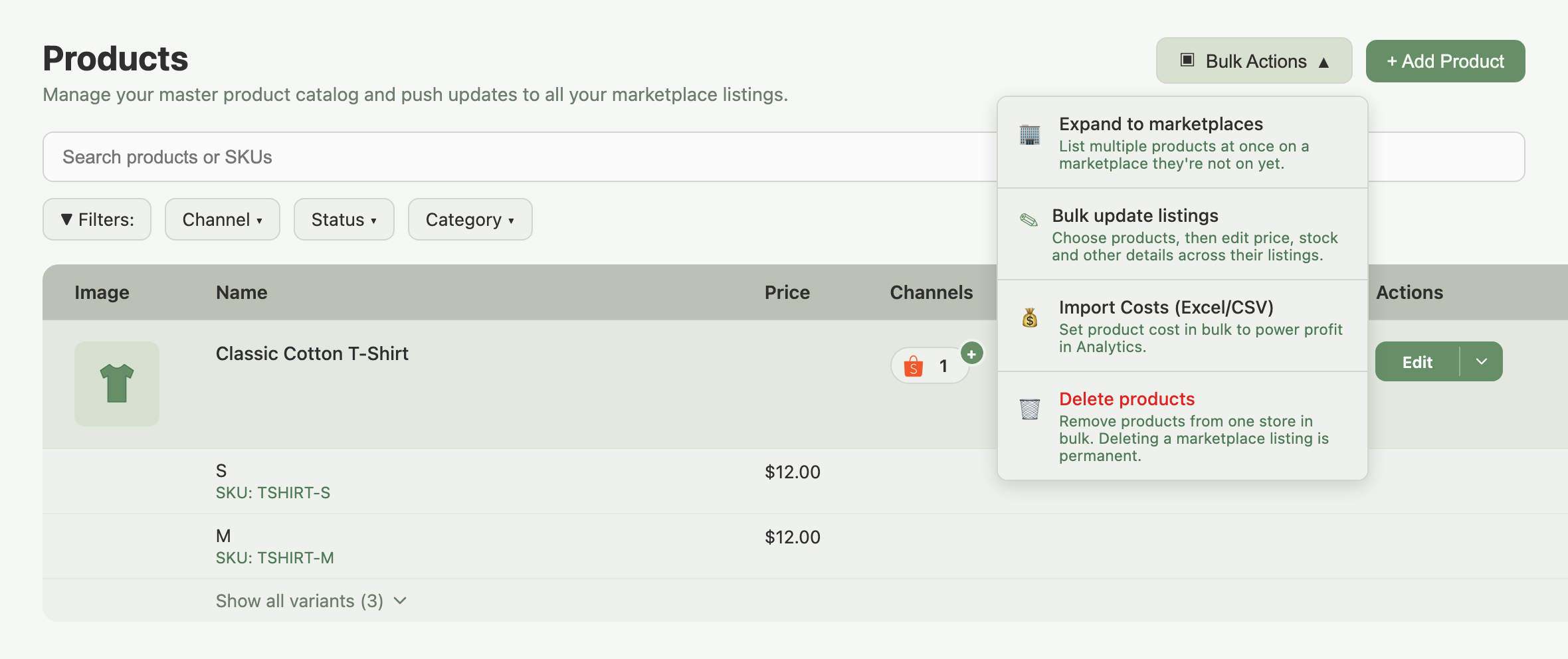
- On the Products page, click Bulk Actions, then Delete products.
- Choose your deletion option: Delete products removes whole products and their Indexync listings only; marketplace listings are not affected. Delete store listings removes one store's listings across many products, with a choice for the live listing.
- For Delete store listings, choose your deletion type: Delete from Indexync only leaves the marketplace listings not affected and allows more than one store. Delete from Indexync and the marketplace is permanent, so it's limited to one store per run.
- Pick the store(s), then click Next.

The safe option is selected by default, so accepting the defaults can never take down a live listing. A store with leftover listings but a disconnected connection can still be picked for the Indexync-only option; it can't be picked for a marketplace delete, since that needs a live connection.
- Select which products to remove, using Search, Status, Category and (for the Indexync-wide option) Channel filters, or Select all.
- Click Review & delete, then type DELETE to confirm. This typed confirmation is required every time, whichever option you picked.

- Indexync deletes the products one by one and shows live progress: a running count, a Deleted/Failed/Remaining summary, and a table of every product with its status. Retry a single failed row with its own Retry button, or retry every failed row at once with Retry Failed.

Example: you're switching suppliers and want to stop selling 40 products on Shopee only, while keeping them untouched on Lazada and TikTok Shop. Choose Delete store listings, keep the default Delete from Indexync only type, pick your Shopee store and the 40 products, then confirm. Their Shopee records leave Indexync but the Shopee listings themselves aren't affected; the other channels are untouched.
What happens when you delete
- In Indexync: the product or listing records you selected are permanently removed. There is no recycle bin and no undo.
- On marketplaces: ticking a marketplace row, or choosing "Delete from Indexync and the marketplace", tells that marketplace to remove the listing. Permanent; Indexync cannot restore it.
- Listings you don't tick for marketplace deletion: they aren't affected, active ones keep selling and inactive ones stay hidden, and come back into Indexync as new the next time you import from that store.
- SKU capacity: deleting a product frees up SKU capacity in your plan. Deleting products is one way to make room; adding SKU Packs on Lite, Pro or Scale is the other. See How Do I Get More SKUs Without Upgrading My Plan?. If the count on Billing (open your profile menu at the top right and choose Billing) doesn't update right away, click the refresh icon at the top right of the Plan Usage Limits card (hover it to see "Reconcile usage counts").
- Existing orders: orders already placed stay in your order history and keep fulfilling normally; only future sales are affected.
Troubleshooting
Marketplace listing still appears after I deleted it
Removal usually completes within a few minutes; refresh the marketplace's seller portal and check again. If it's still there, confirm the connection is healthy under Connections (in the sidebar), then retry.
It shows "Already removed" instead of deleting
That's expected, not an error: the product was already gone, either from an earlier retry or a change in another tab. No action is needed.
I deleted the wrong product, or the wrong listing
There's no recovery for a permanent delete. Double-check the product name and ticked rows before confirming. Deleting from Indexync only can be undone by re-importing; a marketplace delete is gone for good.
"Delete products" is greyed out in the Bulk Actions menu
Bulk deletion needs the Lite plan or higher. On Free, deleting products one at a time still works.
Plan SKU usage didn't drop after deletion
Go to Billing, find Plan Usage Limits, and click the refresh icon at the top right of the card to recalculate. If you just used it, it stays unavailable for a short while: hover it to see when it's ready again.
FAQ
If I delete a product in Indexync, do my marketplace listings stay live?
Deleting from Indexync only never changes anything on the marketplace: an active listing keeps selling, and one you'd already set to Inactive stays hidden, exactly as before. Only ticking a specific marketplace row (or choosing the "and the marketplace" option in the bulk wizard) takes that listing down.
Can I undo a delete?
No. Removing a product from Indexync only can't be reversed inside Indexync, though it reappears as new the next time you import from that store. Deleting a live marketplace listing is permanent everywhere.
How do I delete many products at once?
Open the Products page, click Bulk Actions, then Delete products. The wizard removes several whole products, or one store's listings across many products, with a typed confirmation. Needs the Lite plan or higher.
Can I delete just one store's listings across many products?
Yes. Choose Delete store listings in the Bulk Delete wizard, then pick the store. Remove the listings from Indexync only (marketplace stays live), or permanently delete them from Indexync and the marketplace together.
What happens to a bundle if I delete one of its component products?
Indexync blocks the delete and names the bundle(s) that depend on it, so you never accidentally break a bundle's stock tracking. Delete or edit the bundle first. Deleting a bundle's own parent product isn't blocked this way.
Related Articles
- Create a Product and Publish It to Shopee, Lazada, TikTok Shop and Shopify
- Editing & Updating Products & Listings
- Manage Your Product Listings Across Shopee, Lazada, TikTok Shop and Shopify
- Merge Duplicate Products and SKUs So One Item Has One Stock Count
- What's the Difference Between a Product and a Listing?
- Can I Share One Stock Pool Across Pack Sizes or Bundle SKUs?
- How Do I Get More SKUs Without Upgrading My Plan?
Need More Help?
If a deletion isn't behaving as expected, visit our Feedback page, WhatsApp us, or email hello@indexync.com with the product name, the affected marketplace(s), and a screenshot of any error.