How Do I Create an Order at an Offline Event?
Open your event in Indexync, which is one stretch of selling at your offline store, and tap Create Order. Search for a product or scan its barcode to add it to the basket, which is the list of items in this sale. Add a custom item for anything that is not in your product list. Choose who the customer is, or leave it blank for a walk-in buyer, then pick Handed Over if the buyer takes the goods now or Ship Later if you will send them. Tap Mark as Paid if the buyer is paying now, or tap Confirm Order to save the sale as Unpaid and take payment later. Either way, your stock updates as soon as the order is confirmed.
Applies to / Before You Start
Available on: Pro and Scale plans (Beta). On Free and Lite, including after a downgrade, the Create Order page shows an upgrade prompt; you can still finish existing orders in Manage Orders. You need the Manage events permission; see Roles and Permissions. The event must be open and its offline store active. To set up a store and an event first, see How Do I Run an Offline Event in Indexync?.
How Do I Start an Order?
Open Events in the sidebar, open the menu next to View on your event's row and choose Create Order. You can also open the event and tap Create Order on its dashboard. The page is titled Create Order.
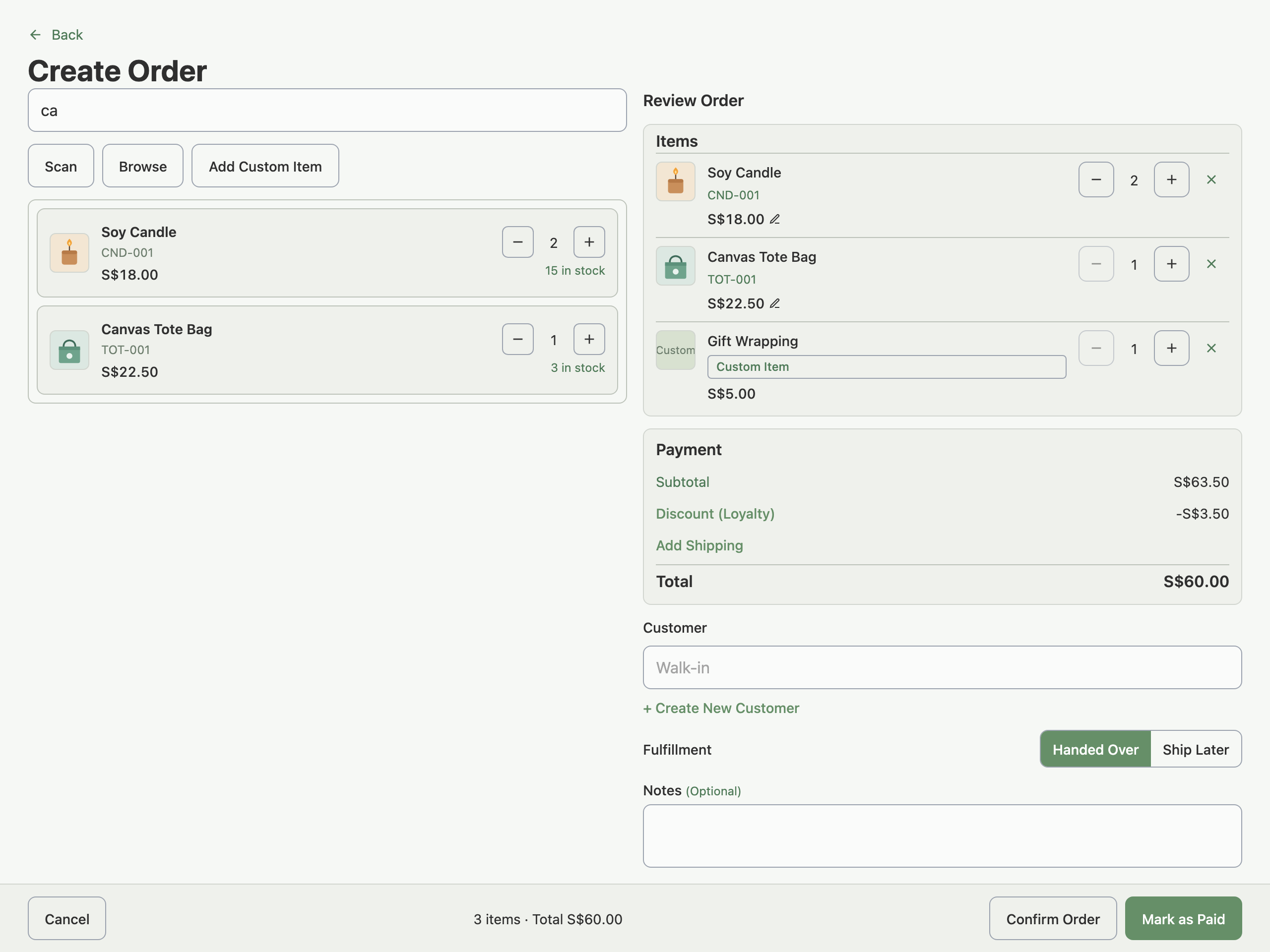
On a laptop you add items on the left and review the order on the right. On a phone the same page has two steps: you add items first, tap Next (it shows how many items you have), and finish on Review Order. + Add Items takes you back, and your basket stays.
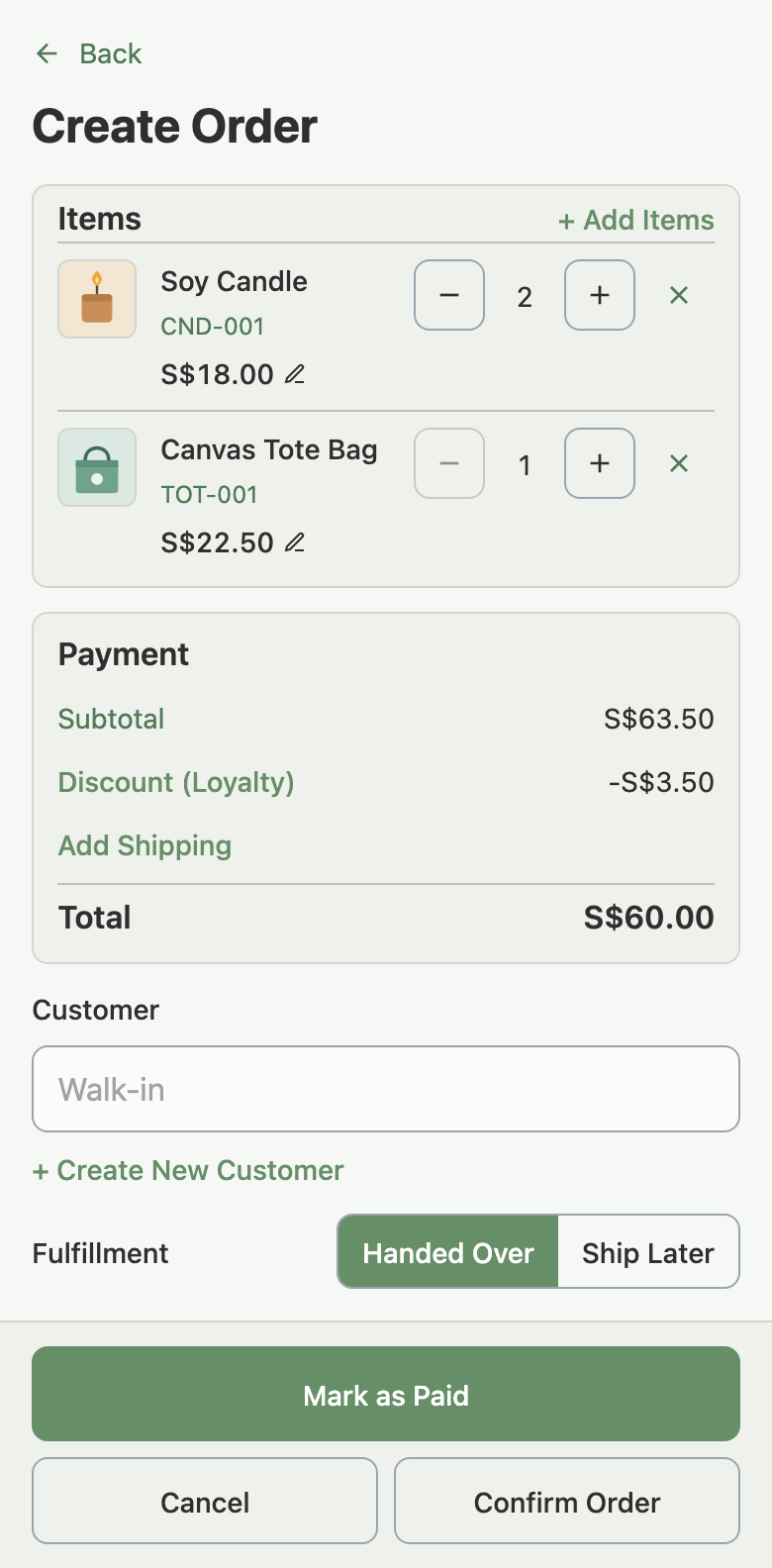
How Do I Add Items to the Basket?
Type in the Search products or SKUs box (a SKU is your product code), or tap Browse to list your event's products. Each result shows its price and how many are in stock. Tap Add, then use the plus and minus buttons to change the quantity.
- Scan opens the camera to read a barcode. If the camera is off, the page tells you to turn it on in your browser settings, and you can tap Enter Code to type the code and then Find Item.
- Add Custom Item adds something that is not in your product list. Enter an Item Name, a Price, an optional Cost and a Quantity, then tap Add Item. A custom item has no stock to count, and it cannot be put back into stock if returned.
- Edit Price is the pencil beside a line's price. Enter a new Unit Price and tap Apply, or tap Reset to go back to the event price.
A basket holds a limited number of items. When it is full, the page says so, so confirm the order and start another.
How Do I Add a Customer?
The Customer field is optional unless Ship Later is picked. It will be blank by default but you can select an existing or create a new customer. Tap the field to see saved customers, or type a name, phone number or email to search.
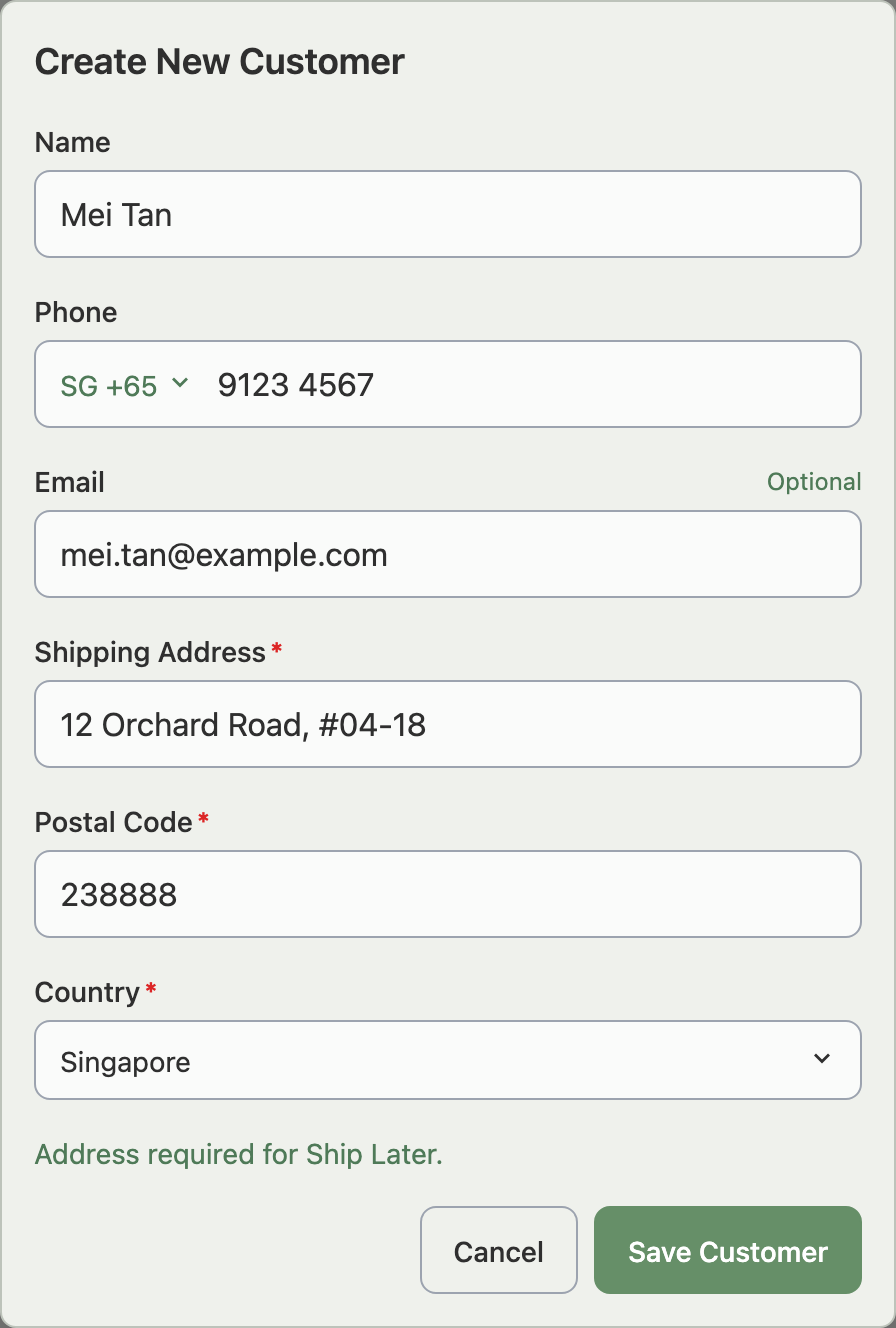
To save a new customer, tap + Create New Customer. A name is required, and so is a phone number or an email. The Shipping Address, Postal Code and Country fields matter for Ship Later. Once a customer is chosen, Edit changes their details and Remove Customer clears the customer from the order.
Should I Choose Handed Over or Ship Later?
Your event's Default Fulfillment pre-selects one of these, and you can change it on every order.
If you choose Ship Later with no customer, the page asks for a customer and address. If the customer has no address, it asks for an address, and Confirm Order and Mark as Paid stay off until you add one. The optional Notes field sits under the fulfillment choice. To ship the order afterwards, see How Do I Manage Orders From an Offline Event?.
Example: a buyer wants a large vase delivered. You choose Ship Later, pick the buyer as the customer and add their address. Once they pay, the order waits under To Ship until you mark it as shipped.
How Do I Add a Discount or Shipping Fee?
The Payment card shows Subtotal, Discount, Shipping Fee and Total. Tap Add Discount, choose Amount or Percent, enter the discount, add a Reason, and tap Apply Discount. Tap Add Shipping, enter a Shipping Fee and an optional Courier, and tap Apply Shipping. Both apply to the whole order.
How Do I Finish the Sale?
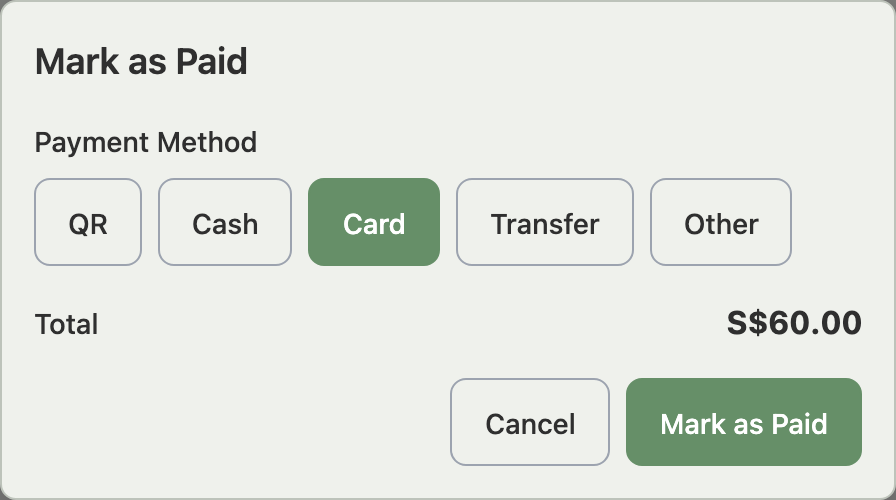
Tap Mark as Paid when the buyer pays now. Choose QR, Cash, Card, Transfer or Other, check the Total, and tap Mark as Paid again.
Tap Confirm Order when the buyer will pay later. The order is saved as Unpaid and its details page opens. You can mark it paid later from Manage Orders or the event dashboard, and the event cannot be closed while it is Unpaid.
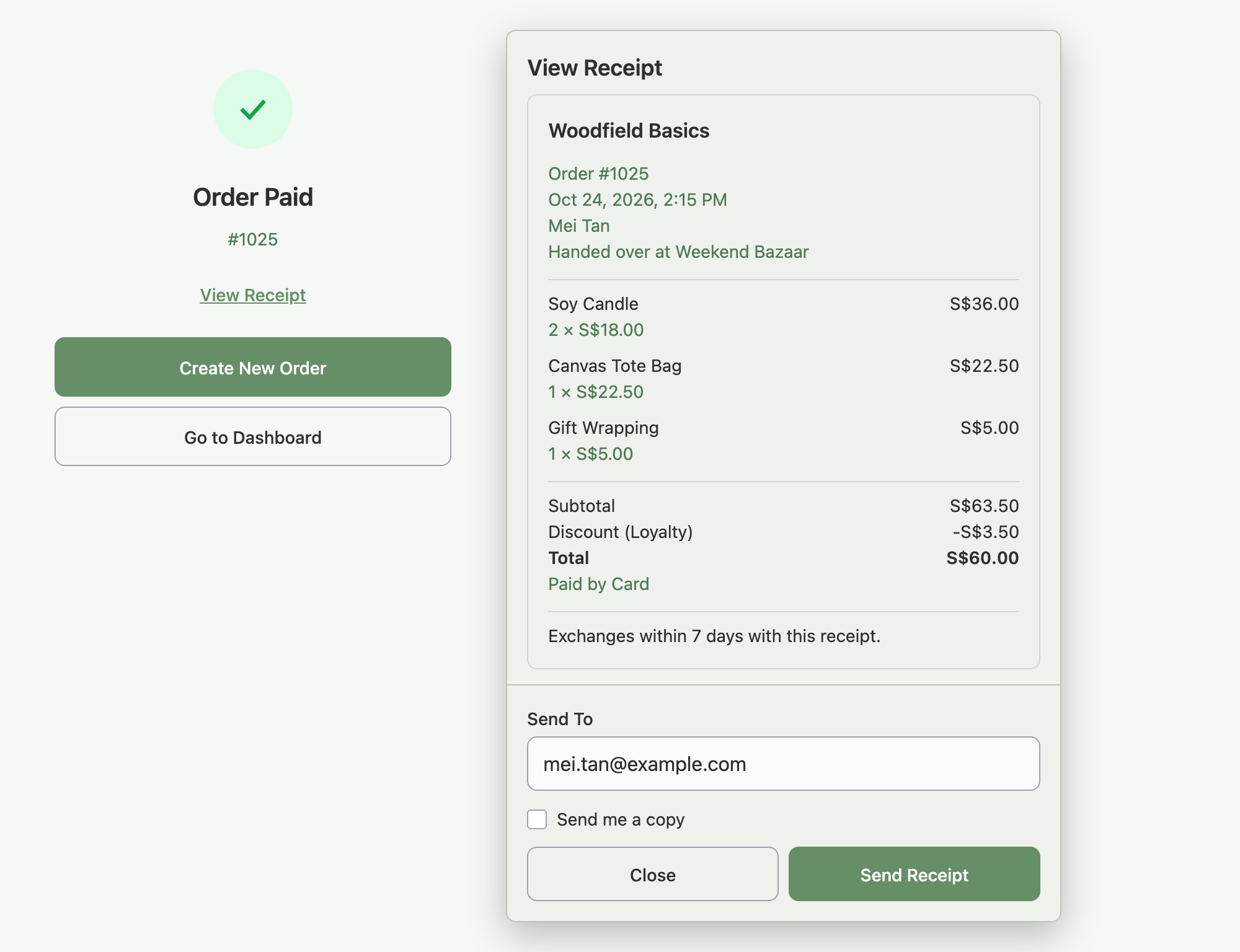
Your stock is booked when the order is confirmed, whether it is paid or Unpaid, and the change flows to your marketplace stores like any other order. A paid order opens the Order Paid screen, with View Receipt, Create New Order and Go to Dashboard.
Example: a customer buys two candles at S$18 each and pays by card. You search "candle", tap it twice, tap Mark as Paid, choose Card and confirm. The Order Paid screen appears, and your stock for the candle drops by 2 on every store.
What If I Don't Have Enough Stock?
If an item in the basket is more than you have, a Not Enough Stock window lists it with Available, Selling and Final Stock. Tap Go Back to change the basket, or Sell Anyway to complete the sale and let that item's stock go below zero. Custom items are never checked.
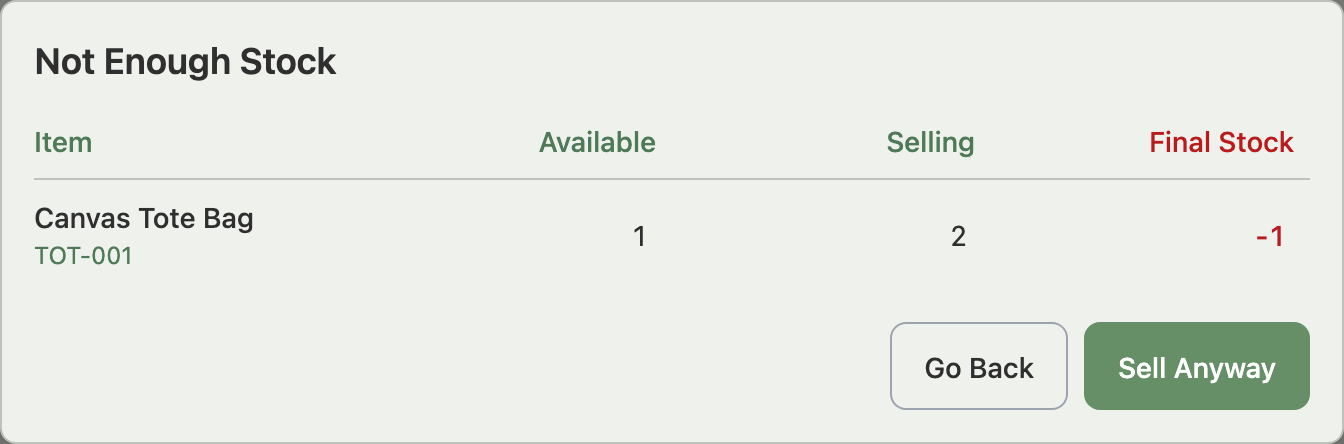
Example: the shelf count says 1 tote bag but a buyer wants 2. The Not Enough Stock window shows Available 1, Selling 2, Final Stock -1. You choose Sell Anyway because you have another in the van, then count your stock afterwards.
How Do I Send a Receipt?
On the Order Paid screen, tap View Receipt. For a paid order later, choose View Receipt from its menu in Manage Orders. The receipt shows the order number, date, items, totals and the Receipt Note you set on the offline store. Check the address in Send To, tick Send me a copy if you want one too, and tap Send Receipt. Sending needs the Manage events permission.
Troubleshooting
Confirm Order and Mark as Paid are off. The basket is empty, or the order is Ship Later and the customer has no address. Add an item or an address.
You cannot confirm the order because the event is closed. Orders cannot be created once an event is closed. Use an open event.
You cannot confirm the order because the store is deactivated. Reactivate the offline store in Connections, which needs room under your store limit.
You see a notice that the order was saved but marketplace stock won't update. Your plan's order limit is reached. The order is saved and your stock count in Indexync still drops, but your marketplace stores are not updated until you upgrade or turn on Extra Orders. See Plan Limits and Order Processing.
FAQ
Can I sell an item that is not in my product list?
Yes. Use Add Custom Item, and give it a cost so profit stays accurate.
What happens if I sell more than I have in stock?
The Not Enough Stock window warns you, and Sell Anyway completes the sale and lets stock go below zero.
Do I need a customer on every order?
No, a customer is optional for Handed Over. Ship Later needs a customer with an address.
Can I change the price of an item?
Yes. Use Edit Price on a basket line, or Add Discount for the whole order.
Does Confirm Order without payment take stock?
Yes. Stock is booked when the order is confirmed, paid or not.
Related Articles
- How Do I Run an Offline Event in Indexync?
- How Do I Manage Orders From an Offline Event?
- Plan Limits and Order Processing
- Roles and Permissions
- Understanding Inventory
- Setting Your Cost Prices
Need More Help?
Fill out our Feedback form, message us on WhatsApp, or email us at hello@indexync.com.