How Do I Run an Offline Event in Indexync?
You can record sales you make in person, such as at a pop-up or a market stall, in Indexync, using the same stock as your marketplace stores. First you add an offline store, which is the name for your physical selling place. Then you create an event for that store, with its dates, the products you will sell there, and any special prices or costs.
During the event you create orders on your phone or laptop, and each sale updates your stock on Lazada, Shopee, TikTok Shop and Shopify, as Understanding Inventory explains. The event's dashboard shows how many orders you took and, if your role allows it, your revenue and profit.
Applies to / Before You Start
Available on: Pro and Scale plans (Beta). On Free and Lite you cannot create events or take orders, and an account with no events sees an upgrade prompt on the Events page; see How to Upgrade Your Plan. If you downgrade, your existing events and dashboards stay readable, you can still close open events, and you can finish existing orders in Manage Orders; see How to Cancel or Downgrade Your Plan.
Your role decides what you can do. Events appears in the sidebar for roles that include View events. Team members on a plan without Offline Events see it only once the account has events. See Roles and Permissions to give a team member access.
How Do I Add an Offline Store?
Open Events in the sidebar and click Add Offline Store, which shows when you have no offline store yet. You can also open Connections and click Add Store in the Offline Stores group.

- Enter a Store Name, such as the name of your stall.
- Check the currency line. Every offline store prices in your main currency, so you cannot change it here.
- Choose the Country.
- Optionally add a Receipt Note. It appears on every receipt you print or send, so it suits something like your exchange policy.
- Click Add Store, then choose the products the store sells with Add Products To Store, or click Add Later.
When the store is added, click Create Event to go straight to a new event for it. Drafts and products without SKUs cannot be added to a store.
An active offline store counts toward your plan's store limit, just like a marketplace store. If Add Offline Store is locked, you are at that limit, so deactivate or disconnect a store or upgrade your plan. It also locks on a plan without Offline Events. Editing, deactivating, reactivating and deleting offline stores are covered in the offline stores section of Connecting Your Marketplaces.
How Do I Create an Event?
An event is one stretch of selling at an offline store, with its own products, prices and costs. Open Events and click + New Event (or Create Event when the list is empty). The row menu next to View holds Create Order, Edit Event and Close Event for open events.

Use the search box, the Store and Status filters and the sort menu above the list to find an event.

- Pick the Store, enter an Event Name, and set Starts and Ends. Venue is optional.
- Under Default Fulfillment, choose Handed Over when buyers usually take goods now, or Ship Later when you usually send them afterwards. You can change this on each order, as How Do I Create an Order at an Offline Event? explains.
- Under Products, keep All in Store to sell everything in the store, or choose Custom, click Select Products and then Save Products.
- Under Pricing, the event uses your store's prices by default. Turn on Custom Pricing to use Percent Off Store Price or Per-SKU Prices. For per-SKU prices, click Set Prices and fill in the Event Price next to each Store Price, then Save Prices.
- If your role includes View financials, add costs under Event Costs with Add Cost, such as a label "Booth fee" and an amount.
- Click Create Event.
Example: your store price for a candle is S$20. You turn on Custom Pricing and enter 10 under Percent Off Store Price, so every product sells for 10% less at this event only. Your marketplace prices do not change.
How Do I Edit or Close an Event?
While an event is open, open its row menu on the Events page and choose Edit Event, or click Edit on its dashboard. On a plan without Offline Events, Create Order and Edit Event are not offered, and Close Event stays available. Once the event has orders, the event name and store are locked. Dates, venue, products, pricing, costs and default fulfillment stay editable.
An event does not close itself when its end time passes. When you finish selling, choose Close Event from the row menu or the dashboard. If any order is still Unpaid, the window lists each one with Cancel Order, View and Mark as Paid, and Close Event stays off until none is left. If you try anyway, you see an error that tells you to mark its Unpaid orders paid or cancel them first.
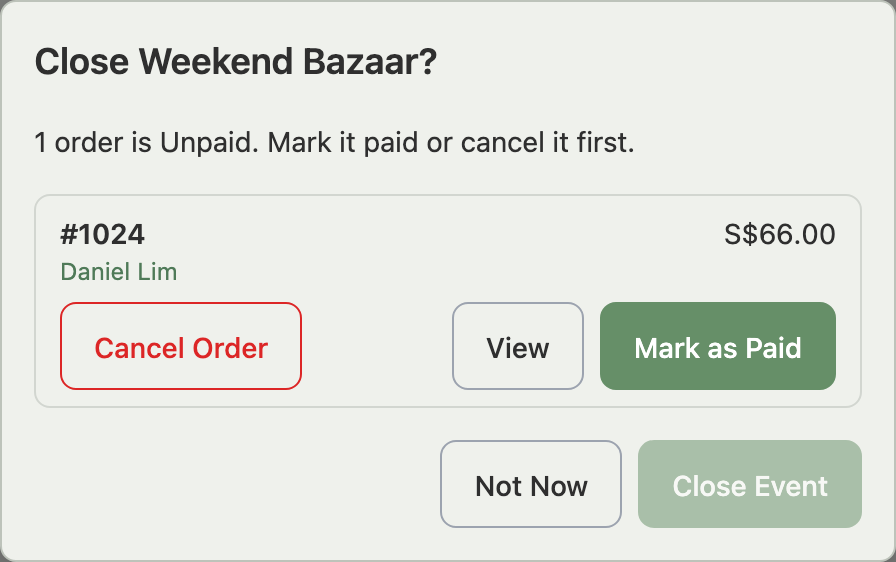
Example: you tap Close Event and see "1 order is Unpaid." You choose Mark as Paid for a customer who paid by cash. Close Event becomes available and the event moves to Closed.
After you close an event, you cannot create or cancel orders for it. Returns still work, as How Do I Manage Orders From an Offline Event? explains.
What Does the Event Dashboard Show?
Click View on an event's row to open its dashboard. The top shows whether the event is Open or Closed, its venue, dates, store and products. Below that, the page runs in this order: the tiles, the Orders table, Sales Breakdown, Payments and Event Costs.

- Orders counts every order and shows how many are Unpaid underneath.
- Units Sold and Revenue are net of returns. Revenue leaves out shipping fees and includes Unpaid orders.
- Orders table lists the most recent orders, sortable by Created (Newest) or Created (Oldest). View All opens Manage Orders for this event.
- Payments shows what you collected by each method (QR, Cash, Card, Transfer, Other), with Unpaid orders listed separately. It includes shipping fees, so its total can be higher than Revenue.

Sales Breakdown walks from sales at event prices, through price edits, discounts and returns, to Revenue and Event Profit. Which parts you see depends on your permissions, as the table in "Before You Start" shows. Read the table top to bottom: Revenue minus Product Cost gives Gross Profit, and Gross Profit minus Event Costs gives Event Profit.
Returns come off Revenue. A "*" next to a profit figure means some sold items have no cost price; see Setting Your Cost Prices. Offline sales also appear in Your Financials Page.
Example: you sell at a weekend bazaar and pay S$150 for the booth. You add "Booth fee" with amount 150 under Event Costs. If the event's Gross Profit is S$420, Event Profit shows S$270.
Troubleshooting
Events is missing from the sidebar. Your role does not include View events, or you are a team member on a plan without Offline Events.
- Ask the workspace owner to give your role View events.
- Ask the workspace owner to move to Pro or Scale.
Add Offline Store is locked. Active offline stores count toward your plan's store limit. Deactivate or disconnect a store you no longer use, or upgrade, then try again. It also locks on a plan without Offline Events.
The event will not close. One or more orders are still Unpaid. Mark each as paid or cancel it from the Close Event window, then close the event.
FAQ
Which plans include Offline Events?
Offline Events is in Beta on the Pro and Scale plans. If you downgrade, your events stay readable and you can still close them, but you cannot create events or orders.
Does an offline store count toward my store limit?
Yes. An active offline store counts toward your store limit, and deactivating it frees that place.
Can I change an event after it has orders?
Yes, except the event name and store, which lock once the event has orders. You can still edit dates, venue, products, pricing, costs and default fulfillment while the event is open.
Can I still close an event after I downgrade?
Yes. Close Event stays available on an open event, and you can still mark orders paid, ship, cancel or return them in Manage Orders.
Who can see revenue and profit?
Revenue and Payments need View analytics. Gross Profit, Event Profit, Sales Breakdown and Event Costs need View financials.
Related Articles
- How Do I Create an Order at an Offline Event?
- How Do I Manage Orders From an Offline Event?
- Connecting Your Marketplaces
- Roles and Permissions
- Setting Your Cost Prices
- Your Financials Page
- Understanding Inventory
- How to Upgrade Your Plan
- How to Cancel or Downgrade Your Plan
Need More Help?
Fill out our Feedback form, message us on WhatsApp, or email us at hello@indexync.com.