See What Each Marketplace Paid You After Fees and Costs
The Financials page, in the Sales group of the sidebar, shows the money each marketplace paid you and what you kept after the cost of your goods, store by store and combined. Payout means the money a marketplace sends you after taking its fees. To see full profit, add a cost price (what an item cost you) to each product in Products first. Until you do, Net Profit shows your payout marked "Before cost of goods", and with only some cost prices it adds an asterisk to show profit is incomplete.
Applies to: Pro and Scale. On Free and Lite you will see an upgrade option instead of this page.

What Does Count by Change?
Count by sits above the page and changes every figure on it. It is the most common reason two visits show different numbers for what looks like the same period.
- Payout date counts an order on the day the money landed. This is the default, and the one to use when you check against your bank.
- Order date counts an order on the day the buyer placed it. Use it to ask how a week's sales performed.
- TikTok is always counted on the day it paid out, whichever you pick, because it pays for the whole shop rather than per order.
Example: switching from 30 days to 7 days makes your payout drop sharply. Nothing is wrong. Marketplaces pay on their own schedule, so a short recent window always looks thin on Payout date, and both ranges include today, which never has a settled payout.
Analytics will not match this page, because Analytics always counts by order date and has no switch. Use Analytics for how sales performed and Financials for money received. A shared link keeps your Count by choice.
How Do I Read the Profit and Loss Card?
Read it from top to bottom. Each row takes something off the row above, until you reach what you kept.
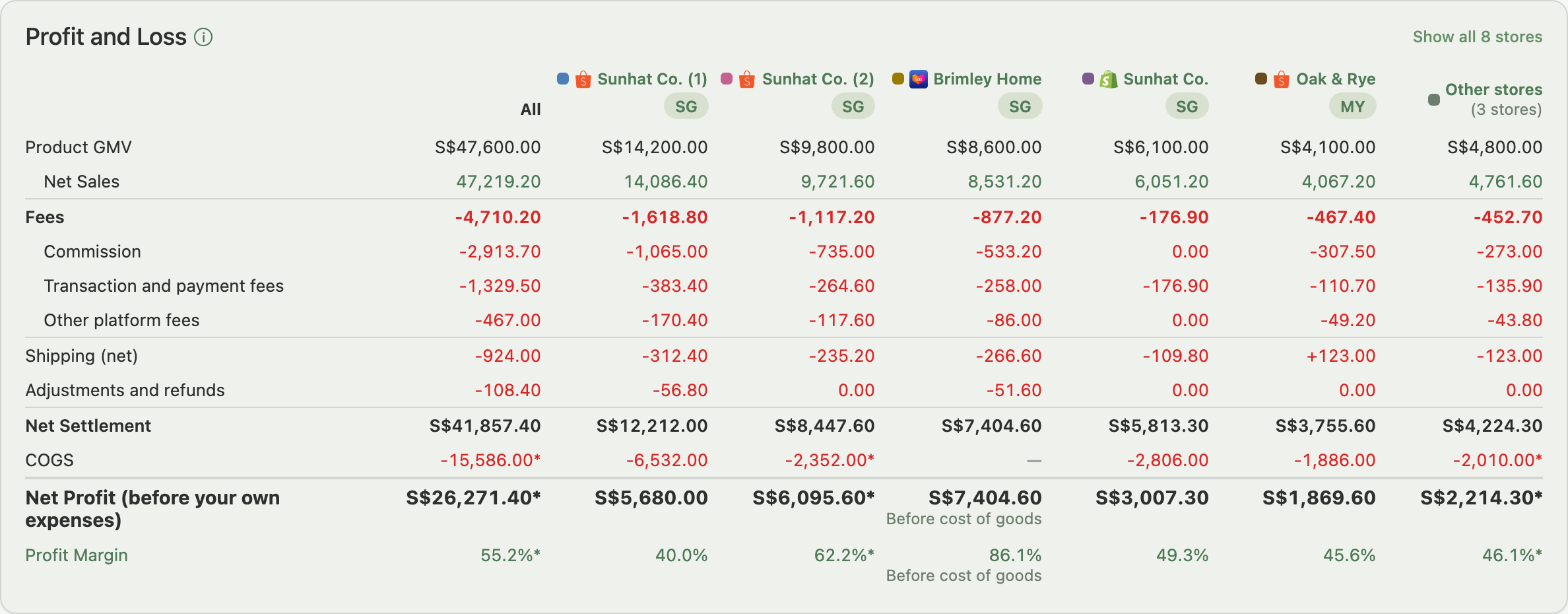
For what "Other fees (unclassified)" at the end of the fee list means, see the FAQ below. For the exact formulas behind payout, see Understanding Revenue and Seller Payout.
What Happens When Cost Prices Are Missing?
Profit is never left blank because a cost is missing. Each column tells you how complete its own figure is, so one new store does not spoil the rest of the page.
- No item in the column has a cost price. COGS shows a dash. Net Profit shows your payout, marked "Before cost of goods", and Profit Margin follows. Hover over it for a reminder to add cost prices in Products.
- Some items have a cost price. COGS, Net Profit and Profit Margin use the costs Indexync knows and carry an asterisk, meaning profit is incomplete.
- Every item has a cost price. There is no marker. The figure is complete.
Example: you connect a new store and have not set any cost prices yet. Its column shows a dash for COGS and a Net Profit equal to its payout, marked "Before cost of goods". You set cost prices on half of its items. Orders placed from then on are costed, so the column now subtracts the costs it knows and gains an asterisk. Set the rest and the asterisk goes.
Costs apply only to orders placed after you set a cost price, never to older orders. To set them, see Set Your Cost Prices.
Cost follows the payout. On Payout date, an order's cost counts in the same period as its payout, whatever day it was placed. An order placed before your range but paid out inside it is costed in the range. An order paid out after your range is not counted yet, and neither is its cost.
TikTok is the exception. It pays at shop level, so its cost stays with the orders placed in your range, even on Payout date. Its profit carries an asterisk that means approximate: the payout can cover a different set of orders than the costs beside it.
How Does Indexync Show Many Stores?
- One column per store beside All, with the store's colour, marketplace logo and name. A region tag such as SG or MY appears only when your stores span two or more regions.
- Same colour everywhere. A store keeps its colour in the chart and Payout by Store below.
- Shared names get a number, in the order you connected them, for example "Sunhat Co. (1)" and "Sunhat Co. (2)". This applies only to stores on the same marketplace.
- More than six stores: you see All, your top five by Product GMV and one grey "Other stores" column that adds up the rest, so All still equals the columns beside it. Click Show all to see every store. GMV Split works the same way, and Payout by Store does too, ranked by payout.
- Phone: the card shows one column at a time. Tap a store's button above the figures to switch.
- No activity, no column. Stores with no activity in the period are left out, and the info icon by the heading says how many.
Example: you have eight stores. The card shows All, your top five by Product GMV and "Other stores (3 stores)". The export still has all eight as their own columns.
How Do I Read the Payout Chart?
The payout chart sits below GMV Split. By default it shows "Payout and profit over time": your total payout and a profit line. The line's label follows the cost-price states above, reading "Profit before cost of goods" or "Profit*" when costs are missing. When a TikTok payout falls in the range, the line is left out and a note under the chart says why.
When two or more stores were paid in the period, a Total and By store switch appears. By store shows stacked bars with one coloured segment per store, and no profit line.

- Hide or show a store: click it in the legend (desktop) or tap it in the day panel under the chart (phone). At least one store always stays visible.
- More stores: the legend lists your top five, then Show all. Stores beyond the twelfth share one grey colour.
- One day's breakdown: hover over a day (desktop) or tap a bar (phone) to see each store's payout that day.
Payout by Store, beside the chart, has one row per store in the same colours:
- Payout in the store's own currency, with a bar for its share of the total.
- A profit line under the name, in your main currency, following the same cost-price states as the Profit and Loss card. Hover over it for the full explanation.
- TikTok rows say "gross profit" (sales minus cost of goods), because TikTok pays per shop rather than per order.

How Are Other Currencies Handled?
If a store is paid in another currency, Indexync converts its figures to your main currency at a stored reference rate, not the rate on the day of each sale. Converted totals therefore will not match your bank or accounting records to the cent, and any chart that converted something says so in a note. You choose your main currency in Settings, Account tab, under Display Preferences.
Example: a Malaysian store paid in MYR sits beside your SGD stores. Its row in Payout by Store stays in MYR, but ranks and shares are worked out from the SGD equivalent. A payout of RM150 ranks as about S$47, not as 150.
- No rate, no guess. A store with no recorded currency or no rate is left out of the totals. Charts name it after "Not shown:", and Payout by Store keeps its row in its own currency after "Not in the total:", outside the total and the shares.
- No store convertible. If none of your stores can be converted, the chart is replaced by a note that your stores report in different currencies.
- Cost prices are entered in your main currency and need no conversion.
What Does GMV Split Show?
GMV Split draws one bar per store, showing where each store's sales went. It is the quickest way to see which stores are genuinely profitable and which are mostly fees.
- Bars split into fees, shipping, cost of goods and profit, with an Adjustments band when a store had refunds or corrections.
- Labels name the direction. "Shipping (income)" means delivery added to your payout instead of costing you. "Fees (credit)" and "Adjustments (credit)" mean the same for those bands, and "Loss" replaces "Profit" when a store lost money.
- A store with no cost prices at all shows one grey "Net settlement" band instead of splitting into cost and profit. When some are missing, the "Cost of goods" and "Profit" bands are drawn from the costs Indexync knows, and hovering over them says so.

What Does Stock on Hand Show?
This card ignores your date range and shows what you hold right now, which is what the "As of today" badge means.
- The value is your units multiplied by the cost price you set. It is what you paid for the stock, not what it will sell for.
- The bar groups stock by how recently each item last sold: under 90 days, 90 to 180 days, and no sale in 6 months. That is last sold, not how long stock has sat in your warehouse, because Indexync knows when something last sold, not when it arrived.
- Missing cost prices. If some stock has none, the card says how many items and links you to fix it.

Why Might a Figure Look Odd?
A few markers appear when Indexync cannot state a number with confidence.
- A dash or asterisk on COGS, Net Profit or Profit Margin. Missing cost prices, or the TikTok exception, as explained above.
- A dash for a fee detail. A marketplace reported that fee as one lump sum, so the breakdown is not available. A tooltip says so.
- A warning symbol beside Total Fees. Some orders could not be broken down by fee type, or a store's unclassified fees look unusually high. Hover to see which. It is a hint to look closer, not a sign that something is broken.
- An info icon beside Profit and Loss. It repeats the notes that apply to the card, such as the currency conversion, missing cost prices or stores left out for having no activity. It never changes a number.
- Shopify orders paid outside Shopify Payments. Their processing fee is not reported to Indexync, so fees read lower and payout higher than what reaches your bank. A tooltip flags this on the affected cards.
How Do I Export It?
Use the CSV and Excel buttons at the right of the Payout & Fees heading. They are available on every plan that can open this page.
- One column for All and one per store. The export always has every store as its own column, even when the screen shows "Other stores". The first column is "Line item".
- Each store's header carries its details. It shows the marketplace, the store name, a store number only when names are shared, the region, and your main currency in brackets, for example "Lazada Acme (store 1) SG (SGD)".
- Missing costs stay blank. With no cost prices, the COGS cell is empty, not zero, Net Profit is the payout, and a Note row says there are no cost prices for those items. With some missing, COGS is the known cost and the Note row says some cost prices are missing.
- Notes and settings repeat. Each file repeats the notes shown on screen and ends with the date range, the Count by setting and the currency.
FAQ
Why does Financials show a different number than Analytics for the same period?
They count money differently on purpose. Analytics always counts by the date an order was placed and has no switch. Financials counts by the date money landed, or by order date if you change Count by. Use Analytics for how sales performed and Financials for money received.
Why does Net Profit say "Before cost of goods"?
None of the items in that column has a cost price yet, so Indexync has nothing to subtract. It shows your payout instead of a blank, marked so you do not read it as full profit. Add cost prices in Products and orders placed from then on are costed.
Why does a store's profit have an asterisk?
For most stores it means some items have no cost price, so profit is incomplete. Hover over the figure for the explanation. For TikTok it can also mean the figure is approximate, because TikTok pays for the whole shop rather than per order.
Why is a store missing from the total or the chart?
There are three common reasons. It had no activity in the period, so the Profit and Loss card leaves it out and says so. Its currency cannot be converted to your main currency, so it appears under "Not shown:" or "Not in the total:". Or you hid it in the chart legend. Click its button to bring it back.
Why does my export have blank COGS cells?
A blank COGS cell means no item in that store's column has a cost price. It is empty rather than zero, so a spreadsheet does not treat it as a real cost. Add cost prices in Products and export again.
What does "Other fees (unclassified)" mean?
It is the part of the marketplace's deductions that was not broken down by named fee type. It can occasionally be negative, meaning the marketplace paid you more than its named fees explain. Either way, your total stays correct.
What does "Other stores" mean?
On an account with more than six stores, it is one column or row that adds up every store outside your top five, so the page stays readable. Click "Show all" to see each store on its own.
Related Articles
- Understanding Revenue and Seller Payout
- Set Your Cost Prices
- See Which Marketplace Actually Makes You Money
- Managing Your Account
- Welcome to Indexync
- See Your Best and Worst Performing Products
- See How a Single Product Performs Across Every Store
Need More Help?
Visit our Feedback page, WhatsApp us, or email hello@indexync.com with your account details and any questions about the Financials page.