How Do I Manage Orders From an Offline Event?
Orders you create at an event show up on the same Manage Orders page as your marketplace orders, marked with your offline store's name. Open Orders and use the action next to the order. Mark as Paid finishes an unpaid order and Mark as Shipped finishes a Ship Later order. Cancel Order undoes a mistake and Return Items takes goods back. View Receipt shows or emails the receipt. Cancelling and returning can put the items back into your stock, and you choose whether they go back. Refunds are recorded in Indexync, and you hand the money back yourself.
Applies to / Before You Start
Available on: Pro and Scale plans (Beta). Seeing offline orders needs View orders. The actions on them need Manage events, not Manage orders. See Roles and Permissions. These actions keep working on Free and Lite after a downgrade, so you can finish existing orders, but creating new orders is locked. Creating orders is covered in How Do I Create an Order at an Offline Event?.
Where Do My Offline Orders Appear?
Click Orders in the sidebar to open Manage Orders. You can also click View All on an event's dashboard, which opens the Orders page for just that event, with an Event: Weekend Bazaar chip next to the filters. Click the x on that chip to see all orders again.
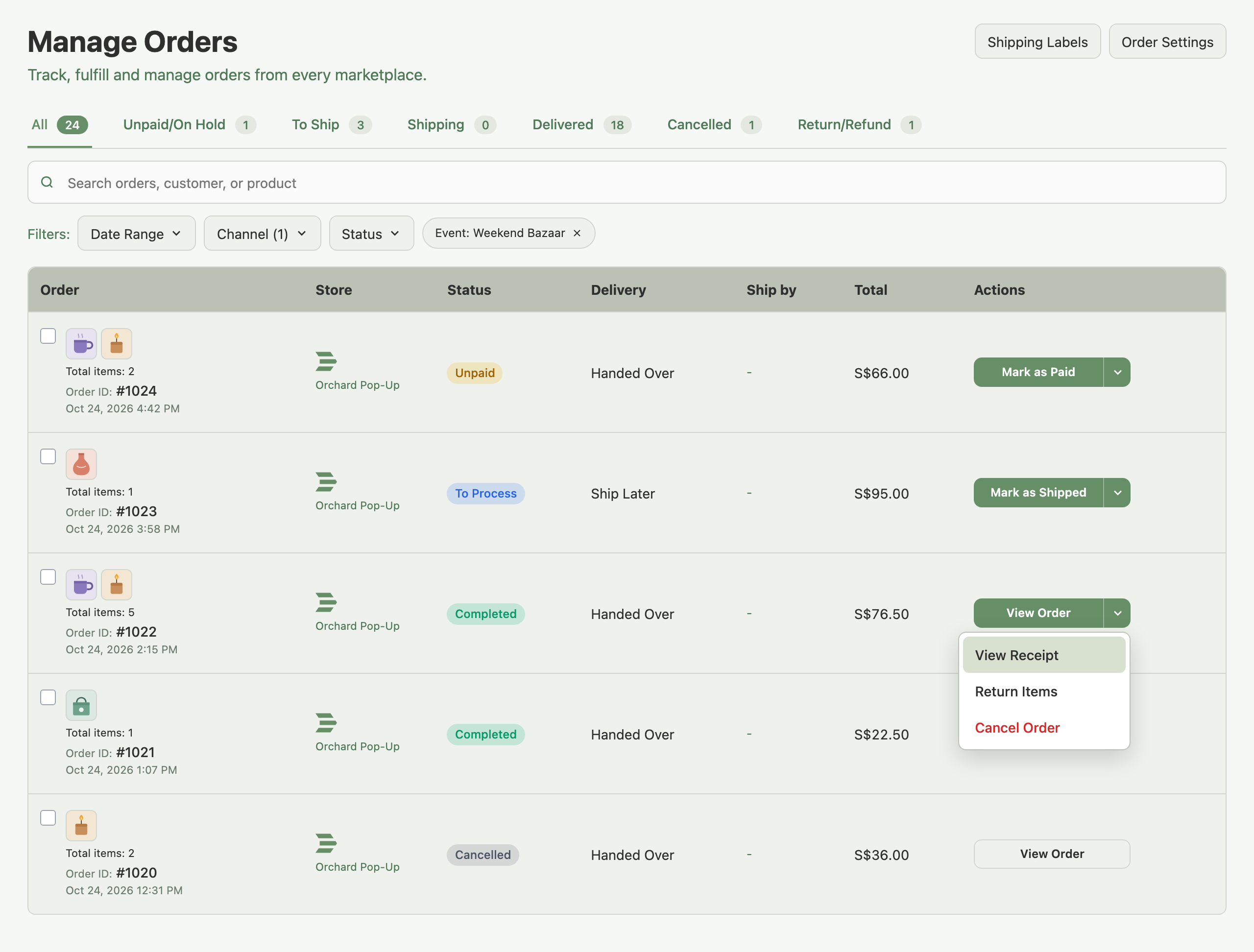
Search by order number, customer name, phone number or email. Each offline order shows your offline store's name under the Indexync mark. The tabs work as they do for every channel, as Where Do All My Marketplace Orders Show Up? explains.
What Can I Do With Each Order?
The button on a row is the order's main action, and the arrow beside it holds the rest. Cancel Order is always last.
Three rules apply. Cancel Order works only while the event is open. Return Items works only while units are left to return, and also after the event is closed. Cancel Order disappears once every unit has been returned. An Unpaid order also blocks closing its event, as How Do I Run an Offline Event in Indexync? explains.
How Do I Mark an Order as Paid or Shipped?
For Mark as Paid, choose the Payment Method (QR, Cash, Card, Transfer or Other), check the Total, and click Mark as Paid. For Mark as Shipped, optionally enter a Courier and Tracking Number, then click Mark as Shipped. Mark as Paid moves a Handed Over order to Completed and the Delivered tab, and a Ship Later order to To Process and the To Ship tab. Mark as Shipped moves the order to Completed and the Delivered tab. Neither action changes your stock.

How Do I Cancel an Order?
Choose Cancel Order on the row. The window lists the items. Return to stock is ticked by default, which puts the units back on sale on all your stores. Click Cancel Order to confirm, or Keep Order to leave it as it is.
A paid order also shows a Refund amount. It starts at the most you can refund, and you can lower it, even to 0. An Unpaid order has no refund to enter.
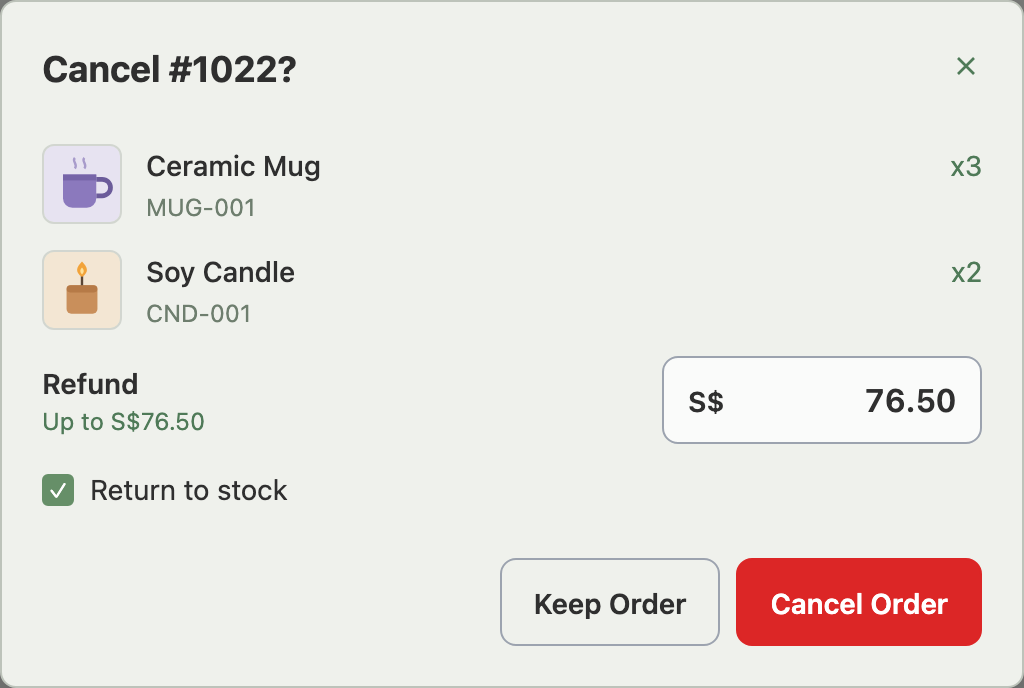
Example: you saved an order as Unpaid, but the customer changed their mind. You choose Cancel Order, leave Return to stock ticked, and confirm. The items go back on sale on all your stores. Because the order is unpaid there is no refund to enter.
How Do I Return Items and Refund the Customer?
Choose Return Items on a paid order. For each item, set how many are coming back, check the refund (it starts at that item's share of what was paid, and cannot go above it), and choose whether it goes back into stock. The window totals Items returned and Refund total. Click the button, which reads "Return 2 Items" for two units.

- Partial returns: you can return some units now and others later. The line then reads, for example, "1 of 3 Returned".
- Custom items: they have no stock, so Return to stock is not offered.
- Order status and tab: the order keeps its status and tab, and it also shows under Return/Refund as soon as any unit has been returned. When every unit is back and the refund equals what was paid, it becomes Cancelled.
- Shipping fees: a return never refunds them.
Refunds reduce the event's Revenue and profit. They are amounts you record in Indexync, so you hand the money back to the customer yourself.
Example: a customer bought 3 mugs at S$13.50 and brings 1 back because it is chipped. You choose Return Items, set the quantity to 1, leave the refund at S$13.50, and untick Return to stock because the mug is damaged. Your stock stays down by 3 and the event's Revenue falls by S$13.50.
What Happens to My Stock?
Stock changes flow to your marketplace stores like any other order. For the shared vocabulary, see Handling Returns and Cancellations and Understanding Inventory.
How Do I View or Email a Receipt?
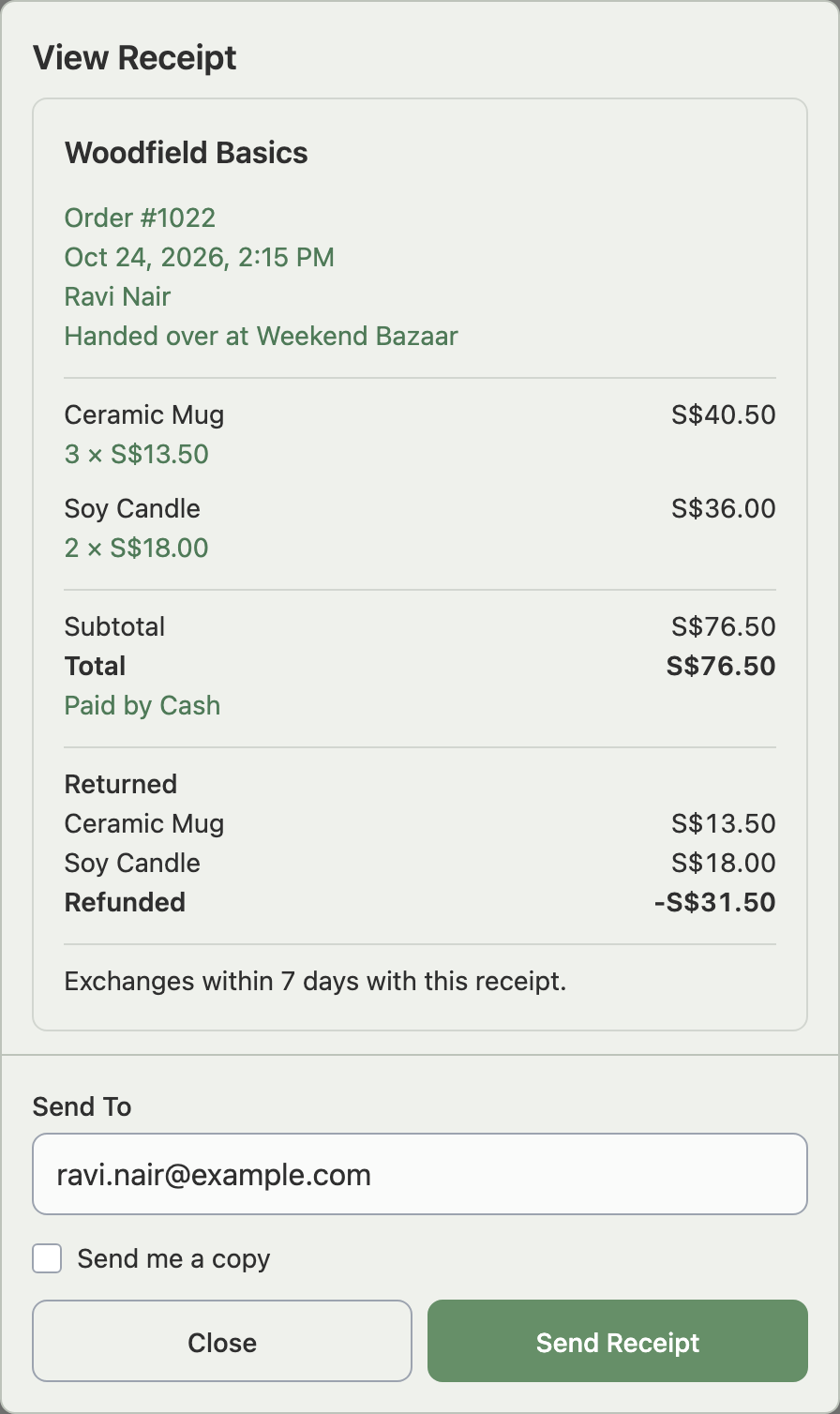
Choose View Receipt from a paid order's row menu, from the order's details page, or from the event dashboard. Check the address in Send To, tick Send me a copy if you want one, and click Send Receipt. The order's details page then shows Receipt Sent To. After a return, the receipt lists the returned items and the amount refunded, and every receipt carries your store's Receipt Note, if you set one.
What Looks Different on the Order Details Page?
Click an order to open its details page. It is the marketplace order page with a few changes.
- Products replaces Package Information.
- Fulfillment Type, Ship By, Shipment Provider and Tracking Number show your Handed Over or Ship Later choice and the shipping details you entered.
- Seller Note shows the note you added when creating the order.
- Marketplace-only actions, such as printing labels, do not appear.
Troubleshooting
Cancel Order is missing. Either the event is closed, or every unit has been returned. Use Return Items while units remain.
Search finds a customer by name but not by phone. If customer contacts did not load, search matches only the details saved on each order. Reload the page to try again.
An action fails. The window shows a message that starts "Couldn't". Another device may have changed the order first, so reload the page and try again. If it keeps failing, use the contact options below.
An order will not open. The message says its currency is missing. Reload the page; if it still will not open, use the contact options below.
FAQ
Where do my offline orders show up?
On the Orders page, with your offline store's name, sorted into the same status tabs as your marketplace orders.
Can I cancel an order after the event is closed?
No. Return Items still works.
Does a return always put items back in stock?
Only if Return to stock is ticked, which it is by default. Custom items never go back.
Can I change an order after I confirm it?
Not directly. Cancel the order and create a new one.
Can I email a receipt again?
Yes. Choose View Receipt on a paid order and send it again.
Related Articles
- How Do I Run an Offline Event in Indexync?
- How Do I Create an Order at an Offline Event?
- Handling Returns and Cancellations
- Where Do All My Marketplace Orders Show Up?
- Understanding Inventory
- Roles and Permissions
- Your Financials Page
Need More Help?
Fill out our Feedback form, message us on WhatsApp, or email us at hello@indexync.com.