Adding Media to Product Listings
A photo is missing from the picker, the window where you choose images, when its shape doesn't match what your product's marketplaces accept, such as square only. To bring it back, crop a copy in Media Center, your image library in Indexync. Your original stays. A photo you add from your computer opens in a crop editor first if it is a PNG or JPEG file. Nothing is added until you click Add image.
Applies to
All plans. You'll want media already uploaded to Media Center; see Upload Images or Upload Videos if you haven't yet.
Your Two Options in the Add Image Box
Every image field shows a box labeled Add Image with both options already visible:
- Local File: pick a file from your computer. For PNG and JPEG files, a crop editor opens before the photo is added. The photo is saved to your Media Center library when you save the product.
- Media Centre: pick from media you've already uploaded, so you can reuse the same shot across listings without re-uploading.
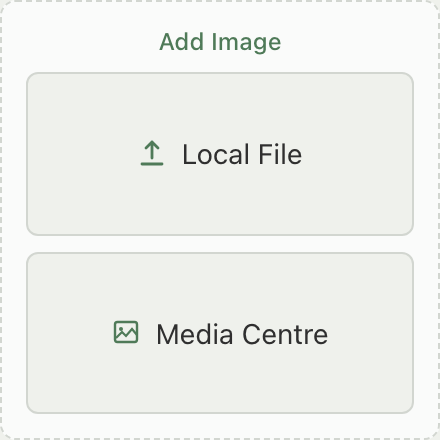
Video fields work the same way, under an Add Video box, except that videos have no crop step.
What Happens When You Add a Photo From Your Computer?
- Click Local File and choose one or more PNG or JPEG files, or drop them onto the gallery.
- The editor opens for each file in turn. When you chose several, the title reads "Edit image 1 of 3", then "Edit image 2 of 3", and so on. Other file types, such as WebP, skip the editor and are added directly.
- Choose a shape if the editor offers more than one, then drag the crop box over the part of the photo you want to keep.
- Click Add image to keep the photo, Skip this image to leave it out, or cancel to stop.
- On a marketplace tab, Indexync then checks the photo against that marketplace.
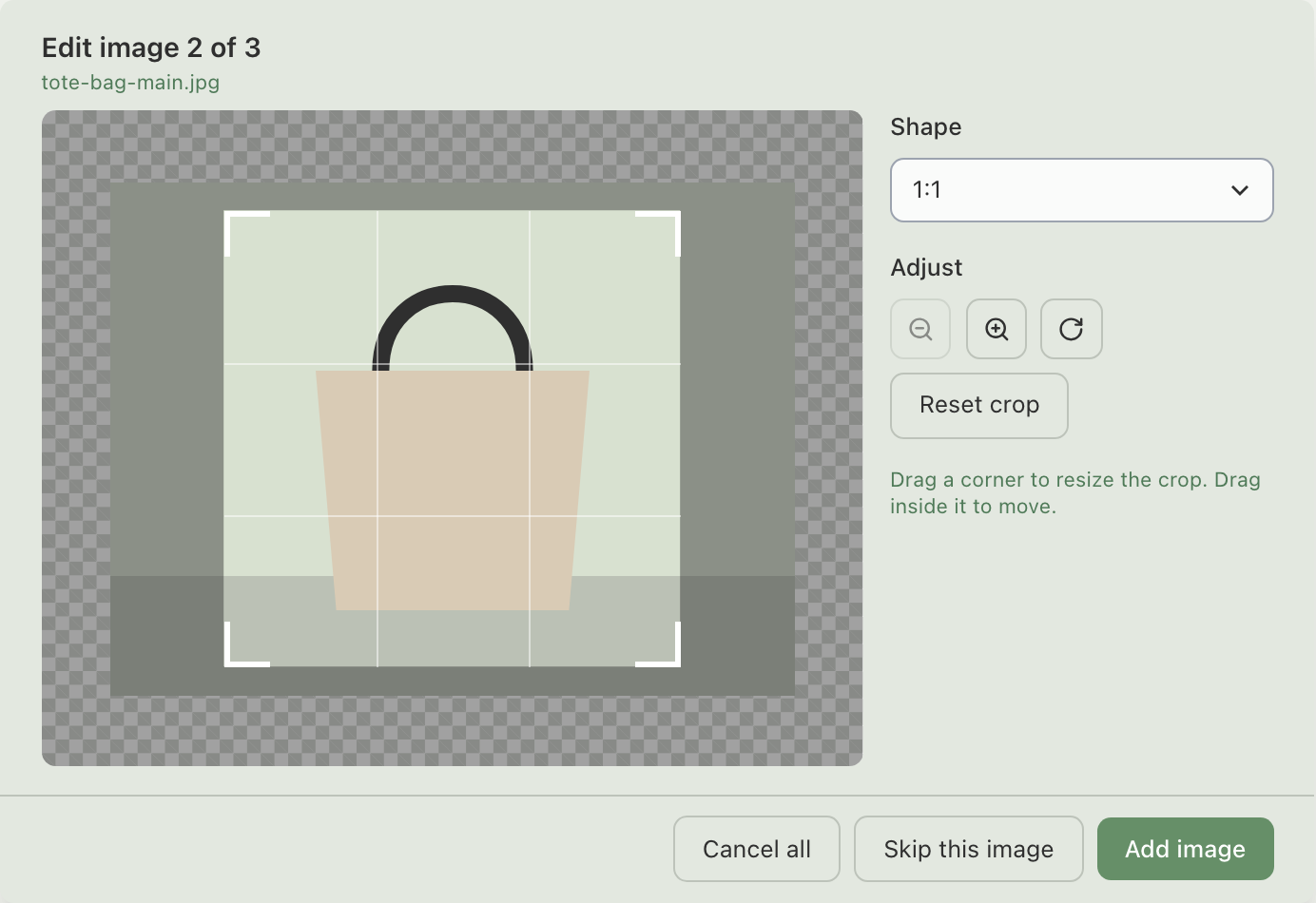
Example: you drop five product photos onto the Lazada tab. The editor opens as "Edit image 1 of 5" and offers 1:1 only, because Lazada accepts only square images. You crop three, click Skip this image on a blurry one, and click Cancel all on the fifth. Three images are added. Nothing from the skipped or cancelled photos uploads.
Which Shapes Does the Editor Offer?
The editor offers only shapes that every marketplace on the listing accepts.
If a Shopee gallery already holds a 1:1 or a 3:4 image, the editor offers only that shape.
What Does the Marketplace Check Do?
On a marketplace tab, each photo is checked against that marketplace once you click Add image.
- It can be fixed automatically: a window offers to make a compliant copy for this listing, and your original stays saved. Confirm the fix to add the copy, or close the window and the photo isn't added.
- It can't be fixed: a window tells you the marketplace won't accept it, and the photo isn't added.
- You're on the Master tab: there is no fix window. If the photo breaks a rule, an error message appears and the photo isn't added.
Image auto-fix is also offered when you list on a new marketplace; see Create and Expand to New Marketplaces.
Opening the Picker
Click Media Centre on any image or video field. The picker opens titled Select Images, or Select Videos on the Master tab, with your folder tree on the left, tiles on the right, and a search bar at the top. Each tile has a checkbox. In the product's image pickers, each PNG or JPEG tile also has a Crop button in its top right corner. Tick the tiles you want, then click Add Selected to attach them all at once.

How Do I Crop an Image in Media Center?
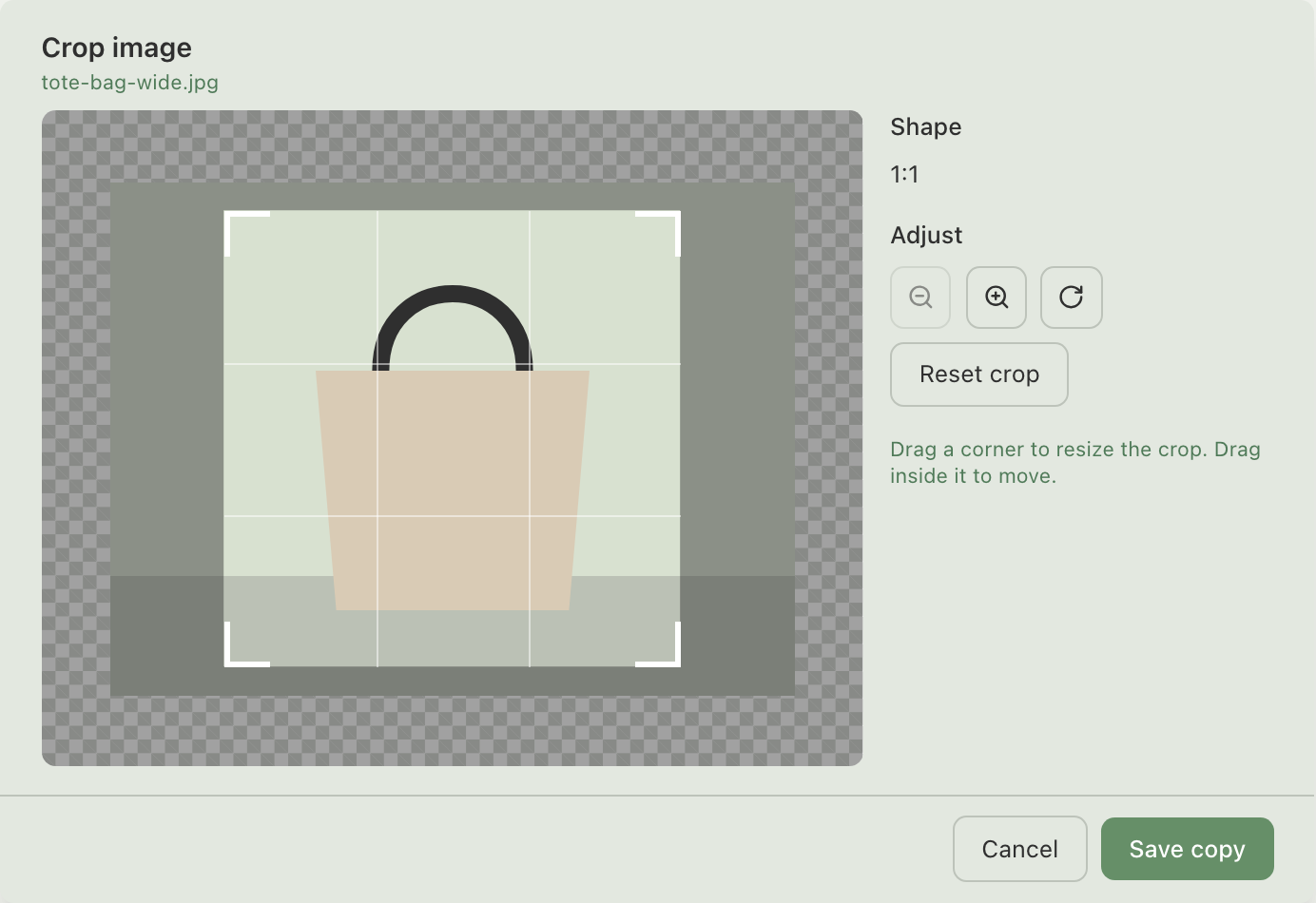
Crop saves a new copy of an image in a new shape, and your original stays in your library. On the Media Center page, open the image's three-dot menu and click Crop. In the picker, click Crop on any thumbnail that is showing.
The editor is titled Crop image. Drag the box over the part of the photo you want, then click Save copy. The copy is saved in the same folder as the original. In the picker, the copy is selected in place of the original, and you still click Add Selected to attach it. If you click Save copy without changing the crop, nothing is saved.
The picker hides photos that don't fit the shape for your tab, so a hidden photo has no Crop button there. Crop it on the Media Center page first, where the editor offers a square, then reopen the picker. See Manage Your Images.
In the picker, the editor offers the shapes that tab accepts. That is 1:1 and 3:4 on a Shopee or Shopify tab, 1:1 on a Lazada or TikTok Shop tab, and on the Master tab the shapes every connected marketplace accepts.
Videos and image types other than PNG and JPEG have no Crop button.
Example: a wide 4:3 photo of a tote bag is missing from the picker on a Lazada listing, because Lazada accepts only square images. Open Media Center, click Crop in the photo's three-dot menu, drag the square over the bag, and click Save copy. Reopen the picker and the new square copy appears, while the original stays in your library.
Why the Picker Hides Some of Your Images
If an image you uploaded doesn't appear, it's almost always the shape. The picker only shows images that fit the aspect ratio required where you opened it. On the Master product tab, that is the strictest requirement across the marketplaces the product is connected to. On a marketplace channel tab, it's just that marketplace's own rule.
Connect only Shopify and the master accepts a flexible range. Connect Lazada too and the master tightens to square (1:1) images, because Lazada only accepts square.


Example: two sellers open the same product's Master tab. The one who connected only Shopify sees Flexible. The one who also connected Lazada sees 1:1 (square), because Lazada accepts only square images.
Master Images Versus Channel-Specific Images
Most listings inherit their image from the master product, so every marketplace uses the master image by default. To use a different image for one marketplace, open its tab and add one from Local File, Media Centre, or by dropping image files onto that tab's gallery. Dropped files go through the same crop editor and marketplace check as Local File.
- Only that marketplace changes: every other marketplace keeps using the master.
- Your images replace the master images on that tab, if the tab was using them.
- Leaving the tab empty is fine: it falls back to the master image.
Example: you have a square hero shot used as the master image. You want a tall 3:4 product-on-model shot specifically on Shopee. Open the Shopee tab, add the 3:4 shot there. Shopee now uses that shot; Shopify, Lazada, and TikTok Shop still use the master.
For more on how master and channel-specific settings work together, see Editing and Updating Products.
Picking Videos
When a field accepts video, Add Video opens the video picker the same way images do. On the Master tab, a video shows up if at least one connected channel has it ready or processing; on a channel tab, it only shows up once that specific channel has it ready or processing.
See Upload Videos for how to get videos into your library.
Where Else You Can Open the Picker
The same picker also opens for SKU and variation images, description images, certification files, and size charts on Lazada, Shopee, and TikTok Shop tabs. It also opens from the bulk-update editing table (the spreadsheet-style view for updating many listings at once), where you can swap an image on one listing or for one SKU.
Crop appears on thumbnails in the product's image pickers (master, marketplace, and SKU images), in the Images column of the bulk-update table, and on the Media Center page. The description image, certification, size chart, and bulk-update SKU Image pickers let you pick but not crop.
Troubleshooting
An Image I Uploaded Isn't Showing in the Picker
The picker hides images whose shape doesn't fit the tab you opened it from. Read the requirement above the Add Image box, then open the image's three-dot menu in Media Center, click Crop, and click Save copy. You can also add the photo with Local File and crop it in the editor. See Manage Your Images.
A Video Isn't Showing in the Video Picker
Videos are hidden from the picker while they're still processing for the channel you're picking on. Wait a few minutes and reopen the picker, or check the video's status in Manage Your Videos.
I Selected Media but Nothing Was Attached
Make sure you clicked Add Selected before closing the picker. Closing it without confirming discards the selection.
FAQ
Why Doesn't My Image Show Up When I Try to Add It to a Listing?
The picker hides images whose shape doesn't fit where you opened it. On the Master tab the shape must suit every marketplace the product is connected to, while on a channel tab it's only that marketplace's own rule. Crop a copy of the photo on the Media Center page, or add it from your computer and crop it in the editor.
What Happens to Other Marketplaces if I Set a Different Image Just for Shopee?
Nothing changes for them. A channel-specific image only overrides the master for that one marketplace; every other connected marketplace keeps using the master image.
Why Is a Video Missing From the Picker?
It's still processing for the channel you're picking on. Give it a few minutes, or check its status in Media Center.
Can I Use the Same Picker for SKU Images or a Size Chart?
Yes. SKU and variation images, size charts, certification files, description images, and the bulk-update editing table all open the same Media Center picker.
Does Cropping Change My Original Image?
No. Crop saves a new copy and leaves the original in your library. When you add a photo from your computer, nothing is added to the product until you click Add image, and the photo reaches your Media Center library when you save the product.
Related articles
- Upload Images
- Upload Videos
- Manage Your Images
- Create and Organize Folders
- Editing and Updating Products
- Create and Expand to New Marketplaces
- Manage Your Videos
Need more help?
If the picker isn't behaving as expected, fill out the feedback form, message us on WhatsApp, or email hello@indexync.com with the tab you were on, the file name, and a description of what happened.