Stop Overselling With Automated Inventory Sync
Overselling happens when a marketplace lets a buyer order stock you no longer have. Indexync stops it by keeping one stock count per product as the single source of truth. It pushes that count to every marketplace you connect. The moment an order lands on any channel, the count adjusts. Every other channel then updates to match, usually within a few minutes.
Applies to: All plans.
Before you start: you need at least one connected marketplace store (Shopee, Lazada, TikTok Shop, or Shopify).
How does Indexync prevent overselling?
Three things happen, in order, every time:
- Your stock count lives in Indexync as the single source of truth. Every connected marketplace listing points back to one Indexync number, not its own separate count.
- Indexync pushes that count out to every connected channel. Shopee, Lazada, TikTok Shop, and Shopify all show the same figure (or their own allocated share of it, if you've split stock per store).
- A new order on any channel adjusts the count, and every other channel updates to match. An order on Shopee lowers what Lazada, TikTok, and Shopify show too, usually within a few minutes. That way, a buyer on another channel can't order stock that's already sold.
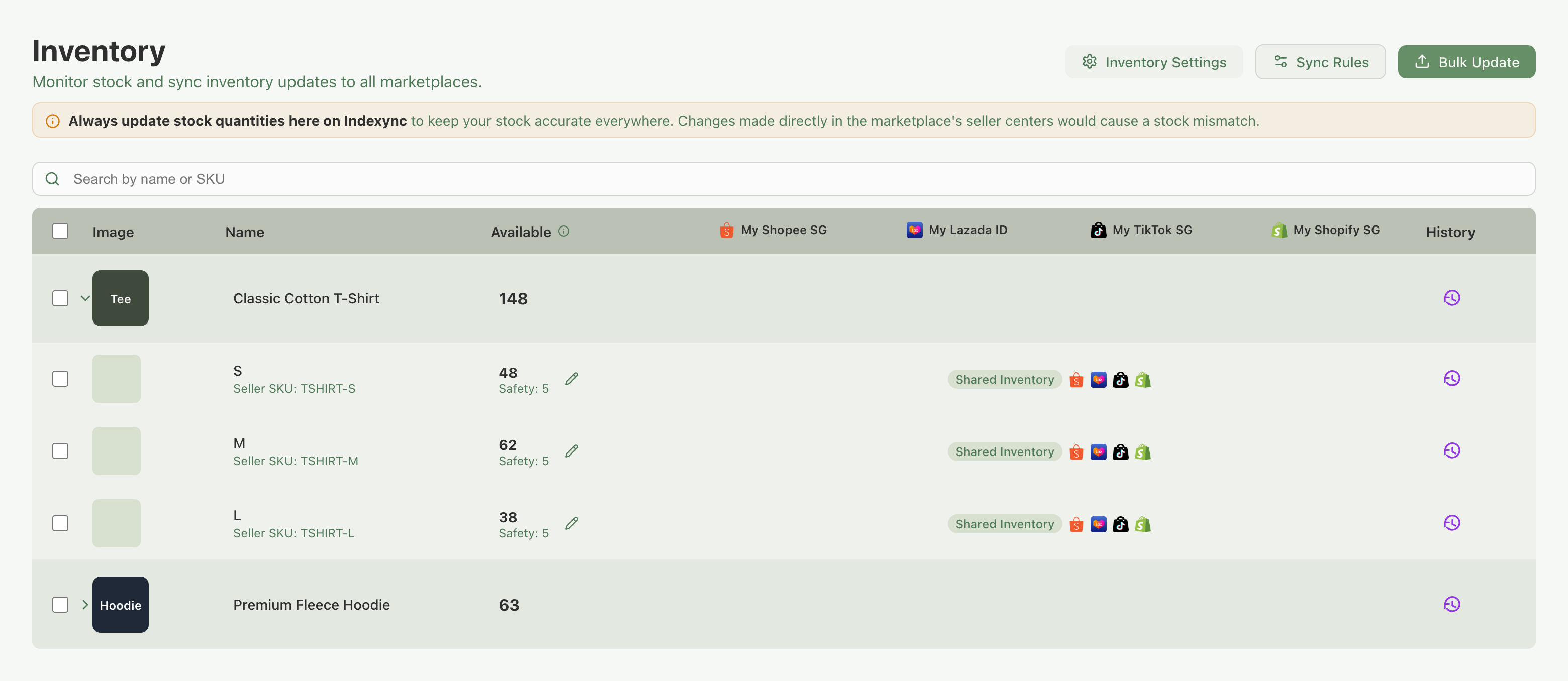
See How inventory sync works across marketplaces for the full mechanics, including what each status (Unpaid, To Ship, Shipped, and so on) means for your count along the way.
Setup checklist
Work through this once per store, then let sync run.
- Connect your marketplace stores. Every channel you want protected has to be connected first. See Connecting marketplaces.
- Import or match your products so each SKU maps to one Indexync SKU across every store. A listing that isn't matched to an Indexync SKU doesn't get watched by sync at all. See Import Your Existing Products from Shopee, Lazada, TikTok Shop and Shopify.
- Confirm Auto-Sync is on. This is the setting that lets stock changes push out at all. Check it under Settings → Inventory. See Inventory settings.
- Set your stock once, in Indexync. After that, edit it only in Indexync using the Stock Allocation window, never on a marketplace directly. See Update Stock Quantities - individually or in bulk.
- Set a Safety Stock buffer on your fastest-selling SKUs (optional). It holds back a small quantity from what marketplaces see, so a burst of near-simultaneous orders is less likely to sell past zero. Set it alongside Total in the Stock Allocation window.
Why might I still oversell?
Sync only protects the stock it can see. These four situations put stock outside that protection.
- You (or someone on your team) edited stock directly on a marketplace. Indexync doesn't know about the change until the next order or manual sync catches it up, so the marketplace can sell past what you actually have in the meantime. As the Inventory page itself warns: "Always update stock quantities here on Indexync to keep your stock accurate everywhere. Changes made directly in the marketplace's seller centers would cause a stock mismatch." Fix: edit stock only in Indexync from now on. See Why Doesn't My Stock Match Between Indexync and My Marketplace?
- A SKU isn't mapped to an Indexync SKU. An imported or newly created listing that hasn't been matched has nothing in Indexync tracking its stock, so sync can't touch it. Fix: check the listing was matched correctly during import. See Import Your Existing Products from Shopee, Lazada, TikTok Shop and Shopify
- The same physical stock is listed under two different SKUs that aren't linked. Two listings can sell from one box of stock. Without a Link Stock rule connecting them, a sale on one doesn't lower the other. Fix: connect them with a Link Stock rule so both draw from one pool. See Sync Rules
- Auto-Sync is turned off. While it's off, new orders no longer push automatically to your other channels. The Indexync count stays correct, but the marketplaces don't hear about it until you sync. Fix: turn Auto-Sync back on, or in the meantime select the affected SKUs on the Inventory page and click Sync to Channels to push out what changed. See Inventory settings
FAQ
What causes overselling when selling on several marketplaces?
Usually one of a few things:
- Stock was edited directly on a marketplace instead of in Indexync.
- A listing was never matched to an Indexync SKU.
- The same physical stock is sold under two unlinked listings.
- Auto-Sync was turned off.
Each has a different fix; see "Why might I still oversell?" above.
Does Indexync update my stock automatically when an order comes in?
Yes. As soon as an order comes in on any connected channel, Indexync lowers your stock count and pushes the new number out to every other connected channel, usually within a few minutes. You don't need to refresh or trigger anything manually, as long as Auto-Sync is on.
What if two orders for the last unit arrive at almost the same time?
Both orders deduct from the same stock count, so your Available number stays accurate across channels either way. For extra protection on fast-moving SKUs, set a Safety Stock buffer: it holds back a small quantity from what marketplaces see, so a burst of near-simultaneous orders is less likely to sell past zero.
Do I need to change how I fulfil orders?
No. Sync runs in the background regardless of how you fulfil. The only habit that matters is where you edit stock: always in Indexync, never directly on a marketplace.
Which marketplaces does this work with?
Shopee, Lazada, TikTok Shop, and Shopify. Any store you connect on any of these gets the same automatic sync.
Related Articles
- How inventory sync works across marketplaces
- Connecting marketplaces
- Update Stock Quantities - individually or in bulk
- Sync Rules
- Inventory settings
- Why Doesn't My Stock Match Between Indexync and My Marketplace?
- Import Your Existing Products from Shopee, Lazada, TikTok Shop and Shopify
Need More Help?
Visit our Feedback page or contact us at hello@indexync.com.