Duplicate a Product to Start a New One From an Existing Listing
Duplicate makes a copy of a product, carrying over its images, description, prices and each store's setup, so you can start a new variant or pack size without rebuilding it by hand. The copy opens as a draft for you to rename. Nothing reaches your marketplaces until you click Create Product. Seller SKUs (the codes you assign yourself) and stock are left blank on the copy: SKUs fill in as you type the new name, and you type the real stock count yourself.
Applies to: All plans. Duplicate itself does not count against your plan's SKU limit; the copy counts once you click Create Product, like any new product.
Before you start
- The product you want to copy is already in your Indexync catalog. See Create a Product and Publish It to Shopee, Lazada, TikTok Shop and Shopify if it isn't.
- You have a new name in mind. The copy opens with the original's name, and the seller SKUs fill in from whatever name you type.
- Bundles can't be duplicated yet. Duplicate is greyed out on a bundle's row.
How Do I Duplicate a Product?
- Go to Products in the sidebar.
- On the product's row, click the small arrow beside Edit, then choose Duplicate.
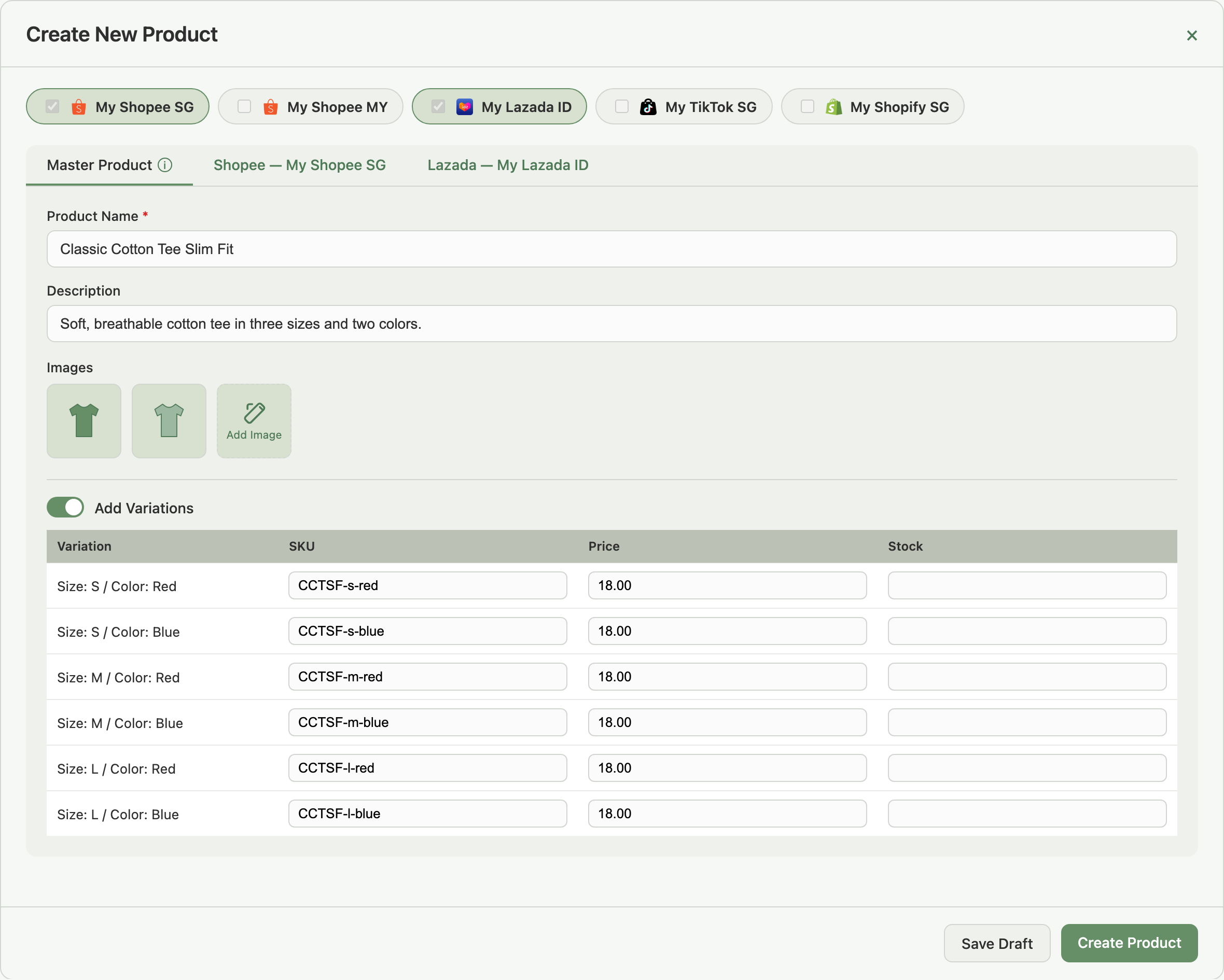
- The copy opens in the Create New Product window. Type the new name; the seller SKUs fill in from it.
- Change anything that differs from the original: images, description, prices, category or attributes on any store's tab.
- Type the stock for each variation (it starts blank).
- Click Create Product, tick the stores to publish to, and click Sync Now.

That row's caret shows a spinner while Indexync makes the copy; other rows stay usable. The copy opens on its own as soon as it's ready, straight into the Create New Product window.
The same menu holds Merge and Delete. Merge combines two products that are the same item into one; see Merge Duplicate Products and SKUs So One Item Has One Stock Count. For Delete, see Delete a Product Without Taking Down Your Live Listings.
Example: you sell a blue tee on Shopee and Lazada and want the same tee in green. Duplicate the blue one, rename it "Classic Cotton Tee Green", swap the images, type the stock, and Create Product.
What the Copy Carries and What It Doesn't
Duplicate copies the work that takes time to redo and leaves out everything that must be unique to a product.
Only stores still connected in Connections get a listing on the copy, including one whose connection has expired and needs reconnecting. If the original had a store that's since been removed, a message tells you how many were skipped, for example 1 disconnected store was not copied.
Example: you removed a Lazada store last month. The original still shows its old Lazada listing, but the copy gets none.
Seller SKUs and Stock on the Copy
Seller SKUs must be unique across your products, so the copy starts with every SKU blank. As you type the new name, each blank SKU fills in from its initials plus the variation's option values: "Classic Cotton Tee Slim Fit" gives CCTSF-s-red, CCTSF-s-blue, and so on. A SKU you type yourself is never overwritten.
Two things to check before Create Product:
- Same initials as the original. "Classic Cotton Tee" and "Classic Cotton T-Shirt" both give CCT. If the new name shares the original's initials, the filled-in SKUs collide and Create Product blocks. Type different SKUs, or use a name with different initials.
- Stock starts at zero. Type the real count for each variation before you sync, or the marketplaces receive zero.
Troubleshooting
Duplicate is greyed out
The product is a bundle. Hover the item and it reads Bundles can't be duplicated yet. Merge is greyed out on a bundle too, and reads Bundles can't be merged yet. It is also greyed out on a draft (Drafts can't be merged yet) and on a product with no listings (No listings to move). Create the second bundle from Add Product instead; Edit and Delete still work on the row.

The copy wasn't created, or I closed the window early
A message reading Couldn't duplicate <product name>. Nothing was created. means nothing was made. Check your store connections under Connections, then try again; contact support with the product name if it keeps failing.
Closed the window before creating it? The copy stays on your Products page as a draft. Click Edit on it to continue, or Delete to remove it.
Create Product is blocked on the copy
The copy is checked like any new product:
SKU is required: a name or SKU is still blank. Type it in.- Seller SKU already used by another product: the new name shares the original's initials, or you reused a SKU. Change it.
- SKU Limit notice: the copy would exceed your plan's cap. Remove variations or upgrade in Billing. See Viewing & Troubleshooting Your Plan Usage.
The video failed on the first sync of the copy
The copy keeps the original's video. If a marketplace rejects it, re-attach the video from Media Center on that store's tab and sync again. See Upload Videos to Media Center.
FAQ
Does duplicating a product create listings on my marketplaces?
No. The copy is a draft until you click Create Product and choose which stores to publish to.
Why are the seller SKUs blank on the copy?
Seller SKUs must be unique across your products. They fill in from the new name as you type it, and you can overwrite any of them.
Why is the stock zero on the copy?
Stock belongs to a specific product, so it isn't copied. Type the real count for each variation before you sync.
Does the copy keep my promotions, sync rules or stock links?
No. Promotions, sync rules and stock links all stay with the original. Set them up again on the new product once it exists.
Related Articles
- Create a Product and Publish It to Shopee, Lazada, TikTok Shop and Shopify
- Editing & Updating Products & Listings
- Delete a Product Without Taking Down Your Live Listings
- Merge Duplicate Products and SKUs So One Item Has One Stock Count
- What's the Difference Between a Product and a Listing?
- Viewing & Troubleshooting Your Plan Usage
- Upload Videos to Media Center
- Can I Share One Stock Pool Across Pack Sizes or Bundle SKUs?
Need More Help?
Visit our Feedback page, WhatsApp us, or email hello@indexync.com with the product name you duplicated and a screenshot of any message.