How Do I Add Extra Member Accounts Without Upgrading My Plan?
You can add more team members without upgrading by buying extra member accounts for your current plan. Open Billing from your profile menu and click Add Member Accounts in the Add-Ons section. Each extra member account lets one more team member sign in for SGD 10 a month, on top of the member accounts your plan already includes. Take a seller on the PRO plan (SGD 39 a month, 2 member accounts) who wants a third team member. One extra member account brings the bill to SGD 49 a month, against SGD 99 for the SCALE plan.
Applies to: Available on LITE, PRO and SCALE. Only the workspace owner can buy or change extra member accounts. They are not available on FREE or during a free trial, where you choose them when you pick your plan (see below). Your own login is your main account, and it never uses a member account. On LITE, which includes no member accounts, extra member accounts are what let you invite anyone; the role editor then marks permissions your plan does not include with Not on your plan (see Roles and Permissions).
How Much Do Extra Member Accounts Cost?
The table shows how many team members you can have and your monthly bill with one extra member account.
You can add as many as you need. How Many Member Accounts Does My Plan Include? explains what a member account is.
Example: Alex runs Woodfield Basics on PRO (SGD 39 a month) with Priya and Marcus on the team, so both included member accounts are in use. Alex wants a third team member and adds one extra member account. The limit becomes 3 and the bill becomes SGD 49 a month. Moving up to SCALE would cost SGD 99 a month.
How Do I Add Extra Member Accounts?
- Open Billing from your profile menu.
- Find the Add-Ons section and click Add Member Accounts in the Extra Member Accounts row. If you already hold some, the button reads Change.
- Use the counter to choose how many extra member accounts you want in total. The Member Accounts tile next to Next Renewal shows how many team members you can have.
- Check Due Today, then click the confirm button, which reads Add 1 Member Account or the number you chose.
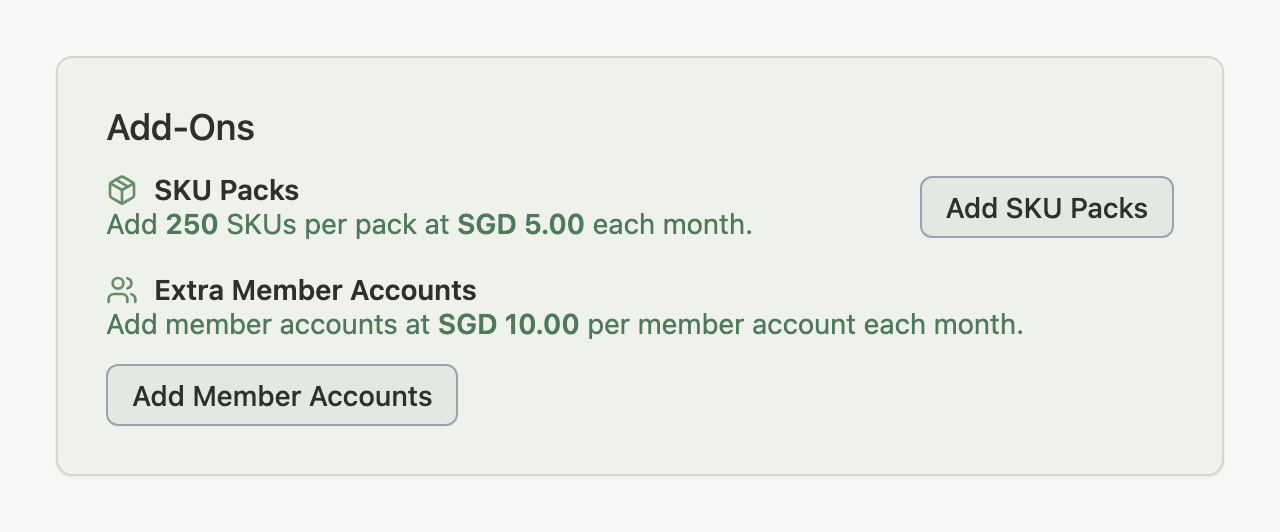

Your new member account is ready as soon as the payment goes through, and you can invite the team member from Settings > Team. When every member account is in use, the invite window offers Add Member Account as its main button, and it opens this same window. On LITE and PRO, Upgrade Plan sits beside it. On SCALE the button is not shown, because there is no higher plan. Inviting and Managing Team Members covers the invite itself.
If store credit covers part of the charge, a Store credit applied line sits above Due Today and the amount due is the part left for your card.
What Do I Pay Today, and What Happens Every Month After?
You pay today only for the days left until your next extra member account charge, and from then on you pay the full price every month. How the monthly charge reaches you depends on how you are billed.
Extra member accounts are billed on the same date as your plan and your SKU packs; Understanding Your Billing Cycle explains the date. They appear in your billing history as Extra Member Accounts, and a new invoice or receipt lists them with the number you hold. Invoices and receipts issued earlier keep the name they were issued with. Invoices and Receipts explains where to find them.
What Happens to My Team Members When My Member Accounts Change?
Your limit is the member accounts your plan includes plus your extra member accounts, and Indexync deactivates or reactivates team members whenever that number changes. Nobody is deleted.
- Adding extra member accounts: team members who were deactivated because of the limit come back first, the longest-standing invite first, and the window tells you so before you confirm: "Deactivated team members are reactivated first."
- Removing extra member accounts or moving to a smaller plan: when the change applies, the members over your new limit are deactivated, newest first, and everyone else keeps working. The window tells you how many members will be deactivated and on which date, before you confirm.
- A deactivated member: sees a message that their member account is deactivated, and their row in Settings > Team shows a Deactivated chip. See How Many Member Accounts Does My Plan Include? for what they see.
To choose who stays, deactivate or remove members before the date shown, or the newest members are deactivated automatically.
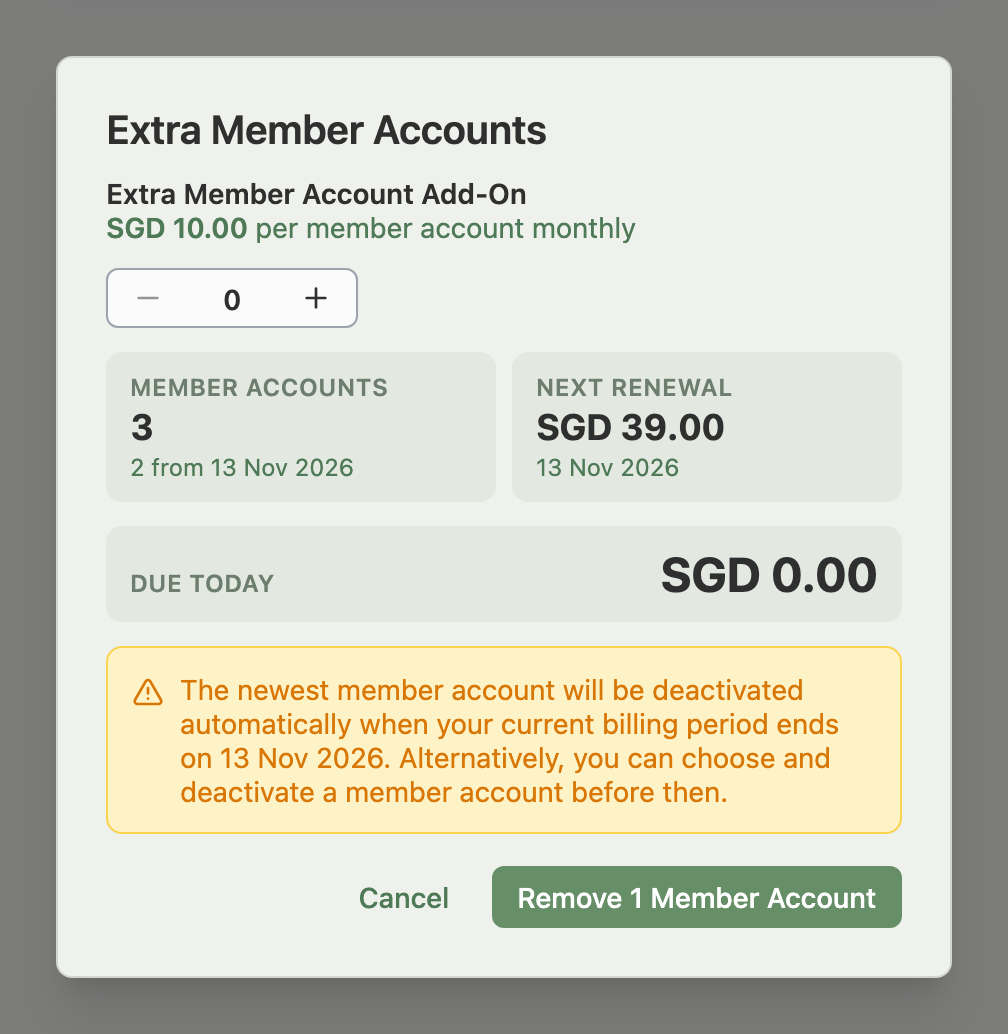
Example: Alex holds 1 extra member account on PRO and has 3 team members. Alex lowers the counter to 0. The window warns that the newest member account will be deactivated automatically when the current billing period ends on 13 Nov 2026, and that Alex can choose and deactivate a member account before then. On that date the newest member is deactivated and the other two keep working. If Alex adds an extra member account later, the deactivated member comes back.
Can I Add Extra Member Accounts When I Choose or Change a Plan?
Yes. The trial checkout, the upgrade and downgrade screens and the plan step in setup show an Extra Member Account Add-On counter when it matters for you: you already hold extra member accounts, you have more team members than the new plan includes, or you set a number yourself. It starts at the number that keeps every team member active on that plan, and you can set it to any number from 0. If you lower it below that number, a warning says how many of the newest team members will be deactivated automatically, and they are deactivated, newest first, when the plan change applies.
- During a free trial: the trial includes the member accounts of the SCALE plan, so your team is not affected until the trial ends. If you lower the Extra Member Account Add-On counter below the number that keeps every team member active on your chosen plan, a warning says the newest member accounts will be deactivated automatically when your trial ends, and that you can choose and deactivate member accounts before then. Extra member accounts you choose at checkout start with your paid plan.
- Upgrade: on card billing, the screen credits the unused days of any extra member accounts you hold beyond the counter. See How to Upgrade Your Plan.
- Downgrade: the counter sets the extra member accounts your lower plan starts with, from the downgrade date. Changes you make in the Extra Member Accounts window while a downgrade waits last only until that date. See How to Downgrade Your Plan.
- Shopify billing: Shopify bills the extra member accounts you choose on the plan screen, and team changes you make after you approve do not change that price.
How Do I Remove Extra Member Accounts?
Click Change in the Add-Ons section, lower the counter, and confirm. Removing them charges and refunds nothing now, and they stay until your next charge date, which the Next Renewal or Next Member Account Charge tile in the window shows. You can go down to 0. The Add-Ons section shows the waiting change with a Cancel Change button, and the window offers a button that keeps your current number, such as Keep 2 Member Accounts.
If you are billed through Shopify, a removal applies when your current Shopify billing period ends.
What If I Am Billed Through Shopify?
Each change goes through Shopify. Click Continue to Shopify, approve the change there, and you return to Billing, where your extra member accounts update when Shopify applies the change.
A change waits while another change is waiting to take effect: a plan change, or a change to your SKU packs. The window tells you to make your change after that one starts.
Troubleshooting
My extra member account payment failed. A red banner on the Dashboard and the Billing page, and a sidebar tile about extra member accounts at risk, say Indexync couldn't charge your card for them. Click Make Payment to pay with a working card, or Update Card to change the card first. If SKU packs or Extra Orders have also failed, the Dashboard and Billing page show one banner with a row for each add-on, and each row has its own Make Payment; Update Card appears once. See Payment Methods and Troubleshooting.
- While the charge is unpaid: your extra member accounts and team keep working, but you cannot add more extra member accounts or packs until you pay.
- If it keeps failing: Indexync removes your extra member accounts, and team members beyond your plan's member accounts are deactivated. A banner tells you, and you can add them again at any time. They are prepaid, so you owe nothing for the removed charge.
I cannot add extra member accounts because my plan payment is overdue. Pay your plan first, then add them.
I see an error about a purchase in progress. Another payment on your account is still being processed. Try again in a few minutes.
I cannot find Add Member Accounts. The Extra Member Accounts row appears only for the workspace owner on LITE, PRO and SCALE, and not during a free trial. A team member cannot open Billing.
My card was charged but my extra member accounts did not arrive. Contact support and they will add them or refund the charge.
The price won't load. Use Reload Price to try again.
FAQ
Does my main account need a member account?
No. Your login as the workspace owner is your main account, and it always has access. Member accounts are for team members you invite.
Can I add extra member accounts on the FREE plan or during my free trial?
No. They are available on LITE, PRO and SCALE. If you paid for a plan during your trial, you chose your extra member accounts at checkout and they start with the plan.
What happens to my extra member accounts if I downgrade or cancel?
On a downgrade to a lower paid plan, the plan screen asks how many extra member accounts you want. If you move to FREE, they end and your team members are deactivated, because FREE includes no member accounts.
Is there a limit on how many extra member accounts I can buy?
No. Each one lets one more team member sign in for SGD 10 a month.
Related Articles
- How Many Member Accounts Does My Plan Include?
- Inviting and Managing Team Members
- Roles and Permissions
- How Do I Get More SKUs Without Upgrading My Plan?
- How to Upgrade Your Plan
- How to Downgrade Your Plan
- Payment Methods and Troubleshooting
Need More Help?
Visit our Feedback form, WhatsApp us, or email hello@indexync.com.